
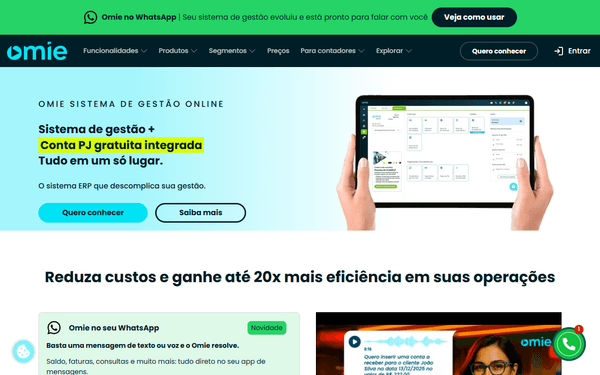
Omie ERP MCP Server
Manage your Omie ERP data via API — list clients, products, sales orders, financial accounts, and inventory directly from any AI agent.
Vinkius AI Gateway supports streamable HTTP and SSE.
Works with every AI agent you already use
…and any MCP-compatible client









Omie ERP MCP Server: see your AI Agent in action
Built-in capabilities (16)
create_client
You must provide at minimum the business name (razao_social) and CNPJ/CPF. Optional fields include trade name, address, contacts, email, phone, payment terms, and credit limits. The response includes the newly created client code which can be used for future references. Data must be provided as a JSON object matching Omie's client schema. Create a new client (customer/supplier) in Omie ERP
create_product
You must provide at minimum the product code (codigo_produto) and description. Optional fields include NCM, unit, cost price, sale price, stock quantity, and tax configuration. The response includes the newly created product details. Data must be provided as a JSON object matching Omie's product schema. Create a new product in Omie ERP
create_sales_order
You must provide the client code (codigo_cliente) and at least one line item with product code, quantity, and price. Optional fields include discounts, taxes, shipping info, and payment terms. The response includes the newly created order code. Data must be provided as JSON matching Omie's order schema. Create a new sales order (pedido de venda) in Omie ERP
get_client
Use the client_id (codigo_cliente) obtained from list_clients to inspect full client details. This is useful for verifying client data before creating orders or invoices. Get detailed information about a specific client
get_product
Use the product_code (codigo_produto) obtained from list_products to inspect full product details. This is useful for verifying product data before creating orders. Get detailed information about a specific product
get_sales_order
Use the order_id (codigo_pedido) obtained from list_sales_orders to inspect full order details. This is useful for verifying order data before invoicing. Get detailed information about a specific sales order
get_stock_summary
Use the product_code (codigo_produto) obtained from list_products to inspect stock details. This helps determine if a product is available for sale or needs reordering. Get stock summary for a specific product
list_accounts_payable
Each entry includes supplier, due date, amount, status (open, paid, overdue), and payment method. You can optionally specify page number and records per page. Use this to monitor outgoing payments and identify bills that are due or overdue. List all accounts payable (contas a pagar) in Omie ERP
list_accounts_receivable
Each entry includes client, due date, amount, status (open, paid, overdue), and payment method. You can optionally specify page number and records per page. Use this to monitor incoming payments and identify overdue invoices that need follow-up. List all accounts receivable (contas a receber) in Omie ERP
list_bank_accounts
Each account includes bank name, agency, account number, and current balance. Use this to verify which bank accounts are available for financial transactions and reconciliations. List all bank accounts (contas correntes) configured in Omie ERP
list_clients
Each client includes business name (razao_social), trade name (nome_fantasia), CNPJ/CPF, contact information, address, and client code. You can optionally specify page number and records per page (default: 50). Use this to browse your client database or find a specific client by name or document. List all clients (customers, suppliers) in Omie ERP
list_products
You can optionally specify page number and records per page (default: 50). Use this to browse your product catalog or find a specific product by code or description. List all products and services in Omie ERP
list_sales_orders
You can optionally specify page number and records per page. Use this to browse your sales pipeline or find a specific order by number or client. List all sales orders (pedidos de venda) in Omie ERP
list_services
Services are non-physical offerings sold to clients (consulting, maintenance, etc.). You can optionally specify page number and records per page. Use this to browse your service catalog. List all services (serviços) registered in Omie ERP
list_stock
Each entry includes product code, description, quantity in stock, minimum stock level, and warehouse location. You can optionally specify page number and records per page. Use this to monitor inventory levels and identify products that need reordering. List stock/inventory levels for all products in Omie ERP
update_client
You must provide the client_id (codigo_cliente) and the fields to update. Only the fields provided in client_data will be updated. This is useful for correcting client information, updating addresses, or changing payment terms. The client_id must exist in the system. Update an existing client in Omie ERP
What this connector unlocks
Connect your Omie ERP account to any AI agent and take full control of your business management workflows through natural conversation.
What you can do
- Client Management — List, create, update, and inspect clients (customers, suppliers) with full contact and tax information
- Product Catalog — Browse products and services, check details, create new items, and monitor stock levels
- Sales Orders — List, create, and inspect sales orders with line items, pricing, and payment terms
- Financial Monitoring — Track accounts receivable and payable to monitor cash flow and identify overdue items
- Bank Accounts — List configured bank accounts and check balances for financial reconciliations
- Inventory Control — Monitor stock levels, check product availability, and identify items needing reorder
- Services Catalog — List and manage non-physical services offered to clients
How it works
1. Subscribe to this server
2. Enter your Omie App Key and App Secret from the developer portal
3. Start managing clients, products, orders, and finances from Claude, Cursor, or any MCP-compatible client
No more navigating the Omie dashboard for every data lookup. Your AI acts as a dedicated ERP assistant.
Who is this for?
- Business Owners — instantly check client details, product availability, and financial status without opening the ERP
- Sales Teams — create and inspect sales orders directly from conversations, verify pricing and stock levels
- Financial Managers — monitor accounts receivable/payable and identify overdue invoices or bills
- Operations Staff — check inventory levels, create clients, and manage product catalog efficiently
Frequently asked questions
Give your AI agents the power of Omie ERP
Access Omie ERP and 2,000+ MCP servers — ready for your agents to use, right now. No glue code. No custom integrations. Just plug Vinkius AI Gateway and let your agents work.
More in this category

FareHarbor
11 toolsManage tour and activity bookings via FareHarbor — list companies, query availability, and handle bookings directly from your AI agent.
Billsby
10 toolsManage subscription billing via Billsby — list customers, subscriptions, and invoices directly from any AI agent.

Airbnb
12 toolsSearch and manage Airbnb listings, experiences, reservations, and pricing directly from any AI agent.
You might also like

Integrate.io (ETL & Data Integration)
6 toolsManage data pipelines via Integrate.io — list pipelines, monitor job runs, and audit data transformations.
ISO New England
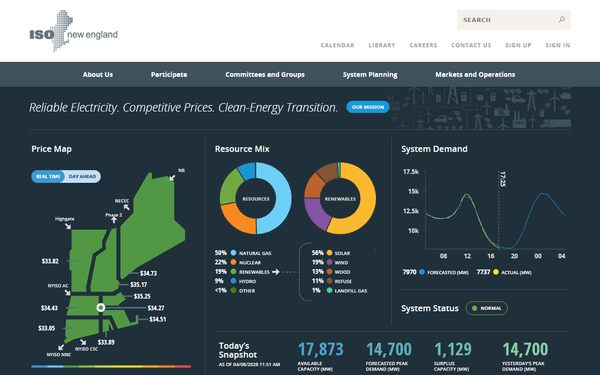
10 toolsAccess real-time and historical energy market data via ISO New England API.

BL.INK
10 toolsManage enterprise links via BL.INK — shorten URLs, track analytics, and manage branded domains directly from any AI agent.