
Adobe Acrobat Sign MCP Server
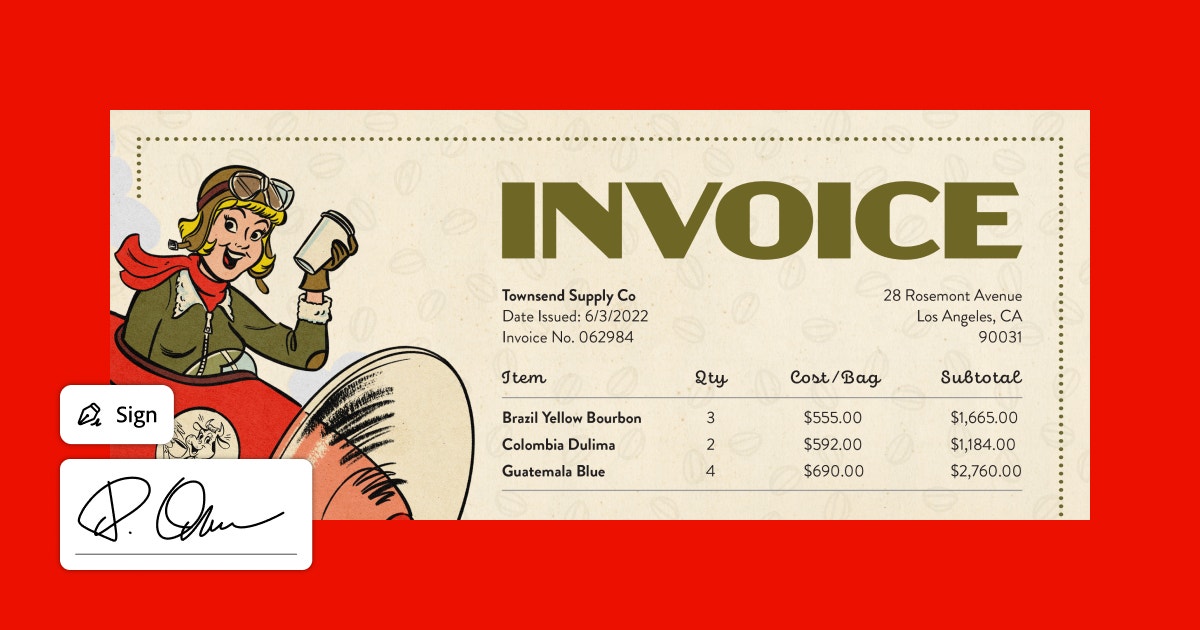
Send, track, and manage e-signatures via Adobe Acrobat Sign — create agreements, check signing status, and access audit trails from any AI agent.
Vinkius AI Gateway soporta streamable HTTP y SSE.
Funciona con todos los agentes de IA que ya usas
…y cualquier cliente compatible con MCP









Adobe Acrobat Sign MCP Server: mira tu AI Agent en acción
Capacidades integradas (10)
adobe_agreement_members
Returns each member email, role (SIGNER/APPROVER/ACCEPTOR/FORM_FILLER/DELEGATE_TO_SIGNER/CC), and their signing status. Use to check who has signed, who is pending, or to review the signing workflow. Get all participants (signers, approvers, CC recipients) in a specific Adobe Sign agreement with their roles and status
adobe_audit_trail
The audit trail is a legally binding record of all actions taken: when the agreement was created, viewed, signed, and by whom (with IP addresses and timestamps). Essential for legal compliance and dispute resolution. Get the legal audit trail for an Adobe Sign agreement — a tamper-proof record of all signing events and actions
adobe_cancel_agreement
This is irreversible — the agreement cannot be re-sent (a new one must be created). An optional comment explains the cancellation reason to all participants. Use when a deal falls through, terms change, or the document needs to be replaced. Cancel an Adobe Sign agreement that is currently out for signature — stops the signing process and notifies all parties
adobe_create_agreement
Create a new Adobe Sign agreement and send it for signature — the core e-signature workflow for contracts, NDAs, and legal documents
adobe_get_agreement
Returns name, status, all participant sets with their roles (SIGNER/APPROVER/CC/DELEGATE), signature type, creation and modification dates, and any external IDs. Use after listing agreements to drill into a specific agreement for complete information. Get complete details of a specific Adobe Sign agreement by ID, including all participants, signing status, and document metadata
adobe_list_agreements
Returns agreement name, current status, signature type (ESIGN/WRITTEN), creator email, and creation/modification dates. Agreement statuses: DRAFT (being built), OUT_FOR_SIGNATURE (awaiting signatures), SIGNED (fully executed), CANCELLED, EXPIRED. Use when the user asks about pending signatures, completed agreements, or document pipeline. List Adobe Acrobat Sign agreements with name, status (DRAFT/OUT_FOR_SIGNATURE/SIGNED/CANCELLED/EXPIRED), sender, and dates
adobe_list_library_documents
Library documents are reusable templates that can be referenced when creating new agreements. Returns document name, ID (for use in adobe_create_agreement fileInfos), sharing mode, and creation date. Use when the user asks "what templates do we have?" or needs a library document ID. List reusable library documents (templates) in Adobe Sign — pre-built agreements, forms, and document templates
adobe_search_agreements
Returns matching agreements with names, statuses, and dates. Use when the user wants to find a specific agreement, look up a contract by name, or search across the document library. Search Adobe Sign agreements by name or keyword to find specific documents across your signature pipeline
adobe_send_reminder
The agreement must be in OUT_FOR_SIGNATURE status. An optional comment is included in the reminder email. Use when the user says "remind them to sign" or "send a reminder for the contract." Send a signing reminder to all pending signers on an Adobe Sign agreement — nudges recipients who have not yet signed
adobe_upload_document
Returns a transientDocumentId that is then used in adobe_create_agreement fileInfos. This is the standard workflow: (1) upload document → (2) create agreement with the transientDocumentId → (3) agreement is sent for signature. Upload a document to Adobe Sign as a transient document — the first step before creating an agreement for signature
Lo que este conector desbloquea
Connect your Adobe Acrobat Sign account to any AI agent and manage your entire e-signature workflow through natural conversation.
What you can do
- Agreements — List, search, create, and cancel e-signature agreements
- Signing Status — Track who has signed, who is pending, and send reminders to signers
- Audit Trails — Access legally binding audit trails for any signed agreement
- Library Documents — Browse reusable templates and library documents
- Document Upload — Upload documents for signature via the transient document workflow
- Participants — View all signers, approvers, and CC recipients with their status
How it works
1. Subscribe and enter your Adobe Sign access token and base URL (from Adobe Admin Console → Acrobat Sign → API)
2. Your AI agent connects to your Adobe Sign account
3. Ask questions like "send this contract for signature" or "has the NDA been signed?"
Who is this for?
- Legal Departments — Send contracts and NDAs for signature, track completion, and maintain audit trails
- HR Teams — Manage offer letters, onboarding documents, and policy acknowledgments
- Procurement — Get vendor agreements signed quickly and maintain compliance records
Preguntas frecuentes
Dale a tus agentes de IA el poder de Adobe Acrobat Sign
Accede a Adobe Acrobat Sign y a más de 2.000 servidores MCP — listos para que tus agentes los usen, ahora mismo. Sin código pegamento. Sin integraciones personalizadas. Solo conecta el Vinkius AI Gateway y deja que tus agentes trabajen.
Más en esta categoría
SEC EDGAR Filings — 10-K, 10-Q, 8-K, Insider Trades & Full-Text Search
6 herramientasAccess all SEC filings: 10-K annual reports, 10-Q quarterly reports, 8-K material event disclosures, Form 4 insider trading data, and full-text search across every document ever filed on EDGAR. Filter by company, form type, and date range.

SAP S/4HANA
9 herramientasManage purchase orders, business partners, inventory, and financial postings on SAP S/4HANA — the intelligent ERP.

Shopify
12 herramientasManage your Shopify store via AI — list products, process orders, search customers, track inventory, and manage discounts from any agent.
También podría gustarte

HelloAsso
11 herramientasAutomate association management via HelloAsso — manage payments, forms, and orders for French non-profits directly from any AI agent.
Eurostat Trade — EU International Commerce
5 herramientasEU international trade data: imports and exports by partner country and product classification (SITC), industrial production index, retail trade volume, and services sector statistics for all 27 EU member states.

Karbon
12 herramientasManage your accounting firm's workflow, contacts, and work items directly via AI agents.