
How to Use 3D AI Studio MCP Server with Claude Desktop using Vinkius
Give Claude Desktop instant access to 12 tools to Bake Textures 3d, Calculate Volume 3d, Convert 3d Format, and more using Vinkius.
 GDPR Free for Subscribers
Claude Desktop is Anthropic's native application for interacting with Claude AI models on macOS and Windows. It was the first consumer application to ship with built-in MCP support, making it the reference implementation for the Model Context Protocol standard.
Ask AI about this MCP Server for Claude Desktop
The 3D AI Studio MCP Server for Claude Desktop is a standout in the Design Creative category, giving your AI agent 12 tools to work with, ready to go from day one.
Vinkius delivers Streamable HTTP and SSE to any MCP client
 Gemini
{
"mcpServers": {
"3d-ai-studio": {
// Your Vinkius token. get it at cloud.vinkius.com
"url": "https://edge.vinkius.com/[YOUR_TOKEN_HERE]/mcp"
}
}
}Vinkius Desktop App
The modern way to manage MCP Servers. No config files, no terminal commands. Install 3D AI Studio and every MCP Server in the catalog from a single visual interface.
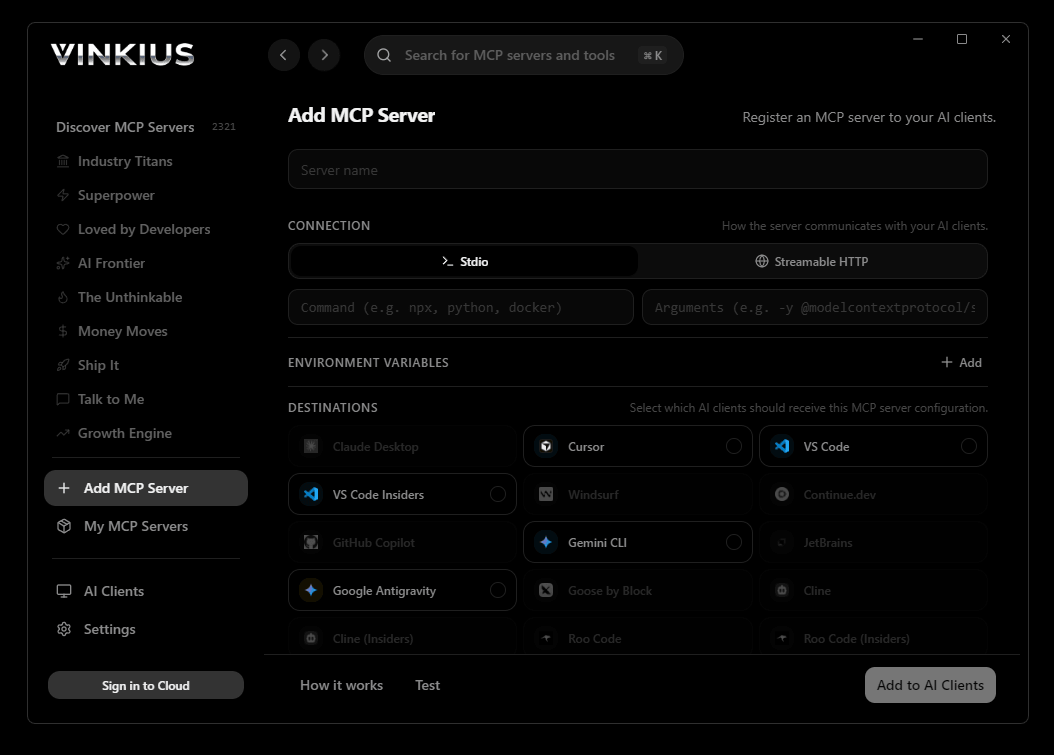

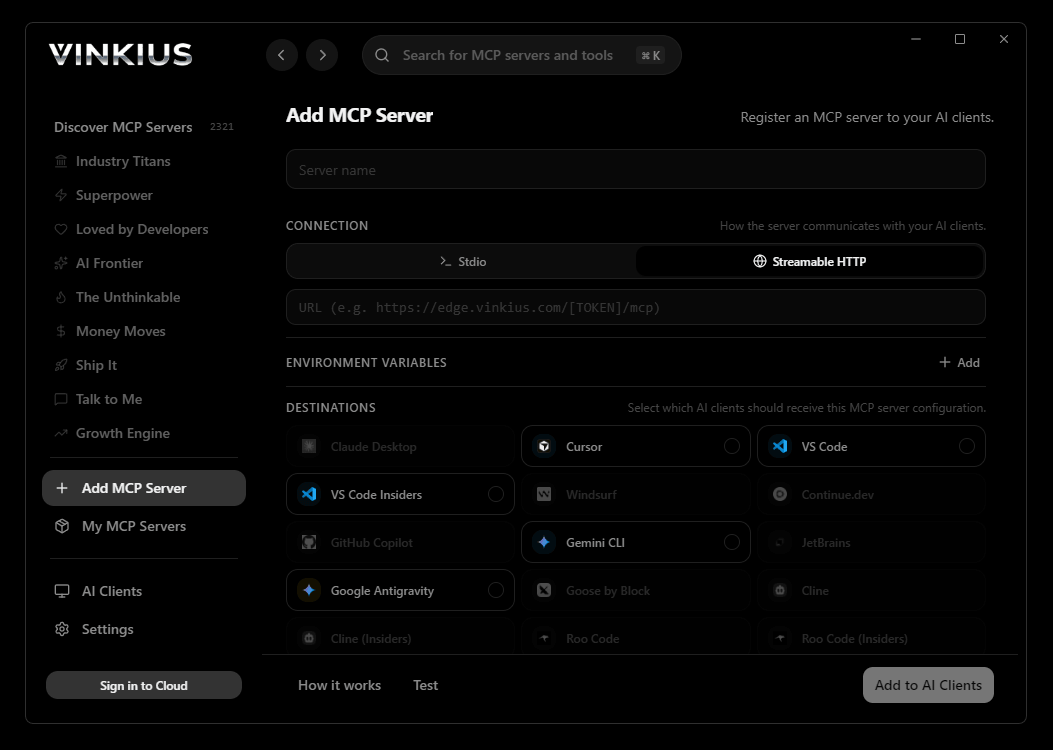
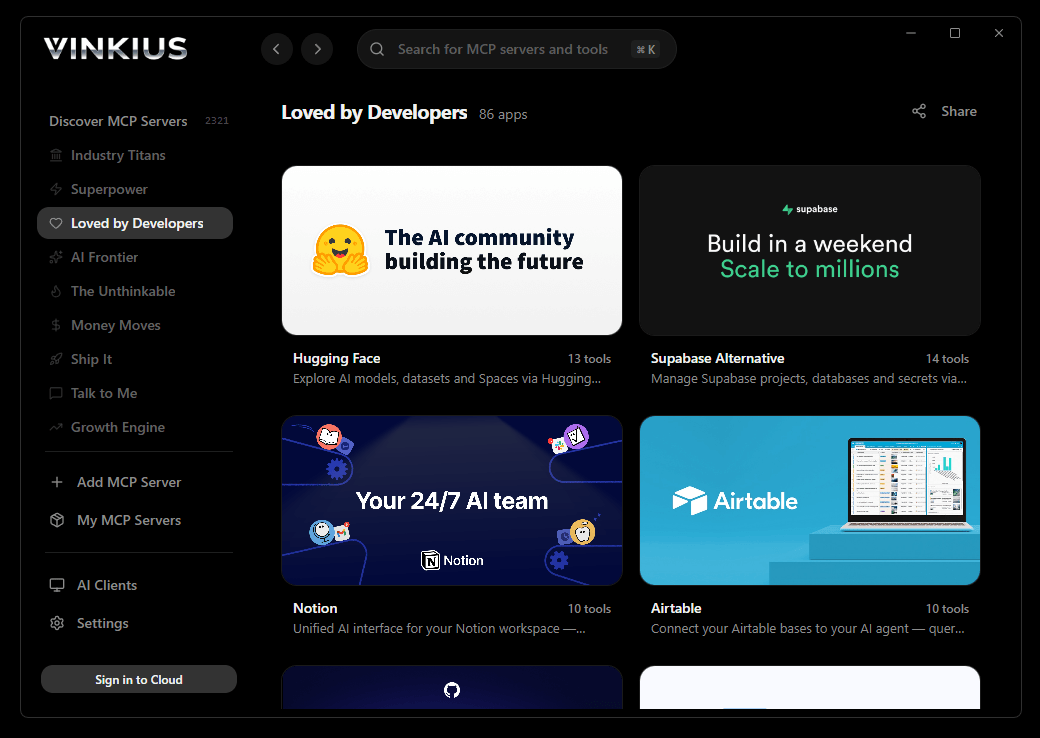
* Every connection is hosted and maintained by Vinkius. We handle the security, updates, and infrastructure so you don't have to write code or manage servers. See our infrastructure
About 3D AI Studio MCP Server
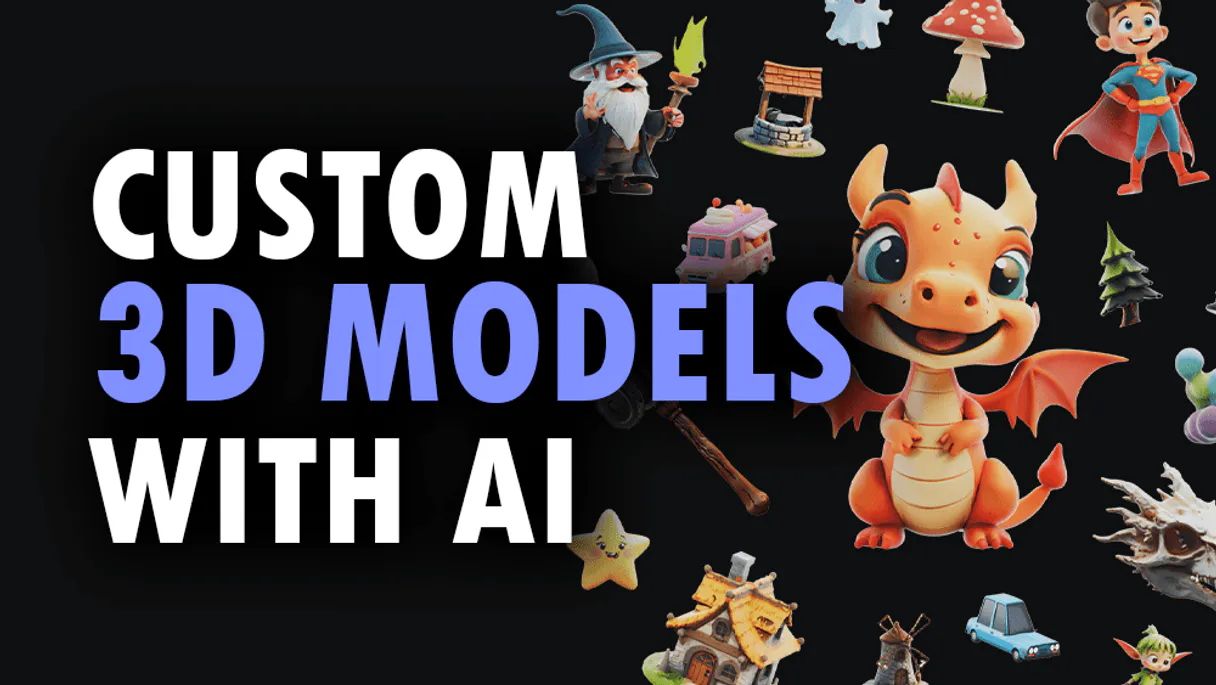
Connect your 3D AI Studio API to any AI agent and take full control of production-quality 3D generation, AI texturing, mesh processing, and rendering through natural conversation.
Claude Desktop was built alongside the Model Context Protocol itself. That means 3D AI Studio does not just work inside Claude. it becomes native infrastructure. When you connect 12 tools through Vinkius, Claude does not receive a list of API endpoints. It internalizes a complete operational model of 3D AI Studio, understands the relationships between tools, reasons through multi-step queries, and delivers answers that would take a human analyst minutes to assemble. This is not a chatbot calling an API. This is an AI that operates your data layer.
What you can do
- Text to 3D. Generate 3D models from text prompts using Hunyuan 3D, TRELLIS.2, and Tripo models
- Image to 3D. Convert any image to a 3D model with multiple AI model options
- Multi-View to 3D. Generate accurate 3D models from multiple reference images
- AI Texturing. Apply AI-powered PBR texturing to existing models using text or image prompts
- Remeshing. Optimize topology with tri or quad mesh remeshing
- Mesh Repair. Fix non-manifold geometry, holes, and inverted normals
- Format Conversion. Convert between GLB, OBJ, FBX, STL, PLY, USDZ, and 3MF formats
- Model Optimization. Reduce polygon count and compress for web and mobile
- 3D Rendering. Generate high-quality images and turntable videos up to 4K
- Mesh Segmentation. Automatically segment 3D mesh parts by semantic components
- Texture Baking. Bake high-poly details onto low-poly game-ready meshes
- Volume Calculator. Calculate volume, surface area, and weight estimates for 3D printing
The 3D AI Studio MCP Server exposes 12 tools through Vinkius. Connect it to Claude Desktop in under two minutes. Fully managed, no infrastructure to provision, no vendor lock-in.
12 tools included
Explore every tool 3D AI Studio exposes to Claude Desktop through Vinkius.
Connect 3D AI Studio to Claude Desktop via MCP
Follow these steps to connect 3D AI Studio to Claude Desktop. The setup takes under two minutes and requires no coding or server hosting.
Get your Vinkius Access Token
Open Claude Desktop Settings
claude_desktop_config.jsonAdd the MCP Server
mcpServers sectionRestart Claude Desktop
Start using 3D AI Studio
Why Use Claude Desktop with the 3D AI Studio MCP Server
Claude Desktop by Anthropic provides unique advantages when paired with 3D AI Studio through the Model Context Protocol.
Anthropic designed Claude Desktop and the MCP protocol in parallel. When 3D AI Studio connects through Vinkius Edge, Claude receives the most complete and stable tool integration available in any consumer AI application
Claude's extended thinking chains multiple 3D AI Studio tool calls in sequence, reasoning through which data to fetch next based on previous results. Complex queries that span 12 tools resolve in a single conversation turn
Vinkius manages the entire 3D AI Studio infrastructure: authentication, rate limiting, and connection stability. Claude Desktop handles the intelligence layer. You handle the questions
Your Vinkius token stays in a local JSON file on your machine. 3D AI Studio credentials live in Vinkius's encrypted vault. Nothing is stored in Claude's servers between sessions
3D AI Studio + Claude Desktop Use Cases
Practical scenarios where Claude Desktop combined with the 3D AI Studio MCP Server delivers measurable value.
Interactive data exploration: ask Claude to query DNS records, look up WHOIS data, and cross-reference results in a single conversation
Ad-hoc security audits: type a domain name and let Claude enumerate subdomains, check DNS history, and flag configuration anomalies. all through natural language
Executive briefings: generate comprehensive domain intelligence reports by asking Claude to compile findings into a formatted summary
Learning and training: new team members can explore API capabilities conversationally without needing to read documentation
Example Prompts for 3D AI Studio in Claude Desktop
Ready-to-use prompts you can give your Claude Desktop agent to start working with 3D AI Studio immediately.
"Generate a 3D model of a medieval castle from text description."
"Apply rusty metal texture to this 3D model: https://example.com/car.glb"
"Repair this mesh for 3D printing and calculate the volume in PLA material."
Troubleshooting 3D AI Studio MCP Server with Claude Desktop
Common issues when connecting 3D AI Studio to Claude Desktop through Vinkius, and how to resolve them.
Server not appearing after restart
~/Library/Application Support/Claude/claude_desktop_config.json (macOS) or %APPDATA%\\Claude\\ (Windows).Authentication error
Tools not showing in chat
3D AI Studio + Claude Desktop FAQ
Common questions about integrating 3D AI Studio MCP Server with Claude Desktop.
How does Claude Desktop discover MCP tools?
claude_desktop_config.json file and connects to each configured MCP server. It calls the tools/list endpoint to fetch the schema for every available tool, then surfaces them as clickable options in the chat interface via the 🔌 icon.What happens if the MCP server is temporarily unavailable?
Can I connect multiple MCP servers simultaneously?
mcpServers section of the config file. Each server appears as a separate tool provider, and Claude can use tools from multiple servers in a single conversation turn.Is there a limit on the number of tools per server?
Does Claude Desktop support Streamable HTTP transport?
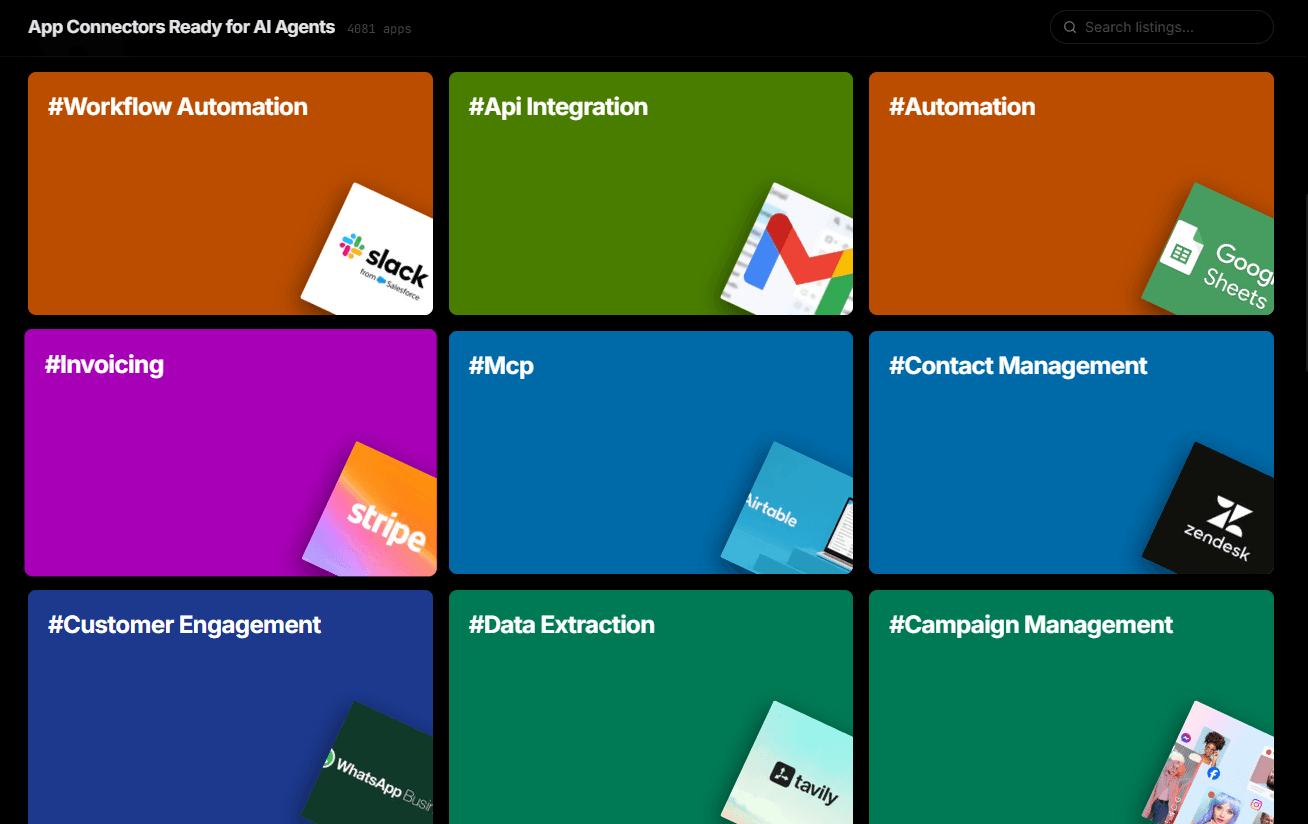
Over 4,000 integrations ready for AI agents
Explore a vast library of pre-built integrations, optimized and ready to deploy.
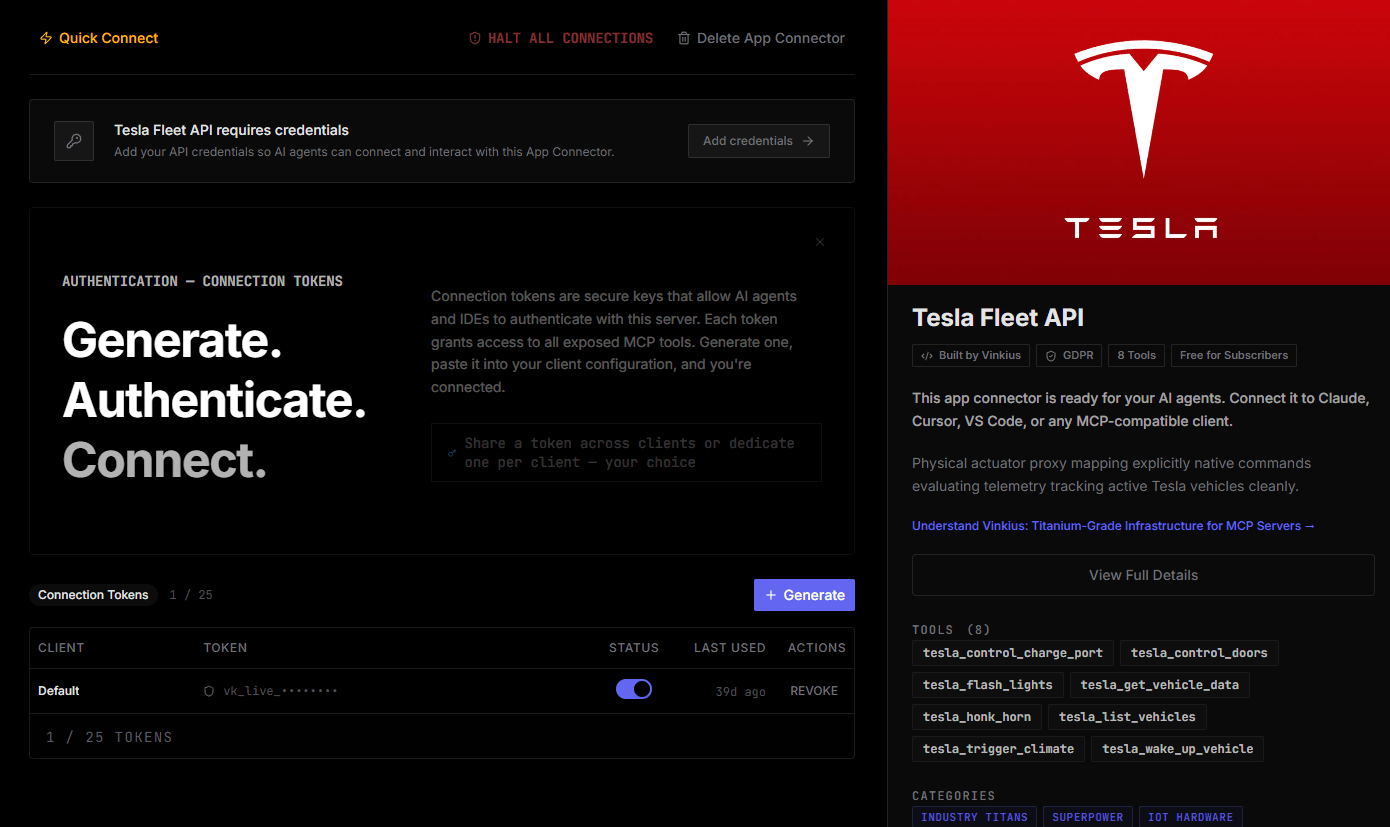
Connect securely in under 30 seconds
Generate tokens to authenticate and link external services in a single step.
Complete visibility into every agent action
Audit live requests, latency, success rates, and active security compliance policies.
Optimize spending and track token ROI
Analyze real-time token consumption and cost metrics detailed by connection.
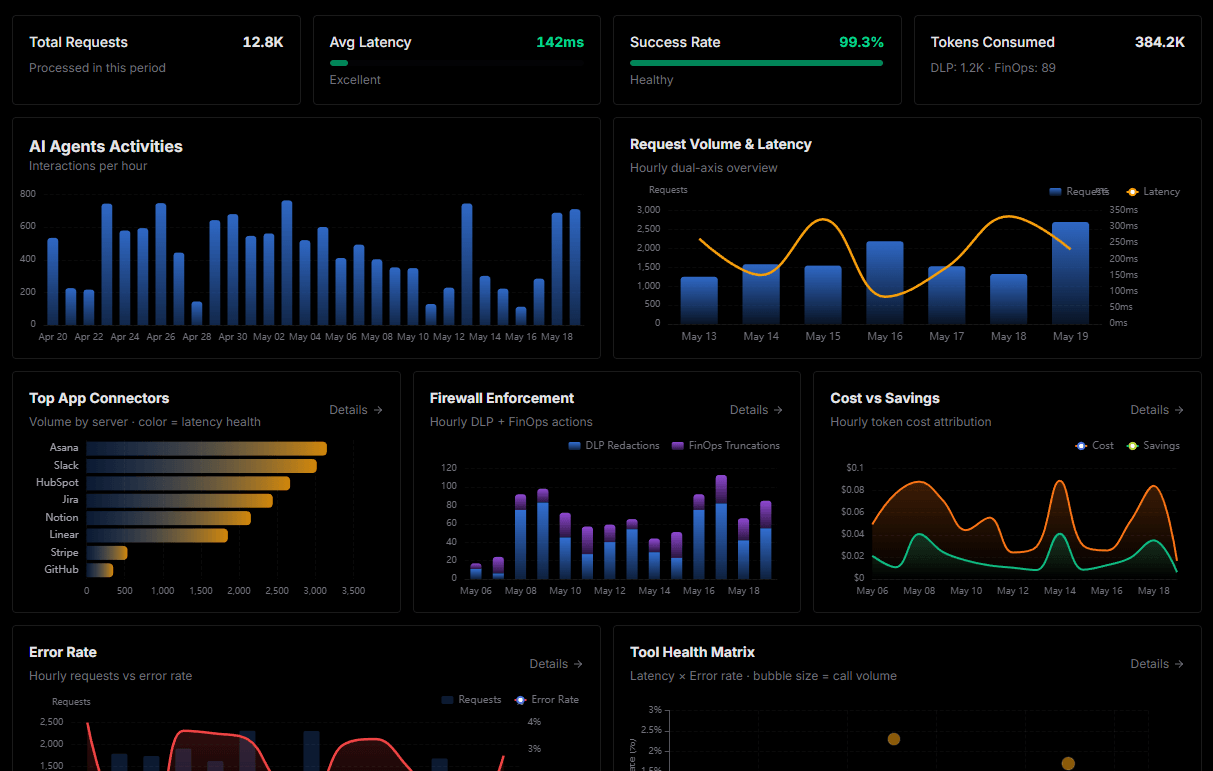
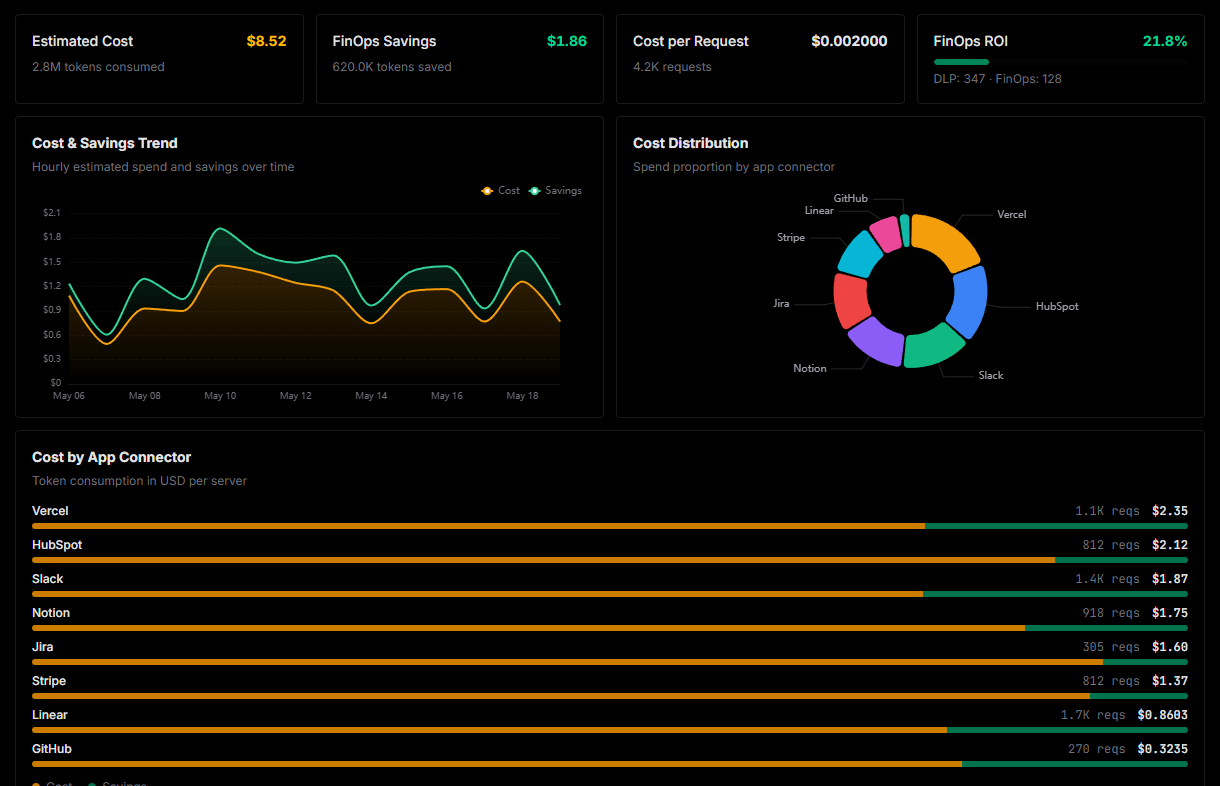
Explore our live AI Agents Analytics dashboard to see it all working
This dashboard is included when you connect 3D AI Studio using Vinkius. You will never be left in the dark about what your AI agents are doing with your tools.
Connect 3D AI Studio with your favorite client
Also available for these clients and frameworks:
Connect 3D AI Studio to Claude Desktop
One click to install, 12 tools ready instantly. Fully managed, no API key setup required.