
How to Use 3D AI Studio MCP Server with Cursor using Vinkius
Give Cursor instant access to 12 tools to Bake Textures 3d, Calculate Volume 3d, Convert 3d Format, and more using Vinkius.
 GDPR Free for Subscribers
Cursor is an AI-first code editor built on VS Code that integrates LLM-powered coding assistance directly into the development workflow. Its Agent mode enables autonomous multi-step coding tasks, and MCP support lets agents access external data sources and APIs during code generation.
Ask AI about this MCP Server for Cursor
The 3D AI Studio MCP Server for Cursor is a standout in the Design Creative category, giving your AI agent 12 tools to work with, ready to go from day one.
Vinkius delivers Streamable HTTP and SSE to any MCP client
 Gemini
{
"mcpServers": {
"3d-ai-studio": {
"url": "https://edge.vinkius.com/[YOUR_TOKEN_HERE]/mcp"
}
}
}Vinkius Desktop App
The modern way to manage MCP Servers. No config files, no terminal commands. Install 3D AI Studio and every MCP Server in the catalog from a single visual interface.
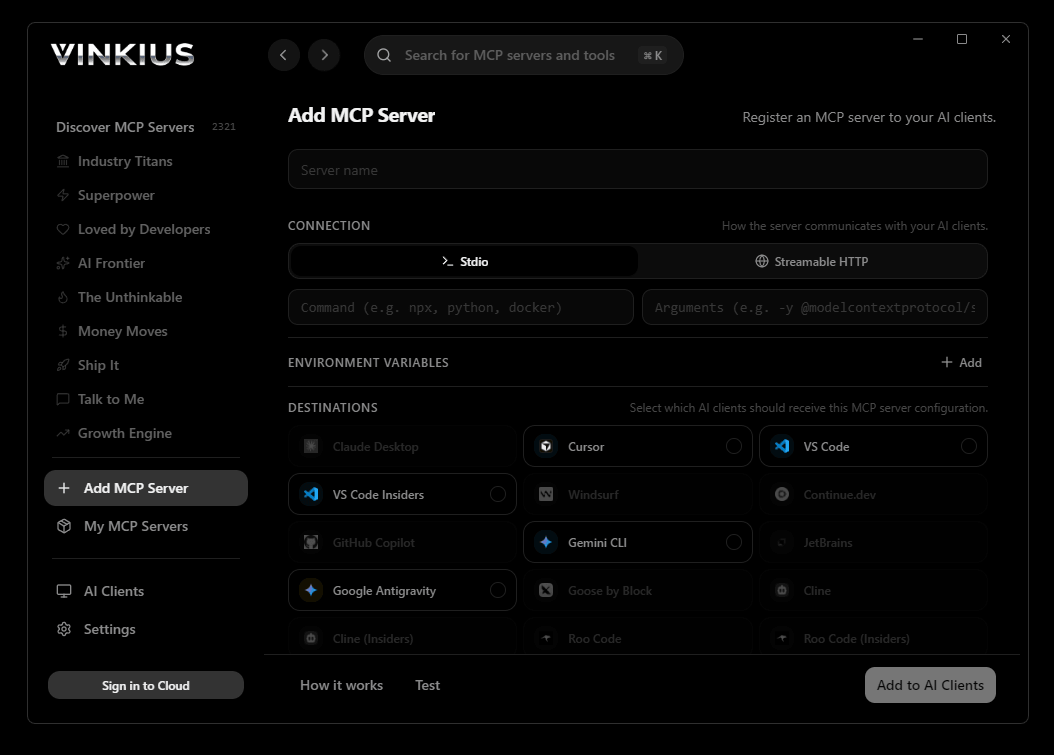

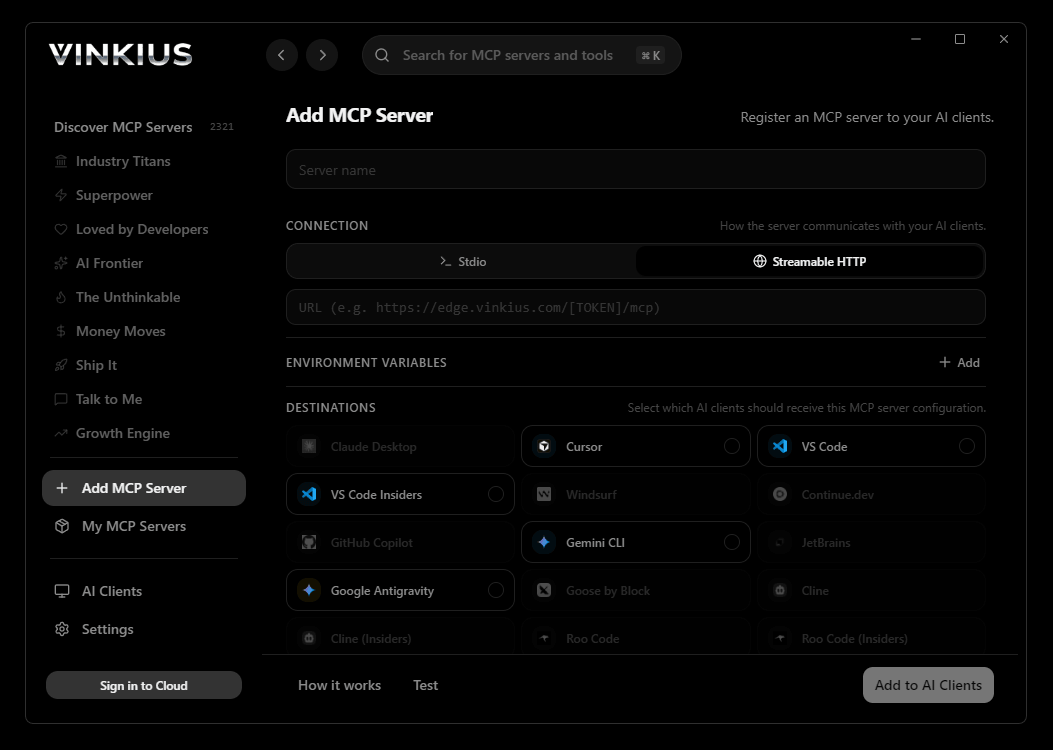
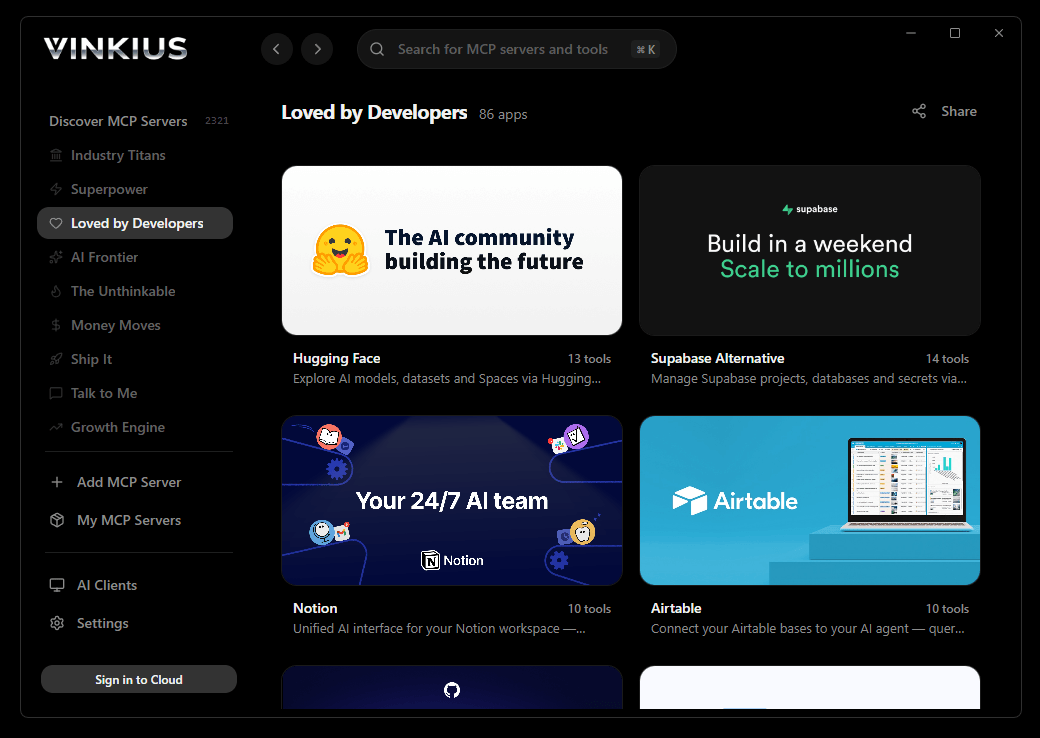
* Every connection is hosted and maintained by Vinkius. We handle the security, updates, and infrastructure so you don't have to write code or manage servers. See our infrastructure
About 3D AI Studio MCP Server
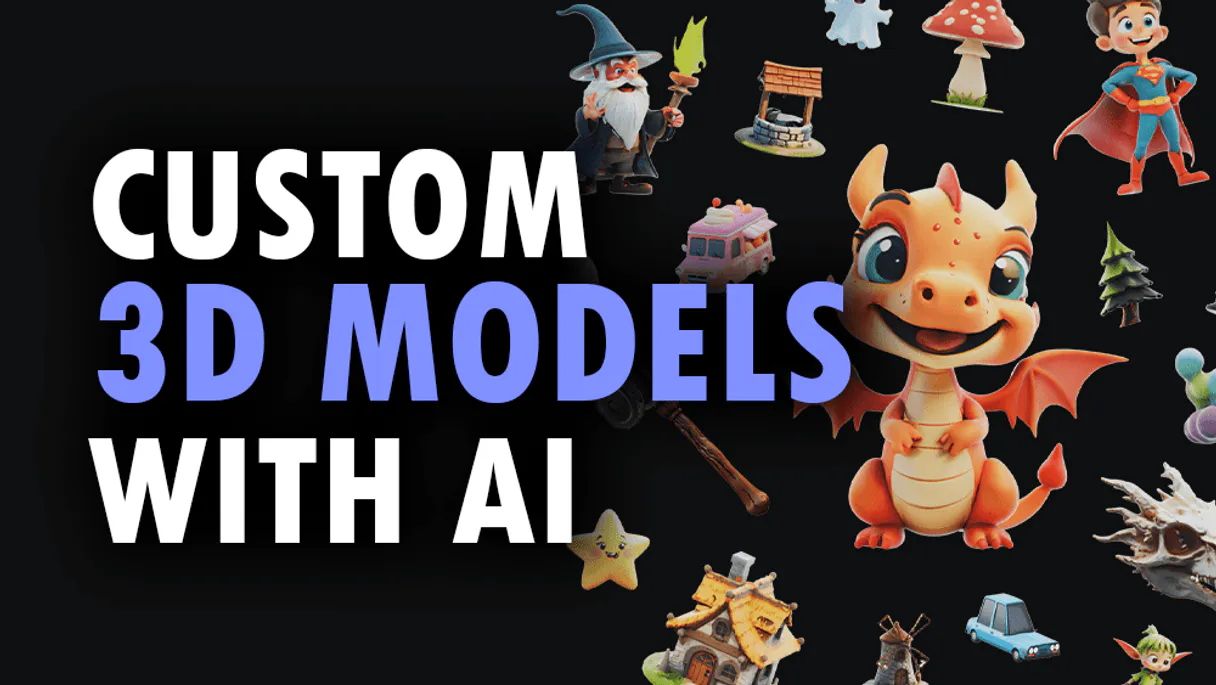
Connect your 3D AI Studio API to any AI agent and take full control of production-quality 3D generation, AI texturing, mesh processing, and rendering through natural conversation.
Cursor does not treat 3D AI Studio as an external service. It treats it as part of your codebase. In Agent mode, Cursor reads your files, understands your architecture, and calls 12 tools from 3D AI Studio as naturally as it reads a local module. The result is not a conversation about data. It is code that already contains the data. Cursor fetches, processes, and writes in a single agentic loop where 3D AI Studio is indistinguishable from a local dependency.
What you can do
- Text to 3D. Generate 3D models from text prompts using Hunyuan 3D, TRELLIS.2, and Tripo models
- Image to 3D. Convert any image to a 3D model with multiple AI model options
- Multi-View to 3D. Generate accurate 3D models from multiple reference images
- AI Texturing. Apply AI-powered PBR texturing to existing models using text or image prompts
- Remeshing. Optimize topology with tri or quad mesh remeshing
- Mesh Repair. Fix non-manifold geometry, holes, and inverted normals
- Format Conversion. Convert between GLB, OBJ, FBX, STL, PLY, USDZ, and 3MF formats
- Model Optimization. Reduce polygon count and compress for web and mobile
- 3D Rendering. Generate high-quality images and turntable videos up to 4K
- Mesh Segmentation. Automatically segment 3D mesh parts by semantic components
- Texture Baking. Bake high-poly details onto low-poly game-ready meshes
- Volume Calculator. Calculate volume, surface area, and weight estimates for 3D printing
The 3D AI Studio MCP Server exposes 12 tools through Vinkius. Connect it to Cursor in under two minutes. Fully managed, no infrastructure to provision, no vendor lock-in.
12 tools included
Explore every tool 3D AI Studio exposes to Cursor through Vinkius.
Connect 3D AI Studio to Cursor via MCP
Follow these steps to connect 3D AI Studio to Cursor. The setup takes under two minutes and requires no coding or server hosting.
Get your Vinkius Access Token
Open MCP Settings
Cmd+Shift+P (macOS) or Ctrl+Shift+P (Windows/Linux) → search "MCP Settings"Add the server config
mcp.json file that opensSave the file
Start using 3D AI Studio
Why Use Cursor with the 3D AI Studio MCP Server
Cursor AI Code Editor provides unique advantages when paired with 3D AI Studio through the Model Context Protocol.
Cursor's Agent mode calls 3D AI Studio tools through Vinkius and writes production code from the response in the same step. The output is not a chat message. It is a file in your project
Composer generates complete modules using live 3D AI Studio data: typed models from actual API schemas, test fixtures from real payloads, handlers from production response structures
Project-level `.cursor/mcp.json` means every developer on the team connects to 3D AI Studio through Vinkius automatically. One config file, committed to the repository, gives the entire team access to 12 tools
Vinkius Edge handles 3D AI Studio authentication and connection management. Cursor handles code generation. The developer handles intent. Each layer does exactly one thing
3D AI Studio + Cursor Use Cases
Practical scenarios where Cursor combined with the 3D AI Studio MCP Server delivers measurable value.
Code generation with live data: ask Cursor to generate a security report module using live DNS and subdomain data fetched through MCP
Automated documentation: have Cursor query your API's tool schemas and generate TypeScript interfaces or OpenAPI specs automatically
Infrastructure-as-code: Cursor can fetch domain configurations and generate corresponding Terraform or CloudFormation templates
Test scaffolding: ask Cursor to pull real API responses via MCP and generate unit test fixtures from actual data
Example Prompts for 3D AI Studio in Cursor
Ready-to-use prompts you can give your Cursor agent to start working with 3D AI Studio immediately.
"Generate a 3D model of a medieval castle from text description."
"Apply rusty metal texture to this 3D model: https://example.com/car.glb"
"Repair this mesh for 3D printing and calculate the volume in PLA material."
Troubleshooting 3D AI Studio MCP Server with Cursor
Common issues when connecting 3D AI Studio to Cursor through Vinkius, and how to resolve them.
Tools not appearing in Cursor
Server shows as disconnected
3D AI Studio + Cursor FAQ
Common questions about integrating 3D AI Studio MCP Server with Cursor.
What is Agent mode and why does it matter for MCP?
Where does Cursor store MCP configuration?
mcp.json file. You can configure servers at the project level (.cursor/mcp.json in your project root) or globally (~/.cursor/mcp.json). Project-level configs take precedence.Can Cursor use MCP tools in inline edits?
How do I verify MCP tools are loaded?
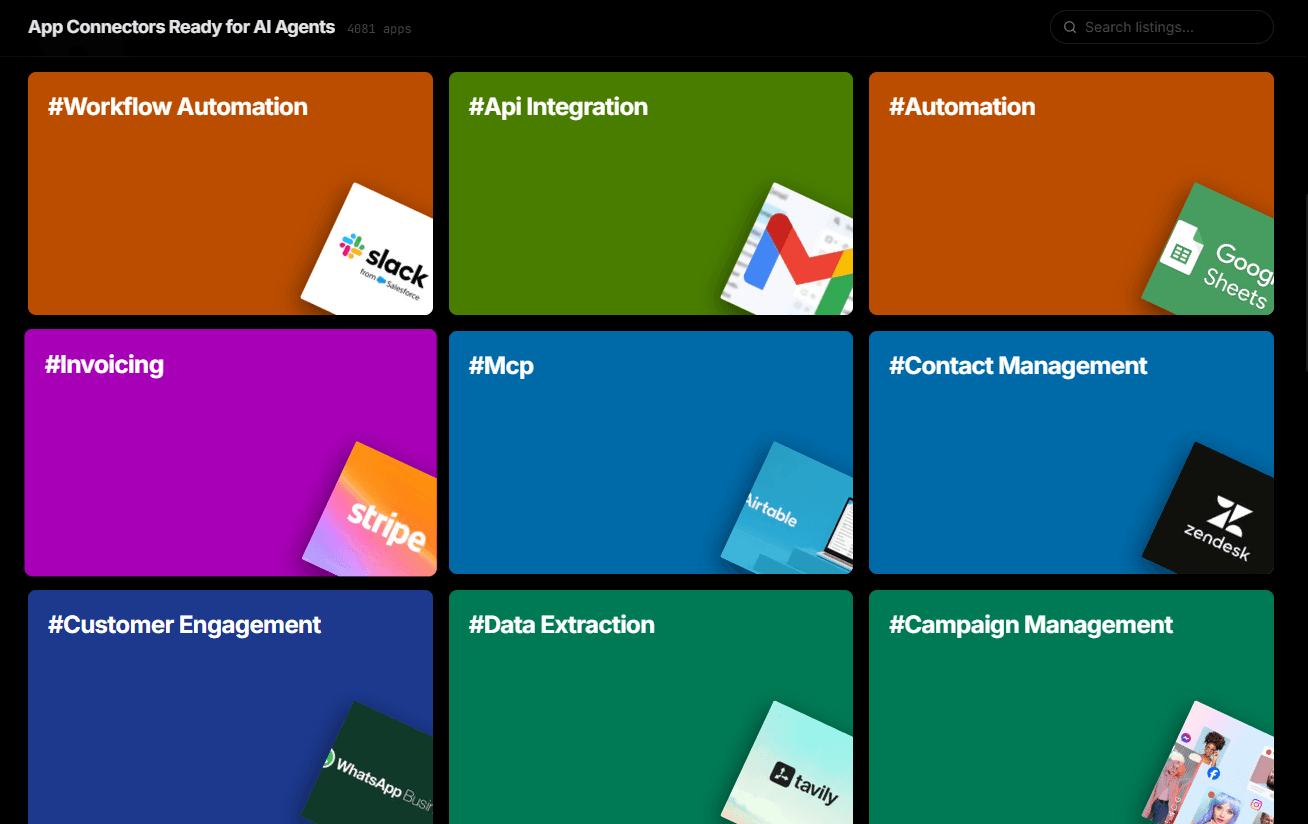
Over 4,000 integrations ready for AI agents
Explore a vast library of pre-built integrations, optimized and ready to deploy.
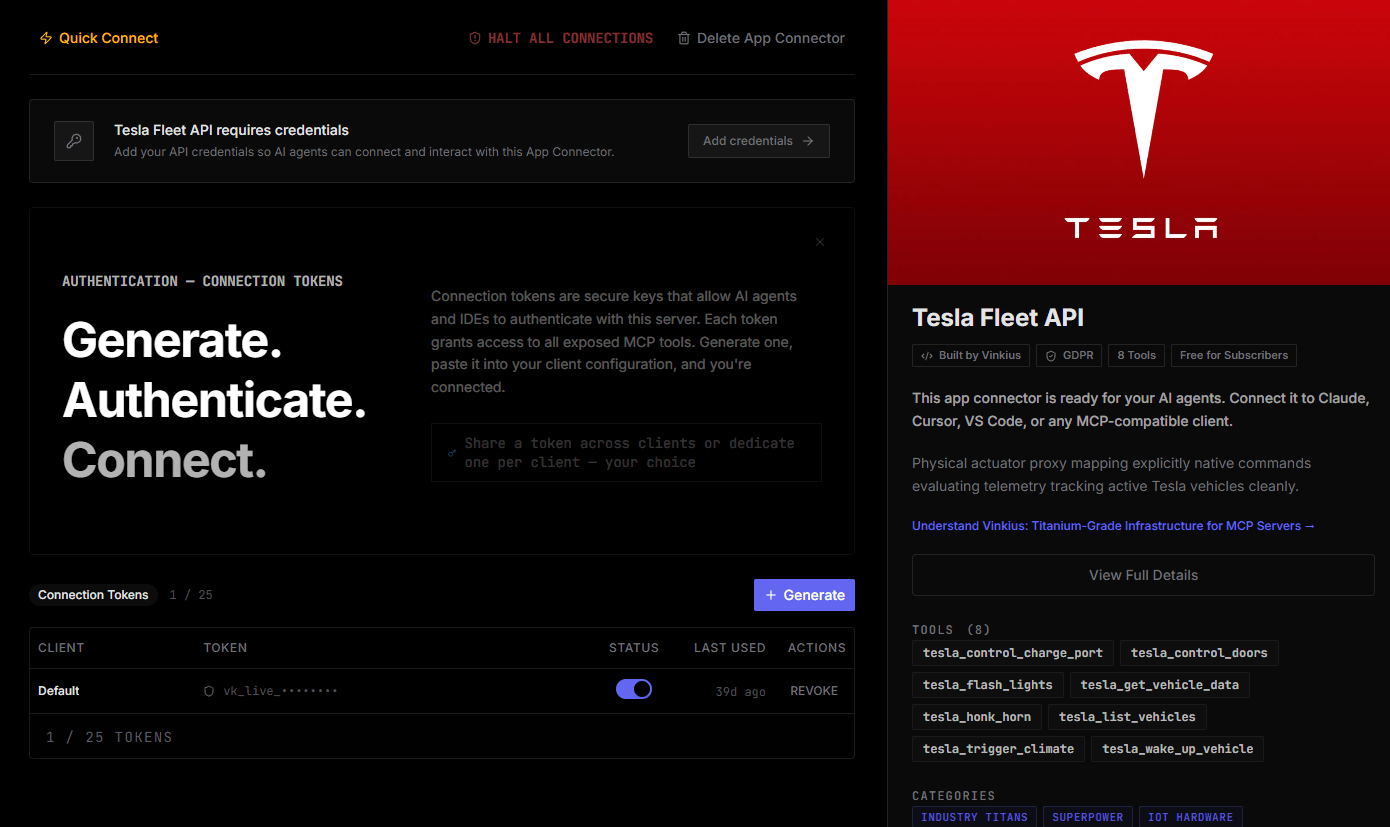
Connect securely in under 30 seconds
Generate tokens to authenticate and link external services in a single step.
Complete visibility into every agent action
Audit live requests, latency, success rates, and active security compliance policies.
Optimize spending and track token ROI
Analyze real-time token consumption and cost metrics detailed by connection.
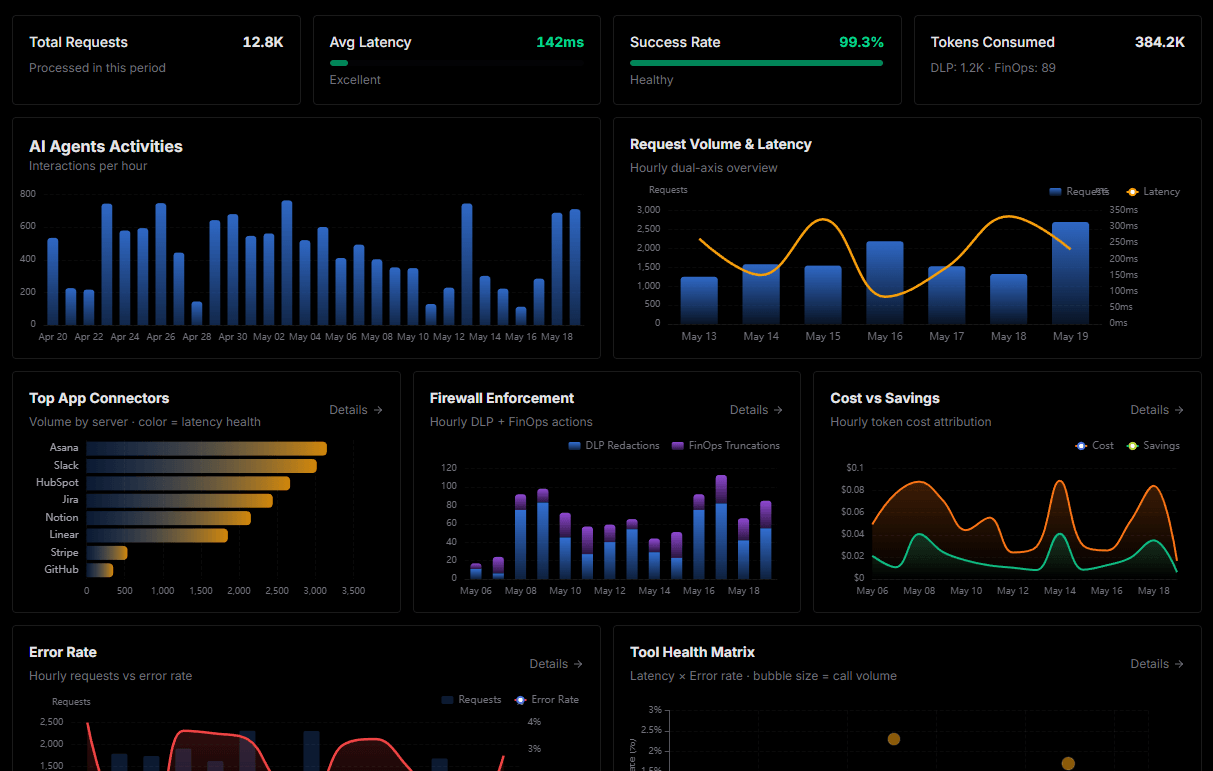
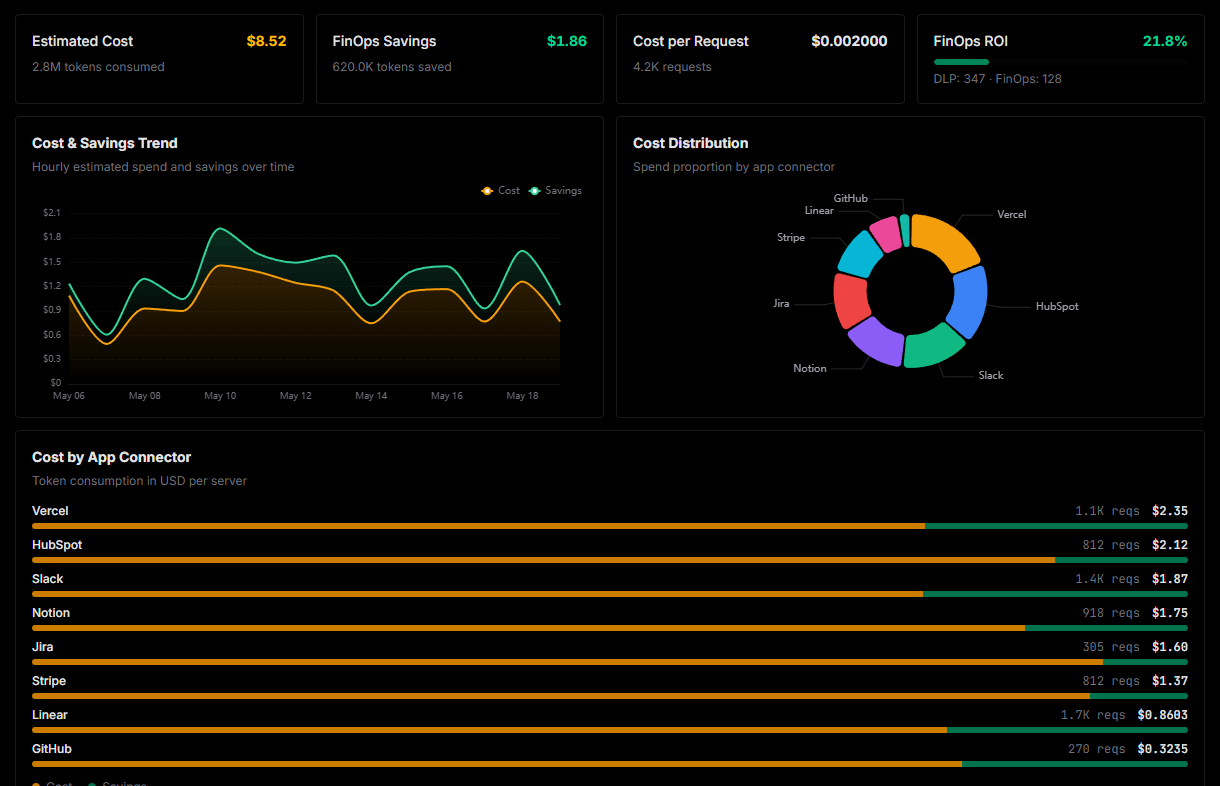
Explore our live AI Agents Analytics dashboard to see it all working
This dashboard is included when you connect 3D AI Studio using Vinkius. You will never be left in the dark about what your AI agents are doing with your tools.
Connect 3D AI Studio with your favorite client
Also available for these clients and frameworks:
Connect 3D AI Studio to Cursor
One click to install, 12 tools ready instantly. Fully managed, no API key setup required.