
Adobe Acrobat Sign MCP, Ready to Go
Use AI agents to manage your Adobe Acrobat Sign workflow. Track statuses, send reminders, and pull audit trails with your favorite AI client.
No credit card required. Experience the power of this integration risk-free.
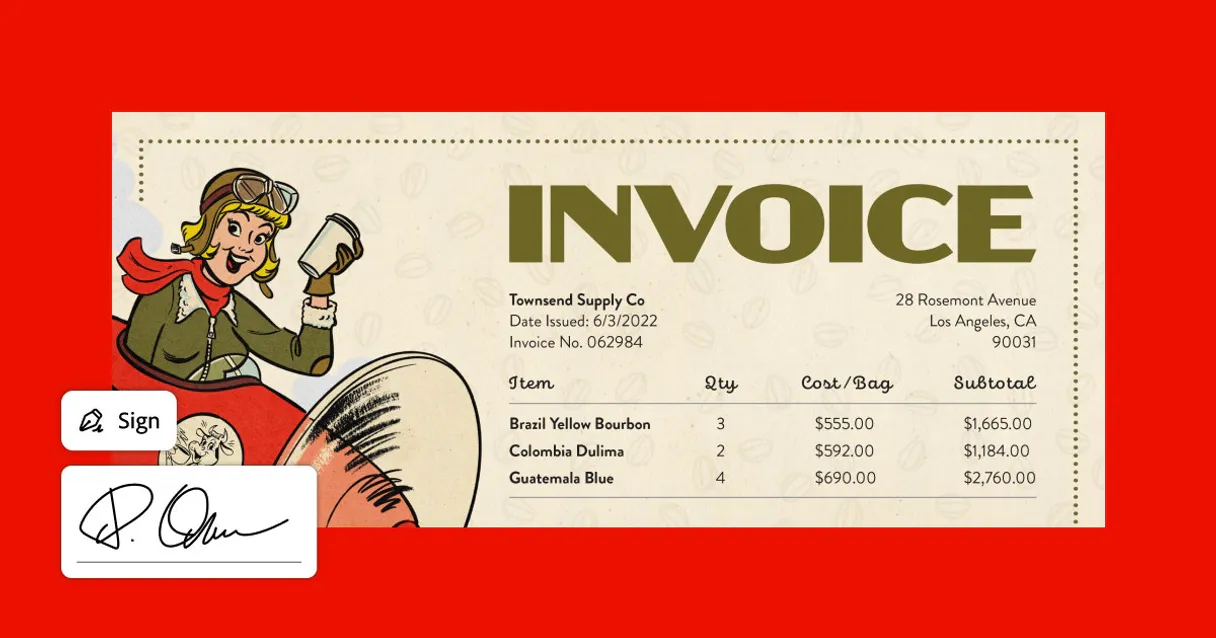
Manage and track e-signatures for legal and HR contracts.
Works with every AI agent you already use
…and any MCP-compatible client









How fast is the Adobe Acrobat Sign Connector?
Average time for the server to become ready for requests over the last 14 days, measured until the initialize / tools/list handshake completes. Metrics are updated daily between 00:00 and 04:00 UTC. Create a free account, use this Connector on Vinkius Cloud, and connect it to your AI agent in seconds.
Waiting for input…
What AI agents can do with Adobe Acrobat Sign MCP 10 Tools for E-Signature Management
Use these tools to manage your entire e-signature pipeline through your AI agent.
Adobe agreement members
See who is supposed to sign and who already has. It helps you spot exactly where a workflow is stuck.
Adobe audit trail
Get the tamper-proof record of every action taken on a document. This is a must-have for legal compliance.
Adobe cancel agreement
Stop a signature process immediately. Use this if a deal falls through or terms need a total rewrite.
Adobe create agreement
Send a new document for signature. This is the primary way to start a contract workflow.
Adobe get agreement
Pull every detail for a specific document. Use this to see all participant roles and current statuses.
Adobe list agreements
See your entire pipeline of drafts and signed docs. It gives you a high-level view of what is moving.
Adobe list library documents
Browse your saved templates. This lets you find the right document to use for recurring contracts.
Adobe search agreements
Find a specific contract by keyword or name. It saves you from scrolling through hundreds of files.
Adobe send reminder
Nudge a signer who has not acted yet. You can include a custom comment to tell them why it is urgent.
Adobe upload document
Put a new file into the system as a transient document. This is the first step for any new signature request.
A Connector is a URL. Vinkius runs it: hosting, security, governance, observability.
You're looking at one of 5,800+ managed Connectors. The real value isn't the catalog. It's the control plane that secures, governs, audits, and manages every interaction between your agents and the tools they use.
No Shadow AI
Every agent action is visible, approved, and auditable. Nothing runs outside your governance.
Absolute agent control
Fine-grained permissions for every agent, MCP, and tool. Instantly revoke access and audit every execution.
Cost control per token
Spend broken down to the token, tool, and agent. Budgets and hard limits. No surprise invoices.
Managed & monitored infra
We operate the runtime, authentication, scaling, retries, and monitoring. Your team manages AI, not infrastructure.
Data protection, DLP by design
Sensitive data is filtered before reaching the model. Access is governed so agents receive only the information they're allowed to use.
Token optimization, real savings
Lower AI costs by delivering the right context instead of unnecessary tools. Better accuracy, faster responses, and fewer wasted tokens.
Adobe Acrobat Sign MCP for Automated Legal Contract Tracking
This is for people who handle high-volume paperwork and hate the manual follow-up required to get signatures back from clients, vendors, or employees.
Legal Operations Manager
Checks the status of dozens of NDAs daily and pulls audit trails for finished deals to ensure compliance.
HR Coordinator
Sends out offer letters and onboarding documents, then nudges new hires who haven't completed their paperwork.
Procurement Specialist
Tracks vendor agreements and ensures all parties have signed before moving forward with a purchase.
Frequently Asked Questions
Can I use the Adobe Acrobat Sign MCP to send contracts? +
Yes, it lets you create and send new agreements for signature directly through your AI agent.
How does this Connector help with legal compliance? +
It lets you pull the legally binding audit trail for any signed document instantly, providing a tamper-proof record of every action taken.
Can my agent send reminders to people who haven't signed yet? +
Yes, you can tell your agent to nudge any pending signers with a custom message to speed up the workflow.
Does this Connector work with my existing Adobe Sign account? +
It connects directly to your current account using your existing access tokens, so your data stays where it is.
Can I search for specific agreements by name? +
Yes, you can ask your agent to find any document in your pipeline by name or keyword, saving you from manual searching.
Is it possible to cancel a signature request? +
Yes, you can use it to stop a signature process immediately if a deal falls through or if the terms need to be updated.
How do I get started with Adobe Sign? +
Subscribe, then enter your Adobe Sign access token (from Adobe Admin Console → Acrobat Sign → API → Integration Key). Your AI agent connects instantly to the global v6 API. No code, no complex setup — just connect and start signing.
Can my AI agent send a contract for signature to multiple people? +
Yes. Upload a document, then create an agreement with multiple signers in a specific order. Adobe Sign handles the sequential signing flow — Signer 1 gets notified first, then Signer 2 after completion, and so on. Your agent tracks each signer's progress in real time.
What if a signer hasn't signed yet — can I send a reminder? +
Just tell your agent "send a reminder for the Acme NDA." It sends an email reminder to all pending signers with an optional custom message. No tab-switching, no logging into Adobe Sign — your agent handles it directly from your conversation.
Can I access the legal audit trail for compliance? +
Yes. Every signed agreement has a tamper-proof audit trail showing exactly when it was created, viewed, signed, and by whom — with timestamps and IP addresses. Perfect for legal departments, regulated industries, and any business that needs proof of signing for compliance.
Your AI, connected to everything.








No credit card required · Free tier available












Other Connectors in this category
Confluent Connector
Enable your AI agent to manage Kafka clusters, topics, and environments via the Confluent Cloud API.
DropBox Connector
Manage your DropBox files and folders. Audit storage and sharing via AI.
Microsoft Ads Connector
Connect Microsoft Ads to any AI agent via MCP.
Related Connectors
Qase Connector
Bring Qase test management into your AI workflow. List projects, track test runs, inspect cases, and monitor defects directly from your chat.

Video Storage Calculator Connector
Video Storage Calculator MCP helps you figure out exactly how much disk space you need for video projects. Just tell your AI client the resolution, frame rate, and codec, and it'll give you the numbers. It's perfect for planning storage for everything from 720p web clips to 8K ProRes master files.
Dice Probability Calculator Connector
Calculate exact and simulated probabilities for any dice combination, including sums, face frequencies, and drop mechanics.