
Amplience MCP Server for Cursor 10 tools — connect in under 2 minutes
Cursor is an AI-first code editor built on VS Code that integrates LLM-powered coding assistance directly into the development workflow. Its Agent mode enables autonomous multi-step coding tasks, and MCP support lets agents access external data sources and APIs during code generation.
ASK AI ABOUT THIS MCP SERVER
Vinkius supports streamable HTTP and SSE.
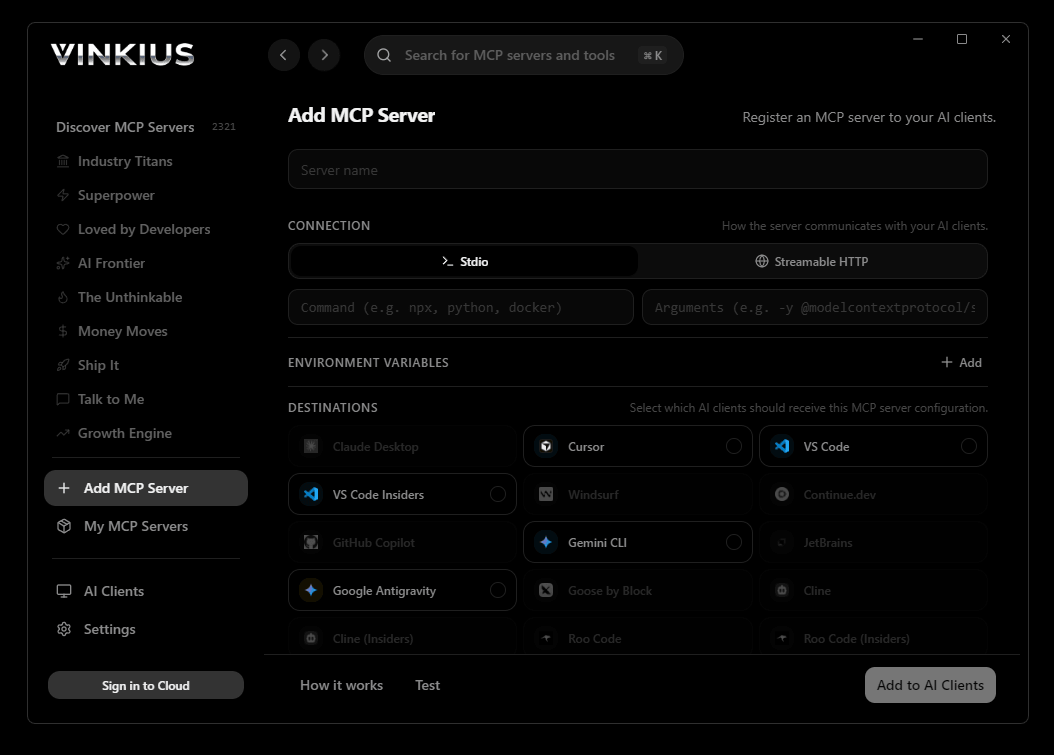
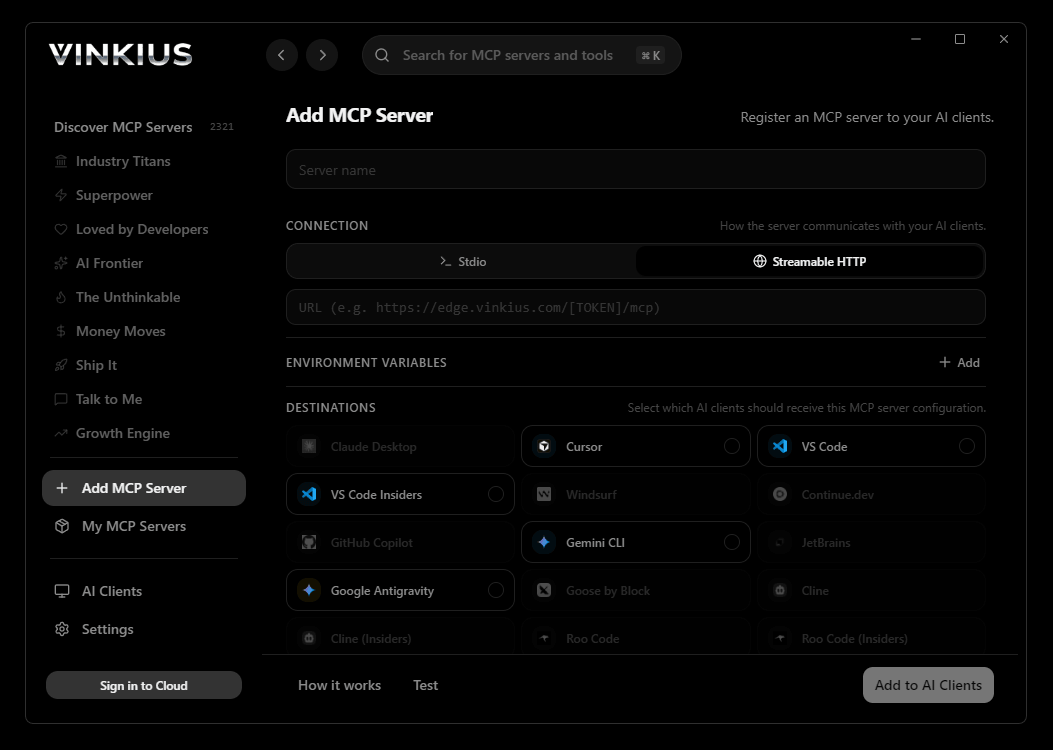
Vinkius Desktop App
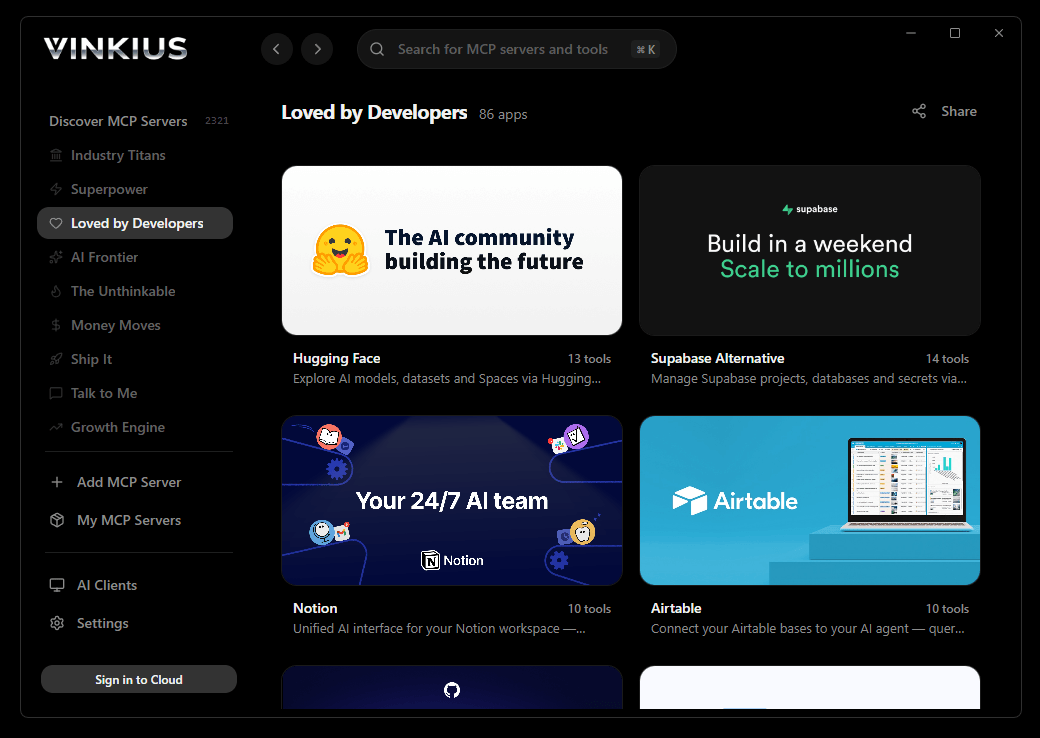
The modern way to manage MCP Servers — no config files, no terminal commands. Install Amplience and 2,500+ MCP Servers from a single visual interface.

{
  "mcpServers": {
    "amplience": {
      "url": "https://edge.vinkius.com/[YOUR_TOKEN_HERE]/mcp"
    }
  }
}
* Every MCP server runs on Vinkius-managed infrastructure inside AWS - a purpose-built runtime with per-request V8 isolates, Ed25519 signed audit chains, and sub-40ms cold starts optimized for native MCP execution. See our infrastructure
About Amplience MCP Server
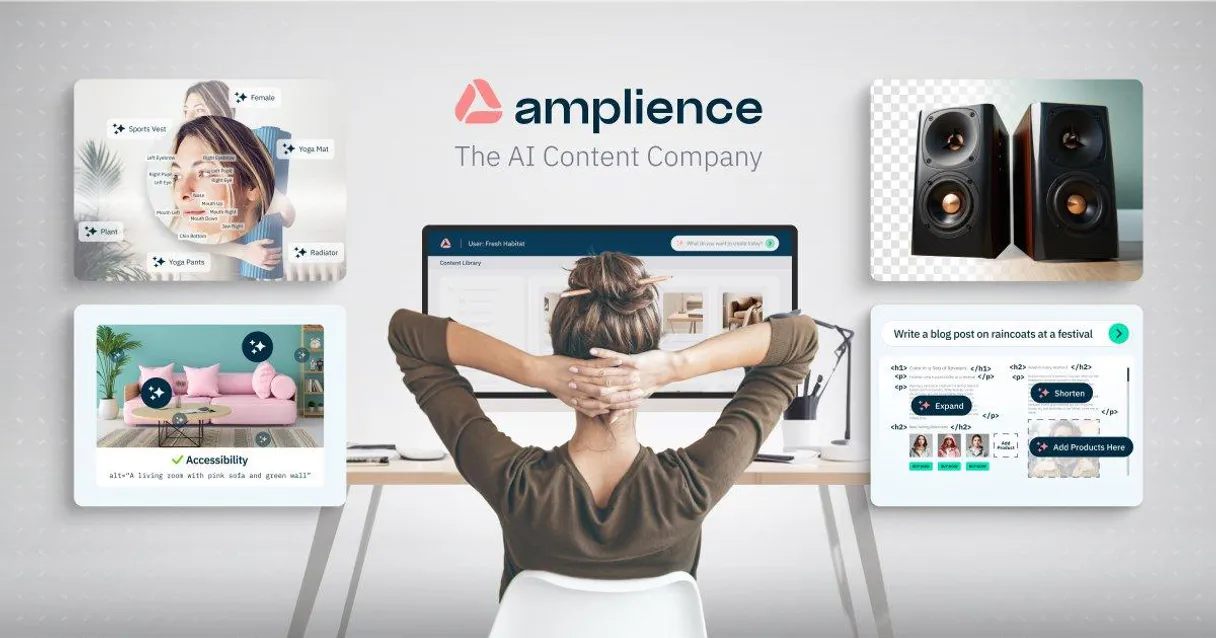
Link your Amplience headless CMS to any intelligent AI agent to completely rethink how you handle your enterprise content architecture, deploying components natively through standard conversation.
Cursor's Agent mode turns Amplience into an in-editor superpower. Ask Cursor to generate code using live data from Amplience and it fetches, processes, and writes. all in a single agentic loop. 10 tools appear alongside file editing and terminal access, creating a unified development environment grounded in real-time information.
What you can do
- Discover Asset Hierarchies — Freely list top-level Hubs, target specific Repositories, and fetch internal Folders to help your AI inherently understand where every graphic and article lives.
- Content Retrieval — Paginate through dynamic content items, safely extracting complete metadata alongside current active schemas and validation rules.
- Edit & Create Structure — Give the agent full permission to push correctly strictly-typed JSON payloads back into the system, generating or modifying blog entries and product metadata.
- Manage Deployments — Permanently execute deletions (if revision locks permit) or instruct the system to fire a specific content configuration directly over to the edge delivery API to hit the live website.
The Amplience MCP Server exposes 10 tools through the Vinkius. Connect it to Cursor in under two minutes — no API keys to rotate, no infrastructure to provision, no vendor lock-in. Your configuration, your data, your control.
How to Connect Amplience to Cursor via MCP
Follow these steps to integrate the Amplience MCP Server with Cursor.
Open MCP Settings
Press Cmd+Shift+P (macOS) or Ctrl+Shift+P (Windows/Linux) → search "MCP Settings"
Add the server config
Paste the JSON configuration above into the mcp.json file that opens
Save the file
Cursor will automatically detect the new MCP server
Start using Amplience
Open Agent mode in chat and ask: "Using Amplience, help me...". 10 tools available
Why Use Cursor with the Amplience MCP Server
Cursor AI Code Editor provides unique advantages when paired with Amplience through the Model Context Protocol.
Agent mode turns Cursor into an autonomous coding assistant that can read files, run commands, and call MCP tools without switching context
Cursor's Composer feature can generate entire files using real-time data fetched through MCP. no copy-pasting from external dashboards
MCP tools appear alongside built-in tools like file reading and terminal access, creating a unified agentic environment
VS Code extension compatibility means your existing workflow, keybindings, and extensions all work alongside MCP tools
Amplience + Cursor Use Cases
Practical scenarios where Cursor combined with the Amplience MCP Server delivers measurable value.
Code generation with live data: ask Cursor to generate a security report module using live DNS and subdomain data fetched through MCP
Automated documentation: have Cursor query your API's tool schemas and generate TypeScript interfaces or OpenAPI specs automatically
Infrastructure-as-code: Cursor can fetch domain configurations and generate corresponding Terraform or CloudFormation templates
Test scaffolding: ask Cursor to pull real API responses via MCP and generate unit test fixtures from actual data
Amplience MCP Tools for Cursor (10)
These 10 tools become available when you connect Amplience to Cursor via MCP:
create_content_item
Create a new structured content item adhering to a schema inside a folder
delete_content_item
Requires version validation before deletion. Permanently delete a content item from the repository database
get_content_item
Retrieve a specific content item configuration and its schema revision lock
get_delivery_content
Retrieve the exact structural matching verifying Delivery CDN blocks
list_content_items
Retrieve paginated content items from a specific repository
list_folders
List all folders organizing content in a given repository
list_hubs
Essential for retrieving the active workspace. List all accessible Amplience Hubs (environments)
list_repositories
List all content repositories within a specific Hub
publish_content_item
Publish a specific content item version to the live delivery CDN
update_content_item
Update an existing content item data structure matching its current schema
Example Prompts for Amplience in Cursor
Ready-to-use prompts you can give your Cursor agent to start working with Amplience immediately.
"Identify all active repositories present inside my default Amplience Hub."
"Pull the structural metadata (schema lock and payload) of item '5tYv92'."
"Publish the newly edited Content '5tYv92' to the global live network."
Troubleshooting Amplience MCP Server with Cursor
Common issues when connecting Amplience to Cursor through the Vinkius, and how to resolve them.
Tools not appearing in Cursor
Server shows as disconnected
Amplience + Cursor FAQ
Common questions about integrating Amplience MCP Server with Cursor.
What is Agent mode and why does it matter for MCP?
Where does Cursor store MCP configuration?
mcp.json file. You can configure servers at the project level (.cursor/mcp.json in your project root) or globally (~/.cursor/mcp.json). Project-level configs take precedence.Can Cursor use MCP tools in inline edits?
How do I verify MCP tools are loaded?
Connect Amplience with your favorite client
Step-by-step setup guides for every MCP-compatible client and framework:
Anthropic's native desktop app for Claude with built-in MCP support.
AI-first code editor with integrated LLM-powered coding assistance.
GitHub Copilot in VS Code with Agent mode and MCP support.
Purpose-built IDE for agentic AI coding workflows.
Autonomous AI coding agent that runs inside VS Code.
Anthropic's agentic CLI for terminal-first development.
Python SDK for building production-grade OpenAI agent workflows.
Google's framework for building production AI agents.
Type-safe agent development for Python with first-class MCP support.
TypeScript toolkit for building AI-powered web applications.
TypeScript-native agent framework for modern web stacks.
Python framework for orchestrating collaborative AI agent crews.
Leading Python framework for composable LLM applications.
Data-aware AI agent framework for structured and unstructured sources.
Microsoft's framework for multi-agent collaborative conversations.
Connect Amplience to Cursor
Get your token, paste the configuration, and start using 10 tools in under 2 minutes. No API key management needed.