
Artsy MCP Server for VS Code Copilot 8 tools — connect in under 2 minutes
GitHub Copilot in VS Code is the most widely adopted AI coding assistant, embedded directly into the world's most popular code editor. With MCP support in Agent mode, Copilot can access external data and APIs to generate context-aware code grounded in real-time information.
ASK AI ABOUT THIS MCP SERVER
Vinkius supports streamable HTTP and SSE.
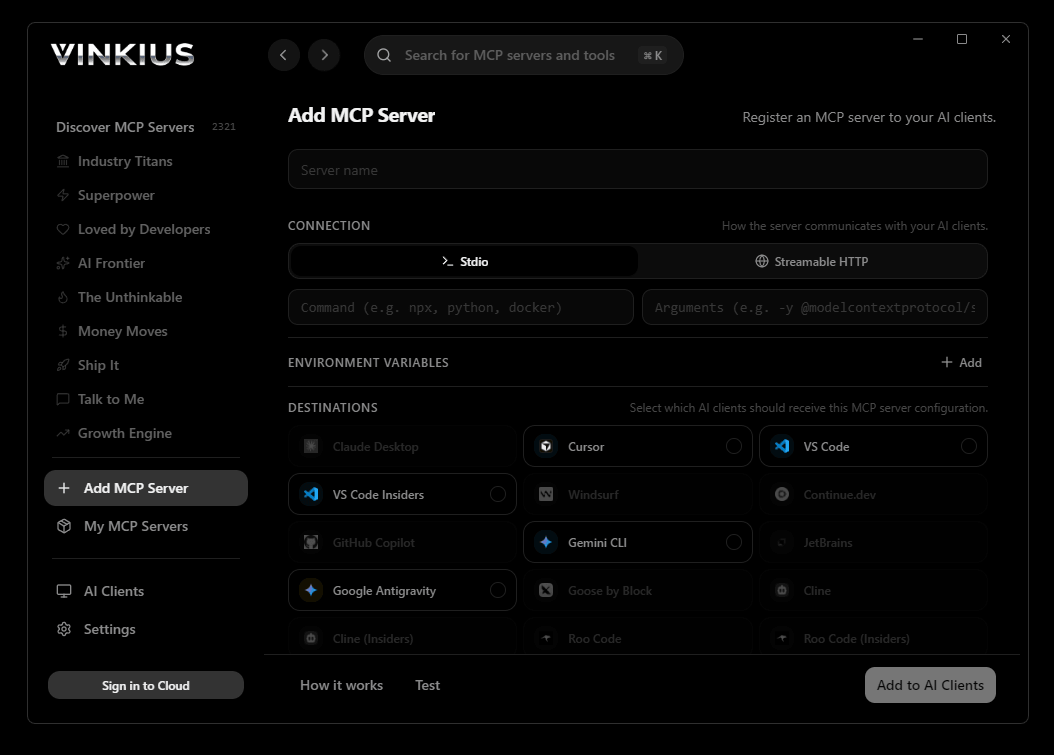
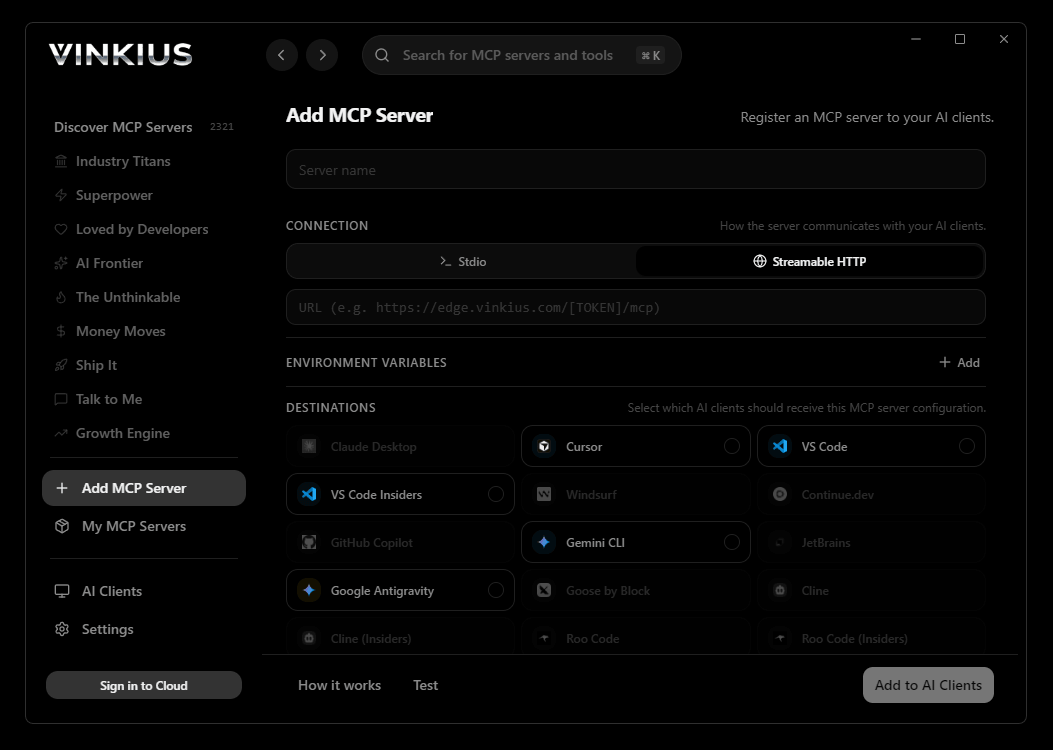
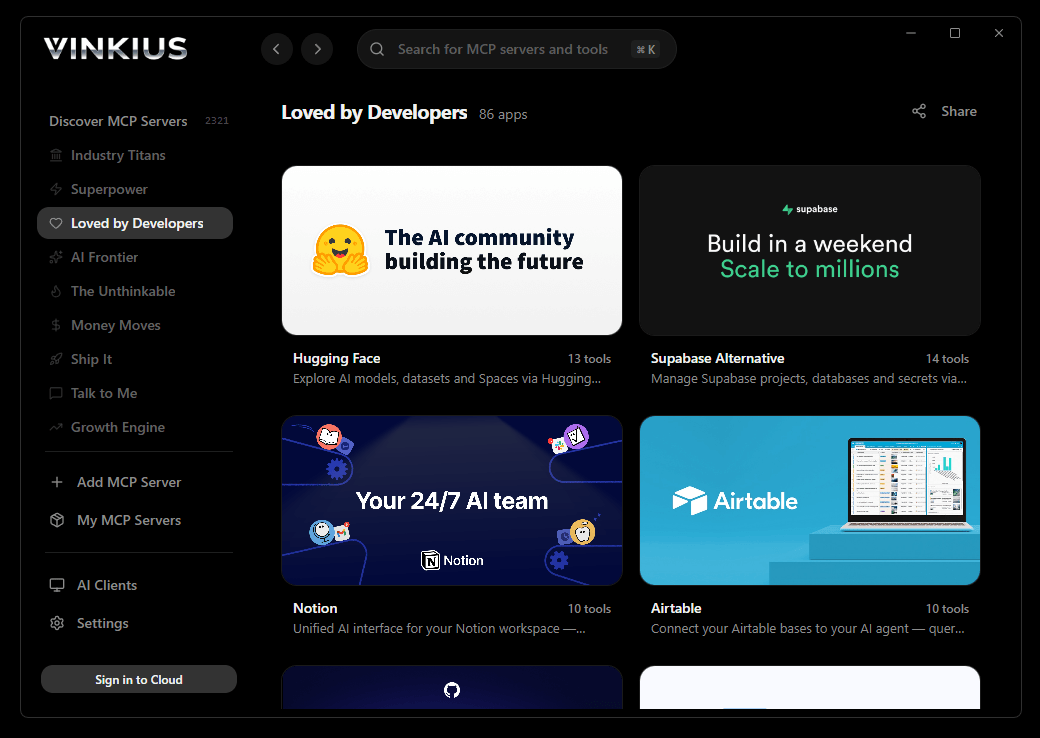
Vinkius Desktop App
The modern way to manage MCP Servers — no config files, no terminal commands. Install Artsy and 2,500+ MCP Servers from a single visual interface.

{
  "mcpServers": {
    "artsy": {
      "url": "https://edge.vinkius.com/[YOUR_TOKEN_HERE]/mcp"
    }
  }
}
* Every MCP server runs on Vinkius-managed infrastructure inside AWS - a purpose-built runtime with per-request V8 isolates, Ed25519 signed audit chains, and sub-40ms cold starts optimized for native MCP execution. See our infrastructure
About Artsy MCP Server
Equip your AI agent with the most comprehensive art intelligence available via Artsy. This unified server provides your agent with instant access to millions of artworks, artist technical details, and global art fair schedules. Your agent can instantly search for specific artists, audit artwork descriptions, and explore art movements (genes) without you ever needing to browse an online gallery. Whether you are identifying a masterpiece or auditing the history of a specific genre, your agent acts as a dedicated art historian and gallery curator through natural conversation.
GitHub Copilot Agent mode brings Artsy data directly into your VS Code workflow. With a project-scoped config, the entire team shares access to 8 tools. Copilot queries live data, generates typed code, and writes tests from actual API responses, all without leaving the editor.
What you can do
- Art Discovery — Search for thousands of artworks and artists by name, style, or movement.
- Artist Intelligence — Fetch complete metadata for artists, including biographies, birth dates, and locations.
- Movement Auditing — Retrieve detailed information about art 'genes' or categories like Impressionism or Pop Art.
- Show & Fair Tracking — Access global schedules and details for art shows and major fairs.
- Technical Details — Retrieve exact dimensions, mediums, and descriptions for individual artworks.
The Artsy MCP Server exposes 8 tools through the Vinkius. Connect it to VS Code Copilot in under two minutes — no API keys to rotate, no infrastructure to provision, no vendor lock-in. Your configuration, your data, your control.
How to Connect Artsy to VS Code Copilot via MCP
Follow these steps to integrate the Artsy MCP Server with VS Code Copilot.
Create MCP config
Create a .vscode/mcp.json file in your project root
Add the server config
Paste the JSON configuration above
Enable Agent mode
Open GitHub Copilot Chat and switch to Agent mode using the dropdown
Start using Artsy
Ask Copilot: "Using Artsy, help me...". 8 tools available
Why Use VS Code Copilot with the Artsy MCP Server
GitHub Copilot for Visual Studio Code provides unique advantages when paired with Artsy through the Model Context Protocol.
VS Code is used by over 70% of developers. adding MCP tools to Copilot means your team can leverage external data without leaving their primary editor
Project-scoped MCP configs (`.vscode/mcp.json`) let you commit server configurations to your repository, ensuring the entire team shares the same tool access
Copilot's Agent mode integrates MCP tools seamlessly with file editing, terminal commands, and workspace search in a single agentic loop
GitHub's enterprise compliance and audit features extend to MCP tool usage, providing visibility into how AI interacts with external services
Artsy + VS Code Copilot Use Cases
Practical scenarios where VS Code Copilot combined with the Artsy MCP Server delivers measurable value.
Live API integration: Copilot can query an MCP server, inspect the response schema, and generate typed API client code in the same step
DevSecOps workflows: security teams can give developers access to domain intelligence tools directly in their editor for real-time vulnerability assessment during code review
Data pipeline development: Copilot fetches sample data via MCP and generates transformation scripts, validators, and test fixtures from actual API responses
Documentation generation: Copilot queries available tools and auto-generates README sections, API reference docs, and usage examples
Artsy MCP Tools for VS Code Copilot (8)
These 8 tools become available when you connect Artsy to VS Code Copilot via MCP:
get_artist_details
Get artist details
get_artwork_details
Get artwork details
get_gene_details
Get gene details
list_artworks
List artworks
list_fairs
List art fairs
list_genes
g., Abstract, Cubism). List art genes
list_shows
List art shows
search_artsy
Search Artsy for anything
Example Prompts for Artsy in VS Code Copilot
Ready-to-use prompts you can give your VS Code Copilot agent to start working with Artsy immediately.
"Search for information about Andy Warhol."
"What is 'Impressionism' in art?"
"Show me artworks by Vincent van Gogh."
Troubleshooting Artsy MCP Server with VS Code Copilot
Common issues when connecting Artsy to VS Code Copilot through the Vinkius, and how to resolve them.
MCP tools not available
Artsy + VS Code Copilot FAQ
Common questions about integrating Artsy MCP Server with VS Code Copilot.
Which VS Code version supports MCP?
How do I switch to Agent mode?
Can I restrict which MCP tools Copilot can access?
Does MCP work in VS Code Remote or Codespaces?
.vscode/mcp.json work in Remote SSH, WSL, and GitHub Codespaces environments. The MCP connection is established from the remote host, so ensure the server URL is accessible from that environment.Connect Artsy with your favorite client
Step-by-step setup guides for every MCP-compatible client and framework:
Anthropic's native desktop app for Claude with built-in MCP support.
AI-first code editor with integrated LLM-powered coding assistance.
GitHub Copilot in VS Code with Agent mode and MCP support.
Purpose-built IDE for agentic AI coding workflows.
Autonomous AI coding agent that runs inside VS Code.
Anthropic's agentic CLI for terminal-first development.
Python SDK for building production-grade OpenAI agent workflows.
Google's framework for building production AI agents.
Type-safe agent development for Python with first-class MCP support.
TypeScript toolkit for building AI-powered web applications.
TypeScript-native agent framework for modern web stacks.
Python framework for orchestrating collaborative AI agent crews.
Leading Python framework for composable LLM applications.
Data-aware AI agent framework for structured and unstructured sources.
Microsoft's framework for multi-agent collaborative conversations.
Connect Artsy to VS Code Copilot
Get your token, paste the configuration, and start using 8 tools in under 2 minutes. No API key management needed.