
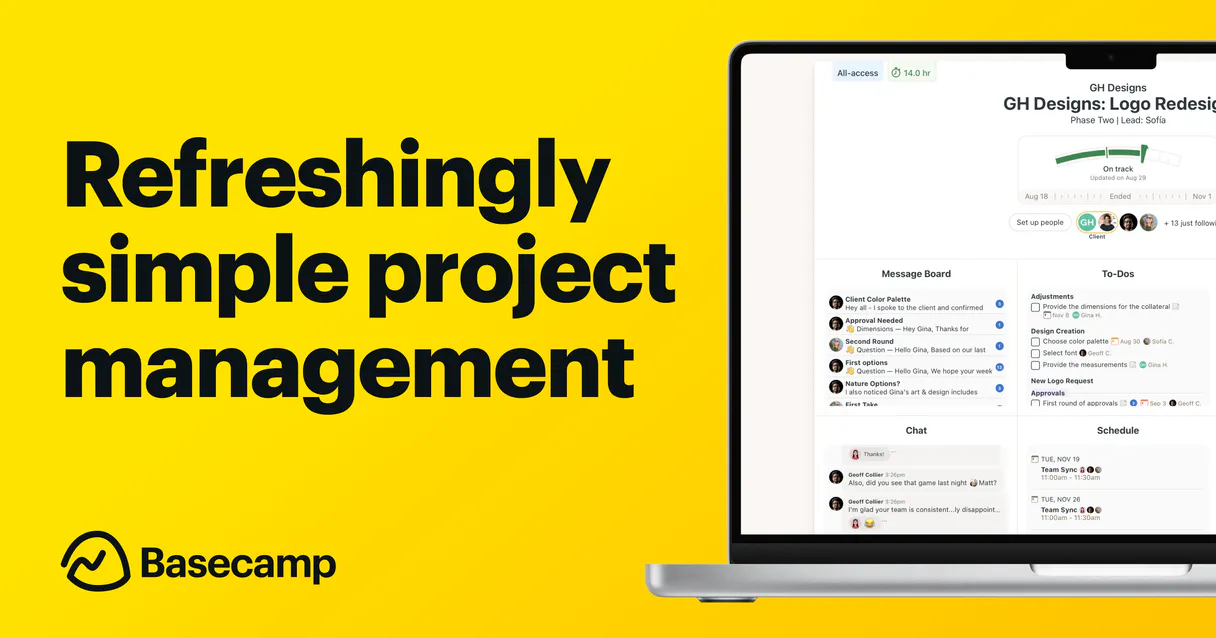
Basecamp MCP for AI. Manage tasks, messages, and projects via conversation.
 Gemini
 Works with every AI agent you already use
…and any MCP-compatible client









How this MCP server connects to your AI agent
Basecamp MCP connects your AI agent directly to your entire Basecamp workspace. You manage projects, track tasks, share files, and review team messages through simple conversation.
Get full visibility into project status without ever leaving your chat window.
What AI agents can do with Basecamp Automation
Complete todo
Marks an existing to-do item as finished, keeping it visible in the list but marked as done.
Create comment
Adds a comment to any recording, such as a message or document, notifying all relevant subscribers.
Create project
Sets up an entirely new project in Basecamp with all the standard tools (message boards, schedules) enabled by default.
List all active or archived projects to get an overview of the entire organization's work.
Create, update, complete, or reopen tasks assigned across any project list.
Read messages from a project board and add comments to specific documents or recordings.
List all people in the account or filter by a single project to verify roles, emails, and assignees.
Initialize an entirely new project with default tools enabled for immediate use.
Ask an AI about this
Waiting for input…
What AI agents can do with Basecamp MCP with 17 Tools
Use these tools to perform specific actions inside Basecamp. From creating new projects to updating individual task details, every tool gives your agent control over a different aspect of the platform.
Make your AI actually useful.
Add this MCP to Claude, Cursor, or Windsurf and your AI stops guessing. It gets real tools to look things up, take action, and handle the stuff you keep doing by hand.
Start using Basecamp on VinkiusComplete Todo
Marks an existing to-do item as finished, keeping it visible in the list but marked as done.
Create Comment
Adds a comment to any recording, such as a message or document, notifying all...
Create Project
Sets up an entirely new project in Basecamp with all the standard tools (message...
Create Todo
Generates a brand-new to-do item within a specific list, allowing you to assign it...
Get Message
Retrieves the complete details of any single message posted on the platform.
Get My Profile
Checks your own authenticated Basecamp user profile to confirm connectivity and access permissions.
Get Person
Looks up full details about any specific team member or potential assignee by name or ID.
Get Project
Retrieves all detailed information for a single project, including the IDs needed to...
Get Todo
Gets full details about one specific to-do item in a list.
List Messages
Lists all recent messages on a project board, giving you titles and content previews...
List People
Provides a comprehensive list of everyone in your Basecamp account to find correct...
List Project People
Filters the team roster for one project, showing names, emails, and roles only for that specific group.
List Projects
Retrieves a list of all projects in your account, optionally filtering by status (active, archived, or trashed).
List Todos
Shows you all to-do items within one specific list, including completion status and...
Uncomplete Todo
Reopens a task that was previously marked as complete, allowing it to be worked on...
Update Project
Modifies the name or description of an existing project.
Update Todo
Makes changes to the content or details of an existing to-do item.
Security and governance baked right in.
Pick your AI client below to get set up. Just create a Vinkius account, subscribe, and you're instantly up and running. We handle the entire backend infrastructure, delivering out-of-the-box support for HTTPS Streamable, SSE, and OAuth2—zero messy routing required.
Claude AI
Open Claude Settings
Go to claude.ai, click your profile icon, then navigate to Customize → Connectors.
Add Custom Connector
Click the "+" button and select Add custom connector. Paste your Vinkius endpoint URL:
https://edge.vinkius.com/[YOUR_TOKEN_HERE]/mcp
Replace [YOUR_TOKEN_HERE] with your token
from cloud.vinkius.com. For OAuth-protected servers, expand
Advanced settings to add credentials.
Start a conversation
Open a new chat. The Basecamp integration is available immediately — no restart needed.
Choose How to Get Started
Build a custom MCP for your own tools, or connect a ready-made integration from our catalog.
Build Your Own
Turn any API into an MCP. Import a spec, define Agent Skills, or deploy with MCPFusion.
- Import from OpenAPI, Swagger, or YAML specs
- Create Agent Skills with progressive disclosure
- Deploy to edge with MCPFusion framework
- Built in DLP, auth, and compliance on every call
- Real time usage dashboard and cost metering
- Publish to catalog or keep private
Make Your AI Do More
Start with Basecamp, then connect any of our 5,100+ other servers whenever your AI needs more. One click, no limits.
- Use this MCP plus 5,100+ others, all in one place
- Add new capabilities to your AI anytime you want
- Every connection is secured and compliant automatically
- Track usage and costs across all your servers
- Works with Claude, ChatGPT, Cursor, and more
- New servers added to the catalog every week
Independent Platform Disclaimer: Vinkius is an independent platform and is not affiliated with, endorsed by, sponsored by, verified by, or otherwise authorized by Basecamp. All third-party trademarks, logos, and brand names are the property of their respective owners. Their use on this website is strictly for informational purposes to identify service compatibility and interoperability.
VINKIUS INFRASTRUCTURE
Cloud Hosted
Managed infra
V8 Isolated
Sandboxed per request
Zero-Trust Proxy
No stored credentials
DLP Enforced
Policy on every call
GDPR Compliant
EU data residency
Token Compression
~60% cost reduction
Built on the Model Context Protocol (MCP) for Claude, ChatGPT, Cursor, and more
The Model Context Protocol standardizes how applications expose capabilities to LLMs. Instead of operating in isolation, your AI gains direct access to external platforms, live data, and real-world actions through secure, standardized connections.
This connection provides 17 powerful capabilities that interface natively with Claude, ChatGPT, Cursor, and other compatible AI platforms. No middleware. No custom integration required.
The endless clicks just to get project status updates., Solved with Vinkius AI Gateway
Every day, you open your browser and navigate to Basecamp. You check the main dashboard for high-level summaries, then jump into Project Alpha's message board to see recent decisions. Next, you click over to the To-Do set to see who owns what, maybe checking a person's profile just to confirm their role before adding a comment on a document.
With this MCP, all that context switching vanishes. You simply tell your agent: 'What are the three highest priority tasks in Project Alpha and who needs to sign off?' Your AI client processes it across multiple internal tools (like list_todos and get_person) and gives you one clean answer—no tabs needed.
Basecamp MCP: Instant project control.
You don't have to manually go through the settings or use the web UI just to adjust a detail. You can update an entire project (update_project) and simultaneously create a follow-up task for someone else using create_todo, all in one conversation.
The difference is that you talk to your workspace instead of navigating it. It's faster, cleaner, and keeps your focus exactly where it needs to be.
What your AI can actually do with this
You can take complete control of your team's workflow using this MCP. Instead of navigating multiple dashboards or digging through old message threads, you just talk to your agent. You tell it to list all active projects and get the details for a specific one; it handles the retrieval. Need an update? Ask your agent to read messages from a project board or even add comments directly to a recorded document.
If someone misses a step, you can ask it to create new tasks, assign them to team members, and set due dates automatically. This MCP lets you monitor who's available on the team by listing people and checking their roles. It keeps all that critical project data—tasks, messages, schedules, files—accessible through one chat interface.
When you connect this MCP via Vinkius, your agent acts as a single pane of glass for everything happening in Basecamp.
019dd0c0-47f9-73ed-a941-d1ceb01edc94 
Here's how it actually works
The bottom line is you get instant command-line access to the entire Basecamp platform without opening the web app.
Subscribe to the Basecamp MCP and provide your OAuth access token and account ID.
Connect this MCP to your preferred AI client (Claude, Cursor, or any compatible agent).
Start giving commands in natural language to manage projects and tasks.
Who is this actually for?
Project managers, team leads, and remote operations staff who are tired of switching between a dozen tabs just to keep everyone on the same page. If your job involves tracking multiple moving parts across different departments, this is for you.
You use it to create tasks, assign them to team members, and check completion status without ever having to click into a project dashboard.
You monitor project boards by reading the latest messages or adding comments on behalf of your department when you're away from your desk.
You stay synchronized with team progress by querying specific to-do items and listing all people across different projects to confirm roles before a meeting.
What Changes When You Connect
Stop jumping between tabs. You can list all your active projects and get the full details for any single one by simply asking your agent to do it.
Keep track of assignments effortlessly. Instead of opening a dashboard, you ask your agent to create new tasks or update existing ones across different lists.
Maintain perfect communication records. You can read recent messages from a project board and add comments directly to any document without switching context.
Verify team availability instantly. Use the list people tool to find specific assignee IDs or check roles for an entire group within one project.
Control your workflow end-to-end. If a task is finished, you can use complete_todo; if it needs rework, uncomplete_todo flips the switch immediately.
See it in action
The Kickoff Meeting Summary
A PM asks their agent to list all active projects and then requests a summary of recent messages from Project X. The agent pulls up key decisions, identifies the last person who commented on the schedule, and presents it all in one reply.
Handling Task Delegation
A team lead needs to assign three new tasks for the next sprint. They ask their agent to create new to-do items in a specific list, assigning them individually and setting due dates for each person.
Catching Up on Project X
A remote employee needs to know what happened while they were offline. They ask the agent to list messages on the board and check if any tasks have been completed since yesterday, getting a full status report instantly.
Project Scope Change
The scope changes late in the week. The team lead asks their agent to update the project's description immediately and then creates new related tasks for the engineering team by assigning them specific details.
The honest tradeoffs
Trying to guess IDs
A user tries to update a task using a random ID number they saw in an email, but it fails because the ID is outdated or incorrect.
Always start by listing projects (list_projects) and then list all relevant to-dos (list_todos) to ensure you have the correct and current item IDs before attempting any update using update_todo.
Forgetting task context
A user sees a completed task in their mind but tries to modify it directly, leading to an error because Basecamp requires specific tools for status changes.
To reopen a completed item, you must explicitly call the uncomplete_todo tool. Don't assume simply mentioning 'reopen' is enough.
Overwriting project details
A user tries to update the entire project description and name in one go when only a small section needs fixing.
Use the update_project tool, but remember that you only need to supply at least one field (like 'name') if you aren't changing both. Be specific with your changes.
When It Fits, When It Doesn't
Use this MCP if your primary pain point is context switching. If you manage projects using Basecamp and find yourself clicking between the main project view, message boards, to-do lists, and person directories, this connector solves that bottleneck. It lets your agent act as a central hub for all data retrieval and modification. However, don't use it if your needs fall outside of core Basecamp functionality; for instance, if you need to integrate with an external calendar system or manage specialized billing records, you'll need a different type of MCP connector designed for those specific APIs. This MCP is purely about mastering the data within Basecamp itself.
Questions you might have
How do I list projects using the Basecamp MCP? +
You use the list_projects tool to see all projects. This function lets you filter by status, so you can quickly separate active work from archived or trashed items.
Can I assign tasks with the Basecamp MCP? +
Yes, you use create_todo. This tool requires a to-do list ID and allows you to set an assignee and due date when generating a new task.
What if a task is done but needs rework using Basecamp MCP? +
You can't just delete it. To reopen a completed item, you must use the uncomplete_todo tool which marks the task as pending again for action.
How do I check who works on my project with Basecamp MCP? +
Use the list_project_people tool. This is better than listing all people because it filters the roster down to only those assigned to that specific project, showing their roles.
Does the Basecamp MCP let me add comments anywhere? +
Yes, you can use create_comment to add feedback or status updates. This works on almost any recording, like a message board post or a document.
We've already built the connector for Basecamp. Just plug in your AI agents and start using Vinkius.
No hosting. No infrastructure. No complex setup.
All 17 tools are live and waiting.
You're up and running in seconds.
Gemini Vinkius gives your AI agents access to the full catalog of app connectors, all fully managed, secure, and enterprise-ready. One subscription, every tool you need.
Built, hosted, and secured by Vinkius. You just connect and go.