
Files.com MCP Server for WindsurfGive Windsurf instant access to 8 tools to Create Folder, Delete File, Get File Details, and more
Windsurf brings agentic AI coding to a purpose-built IDE. Connect Files.com through Vinkius and Cascade will auto-discover every tool. ask questions, generate code, and act on live data without leaving your editor.
Ask AI about this App Connector for Windsurf
The Files.com app connector for Windsurf is a standout in the Industry Titans category — giving your AI agent 8 tools to work with, ready to go from day one.
Vinkius delivers Streamable HTTP and SSE to any MCP client
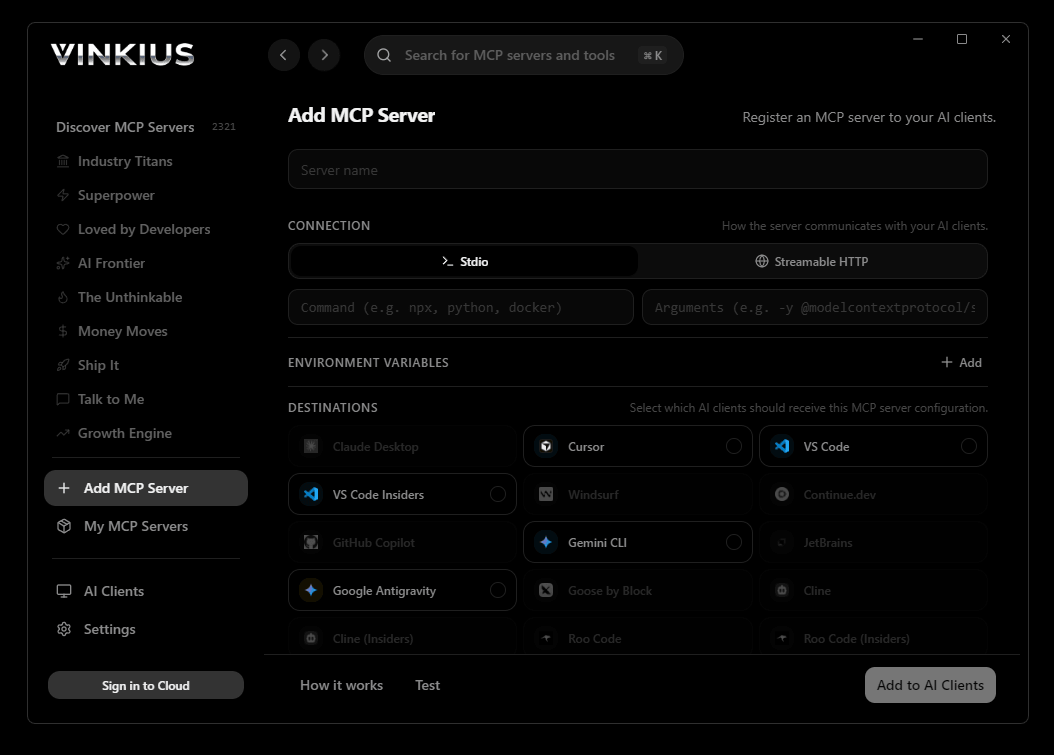
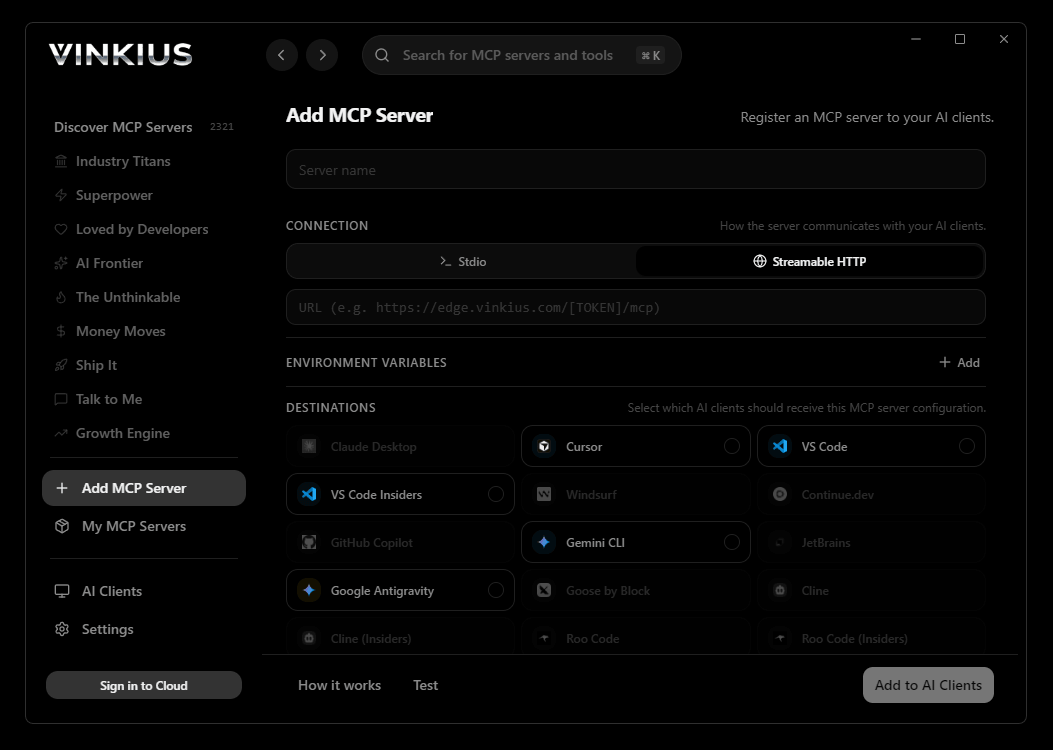
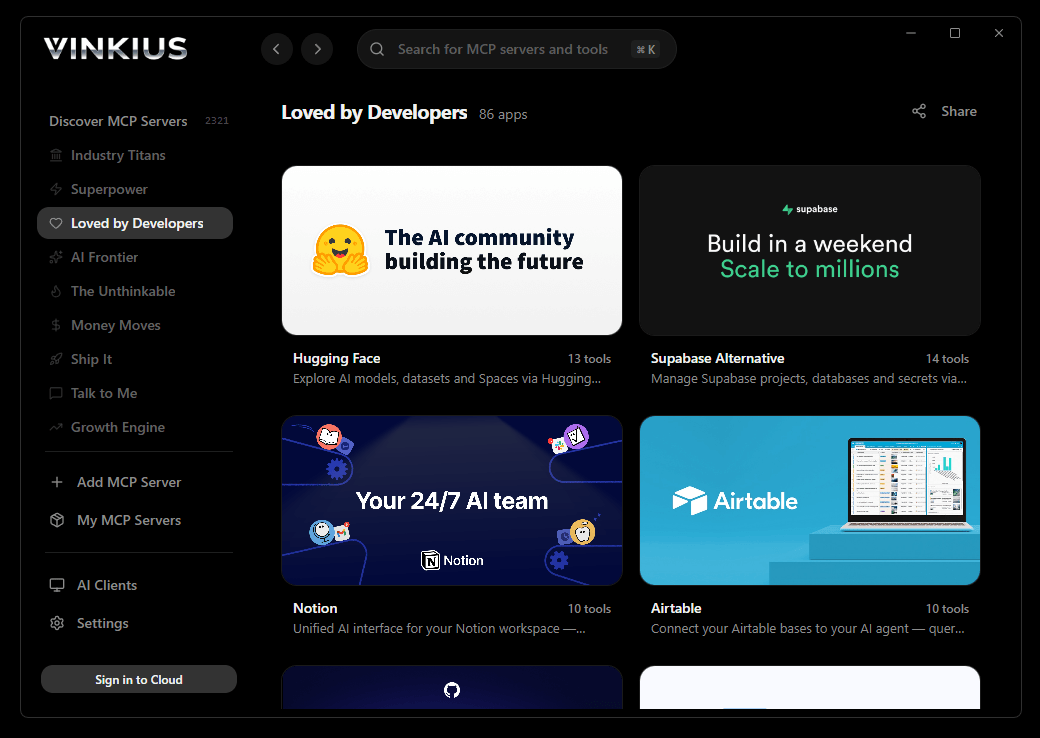
Vinkius Desktop App
The modern way to manage MCP Servers — no config files, no terminal commands. Install Files.com and 3,400+ MCP Servers from a single visual interface.

{
  "mcpServers": {
    "filescom": {
      "url": "https://edge.vinkius.com/[YOUR_TOKEN_HERE]/mcp"
    }
  }
}
* Every MCP server runs on Vinkius-managed infrastructure inside AWS - a purpose-built runtime with per-request V8 isolates, Ed25519 signed audit chains, and sub-40ms cold starts optimized for native MCP execution. See our infrastructure
About Files.com MCP Server
Connect your Files.com secure storage account to any AI agent and simplify how you manage your enterprise files, coordinate folder structures, and monitor audit logs through natural conversation.
Windsurf's Cascade agent chains multiple Files.com tool calls autonomously. query data, analyze results, and generate code in a single agentic session. Paste Vinkius Edge URL, reload, and all 8 tools are immediately available. Real-time tool feedback appears inline, so you see API responses directly in your editor.
What you can do
- Folder Oversight — List files and directories at any path and coordinate your organizational storage hierarchy.
- File Intelligence — Retrieve detailed metadata and direct download links for specific files using their unique paths.
- Access Control — List account users, groups, and detailed permissions to ensure your data security is ready.
- Audit Monitoring — Query real-time and historical activity logs to track file uploads, downloads, and deletions.
- Operational Utility — Create new folders and remove outdated assets programmatically via simple AI commands.
- Data Insights — Fetch complete file metadata and permission distributions directly from the agent.
The Files.com MCP Server exposes 8 tools through the Vinkius. Connect it to Windsurf in under two minutes — no API keys to rotate, no infrastructure to provision, no vendor lock-in. Your configuration, your data, your control.
All 8 Files.com tools available for Windsurf
When Windsurf connects to Files.com through Vinkius, your AI agent gets direct access to every tool listed below — spanning file-transfer, secure-storage, audit-logs, and more. Every call is secured with network, filesystem, subprocess, and code evaluation entitlements inside a sandboxed runtime. Beyond a simple connection, you get a full AI Gateway with real-time visibility into agent activity, enterprise governance, and optimized token usage.
Create a new folder
Delete a file or folder
Get details for a specific file
List file activity history
List Files.com folders
List file permissions
List organizational groups
List Files.com users
Connect Files.com to Windsurf via MCP
Follow these steps to wire Files.com into Windsurf. The entire setup takes under two minutes — your credentials stay safe behind the Vinkius.
Open MCP Settings
Cmd+Shift+P and search "MCP"Add the server
mcp_config.jsonSave and reload
Start using Files.com
Why Use Windsurf with the Files.com MCP Server
Windsurf provides unique advantages when paired with Files.com through the Model Context Protocol.
Windsurf's Cascade agent autonomously chains multiple tool calls in sequence, solving complex multi-step tasks without manual intervention
Purpose-built for agentic workflows. Cascade understands context across your entire codebase and integrates MCP tools natively
JSON-based configuration means zero code changes: paste a URL, reload, and all 8 tools are immediately available
Real-time tool feedback is displayed inline, so you see API responses directly in your editor without switching contexts
Files.com + Windsurf Use Cases
Practical scenarios where Windsurf combined with the Files.com MCP Server delivers measurable value.
Automated code generation: ask Cascade to fetch data from Files.com and generate models, types, or handlers based on real API responses
Live debugging: query Files.com tools mid-session to inspect production data while debugging without leaving the editor
Documentation generation: pull schema information from Files.com and have Cascade generate comprehensive API docs automatically
Rapid prototyping: combine Files.com data with Cascade's code generation to scaffold entire features in minutes
Example Prompts for Files.com in Windsurf
Ready-to-use prompts you can give your Windsurf agent to start working with Files.com immediately.
"List all files in the '/Client-Projects' folder."
"Show me the activity history for the last 24 hours."
"Create a new folder called '/Archive-2023'."
Troubleshooting Files.com MCP Server with Windsurf
Common issues when connecting Files.com to Windsurf through the Vinkius, and how to resolve them.
Server not connecting
Files.com + Windsurf FAQ
Common questions about integrating Files.com MCP Server with Windsurf.
How does Windsurf discover MCP tools?
mcp_config.json file on startup and connects to each configured server via Streamable HTTP. Tools are listed in the MCP panel and available to Cascade automatically.Can Cascade chain multiple MCP tool calls?
Does Windsurf support multiple MCP servers?
mcp_config.json. Each server's tools appear in the MCP panel and Cascade can use tools from different servers in a single flow.