
GitLab MCP Server for Claude Desktop 12 tools — connect in under 2 minutes
Claude Desktop is Anthropic's native application for interacting with Claude AI models on macOS and Windows. It was the first consumer application to ship with built-in MCP support, making it the reference implementation for the Model Context Protocol standard.
ASK AI ABOUT THIS MCP SERVER
Vinkius supports streamable HTTP and SSE.
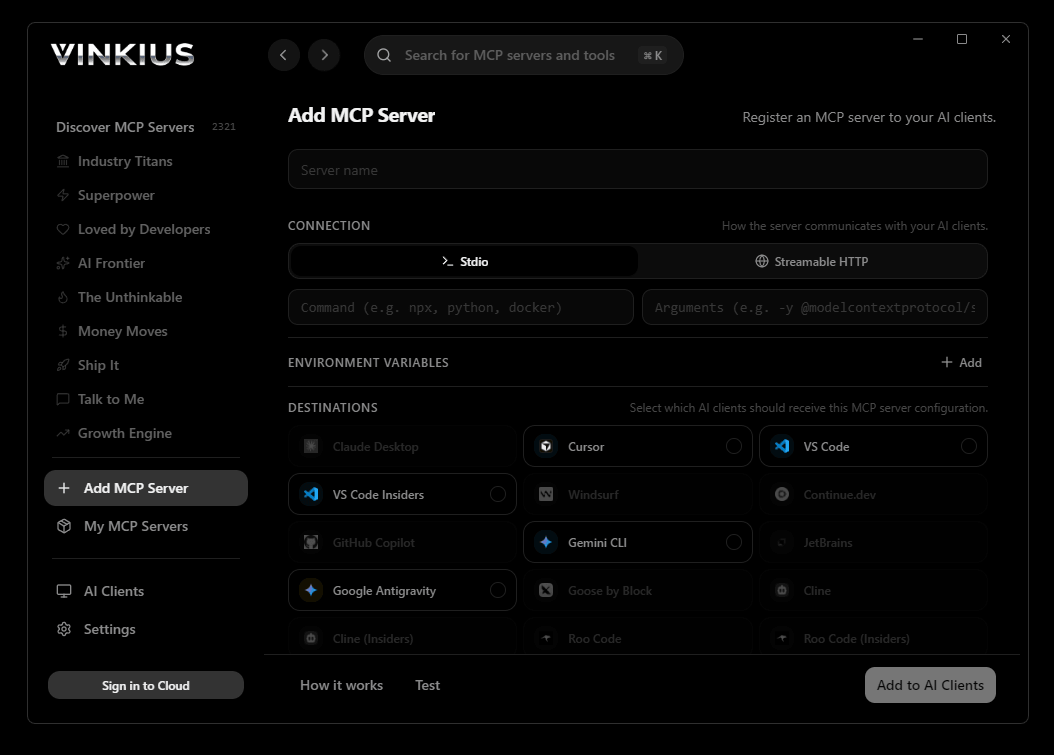
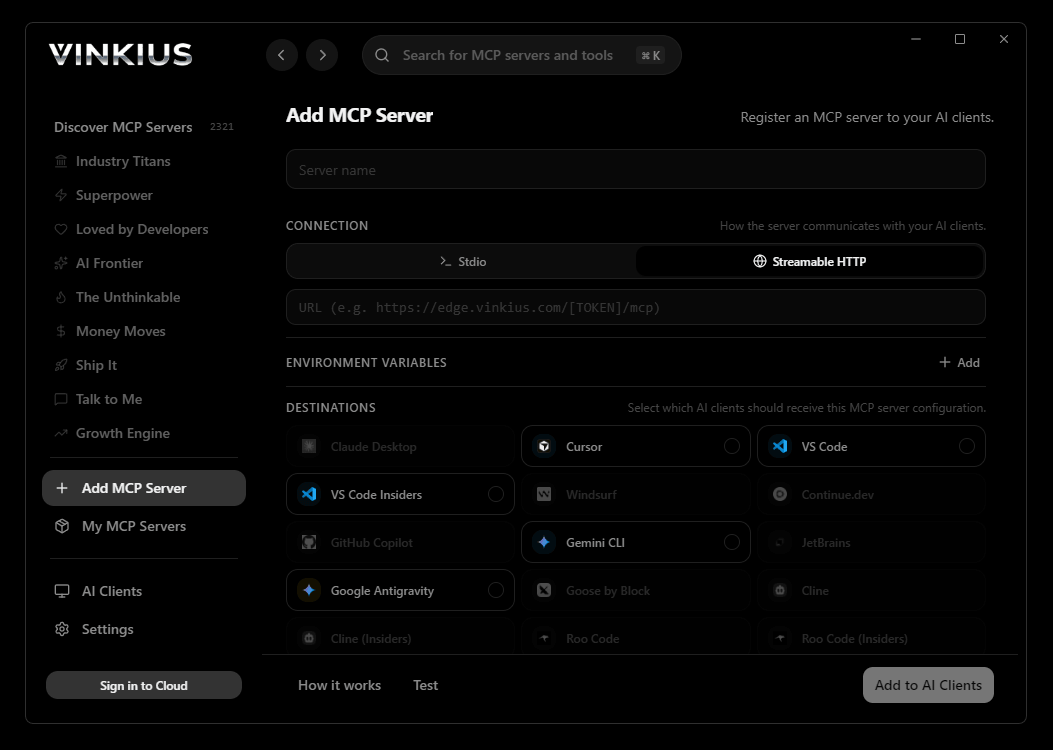
Vinkius Desktop App
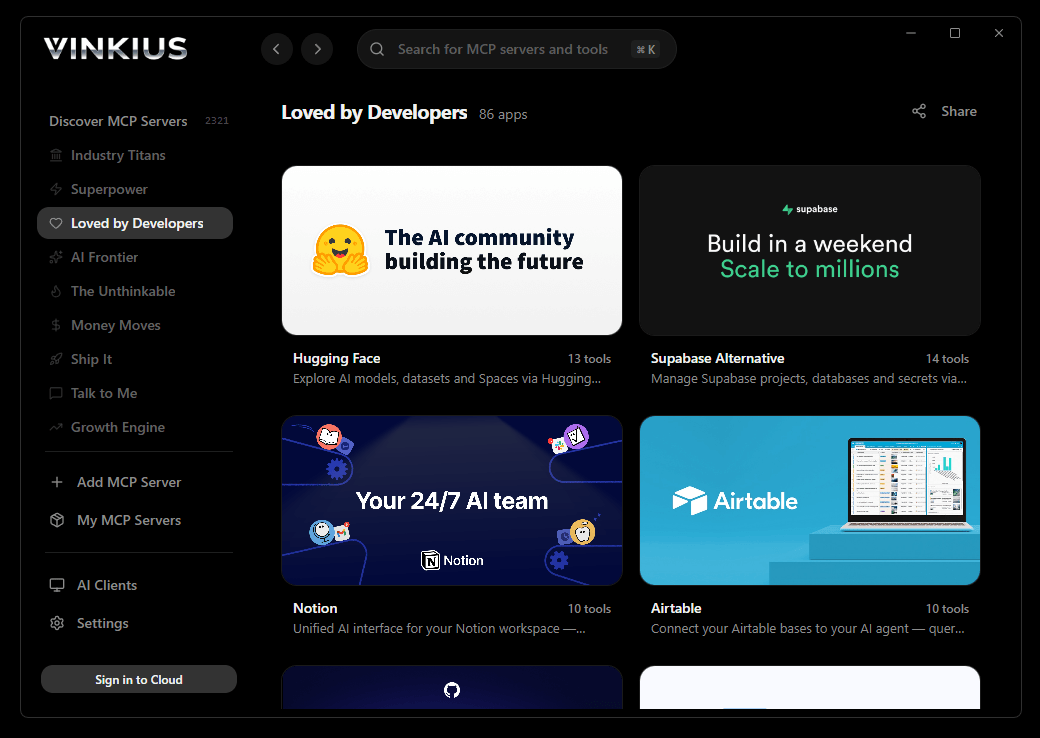
The modern way to manage MCP Servers — no config files, no terminal commands. Install GitLab and 2,500+ MCP Servers from a single visual interface.

{
  "mcpServers": {
    "gitlab": {
      // Your Vinkius token. get it at cloud.vinkius.com
      "url": "https://edge.vinkius.com/[YOUR_TOKEN_HERE]/mcp"
    }
  }
}
* Every MCP server runs on Vinkius-managed infrastructure inside AWS - a purpose-built runtime with per-request V8 isolates, Ed25519 signed audit chains, and sub-40ms cold starts optimized for native MCP execution. See our infrastructure
About GitLab MCP Server
Connect your GitLab instance to any AI agent to automate your DevSecOps lifecycle and project management through the Model Context Protocol (MCP). GitLab is the most comprehensive AI-powered platform for software innovation. This MCP server enables you to retrieve project metadata, manage issues, track merge requests, and monitor CI/CD pipelines directly through natural conversation.
Claude Desktop is the definitive way to connect GitLab to your AI workflow. Add Vinkius Edge URL to your config, restart the app, and Claude immediately exposes all 12 tools in the chat interface. ask a question, Claude calls the right tool, and you see the answer. Zero code, zero context switching.
Key Features
- Project Oversight — List all accessible projects, fetch detailed configuration metadata, and track forks across your instance.
- Issue & MR Management — List issues and merge requests, track their lifecycle status, and programmatically open new issues from your chat interface.
- CI/CD Visibility — Retrieve a list of pipelines for any project to monitor build and deployment health in real-time.
- Repository Discovery — Access the contents of files within any repository to understand codebase structures and documentation.
- Global Search — Execute powerful searches across projects, issues, and users to isolate specific development artifacts.
- Identity Oversight — Access detailed profile information for the authenticated user to verify permissions and account context.
- Real-time Synchronization — Keep your development and operations data accessible to your AI assistant without leaving your primary workspace.
The GitLab MCP Server exposes 12 tools through the Vinkius. Connect it to Claude Desktop in under two minutes — no API keys to rotate, no infrastructure to provision, no vendor lock-in. Your configuration, your data, your control.
How to Connect GitLab to Claude Desktop via MCP
Follow these steps to integrate the GitLab MCP Server with Claude Desktop.
Open Claude Desktop Settings
Go to Settings → Developer → Edit Config to open claude_desktop_config.json
Add the MCP Server
Paste the configuration above into the mcpServers section
Restart Claude Desktop
Close and reopen Claude Desktop to load the new server
Start using GitLab
Look for the 🔌 icon in the chat. your 12 tools are now available
Why Use Claude Desktop with the GitLab MCP Server
Claude Desktop by Anthropic provides unique advantages when paired with GitLab through the Model Context Protocol.
Claude Desktop is the reference MCP client. it was designed alongside the protocol itself, ensuring the most complete and stable MCP implementation available
Zero-code configuration: add a server URL to a JSON file and Claude instantly discovers and exposes all available tools in the chat interface
Claude's extended thinking capability lets it reason through multi-step tool usage, chaining multiple API calls to answer complex questions
Enterprise-grade security with local config storage. your tokens never leave your machine, and connections go directly to Vinkius Edge network
GitLab + Claude Desktop Use Cases
Practical scenarios where Claude Desktop combined with the GitLab MCP Server delivers measurable value.
Interactive data exploration: ask Claude to query DNS records, look up WHOIS data, and cross-reference results in a single conversation
Ad-hoc security audits: type a domain name and let Claude enumerate subdomains, check DNS history, and flag configuration anomalies. all through natural language
Executive briefings: generate comprehensive domain intelligence reports by asking Claude to compile findings into a formatted summary
Learning and training: new team members can explore API capabilities conversationally without needing to read documentation
GitLab MCP Tools for Claude Desktop (12)
These 12 tools become available when you connect GitLab to Claude Desktop via MCP:
create_project_issue
Open an issue
get_my_gitlab_profile
Get user identity
get_project_details
Get project metadata
get_repository_file
Read file content
list_merge_requests
List merge requests
list_project_forks
List forks
list_project_issues
List project issues
list_project_pipelines
List CI/CD pipelines
list_visible_groups
List accessible groups
list_visible_projects
List accessible projects
search_gitlab_global
Search all GitLab
verify_api_connection
Check connection
Example Prompts for GitLab in Claude Desktop
Ready-to-use prompts you can give your Claude Desktop agent to start working with GitLab immediately.
"List the last 5 open merge requests for project 'my-group/my-app'."
"Check the status of the latest pipelines for project ID '12345'."
"Search GitLab for issues containing 'security patch'."
Troubleshooting GitLab MCP Server with Claude Desktop
Common issues when connecting GitLab to Claude Desktop through the Vinkius, and how to resolve them.
Server not appearing after restart
~/Library/Application Support/Claude/claude_desktop_config.json (macOS) or %APPDATA%\\Claude\\ (Windows).Authentication error
Tools not showing in chat
GitLab + Claude Desktop FAQ
Common questions about integrating GitLab MCP Server with Claude Desktop.
How does Claude Desktop discover MCP tools?
claude_desktop_config.json file and connects to each configured MCP server. It calls the tools/list endpoint to fetch the schema for every available tool, then surfaces them as clickable options in the chat interface via the 🔌 icon.What happens if the MCP server is temporarily unavailable?
Can I connect multiple MCP servers simultaneously?
mcpServers section of the config file. Each server appears as a separate tool provider, and Claude can use tools from multiple servers in a single conversation turn.Is there a limit on the number of tools per server?
Does Claude Desktop support Streamable HTTP transport?
Connect GitLab with your favorite client
Step-by-step setup guides for every MCP-compatible client and framework:
Anthropic's native desktop app for Claude with built-in MCP support.
AI-first code editor with integrated LLM-powered coding assistance.
GitHub Copilot in VS Code with Agent mode and MCP support.
Purpose-built IDE for agentic AI coding workflows.
Autonomous AI coding agent that runs inside VS Code.
Anthropic's agentic CLI for terminal-first development.
Python SDK for building production-grade OpenAI agent workflows.
Google's framework for building production AI agents.
Type-safe agent development for Python with first-class MCP support.
TypeScript toolkit for building AI-powered web applications.
TypeScript-native agent framework for modern web stacks.
Python framework for orchestrating collaborative AI agent crews.
Leading Python framework for composable LLM applications.
Data-aware AI agent framework for structured and unstructured sources.
Microsoft's framework for multi-agent collaborative conversations.
Connect GitLab to Claude Desktop
Get your token, paste the configuration, and start using 12 tools in under 2 minutes. No API key management needed.