
GraphHopper MCP Server for Cursor 10 tools — connect in under 2 minutes
Cursor is an AI-first code editor built on VS Code that integrates LLM-powered coding assistance directly into the development workflow. Its Agent mode enables autonomous multi-step coding tasks, and MCP support lets agents access external data sources and APIs during code generation.
ASK AI ABOUT THIS MCP SERVER
Vinkius supports streamable HTTP and SSE.
Vinkius Desktop App
The modern way to manage MCP Servers — no config files, no terminal commands. Install GraphHopper and 2,500+ MCP Servers from a single visual interface.
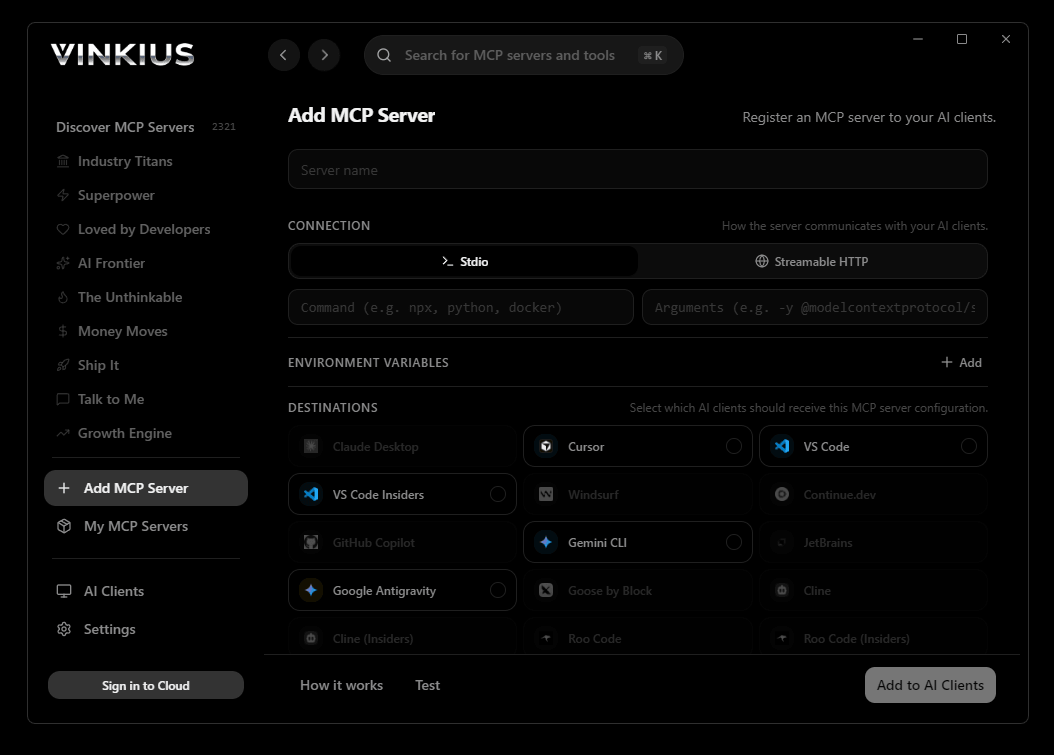

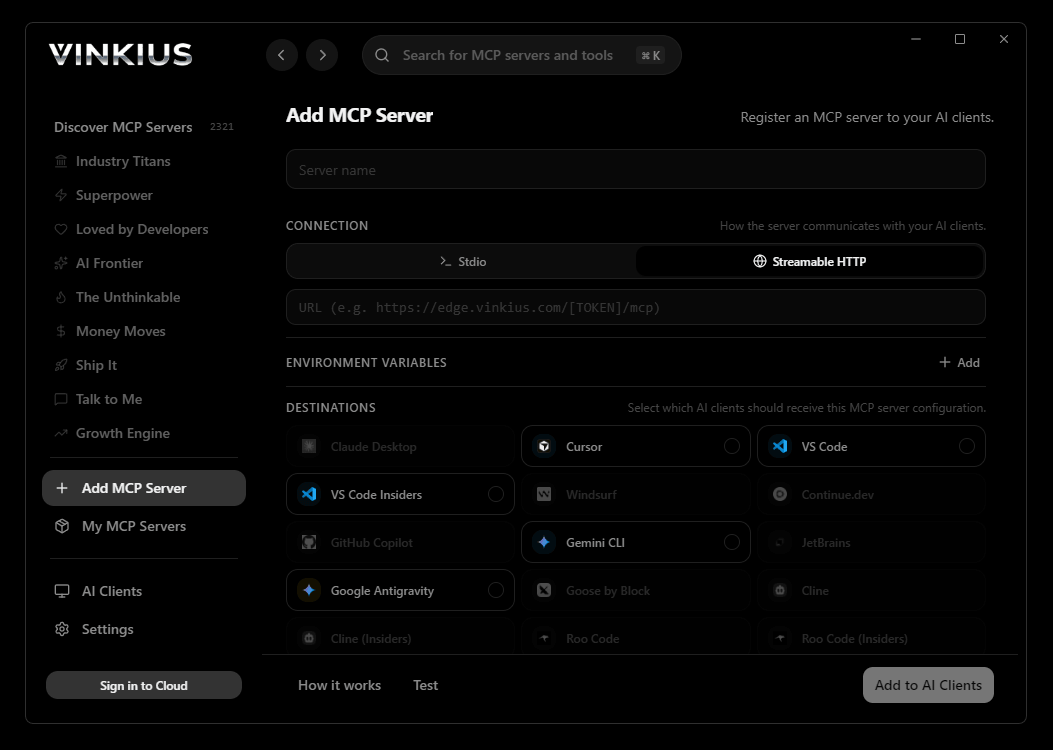
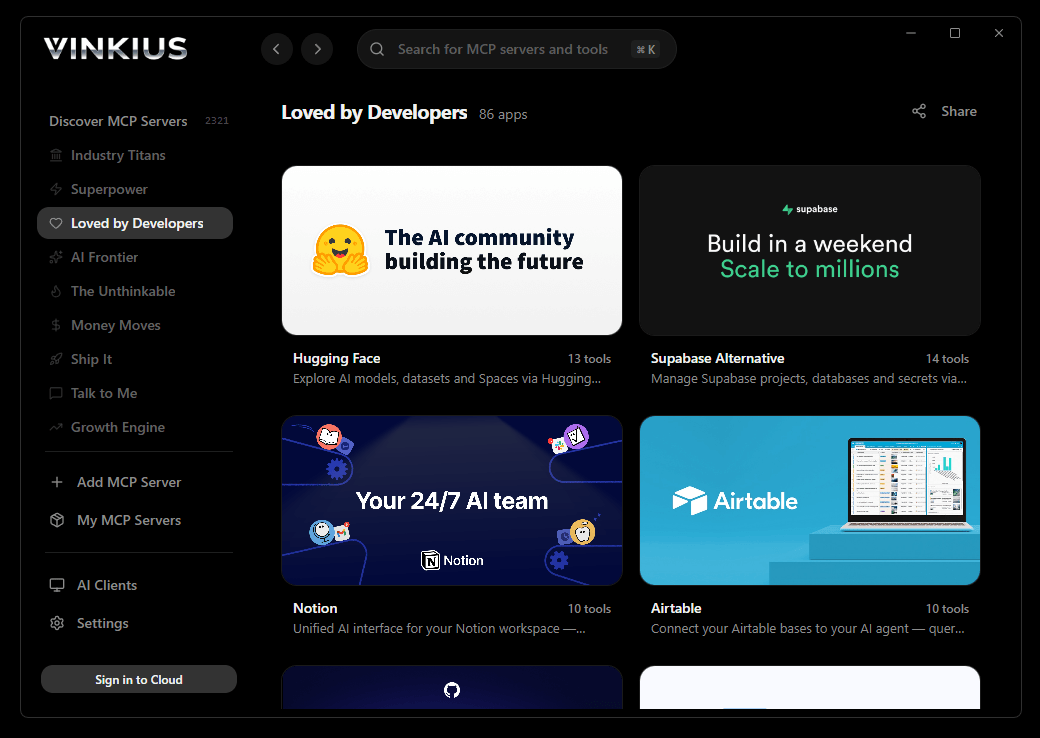
{
  "mcpServers": {
    "graphhopper": {
      "url": "https://edge.vinkius.com/[YOUR_TOKEN_HERE]/mcp"
    }
  }
}
* Every MCP server runs on Vinkius-managed infrastructure inside AWS - a purpose-built runtime with per-request V8 isolates, Ed25519 signed audit chains, and sub-40ms cold starts optimized for native MCP execution. See our infrastructure
About GraphHopper MCP Server
Connect your GraphHopper account to any AI agent and take full control of your geospatial routing, geocoding, and fleet optimization through natural conversation.
Cursor's Agent mode turns GraphHopper into an in-editor superpower. Ask Cursor to generate code using live data from GraphHopper and it fetches, processes, and writes. all in a single agentic loop. 10 tools appear alongside file editing and terminal access, creating a unified development environment grounded in real-time information.
What you can do
- Route Orchestration — Calculate optimal routes between multiple GPS stops, identifying precise asynchronous directions and time calculations bypassing URL length limits natively
- Geocoding discovery — Extract explicitly attached REST arrays targeting
/geocodeto translate human-readable addresses into precise LatLon coordinates for spatial analysis - Reverse Geocoding — Perform structural extraction of properties matching GPS pins exactly against named physical streets to verify localized entity bounds flawlessly
- Routing Matrix Calculation — Generate N x M arrays of travel times and distances to analyze complex grid logistics and distance tables between multiple points synchronously
- Isochrone Reachability — Identify precisely the boundary reachable in a specific time limit from a starting point, defining reachability polygons for site selection or delivery zones
- VRP Optimization — Command explicit JSON targets firing Traveling Salesman configs for multiple vehicles, checking time windows and capacity constraints to solve complex logistics synchronously
- Map Matching Auditing — Validate API logic correcting imprecise GPS jumps by snapping raw GPX tracks perfectly onto street vectors limitlessly
The GraphHopper MCP Server exposes 10 tools through the Vinkius. Connect it to Cursor in under two minutes — no API keys to rotate, no infrastructure to provision, no vendor lock-in. Your configuration, your data, your control.
How to Connect GraphHopper to Cursor via MCP
Follow these steps to integrate the GraphHopper MCP Server with Cursor.
Open MCP Settings
Press Cmd+Shift+P (macOS) or Ctrl+Shift+P (Windows/Linux) → search "MCP Settings"
Add the server config
Paste the JSON configuration above into the mcp.json file that opens
Save the file
Cursor will automatically detect the new MCP server
Start using GraphHopper
Open Agent mode in chat and ask: "Using GraphHopper, help me...". 10 tools available
Why Use Cursor with the GraphHopper MCP Server
Cursor AI Code Editor provides unique advantages when paired with GraphHopper through the Model Context Protocol.
Agent mode turns Cursor into an autonomous coding assistant that can read files, run commands, and call MCP tools without switching context
Cursor's Composer feature can generate entire files using real-time data fetched through MCP. no copy-pasting from external dashboards
MCP tools appear alongside built-in tools like file reading and terminal access, creating a unified agentic environment
VS Code extension compatibility means your existing workflow, keybindings, and extensions all work alongside MCP tools
GraphHopper + Cursor Use Cases
Practical scenarios where Cursor combined with the GraphHopper MCP Server delivers measurable value.
Code generation with live data: ask Cursor to generate a security report module using live DNS and subdomain data fetched through MCP
Automated documentation: have Cursor query your API's tool schemas and generate TypeScript interfaces or OpenAPI specs automatically
Infrastructure-as-code: Cursor can fetch domain configurations and generate corresponding Terraform or CloudFormation templates
Test scaffolding: ask Cursor to pull real API responses via MCP and generate unit test fixtures from actual data
GraphHopper MCP Tools for Cursor (10)
These 10 tools become available when you connect GraphHopper to Cursor via MCP:
calculate_distance_isochrone
Provision a highly-available JSON Payload generating physical borders
calculate_heavy_route
Identify precise active arrays spanning native multi-stop geometries
calculate_reachability_polygon
Enumerate explicitly attached structured rules exporting active Reachability
calculate_routing_matrix
Inspect deep internal arrays mitigating specific Math tables
calculate_url_route
Retrieve explicit Cloud logging tracing explicit lightweight Directions
poll_vrp_solution
Retrieve the exact structural matching verifying Delivery alternatives
reverse_geocode
Perform structural extraction of properties driving active OSM bindings
search_geocode
Identify bounded routing spaces inside the Headless GraphHopper Engine
snap_gpx_to_road
Irreversibly vaporize explicit validations extracting GPX logic natively
submit_vrp_optimizer
Dispatch an automated validation check routing explicit jsprit solves
Example Prompts for GraphHopper in Cursor
Ready-to-use prompts you can give your Cursor agent to start working with GraphHopper immediately.
"Calculate a car route between '40.71, -74.00' and '40.75, -73.98'"
"Show me the 10-minute reachability zone from central Berlin"
"Reverse geocode these coordinates: '48.85, 2.35'"
Troubleshooting GraphHopper MCP Server with Cursor
Common issues when connecting GraphHopper to Cursor through the Vinkius, and how to resolve them.
Tools not appearing in Cursor
Server shows as disconnected
GraphHopper + Cursor FAQ
Common questions about integrating GraphHopper MCP Server with Cursor.
What is Agent mode and why does it matter for MCP?
Where does Cursor store MCP configuration?
mcp.json file. You can configure servers at the project level (.cursor/mcp.json in your project root) or globally (~/.cursor/mcp.json). Project-level configs take precedence.Can Cursor use MCP tools in inline edits?
How do I verify MCP tools are loaded?
Connect GraphHopper with your favorite client
Step-by-step setup guides for every MCP-compatible client and framework:
Anthropic's native desktop app for Claude with built-in MCP support.
AI-first code editor with integrated LLM-powered coding assistance.
GitHub Copilot in VS Code with Agent mode and MCP support.
Purpose-built IDE for agentic AI coding workflows.
Autonomous AI coding agent that runs inside VS Code.
Anthropic's agentic CLI for terminal-first development.
Python SDK for building production-grade OpenAI agent workflows.
Google's framework for building production AI agents.
Type-safe agent development for Python with first-class MCP support.
TypeScript toolkit for building AI-powered web applications.
TypeScript-native agent framework for modern web stacks.
Python framework for orchestrating collaborative AI agent crews.
Leading Python framework for composable LLM applications.
Data-aware AI agent framework for structured and unstructured sources.
Microsoft's framework for multi-agent collaborative conversations.
Connect GraphHopper to Cursor
Get your token, paste the configuration, and start using 10 tools in under 2 minutes. No API key management needed.