
Health Gorilla MCP Server for Claude Desktop 12 tools — connect in under 2 minutes
Claude Desktop is Anthropic's native application for interacting with Claude AI models on macOS and Windows. It was the first consumer application to ship with built-in MCP support, making it the reference implementation for the Model Context Protocol standard.
ASK AI ABOUT THIS MCP SERVER
Vinkius supports streamable HTTP and SSE.
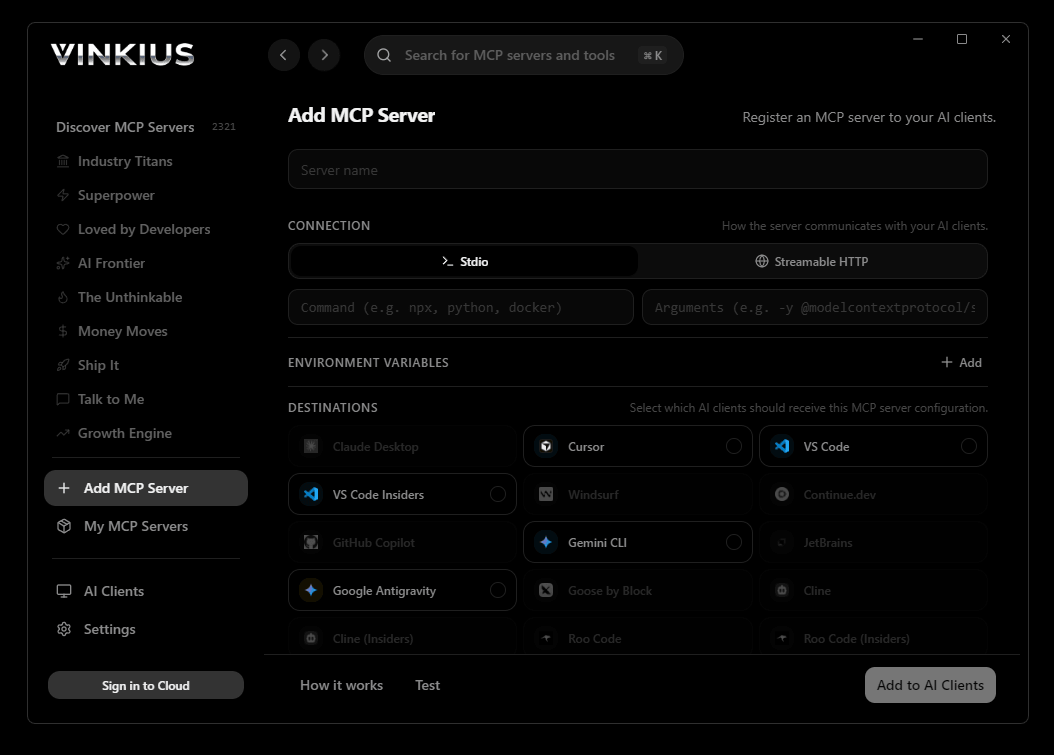
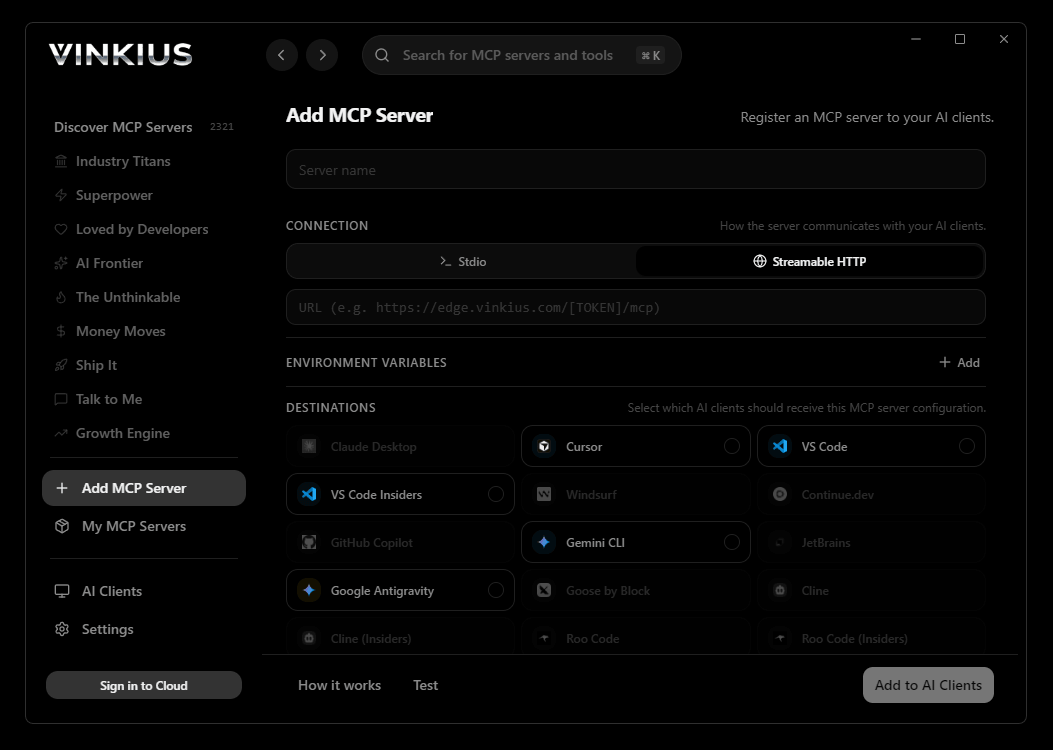
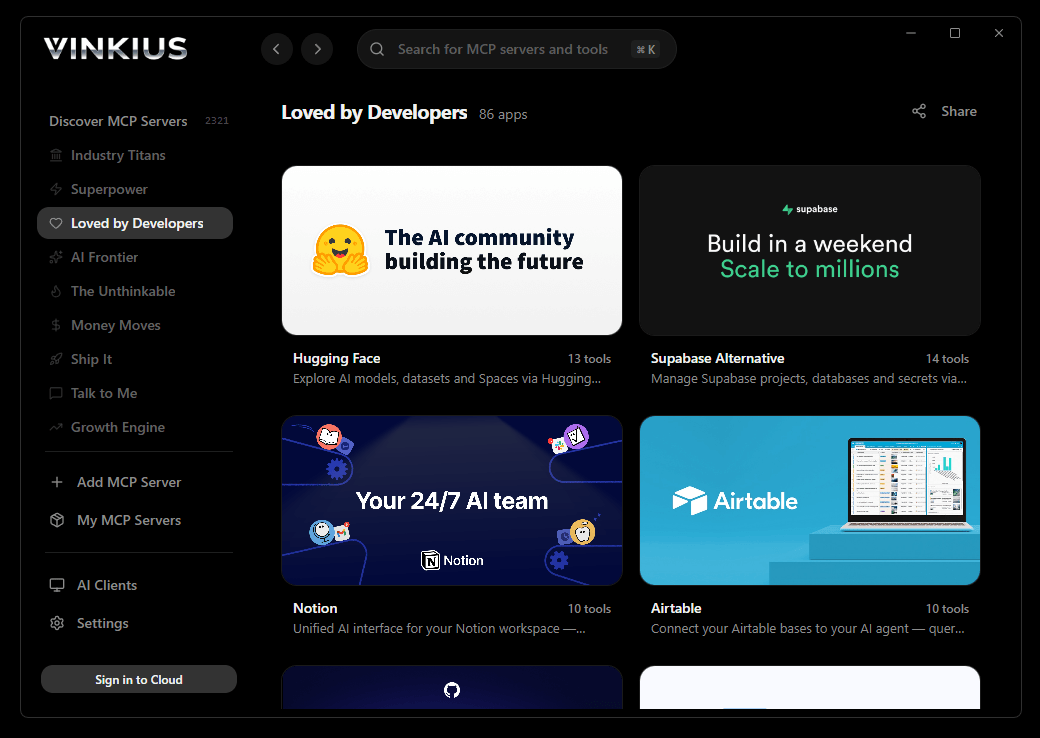
Vinkius Desktop App
The modern way to manage MCP Servers — no config files, no terminal commands. Install Health Gorilla and 2,500+ MCP Servers from a single visual interface.

{
  "mcpServers": {
    "health-gorilla": {
      // Your Vinkius token — get it at cloud.vinkius.com
      "url": "https://edge.vinkius.com/[YOUR_TOKEN_HERE]/mcp"
    }
  }
}
* Every MCP server runs on Vinkius-managed infrastructure inside AWS - a purpose-built runtime with per-request V8 isolates, Ed25519 signed audit chains, and sub-40ms cold starts optimized for native MCP execution. See our infrastructure
About Health Gorilla MCP Server
Connect Health Gorilla to any AI agent via MCP.
How to Connect Health Gorilla to Claude Desktop via MCP
Follow these steps to integrate the Health Gorilla MCP Server with Claude Desktop.
Open Claude Desktop Settings
Go to Settings → Developer → Edit Config to open claude_desktop_config.json
Add the MCP Server
Paste the configuration above into the mcpServers section
Restart Claude Desktop
Close and reopen Claude Desktop to load the new server
Start using Health Gorilla
Look for the 🔌 icon in the chat — your 12 tools are now available
Why Use Claude Desktop with the Health Gorilla MCP Server
Claude Desktop by Anthropic provides unique advantages when paired with Health Gorilla through the Model Context Protocol.
Claude Desktop is the reference MCP client — it was designed alongside the protocol itself, ensuring the most complete and stable MCP implementation available
Zero-code configuration: add a server URL to a JSON file and Claude instantly discovers and exposes all available tools in the chat interface
Claude's extended thinking capability lets it reason through multi-step tool usage, chaining multiple API calls to answer complex questions
Enterprise-grade security with local config storage — your tokens never leave your machine, and connections go directly to the Vinkius Edge network
Health Gorilla + Claude Desktop Use Cases
Practical scenarios where Claude Desktop combined with the Health Gorilla MCP Server delivers measurable value.
Interactive data exploration: ask Claude to query DNS records, look up WHOIS data, and cross-reference results in a single conversation
Ad-hoc security audits: type a domain name and let Claude enumerate subdomains, check DNS history, and flag configuration anomalies — all through natural language
Executive briefings: generate comprehensive domain intelligence reports by asking Claude to compile findings into a formatted summary
Learning and training: new team members can explore API capabilities conversationally without needing to read documentation
Health Gorilla MCP Tools for Claude Desktop (12)
These 12 tools become available when you connect Health Gorilla to Claude Desktop via MCP:
cancel_lab_order
Orders in "received" or "pending" status can typically be cancelled. Orders already in "collected" or "testing" status cannot be cancelled and require lab notification. A cancellation reason is recommended for audit purposes. Use this when an order was submitted in error, the patient refused testing, or clinical circumstances have changed. Cancel a pending laboratory order
create_patient_record
Required fields: first name, last name, date of birth, and gender. Optional: address, phone, email, MRN (Medical Record Number), and insurance information. Use this to register a new patient before submitting lab orders. Returns the patient ID for use in subsequent order submissions. Create a new patient record in the Health Gorilla system
get_lab_results
Returns structured data suitable for EHR integration or clinical review. Results include timestamp of completion, pathologist sign-off (if applicable), and any critical value notifications. Use this to review patient results, identify abnormal values, or populate EHR records. Retrieve detailed laboratory results for a specific completed order
get_order_status
Status values include: "received", "in_progress", "collected", "testing", "completed", "cancelled". Returns order details, specimen collection status, lab processing information, and estimated completion time. Use this to track order progress, update patients on result timelines, or verify completion status. Check the current status of a submitted laboratory order
get_patient_demographics
Returns name, DOB, gender, contact information, MRN, and registration date. Use this to verify patient identity before order submission or to review patient registration details. Get demographic information for a registered patient
get_provider_details
Use this to verify provider credentials, obtain contact information for referrals, or confirm network participation before ordering tests. Get detailed information about a specific healthcare provider
list_orders
Optional filters: status (e.g., "pending", "completed", "cancelled") and patient_id. Each order includes order ID, patient name, test names, status, order date, and performing lab. Use this to review recent orders, track pending work, or audit ordering patterns. List laboratory orders with optional filtering by status or patient
list_patient_results
Includes test names, values, dates, and order references. Useful for trend analysis and longitudinal patient monitoring (e.g., tracking HbA1c over time, monitoring lipid panels). Use this for chronic disease management, preventive care follow-up, or comprehensive patient history review. List all laboratory results for a specific patient across all orders
match_patient
Returns match score and potential matches. Use this before creating new orders to avoid duplicate patient records and ensure results are attributed to the correct patient. Critical for data integrity in healthcare systems. Match a patient against existing records in the Health Gorilla network
search_lab_tests
Returns test names, LOINC codes, categories (chemistry, hematology, microbiology, etc.), turnaround times, and performing laboratory information. Use this to find the correct test codes (LOINC/CPT) before submitting orders, explore available diagnostic options, or verify test availability. Optional query parameter accepts free-text search. Optional category parameter filters by test type. Search the Health Gorilla lab test catalog by name, LOINC code, or category
search_providers
Results include provider name, specialty, NPI number, location, and contact information. Use this to find ordering providers, verify network participation, or locate specialists in a specific area. Optional filters: specialty (e.g., "Internal Medicine", "Cardiology") and location. Search for healthcare providers in the Health Gorilla network
submit_lab_order
The order includes patient demographics, ordering provider information, requested tests (LOINC/CPT codes), clinical indication/diagnosis (ICD-10 codes), and specimen collection details. Returns an order ID for tracking status and retrieving results. Use this to place lab orders electronically without manual paperwork. Supported test types include chemistry panels, CBC, metabolic panels, infectious disease testing, genetic testing, and radiology orders. The order is routed to the appropriate performing laboratory (Quest, LabCorp, etc.). Submit a new laboratory or radiology order through the Health Gorilla diagnostic network
Troubleshooting Health Gorilla MCP Server with Claude Desktop
Common issues when connecting Health Gorilla to Claude Desktop through the Vinkius, and how to resolve them.
Server not appearing after restart
~/Library/Application Support/Claude/claude_desktop_config.json (macOS) or %APPDATA%\\Claude\\ (Windows).Authentication error
Tools not showing in chat
Health Gorilla + Claude Desktop FAQ
Common questions about integrating Health Gorilla MCP Server with Claude Desktop.
How does Claude Desktop discover MCP tools?
claude_desktop_config.json file and connects to each configured MCP server. It calls the tools/list endpoint to fetch the schema for every available tool, then surfaces them as clickable options in the chat interface via the 🔌 icon.What happens if the MCP server is temporarily unavailable?
Can I connect multiple MCP servers simultaneously?
mcpServers section of the config file. Each server appears as a separate tool provider, and Claude can use tools from multiple servers in a single conversation turn.Is there a limit on the number of tools per server?
Does Claude Desktop support Streamable HTTP transport?
Connect Health Gorilla with your favorite client
Step-by-step setup guides for every MCP-compatible client and framework:
Anthropic's native desktop app for Claude with built-in MCP support.
AI-first code editor with integrated LLM-powered coding assistance.
GitHub Copilot in VS Code with Agent mode and MCP support.
Purpose-built IDE for agentic AI coding workflows.
Autonomous AI coding agent that runs inside VS Code.
Anthropic's agentic CLI for terminal-first development.
Python SDK for building production-grade OpenAI agent workflows.
Google's framework for building production AI agents.
Type-safe agent development for Python with first-class MCP support.
TypeScript toolkit for building AI-powered web applications.
TypeScript-native agent framework for modern web stacks.
Python framework for orchestrating collaborative AI agent crews.
Leading Python framework for composable LLM applications.
Data-aware AI agent framework for structured and unstructured sources.
Microsoft's framework for multi-agent collaborative conversations.
Connect Health Gorilla to Claude Desktop
Get your token, paste the configuration, and start using 12 tools in under 2 minutes. No API key management needed.