
JobNimbus MCP Server for Cline 10 tools — connect in under 2 minutes
Cline is an autonomous AI coding agent inside VS Code that plans, executes, and iterates on tasks. Wire JobNimbus through Vinkius and Cline gains direct access to every tool. from data retrieval to workflow automation. without leaving the terminal.
ASK AI ABOUT THIS MCP SERVER
Vinkius supports streamable HTTP and SSE.
Vinkius Desktop App
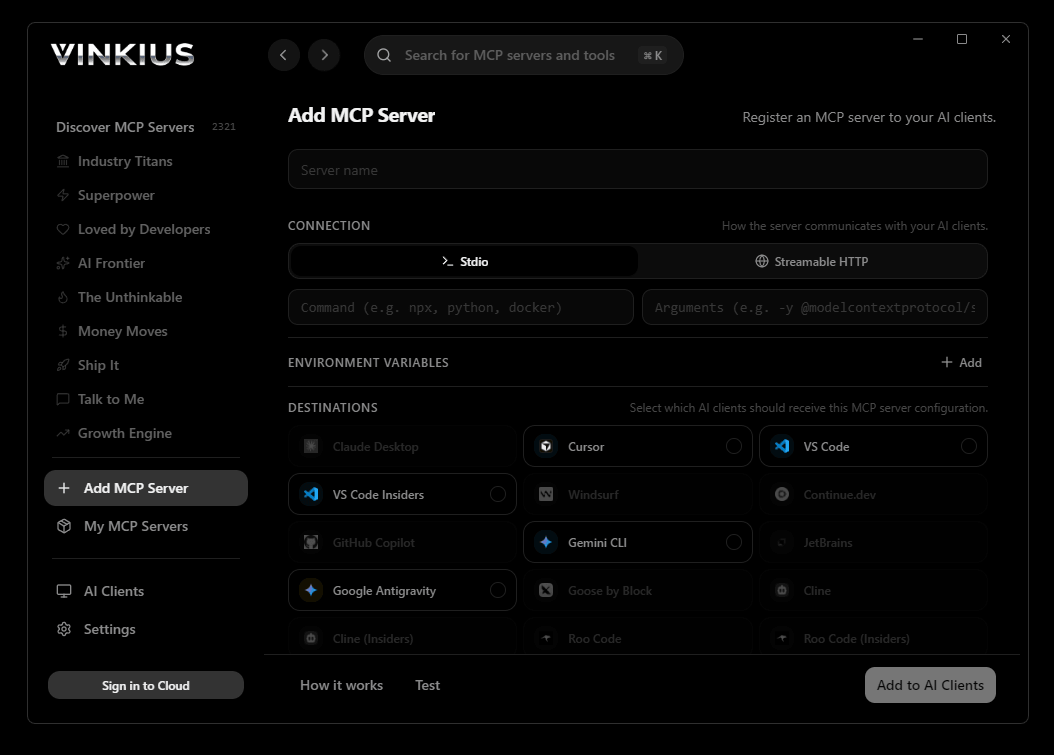
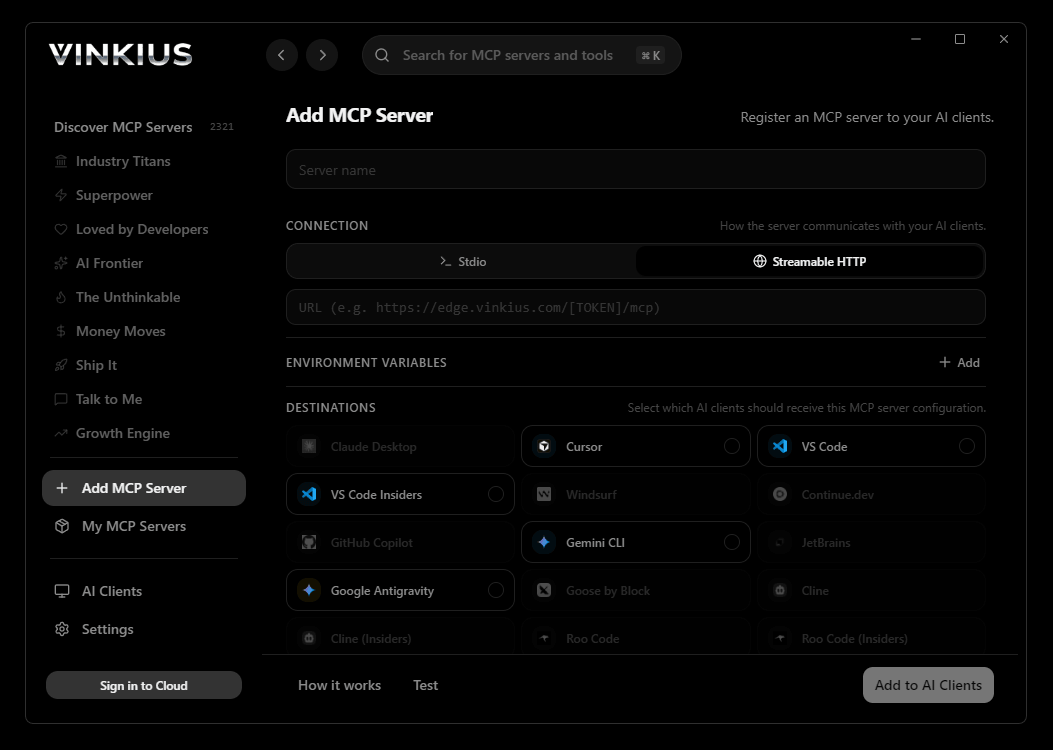
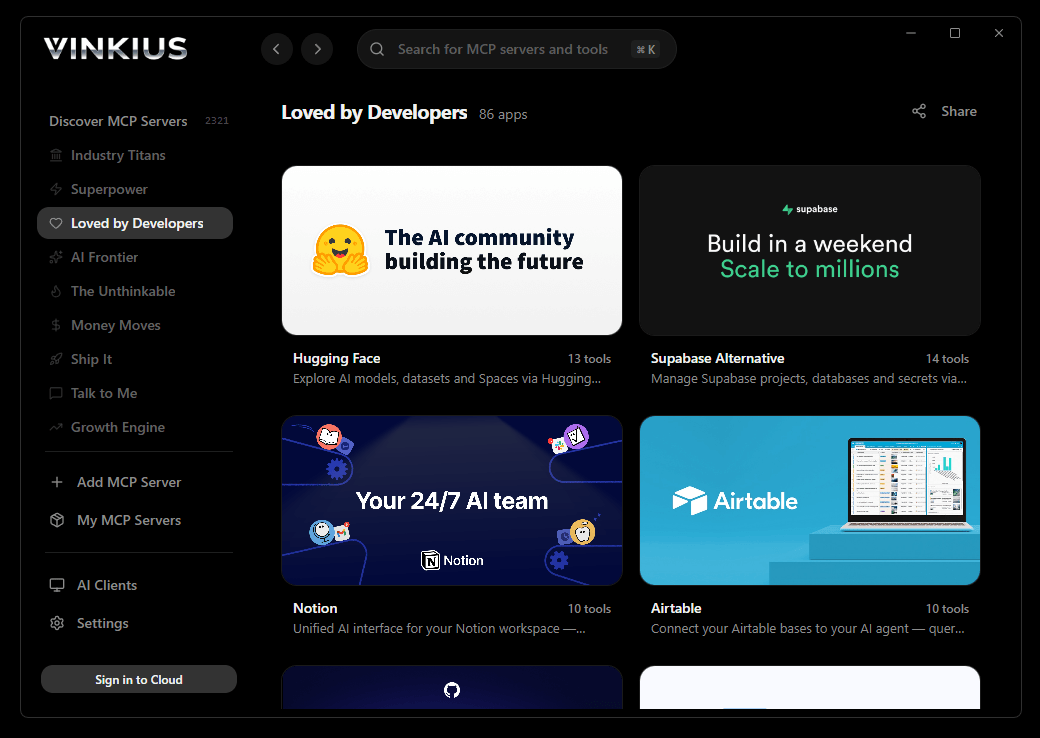
The modern way to manage MCP Servers — no config files, no terminal commands. Install JobNimbus and 2,500+ MCP Servers from a single visual interface.

{
  "mcpServers": {
    "jobnimbus": {
      "url": "https://edge.vinkius.com/[YOUR_TOKEN_HERE]/mcp"
    }
  }
}
* Every MCP server runs on Vinkius-managed infrastructure inside AWS - a purpose-built runtime with per-request V8 isolates, Ed25519 signed audit chains, and sub-40ms cold starts optimized for native MCP execution. See our infrastructure
About JobNimbus MCP Server
Empower your AI agents with JobNimbus's specialized CRM for contractors. This MCP server allows you to list and retrieve contacts and jobs, manage tasks and workflows, track payments, and view organization users directly through the JobNimbus API. Ideal for automating field service operations and project management.
Cline operates autonomously inside VS Code. it reads your codebase, plans a strategy, and executes multi-step tasks including JobNimbus tool calls without waiting for prompts between steps. Connect 10 tools through Vinkius and Cline can fetch data, generate code, and commit changes in a single autonomous run.
The JobNimbus MCP Server exposes 10 tools through the Vinkius. Connect it to Cline in under two minutes — no API keys to rotate, no infrastructure to provision, no vendor lock-in. Your configuration, your data, your control.
How to Connect JobNimbus to Cline via MCP
Follow these steps to integrate the JobNimbus MCP Server with Cline.
Open Cline MCP Settings
Click the MCP Servers icon in the Cline sidebar panel
Add remote server
Click "Add MCP Server" and paste the configuration above
Enable the server
Toggle the server switch to ON
Start using JobNimbus
Ask Cline: "Using JobNimbus, help me...". 10 tools available
Why Use Cline with the JobNimbus MCP Server
Cline provides unique advantages when paired with JobNimbus through the Model Context Protocol.
Cline operates autonomously. it reads your codebase, plans a strategy, and executes multi-step tasks including MCP tool calls without step-by-step prompts
Runs inside VS Code, so you get MCP tool access alongside your existing extensions, terminal, and version control in a single window
Cline can create, edit, and delete files based on MCP tool responses, enabling end-to-end automation from data retrieval to code generation
Transparent execution: every tool call and file change is shown in Cline's activity log for full visibility and approval before committing
JobNimbus + Cline Use Cases
Practical scenarios where Cline combined with the JobNimbus MCP Server delivers measurable value.
Autonomous feature building: tell Cline to fetch data from JobNimbus and scaffold a complete module with types, handlers, and tests
Codebase refactoring: use JobNimbus tools to validate live data while Cline restructures your code to match updated schemas
Automated testing: Cline fetches real responses from JobNimbus and generates snapshot tests or mocks based on actual payloads
Incident response: query JobNimbus for real-time status and let Cline generate hotfix patches based on the findings
JobNimbus MCP Tools for Cline (10)
These 10 tools become available when you connect JobNimbus to Cline via MCP:
get_contact
Returns addresses, phone numbers, email, and custom fields. Use this for deep intelligence on a customer before an interaction. Retrieves details for a specific contact
get_job
Returns project descriptions, associated contact IDs, and current workflow status. Use this to analyze project specifics or provide an update on a job. Retrieves details for a specific job
list_boards
Useful for navigating the account structure. Lists all configured boards
list_contacts
Returns names, contact types, and IDs. Use this to identify clients or start a search for a specific customer. Lists all contacts in JobNimbus
list_jobs
Includes job titles, status, and IDs. Essential for monitoring project flow and upcoming work. Lists all jobs in JobNimbus
list_payments
Essential for monitoring revenue and project billing status. Lists all recent payments
list_products
Useful for auditing available services and pricing items. Lists all products and services
list_tasks
Returns task descriptions, due dates, and IDs. Use this to help the user manage their daily workload or audit team activities. Lists all tasks
list_users
Useful for identifying sales reps or project managers. Lists all users in the organization
list_workflows
Useful for understanding the steps in the company's business processes. Lists all configured workflows
Example Prompts for JobNimbus in Cline
Ready-to-use prompts you can give your Cline agent to start working with JobNimbus immediately.
"List all active contacts in JobNimbus."
"Show me the latest jobs created."
"Check the status of my active tasks."
Troubleshooting JobNimbus MCP Server with Cline
Common issues when connecting JobNimbus to Cline through the Vinkius, and how to resolve them.
Server shows error in sidebar
JobNimbus + Cline FAQ
Common questions about integrating JobNimbus MCP Server with Cline.
How does Cline connect to MCP servers?
Can Cline run MCP tools without approval?
Does Cline support multiple MCP servers at once?
Connect JobNimbus with your favorite client
Step-by-step setup guides for every MCP-compatible client and framework:
Anthropic's native desktop app for Claude with built-in MCP support.
AI-first code editor with integrated LLM-powered coding assistance.
GitHub Copilot in VS Code with Agent mode and MCP support.
Purpose-built IDE for agentic AI coding workflows.
Autonomous AI coding agent that runs inside VS Code.
Anthropic's agentic CLI for terminal-first development.
Python SDK for building production-grade OpenAI agent workflows.
Google's framework for building production AI agents.
Type-safe agent development for Python with first-class MCP support.
TypeScript toolkit for building AI-powered web applications.
TypeScript-native agent framework for modern web stacks.
Python framework for orchestrating collaborative AI agent crews.
Leading Python framework for composable LLM applications.
Data-aware AI agent framework for structured and unstructured sources.
Microsoft's framework for multi-agent collaborative conversations.
Connect JobNimbus to Cline
Get your token, paste the configuration, and start using 10 tools in under 2 minutes. No API key management needed.