
UtilityAPI MCP Server for Cline 12 tools — connect in under 2 minutes
Cline is an autonomous AI coding agent inside VS Code that plans, executes, and iterates on tasks. Wire UtilityAPI through Vinkius and Cline gains direct access to every tool. from data retrieval to workflow automation. without leaving the terminal.
ASK AI ABOUT THIS MCP SERVER
Vinkius supports streamable HTTP and SSE.
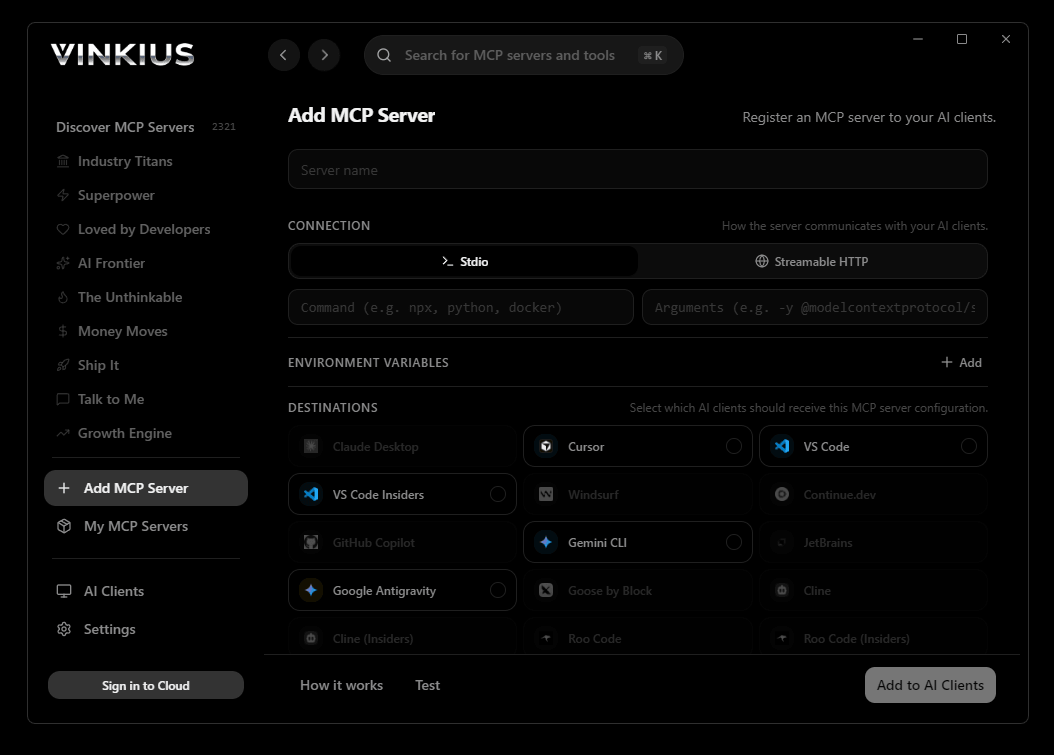
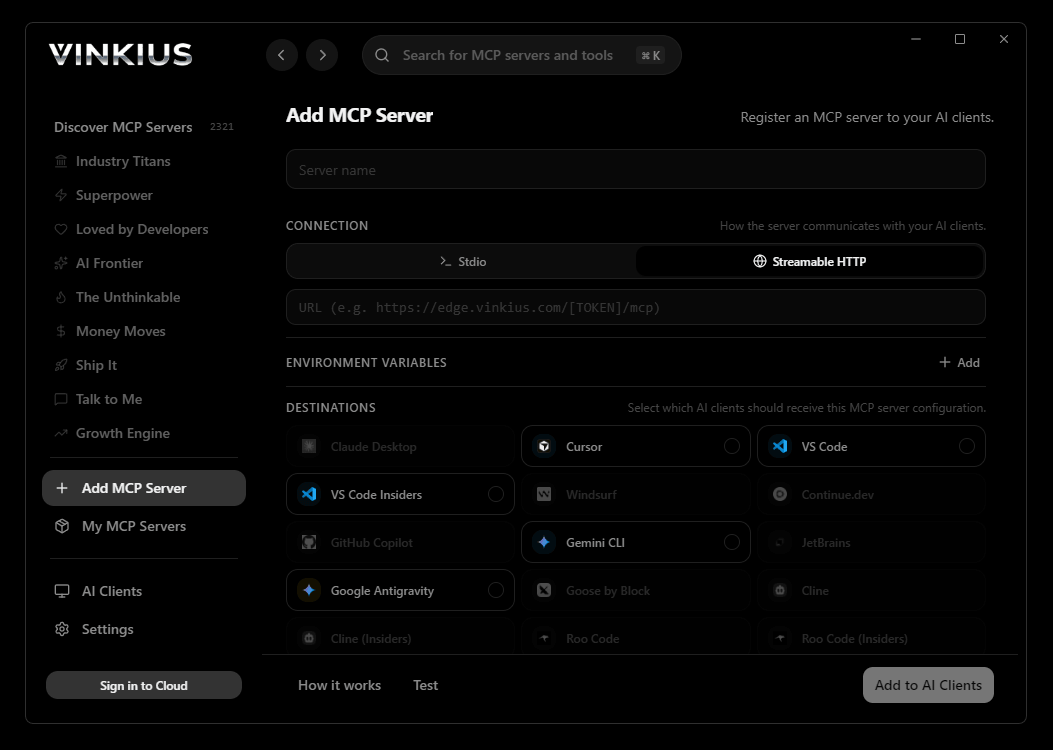
Vinkius Desktop App
The modern way to manage MCP Servers — no config files, no terminal commands. Install UtilityAPI and 2,500+ MCP Servers from a single visual interface.

{
  "mcpServers": {
    "utilityapi": {
      "url": "https://edge.vinkius.com/[YOUR_TOKEN_HERE]/mcp"
    }
  }
}
* Every MCP server runs on Vinkius-managed infrastructure inside AWS - a purpose-built runtime with per-request V8 isolates, Ed25519 signed audit chains, and sub-40ms cold starts optimized for native MCP execution. See our infrastructure
About UtilityAPI MCP Server
Connect UtilityAPI to any AI agent and access utility billing history, granular usage intervals, and meter data from over 100 US utility companies — including PG&E, Southern California Edison, Con Edison, National Grid, and more — through a single unified API.
Cline operates autonomously inside VS Code. it reads your codebase, plans a strategy, and executes multi-step tasks including UtilityAPI tool calls without waiting for prompts between steps. Connect 12 tools through Vinkius and Cline can fetch data, generate code, and commit changes in a single autonomous run.
What you can do
- Supported Utilities — List all 100+ utility companies available through the platform with their codes and data types
- Customer Authorizations — Create and manage authorization forms for customers to securely share their utility data
- Meter Management — List all authorized utility meters (service points) with addresses, fuel types, and collection status
- Billing History — Retrieve complete billing history with costs, usage amounts (kWh/therms), and billing periods
- Usage Intervals — Access granular smart meter interval data (15-min or hourly readings) for detailed energy analysis
- Historical Collection — Activate backfilling of historical utility data for newly authorized meters
- Combined Meter Data — Get both bills and intervals in a single call for comprehensive energy analysis
- Event Monitoring — Monitor webhook events for authorization flows, data collection status, and errors
- Demo Testing — Test authorization forms with simulated residential and commercial scenarios before production
- Billing Summaries — Track API usage costs and billing periods for your UtilityAPI account
The UtilityAPI MCP Server exposes 12 tools through the Vinkius. Connect it to Cline in under two minutes — no API keys to rotate, no infrastructure to provision, no vendor lock-in. Your configuration, your data, your control.
How to Connect UtilityAPI to Cline via MCP
Follow these steps to integrate the UtilityAPI MCP Server with Cline.
Open Cline MCP Settings
Click the MCP Servers icon in the Cline sidebar panel
Add remote server
Click "Add MCP Server" and paste the configuration above
Enable the server
Toggle the server switch to ON
Start using UtilityAPI
Ask Cline: "Using UtilityAPI, help me...". 12 tools available
Why Use Cline with the UtilityAPI MCP Server
Cline provides unique advantages when paired with UtilityAPI through the Model Context Protocol.
Cline operates autonomously. it reads your codebase, plans a strategy, and executes multi-step tasks including MCP tool calls without step-by-step prompts
Runs inside VS Code, so you get MCP tool access alongside your existing extensions, terminal, and version control in a single window
Cline can create, edit, and delete files based on MCP tool responses, enabling end-to-end automation from data retrieval to code generation
Transparent execution: every tool call and file change is shown in Cline's activity log for full visibility and approval before committing
UtilityAPI + Cline Use Cases
Practical scenarios where Cline combined with the UtilityAPI MCP Server delivers measurable value.
Autonomous feature building: tell Cline to fetch data from UtilityAPI and scaffold a complete module with types, handlers, and tests
Codebase refactoring: use UtilityAPI tools to validate live data while Cline restructures your code to match updated schemas
Automated testing: Cline fetches real responses from UtilityAPI and generates snapshot tests or mocks based on actual payloads
Incident response: query UtilityAPI for real-time status and let Cline generate hotfix patches based on the findings
UtilityAPI MCP Tools for Cline (12)
These 12 tools become available when you connect UtilityAPI to Cline via MCP:
activate_historical_collection
Send an array of meter_uids (from list_meters) to begin backfilling historical data. Once activated, the system will start collecting all available historical data for those meters. Use this after a new customer authorization to ensure you get their complete usage history, not just future data. Data collection may take time depending on the utility and data availability. Activate historical data collection for specific utility meters
create_auth_form
Returns a form_uid that can be used to redirect customers to the authorization flow. The utilityCode parameter must be a valid utility code (from list_utilities). Optional scenario parameter controls the test mode: "residential" (home customer), "commercial" (business customer), or other utility-specific scenarios. Use this to set up new data sharing agreements with utility customers. Create a new authorization form for customers to share their utility data
get_billing_summaries
Includes billing periods, costs, and meter counts for your UtilityAPI subscription. Optional meterId parameter retrieves summary for a specific meter. Use this to track API usage costs and understand billing periods for your UtilityAPI account. Get billing account summaries for UtilityAPI accounting
get_bills
Returns utility bills with: start/end dates, total cost (in dollars), energy usage (kWh for electric, therms for gas), utility name, and meter association. The meters parameter is required — provide a single meter UID or comma-separated multiple UIDs. Use this to analyze customer spending on utilities, identify high-cost periods, or provide billing insights. Bills are only available for meters that have been authorized and are actively collecting data. Get utility billing history for authorized meters
get_events
Events include: new authorization created, meter data available, collection completed, errors, etc. Use this to monitor the status of data collection workflows, debug authorization issues, or build real-time notifications for when customer data becomes available. Get webhook events from UtilityAPI (authorizations, data collection status)
get_form_templates
Templates define what information is collected during the customer authorization process. Use this to understand available form configurations before creating custom authorization forms. Each template has a unique ID used when creating new forms. Get authorization form templates used for customer data sharing
get_intervals
This is granular consumption data showing energy usage over time intervals (typically 15-minute or hourly readings from smart meters). Each interval includes: start/end timestamp, usage value (kWh or therms), and cost information. The meters parameter is required — provide meter UID(s). Use this for detailed energy analysis, identifying peak usage patterns, demand response analysis, or building energy models. This is more granular than bills — ideal for time-series analysis. Get detailed usage interval data (hourly/15-min) for authorized meters
get_meter_data
This is a convenience tool that combines results from get_bills and get_intervals for one meter. Returns: complete bill history (dates, costs, usage) plus granular interval data (time-series readings). Use this when you need a complete picture of a customer's utility data — both the financial (billing) and technical (usage patterns) aspects — for comprehensive energy analysis. The meterUid must be a valid meter UID from list_meters. Get combined billing and interval data for a specific meter in one call
list_authorizations
Each authorization represents a customer who has granted access to their utility data. Optional referrals parameter filters by a specific referral code (from test submissions). Set includeMeters=true to also return associated meter data with each authorization. Use this to track which customers have authorized data access and get their referral codes for meter queries. List all customer data sharing authorizations
list_meters
Each meter represents a specific utility service connection (electricity or gas) at a customer location. Meter data includes: utility name, service address, fuel type (electric/gas), collection status, and the unique meter_uid used for fetching bills and intervals. Optional authorizationId filters meters to a specific customer authorization. Use the meter_uid with get_bills and get_intervals to retrieve usage data. List all authorized utility meters (service points)
list_utilities
Each utility includes its name, utility code (used for form submissions), and supported data types. Use this to find the correct utility code when creating authorization forms or querying utility-specific data. Common utilities include: PG&E (Pacific Gas & Electric), SCE (Southern California Edison), Con Edison, National Grid, and many others across the US. List all supported utility companies available through UtilityAPI
test_form_submission
Returns a referral_code that can be used to retrieve the test authorization and associated meter data. Use this during development and testing to verify form configurations work correctly before deploying to production. The formId is the uid returned by create_auth_form. The referral_code returned can be used with list_authorizations to retrieve test data. Test an authorization form to simulate customer authorization and get a referral code
Example Prompts for UtilityAPI in Cline
Ready-to-use prompts you can give your Cline agent to start working with UtilityAPI immediately.
"List all supported utility companies."
"Get the billing history for meter 44445555."
"Show me the usage intervals for my authorized PG&E meters."
Troubleshooting UtilityAPI MCP Server with Cline
Common issues when connecting UtilityAPI to Cline through the Vinkius, and how to resolve them.
Server shows error in sidebar
UtilityAPI + Cline FAQ
Common questions about integrating UtilityAPI MCP Server with Cline.
How does Cline connect to MCP servers?
Can Cline run MCP tools without approval?
Does Cline support multiple MCP servers at once?
Connect UtilityAPI with your favorite client
Step-by-step setup guides for every MCP-compatible client and framework:
Anthropic's native desktop app for Claude with built-in MCP support.
AI-first code editor with integrated LLM-powered coding assistance.
GitHub Copilot in VS Code with Agent mode and MCP support.
Purpose-built IDE for agentic AI coding workflows.
Autonomous AI coding agent that runs inside VS Code.
Anthropic's agentic CLI for terminal-first development.
Python SDK for building production-grade OpenAI agent workflows.
Google's framework for building production AI agents.
Type-safe agent development for Python with first-class MCP support.
TypeScript toolkit for building AI-powered web applications.
TypeScript-native agent framework for modern web stacks.
Python framework for orchestrating collaborative AI agent crews.
Leading Python framework for composable LLM applications.
Data-aware AI agent framework for structured and unstructured sources.
Microsoft's framework for multi-agent collaborative conversations.
Connect UtilityAPI to Cline
Get your token, paste the configuration, and start using 12 tools in under 2 minutes. No API key management needed.