
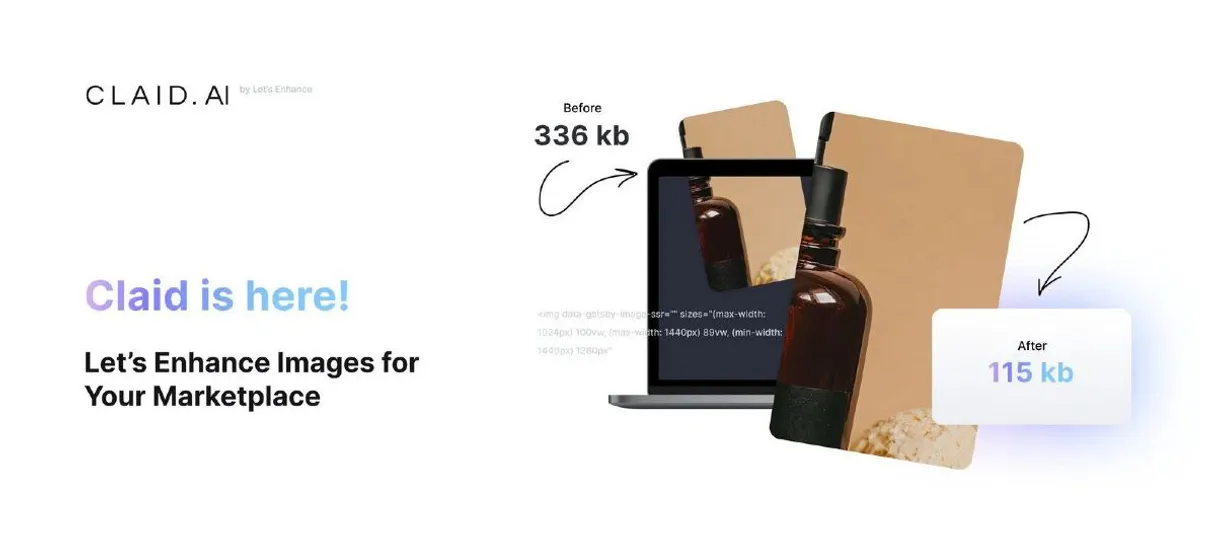
Supercharge your AI with Claid AI. Automate High-Res Product Photography
 Gemini
 Works with every AI agent you already use
…and any MCP-compatible client









Connect to your AI in seconds.
Claid AI connects advanced image processing to any agent. It handles everything from increasing photo resolution and removing backgrounds to applying HDR adjustments in one go.
Stop spending hours on Photoshop. You talk to your agent, it takes the image data, and you get professional-grade assets back instantly.
Use this MCP when you need scalable, high-volume product photography enhancement.
What your AI can do
Get claid account info
Retrieves core information about your account, including current usage quotas and limits.
Get processing task details
Checks the status and final result of an asynchronous image processing job you started previously.
List claid collections
Shows a list of image groups or collections already saved within your account.
Apply multiple edits, including HDR adjustments and general polishing, to improve photo detail.
Use specialized AI models to increase the size of images without losing quality or clarity.
Quickly remove existing backgrounds from an image, allowing you to replace them with white or custom scenes.
View your stored image collections and monitor the status of any running processing jobs.
Resize images to specific dimensions, using intelligent fit or fill logic for clean results.
Ask an AI about this
Compatible AI Apps
OAuth 2.0 Compatible Gemini Waiting for input…
Claid AI: 8 Image Processing Tools
These tools let you control every step of the image pipeline, from increasing resolution to removing complex backgrounds.
Make your AI actually useful.
Add this MCP to Claude, Cursor, or Windsurf and your AI stops guessing. It gets real tools to look things up, take action, and handle the stuff you keep doing by hand.
Start using Claid AI on VinkiusGet Claid Account Info
Retrieves core information about your account, including current usage quotas and limits.
Get Processing Task Details
Checks the status and final result of an asynchronous image processing job you...
List Claid Collections
Shows a list of image groups or collections already saved within your account.
List Available Ai Operations
Lists all common types of AI operations that this MCP supports for your reference.
List Claid Webhooks
Displays the webhooks you have configured to receive automated notifications about...
Enhance Image
Applies multiple AI edits to an image, combining tasks like upscale, background removal, and HDR adjustment into one action.
Remove Image Background
Removes existing backgrounds from an image or replaces them with a solid white or custom color.
Upscale Image Resolution
Uses AI models to increase the pixel dimensions of an image while maintaining high...
Connect to your AI in seconds. Security and governance baked right in.
Pick your AI client below to get set up. Just create a Vinkius account, subscribe, and you're instantly up and running. We handle the entire backend infrastructure, delivering out-of-the-box support for HTTPS Streamable, SSE, and OAuth2—zero messy routing required.
Claude AI
Open Claude Settings
Go to claude.ai, click your profile icon, then navigate to Customize → Connectors.
Add Custom Connector
Click the "+" button and select Add custom connector. Paste your Vinkius endpoint URL:
https://edge.vinkius.com/[YOUR_TOKEN_HERE]/mcp
Replace [YOUR_TOKEN_HERE] with your token from
cloud.vinkius.com. For OAuth-protected servers, expand Advanced
settings to add credentials.
Start a conversation
Open a new chat. The Claid AI integration is available immediately — no restart needed.
Choose How to Get Started
Build a custom MCP for your own tools, or connect a ready-made integration from our catalog.
Build Your Own
Turn any API into an MCP. Import a spec, define Agent Skills, or deploy with MCPFusion.
- Import from OpenAPI, Swagger, or YAML specs
- Create Agent Skills with progressive disclosure
- Deploy to edge with MCPFusion framework
- Built in DLP, auth, and compliance on every call
- Real time usage dashboard and cost metering
- Publish to catalog or keep private
Make Your AI Do More
Start with Claid AI, then connect any of our 5,000+ other servers whenever your AI needs more. One click, no limits.
- Use this MCP plus 5,000+ others, all in one place
- Add new capabilities to your AI anytime you want
- Every connection is secured and compliant automatically
- Track usage and costs across all your servers
- Works with Claude, ChatGPT, Cursor, and more
- New servers added to the catalog every week
Independent Platform Disclaimer: Vinkius is an independent platform and is not affiliated with, endorsed by, sponsored by, verified by, or otherwise authorized by Claid AI. All third-party trademarks, logos, and brand names are the property of their respective owners. Their use on this website is strictly for informational purposes to identify service compatibility and interoperability.
VINKIUS INFRASTRUCTURE
Cloud Hosted
Managed infra
V8 Isolated
Sandboxed per request
Zero-Trust Proxy
No stored credentials
DLP Enforced
Policy on every call
GDPR Compliant
EU data residency
Token Compression
~60% cost reduction
Works with Claude, ChatGPT, Cursor, and more
The Model Context Protocol standardizes how applications expose capabilities to LLMs. Instead of operating in isolation, your AI gains direct access to external platforms, live data, and real-world actions through secure, standardized connections.
This connection provides 8 powerful capabilities that interface natively with Claude, ChatGPT, Cursor, and other compatible AI platforms. No middleware. No custom integration required.
The Pain of Manual Product Photography Edits
Today, getting a single product shot ready for sale means juggling five different tools. You run it through an upscaler to hit the minimum pixel count. Then you open it in another editor just to crop out the background clutter. Next, you apply color correction and finally, if the lighting is bad, you manually adjust the white balance. This process isn't only time-consuming; it introduces human error every single step.
With this MCP, your agent orchestrates that entire sequence conversationally. You give a single prompt: 'Take this image, upscale it to 4K, remove the background, and make sure the colors look natural.' It handles the calls internally, giving you one perfect asset without touching a dashboard or running a dozen separate commands.
Using `enhance_image` for Comprehensive Edits
Before this MCP, if you wanted to make an image brighter and bigger simultaneously, you had to run two distinct processes: one dedicated to brightening (HDR adjustment) and another dedicated solely to resizing. This required managing two separate job IDs and waiting for two different completions.
Now, the `enhance_image` tool bundles both actions into a single pipeline. Your agent manages the sequence internally—the upscale happens, *then* the HDR is applied. It’s one call, one result, which radically changes how fast you can iterate on product visuals.
What your AI can actually do with this
Claid AI lets your agent take control of complex photo workflows using only conversation. Instead of jumping between multiple paid editors or running repetitive scripts, you describe the desired outcome—say, 'Make this shot look like it was taken in studio lighting with a pure white background.' Your agent handles the processing pipeline automatically.
This MCP gives you full control over image enhancement tasks: upscaling low-res shots for professional listings, removing cluttered backgrounds to isolate products, or applying specific adjustments like white balance and HDR. You can even check on long jobs; if an upscale task is running in the background, your agent reports the status until it's ready for download.
It’s all managed through natural language commands, accessible via the Vinkius catalog when you connect your preferred AI client.
It turns basic product shots into gallery-ready photography without ever touching a manual setting or dealing with complex API calls.
019d7570-6d91-720f-a9ae-c1953f85e09c 
Here's how it actually works
The bottom line is: you talk to your agent about what you need done with an image, and it handles the entire complex workflow from start to finish.
Subscribe to this MCP and input your Claid AI API Key, which you get from the service dashboard.
Start a conversation with your agent and reference the image you need enhanced. Your agent will determine if it needs to upscaling or removing the background.
The process runs automatically in the background. You receive a confirmation that the task started, and when finished, your agent provides a link to the final, edited asset.
Who is this actually for?
Any professional whose job requires them to generate high volumes of consistent, top-tier visual assets. This is for e-commerce operators who are sick of manually running images through different web tools just to hit the right spec sheet.
Needs to take raw product photos and batch-process them—removing backgrounds, upscaling for new listings—before they go live on a marketplace.
Must quickly adapt client assets from various sources, applying specific enhancements like color correction or canvas resizing without starting over.
Needs to meet strict platform guidelines (e.g., 4000px on the longest edge) for low-res images, requiring reliable upscaling and background control.
What Changes When You Connect
You get instant background control. Instead of manually masking out products in Photoshop, you use remove_image_background to quickly isolate items and drop them onto a pure white canvas.
Scaling low-res assets is simple. With the upscale_image_resolution tool, you can guarantee your images meet high marketplace standards without losing detail or pixel integrity.
Complex edits become one prompt. The enhance_image function lets you bundle multiple needs—like upscaling and HDR adjustment—into a single command flow.
You always know what's happening. Use get_processing_task_details to check the status of long jobs, so your agent doesn't just start something and disappear until it finishes.
Manage your assets easily. You can view saved groups using list_claid_collections or keep track of system limits with get_claid_account_info.
See it in action
The Listing Update Nightmare
A seller has 30 new products, each shot under suboptimal lighting and needs a white background. Instead of manually cropping, resizing, and running 30 separate processes in various web tools, they simply ask their agent to run the remove_image_background tool followed by enhance_image, processing the entire batch with one conversation.
The Quality Control Check
A designer receives a high-value asset that is too small for the new campaign banner. Instead of asking an assistant to resize it manually, they instruct their agent using upscale_image_resolution first, and then use enhance_image to adjust the contrast before generating the final canvas.
The Batch Processing Pipeline
A merchandise team needs to update 50 product photos with a new brand watermark and higher resolution. They connect their agent via Vinkius, use list_available_ai_operations to confirm support for watermarking, and then trigger the full workflow using enhance_image.
The Async Task Follow-up
A developer submits a huge batch of images for processing. They use the initial command to start the job, noting the task ID. A few minutes later, instead of waiting in limbo, they ask their agent about the status using get_processing_task_details until the result is ready.
The honest tradeoffs
Treating it like a simple file converter
Just uploading an image and asking for 'better quality.' This doesn't account for specific needs like background removal or resolution matching.
You need to be precise. Tell your agent: 'Run remove_image_background on this image, then run upscale_image_resolution at 4K, and finally use enhance_image to apply a slight HDR adjustment.' Specify the tools.
Ignoring quotas
Running massive batches of jobs without checking if your API key is nearing its usage limit.
Always check your limits first. Use get_claid_account_info before starting any large-scale operation to prevent running into rate limits.
Forgetting task status
Asking the agent about a job immediately after submission, only for it to fail because the processing is still running in the background.
Wait a few minutes, then use get_processing_task_details with the correct task ID. This confirms whether the work was started or if there's an actual error.
When It Fits, When It Doesn't
Use this MCP if your workflow involves transforming raw visual data into polished, market-ready assets at scale. Specifically, if you need to combine multiple image actions—like background removal and upscaling and color correction—into one automated sequence, this is the tool for you. Don't use it if all you need is a simple file format conversion (e.g., JPG to PNG) or basic cropping; dedicated photo editors are faster for those single tasks. However, if your pain point is consistency and volume, letting your agent manage the pipeline via enhance_image saves massive time.
Questions you might have
Can I upscale an image to 4K resolution through the agent? +
Yes! Use the upscale_image_resolution tool. You can specify the model (e.g., photo for realistic images) and the agent will instruct Claid AI to enhance the image to high resolution.
How do I check if my image processing task is finished? +
Use the get_processing_task_details tool with the unique task ID. Your agent will fetch the current status and provide the output URL once the processing is complete.
Where do I find my Claid AI API Key? +
Log in to your Claid.ai dashboard and navigate to the API or Settings section. You can generate and copy your API key from there.
When using `remove_image_background`, how do I replace the background with a specific custom scene or color? +
You specify replacement details directly in the request parameters. Instead of just removing the background, you pass the desired color code (like HEX) or upload an image to act as the new backdrop.
If I need to know my usage limits and current quotas, should I use `get_claid_account_info`? +
Yes, running get_claid_account_info retrieves your core account details. This includes monitoring your API usage quota so you don't hit rate limits mid-workflow.
Before I try to edit an image, how can I use `list_available_ai_operations` to check what enhancements are supported? +
Running list_available_ai_operations gives you a definitive list of all current capabilities. This confirms whether the AI supports specific edits like HDR adjustment or white balance correction.
If I run a long batch process, how can I use webhook tools to be notified when it finishes? +
You first use list_claid_webhooks to manage your notification endpoints. This sets up automatic alerts so your agent gets an update the instant processing is complete.
Can I combine multiple fixes like polishing and HDR adjustments in one call using `enhance_image`? +
Yep, you can. The enhance_image tool lets you group several operations—like applying HDR adjustment alongside image polishing—into a single workflow request.
We've already built the connector for Claid AI. Just plug in your AI agents and start using Vinkius.
No hosting. No infrastructure. No complex setup.
All 8 tools are live and waiting.
You're up and running in seconds.
Gemini Vinkius gives your AI agents access to the full catalog of app connectors, all fully managed, secure, and enterprise-ready. One subscription, every tool you need.
Built, hosted, and secured by Vinkius. You just connect and go.