
Image Router MCP. The smart way to generate any visual asset.
 Gemini
 Works with every AI agent you already use
…and any MCP-compatible client









Just plug in your AI agents and start using Vinkius.
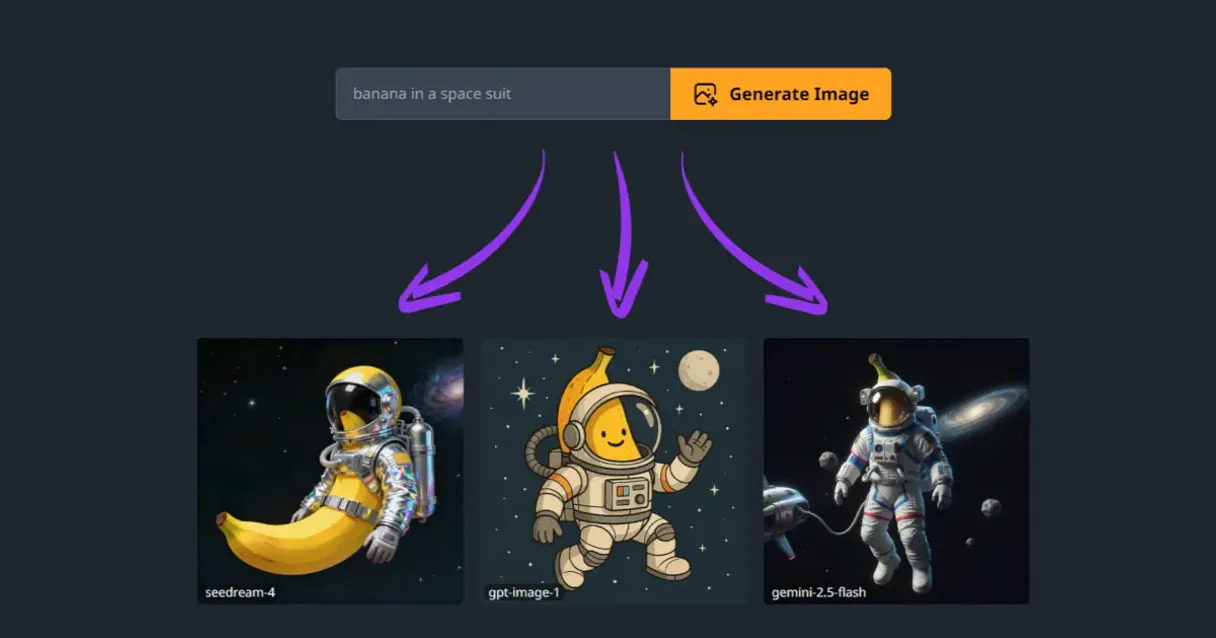
Image Router MCP automatically routes your image generation requests to the best available AI model based on specific prompts, required style, or quality needs.
This eliminates manual API selection and ensures you use the right backend for realism, artistic flair, or high-resolution output, managing everything from initial creation to final upscaling.
What your AI agents can do
Check imagerouter status
Verifies the connectivity and operational health of the Image Router MCP.
Edit image
Changes specific parts of an existing image based on a new text description.
Generate image advanced
Generates images while providing full control over size, seed, and negative prompts.
Create brand new visuals just by writing out a description.
Control the core parameters of generation, including size, random seed values, and negative prompts to guide the AI away from bad results.
Edit an image you already have by supplying a text prompt describing the change.
Take a generated image and upscale it to boost its pixel density without losing quality.
Check which underlying AI engines (like DALL-E or SDXL) are currently connected and running through the MCP.
Ask AI about this MCP
Supported MCP Clients
OAuth 2.0 Compatible Gemini Waiting for input…
Image Router: 11 Tools
Use these tools to generate new visuals, edit existing ones, and manage the entire lifecycle of an image asset through a single interface.
Make your AI actually useful.
Add this MCP to Claude, Cursor, or Windsurf and your AI stops guessing. It gets real tools to look things up, take action, and handle the stuff you keep doing by hand.
Start using Image Router on Vinkius019dd108check imagerouter status
Verifies the connectivity and operational health of the Image Router MCP.
019dd108edit image
Changes specific parts of an existing image based on a new text description.
019dd108generate image advanced
Generates images while providing full control over size, seed, and negative prompts.
019dd108generate image
Creates an initial image asset using standard parameters from a text prompt.
019dd108generate variation
Creates a new image that is visually similar to an existing one, but with minor changes.
019dd108get model
Retrieves detailed information about a specific underlying AI model.
019dd108get generation status
Checks the real-time progress of any running or queued image generation job.
019dd108list models by category
Filters and lists the available models based on a defined category, like 'realism' or 'artistic'.
019dd108list models
Lists every available AI engine that can be used for image generation.
019dd108list styles
Provides a list of pre-defined artistic styles that can be applied to any generated image.
019dd108upscale image
Increases the resolution and detail level of an existing image asset.
Choose How to Get Started
Build a custom MCP for your own tools, or connect a ready-made integration from our catalog.
Build Your Own
Turn any API into an MCP. Import a spec, define Agent Skills, or deploy with MCPFusion.
- Import from OpenAPI, Swagger, or YAML specs
- Create Agent Skills with progressive disclosure
- Deploy to edge with MCPFusion framework
- Built in DLP, auth, and compliance on every call
- Real time usage dashboard and cost metering
- Publish to catalog or keep private
Make Your AI Do More
Start with Image Router, then connect any of our 5,000+ other servers whenever your AI needs more. One click, no limits.
- Use this MCP plus 5,000+ others, all in one place
- Add new capabilities to your AI anytime you want
- Every connection is secured and compliant automatically
- Track usage and costs across all your servers
- Works with Claude, ChatGPT, Cursor, and more
- New servers added to the catalog every week
Independent Platform Disclaimer: Vinkius is an independent platform and is not affiliated with, endorsed by, sponsored by, verified by, or otherwise authorized by Image Router. All third-party trademarks, logos, and brand names are the property of their respective owners. Their use on this website is strictly for informational purposes to identify service compatibility and interoperability.
VINKIUS INFRASTRUCTURE
Cloud Hosted
Managed infra
V8 Isolated
Sandboxed per request
Zero-Trust Proxy
No stored credentials
DLP Enforced
Policy on every call
GDPR Compliant
EU data residency
Token Compression
~60% cost reduction
Works with Claude, ChatGPT, Cursor, and more
The Model Context Protocol standardizes how applications expose capabilities to LLMs. Instead of operating in isolation, your AI gains direct access to external platforms, live data, and real-world actions through secure, standardized connections.
This server provides 11 capabilities that interface natively with Claude, ChatGPT, Cursor, and any MCP client. No middleware. No custom integration required.
Handling visual assets means jumping between five different dashboards.
Today, if your agent needs a new concept image, it has to hit three separate endpoints: one for the base generation (Model A), another for fine-tuning and style application (Model B), and a third just to check if the initial render was finished. That's at least five clicks or five distinct API calls just to get one usable asset.
With this MCP, your agent interacts with a single point of control. You prompt it once, telling it exactly what you need—a high-res image in a specific style—and the system handles the internal routing and sequencing across all those different backends automatically. You just get the final file.
Image Router MCP: The only place you need to manage visual assets.
You ditch the manual process of copying one image, running it through a separate upscaler tool, and then going back to the original generator just to create variations. All those sequential steps—generate, upscale, vary—are grouped under one system umbrella.
The difference is control. You're not limited by what one single service offers; you get access to every model it supports, routed automatically based on your prompt and constraints.
What you can do with this MCP connector
You're dealing with multiple image generation APIs—DALL-E here, Stable Diffusion there. Trying to pick the right model every time is a massive waste of cycles. This MCP solves that. It acts as an intelligent dispatcher for your visuals. You give it a prompt and some constraints (like desired aspect ratio or specific artistic style), and it figures out which underlying model works best to deliver the required output.
Beyond initial creation, you can use this connector to modify existing assets with text descriptions, boost resolution, or even create variations of what you just made. It’s all managed through one interface. If your team is building a complex visual pipeline, connecting Image Router via Vinkius gives your agent instant access to an entire catalog of image generation capabilities.
019dd109-2540-71ab-82fb-bba055feabf5 
How Image Router MCP Works
- 1 Your agent calls the Image Router MCP, passing a text prompt and specifying any constraints (e.g., 'ultra-realistic,' or 'comic book style').
- 2 The MCP evaluates the request against its internal routing logic—checking model suitability, available styles, and parameter requirements.
- 3 It executes the job on the optimal backend model and returns the generated image asset, along with metadata like size and model used.
The bottom line is: you stop worrying about which API to call and just focus on what visual outcome you need.
Who Is Image Router MCP For?
Creative Ops Engineers, Product Designers, and Backend Developers who constantly deal with asset pipelines. If your job involves turning abstract ideas into polished visuals for a UI or campaign, this MCP handles the heavy lifting.
Needs to rapidly prototype mockups and marketing assets, requiring consistent visual quality across different styles.
Requires generating unique illustrations or character concepts based on detailed text prompts for articles or books.
Builds multi-stage pipelines where image generation needs to be followed by upscaling, variation creation, and status checks.
What Changes When You Connect
- Get fine-grained control over the output. Instead of just generating an image, you can use
generate_image_advancedto set specific seeds and negative prompts, which is critical when you need predictable results for a UI element. - Handle complex assets in one go. If your pipeline requires boosting resolution after generation, you don't switch tools; you call
upscale_imageright after the initial asset creation step. - Speed up development cycles by automating model choice. You avoid hardcoding which API to hit for a specific style; the MCP handles that routing logic for you.
- Manage visual assets end-to-end. From initial generation with
generate_imageto checking its progress usingget_generation_status, the entire workflow is tracked and managed. - Discover what's available instantly. Use
list_modelsorlist_models_by_categoryto quickly determine if a specific required style (e.g., 'vintage') is supported by any connected backend.
Real-World Use Cases
Need an ad asset in three styles.
A marketing engineer needs one core image concept rendered, but it must be available as a photorealistic shot, a watercolor painting, and a cyberpunk sketch. They call the MCP once; it uses list_styles to identify the options and then calls generate_image multiple times with different style parameters.
The initial render was too small.
A developer generates an image using generate_image, but realizes the final display needs 4K resolution. Instead of re-prompting, they immediately follow up by calling upscale_image on the output to boost pixel count.
The prompt was good, but the detail is lacking.
A user generates a basic image and wants more depth. They use generate_variation or explicitly call edit_image, passing in a targeted instruction like 'Add smoke rising from the ground' to guide the revision.
Pipeline needs continuous monitoring.
An automated workflow starts several large image jobs. Instead of waiting for a timeout, it periodically calls get_generation_status until all assets are marked as complete before proceeding with post-processing steps.
The Tradeoffs
Calling separate APIs.
Trying to connect to a different image generation service (e.g., Model X) just because the result from generate_image wasn't perfect. This adds complexity and breaks workflow continuity.
→
Don't switch services; refine the request within the MCP. If the style is off, use list_styles to find a better preset or call generate_image_advanced to adjust seed values until it hits the mark.
Ignoring metadata checks.
Assuming an image model exists just because you heard of it. You'll waste time and quota calling tools that fail due to incorrect connectivity or outdated parameters.
→
Always run check_imagerouter_status first. This confirms the whole system is green before you start building any pipeline.
Over-prompting simple tasks.
Using generate_image_advanced when all you needed was a basic concept sketch. The extra parameters just bloat the call and slow down execution unnecessarily.
→
If your requirements are simple, use the standard generate_image tool first. Only escalate to generate_image_advanced if you need specific control over seeds or dimensions.
When It Fits, When It Doesn't
Use this MCP when your visual workflow is multi-stage, complex, or requires model agility. If you're building an automated system that needs to pass through several asset transformations—like generate -> upscale -> vary —this connector is mandatory because it manages the state and routing for you.
Don't use it if: You only need a single, simple image generation call where the specific underlying model doesn't matter. In those cases, direct API access might be marginally simpler; however, even then, this MCP provides better error handling and status tracking via get_generation_status. If your needs are limited to basic text-to-image without modification or variation, you might overcomplicate things, but the ability to check models using list_models is always valuable for auditing.
Common Questions About Image Router MCP
How do I know if an image generation job is finished using generate_image? (get_generation_status) +
You use get_generation_status to poll the job's status. This tool lets your agent check asynchronously if the asset you requested has completed processing, which prevents pipeline failures due to timeouts.
Which tool do I use for high-resolution images? (upscale_image) +
upscale_image is the specific function for boosting an image's pixel count. It takes a finished asset and enhances its detail, making it suitable for print or large display.
Can I generate images with advanced settings? (generate_image_advanced) +
Yes. generate_image_advanced lets you define parameters like the random seed value and negative prompts. This is critical when you need to reproduce a specific visual result or exclude unwanted artifacts.
How do I find out what image styles are available? (list_styles) +
You call list_styles. This tool returns the names of pre-defined artistic styles, allowing you to specify them in subsequent generation calls for consistent output.
How do I check if my Image Router account is properly connected before running a job using check_imagerouter_status? +
You run the check_imagerouter_status tool. It confirms your API key and connectivity are active, which prevents failed generation jobs and saves you time.
If I have an image but need to change specific elements in it, what does the edit_image function do? +
The edit_image tool lets you modify existing visual assets. You provide the source image and a text description of the changes you want, and it handles the rest.
I like an initial image, but I need a few slight aesthetic changes; how do I use generate_variation? +
The generate_variation tool takes your original image and creates several highly similar alternatives. This is useful for exploring subtle artistic differences without starting the entire generation process over.
Before generating, how can I check the specific capabilities or limitations of a model using get_model? +
Use the get_model tool to retrieve detailed specs for any available image model. This lets you confirm things like native resolution limits or required parameters before submitting your request.
Can my AI generate images from text? +
Yes. generate_image creates images from any text prompt using AI models like Stable Diffusion.
Can I upscale or create variations? +
Yes. upscale_image increases resolution and generate_variation creates visual alternatives of an existing image.
How do I browse available models? +
Use list_models for all models or list_models_by_category to filter by style category.
Use it with your favorite AI tools
Connect this server to Cursor, Claude, VS Code, and more.