
Local Falcon MCP. Track Geo-Grid Rankings and Local Search Visibility.
 Gemini
 Works with every AI agent you already use
…and any MCP-compatible client









Just plug in your AI agents and start using Vinkius.
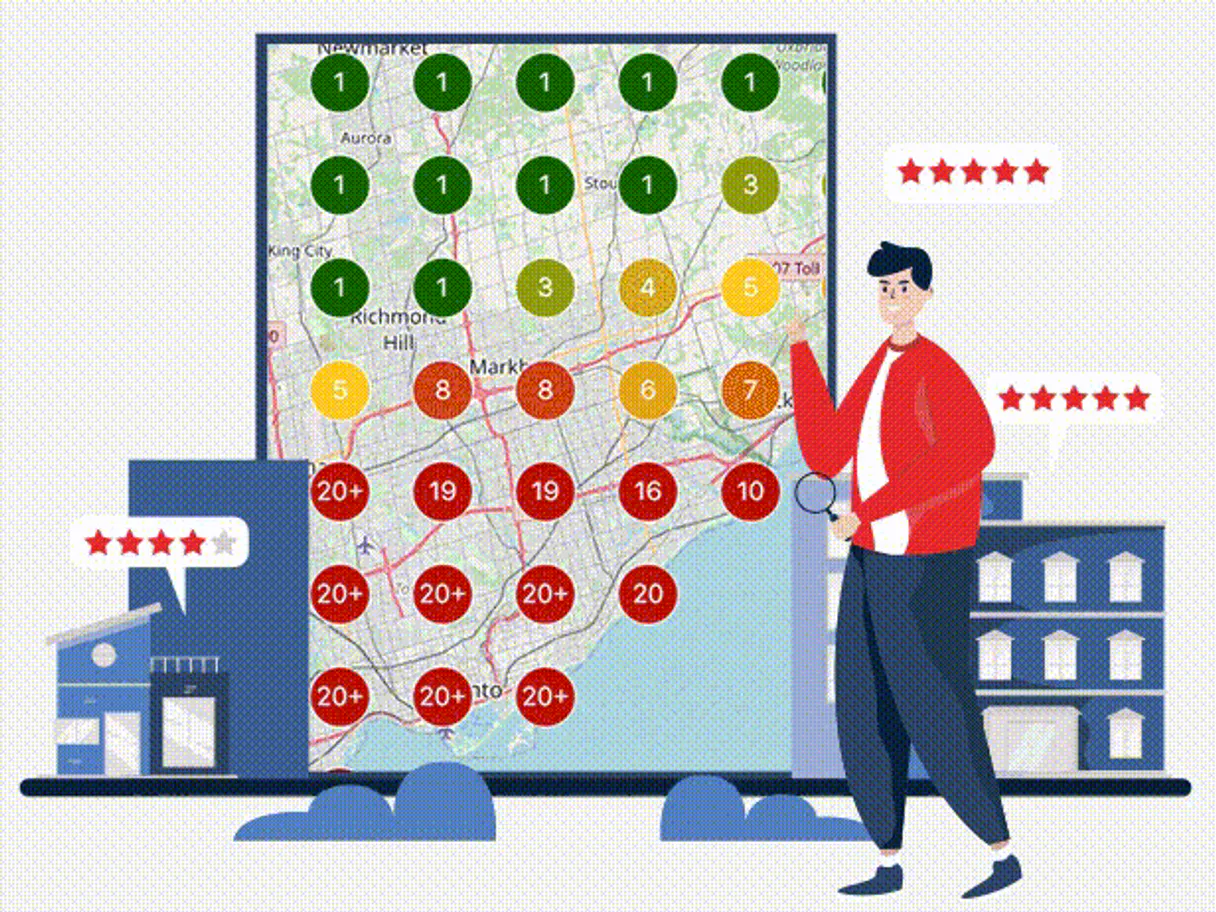
Local Falcon tracks Google Maps rankings across geographic grids. This tool lets you monitor local SEO performance and track search visibility for every business location.
Use your AI client to programmatically run geo-grid scans, list competitor data, and get high-fidelity ranking reports.
What your AI agents can do
Add keyword
Adds a new search term that the system will track for rankings.
Add location
Saves a new business address or location name to be included in scans.
Check localfalcon status
Confirms the API connection is active and operational for immediate use.
Verifies that the Local Falcon API key is active and connected to the system.
Adds new keywords or specific business locations to your tracking list.
Initiates a real-time geo-grid scan for defined keywords and locations, gathering current visibility data.
Pulls detailed reports on completed scans, including ranking architecture metrics and competitor performance.
Access historical trend reports to track how rankings change over time for specific grids.
Retrieves lists of all saved keywords, locations, and completed scan jobs.
Ask AI about this MCP
Supported MCP Clients
OAuth 2.0 Compatible Gemini Waiting for input…
Local Falcon: 13 Tools for Geo-Grid Ranking Analysis
Use these tools to manage keywords, locations, and scans. You can initiate new searches, list existing data points, and pull comprehensive reports from your Local Falcon account.
Make your AI actually useful.
Add this MCP to Claude, Cursor, or Windsurf and your AI stops guessing. It gets real tools to look things up, take action, and handle the stuff you keep doing by hand.
Start using Local Falcon on Vinkius019dd119add keyword
Adds a new search term that the system will track for rankings.
019dd119add location
Saves a new business address or location name to be included in scans.
019dd119check localfalcon status
Confirms the API connection is active and operational for immediate use.
019dd119get location
Retrieves specific details about a saved location or business address.
019dd119get scan report
Fetches the full, detailed report card for a completed local search scan.
019dd119get scan results
Extracts specific ranking data and metrics from a finished scan job.
019dd119get scan
Pulls basic status information for a previously initiated scan job.
019dd119get trend report
Generates reports showing how rankings have changed over multiple tracking periods.
019dd119list scans by location
Filters and lists only the scans associated with a specific business location.
019dd119list keywords
Lists all keywords currently configured in the Local Falcon account.
019dd119list locations
Shows a list of all saved business locations for quick reference.
019dd119list scans
Provides an overview and list of all historical scan jobs run through the system.
019dd119run scan
Triggers an immediate, real-time geo-grid scan based on provided keywords and locations.
Choose How to Get Started
Build a custom MCP for your own tools, or connect a ready-made integration from our catalog.
Build Your Own
Turn any API into an MCP. Import a spec, define Agent Skills, or deploy with MCPFusion.
- Import from OpenAPI, Swagger, or YAML specs
- Create Agent Skills with progressive disclosure
- Deploy to edge with MCPFusion framework
- Built in DLP, auth, and compliance on every call
- Real time usage dashboard and cost metering
- Publish to catalog or keep private
Make Your AI Do More
Start with Local Falcon, then connect any of our 5,000+ other servers whenever your AI needs more. One click, no limits.
- Use this MCP plus 5,000+ others, all in one place
- Add new capabilities to your AI anytime you want
- Every connection is secured and compliant automatically
- Track usage and costs across all your servers
- Works with Claude, ChatGPT, Cursor, and more
- New servers added to the catalog every week
Independent Platform Disclaimer: Vinkius is an independent platform and is not affiliated with, endorsed by, sponsored by, verified by, or otherwise authorized by Local Falcon. All third-party trademarks, logos, and brand names are the property of their respective owners. Their use on this website is strictly for informational purposes to identify service compatibility and interoperability.
VINKIUS INFRASTRUCTURE
Cloud Hosted
Managed infra
V8 Isolated
Sandboxed per request
Zero-Trust Proxy
No stored credentials
DLP Enforced
Policy on every call
GDPR Compliant
EU data residency
Token Compression
~60% cost reduction
Works with Claude, ChatGPT, Cursor, and more
The Model Context Protocol standardizes how applications expose capabilities to LLMs. Instead of operating in isolation, your AI gains direct access to external platforms, live data, and real-world actions through secure, standardized connections.
This server provides 13 capabilities that interface natively with Claude, ChatGPT, Cursor, and any MCP client. No middleware. No custom integration required.
Manually building local SEO audit sheets is a massive waste of time.
Right now, if you want to check how many competitors rank for 'emergency plumber' in three different neighborhoods, you open the dashboard. You click 'run scan'. You wait. Then you download PDF reports—one for each neighborhood. You copy and paste every single metric (ARP, SoLV) into a massive spreadsheet, hoping you don't mislabel a grid or miss a data point.
With Local Falcon MCP, your agent does the heavy lifting. Tell it: 'Run a scan across these three locations for this keyword.' It handles the scheduling and compilation. You get structured data back immediately—no PDFs, no copy-pasting. The whole process runs through natural conversation.
Local Falcon MCP Server gives you actionable ranking intelligence.
The old way meant manually tracking every single rank drop by comparing dated reports side-by-side, which is tedious and slows down decision-making. You spend more time compiling than analyzing the data.
Now, your agent orchestrates it all. Use `get_trend_report` to see months of data in one query. It turns hours of spreadsheet work into a simple conversation. That’s how you get faster insights and better client reports.
What you can do with this MCP connector
Local Falcon tracks Google Maps rankings across specific geographic grids, letting you monitor local SEO performance and track search visibility for every business location. Use your AI client to run geo-grid scans, list competitor data, and pull high-fidelity ranking reports.
Before anything else, you gotta check the connection. You can use check_localfalcon_status to confirm that the API key is active and ready to go right now. Once it's confirmed live, you define what you wanna track by adding targets. To set up a new search term, just call add_keyword. If you need to monitor a different brick-and-mortar spot, use add_location to save a new business address or name; then, if you ever gotta grab details on one of those saved spots later, you run get_location.
When you're ready to go live, triggering a scan is simple. You kick off the whole process with run_scan, providing it with the keywords and locations you set up. To see if that job kicked off correctly, you can pull basic status info using get_scan. For an overview of your history, running list_scans gives you a rundown of every scan job run through the system; you can also narrow that down to only view historical jobs for one specific spot by calling list_scans_by_location, or just see all your keywords with list_keywords and all your saved spots using list_locations.
The real data comes after the scan completes. You'll pull the full report card, including competitor performance and ranking metrics, straight from get_scan_report. If you only need specific numbers—like a list of just the rankings and core metrics—you can grab that granular info with get_scan_results. For historical deep dives, don't mess around with manual sheets; use get_trend_report to generate reports showing exactly how your rankings have moved over multiple tracking periods.
When you need to manage or check specific assets, the tools let you do it piece by piece. You can pull a list of all keywords configured right now using list_keywords, and if you're just looking at a single location's history, list_scans_by_location lets you filter that view down tight.
Ultimately, your AI client acts like your dedicated local search coordinator. It handles the whole workflow—from verifying connectivity to defining targets, triggering the scan, and finally spitting out comprehensive reports on everything from Average Ranking Position (ARP) to competitor share of voice.
019dd11a-1136-72ea-93e8-28bca02744ff 
How Local Falcon MCP Works
- 1 Subscribe to the Local Falcon server and grab your API Key from the dashboard.
- 2 Tell your AI client what you want—for example, 'Run a new grid scan for Acme Plumbers and emergency plumbing.'
- 3 The agent calls
run_scanand then uses tools likeget_scan_reportto pull back the high-fidelity ranking data.
The bottom line is you don't check rank trackers manually; your AI client runs the scans and pulls all the resulting metadata for you.
Who Is Local Falcon MCP For?
SEO Managers who are sick of cross-referencing 15 different dashboards. Agency Owners who need to prove competitor performance instantly without leaving their primary workspace. Marketing Operations staff managing large, distributed campaigns that require scheduled, automated reporting.
Uses list_scans and get_scan_report to quickly compare ranking changes across multiple geo-grids.
Runs automated campaigns using add_location followed by a targeted run_scan for client audits.
Manages scheduled scans and monitors API usage using check_localfalcon_status, ensuring billing and functionality are solid.
What Changes When You Connect
- See competitor performance at every grid point. Use
get_scan_reportto pull high-fidelity ranking data for all local rivals instantly. - Automate visibility checks on demand. Call
run_scanwith a new keyword or location, and get real-time results without leaving your chat window. - Track performance over time. Generate historical trends using
get_trend_reportto prove seasonal changes in search rank positioning. - Manage data efficiently. Use
list_scansto see every scan run, andlist_locationsto verify which addresses are included in your campaigns. - Verify the setup quickly. Run
check_localfalcon_statusfirst—it confirms your API connection is solid before you start any major workflow.
Real-World Use Cases
Client Audit: Checking Competitor Drift
An agency owner needs to prove a client lost local ranking share. They ask their agent to run list_scans_by_location for the target site, then use get_scan_report on the last two scans. The agent pulls the ARP and SoLV metrics side-by-side, showing exactly when and where the competitor gained ground.
New Campaign Launch: Full Geo-Grid Coverage
A marketing ops person launches a new service area (e.g., 'Downtown Miami'). They first use add_location to save it, then call run_scan with the relevant keywords. The agent confirms the scan is running and sets up monitoring for when results are ready.
Troubleshooting: Why Did Rankings Drop?
A local SEO manager notices a sudden dip in visibility. They ask their AI client to run get_trend_report for the affected area and keyword. The agent analyzes the historical data, pinpointing the exact date and magnitude of the drop.
Initial Setup: Building the Keyword Map
A new user needs to build out their entire service area tracking. They use list_locations to see what's already saved, then call add_keyword multiple times for every relevant search term before running the first comprehensive scan.
The Tradeoffs
Only checking one metric.
Just asking 'What is my current rank?' without context. This gives a single number and doesn't show the bigger picture of market share or trend.
→
Always request a full report using get_scan_report or get_scan_results. These tools provide multiple metrics like ARP, ATRP, and SoLV, giving you the necessary context for real analysis.
Relying on manual reports.
Downloading and opening a PDF report to compare data points manually. This is slow, error-prone, and requires spreadsheet work.
→
Let your agent manage the data flow. Use list_scans to track job IDs, then use get_scan_results to pull structured, machine-readable JSON output directly into your workflow.
Forgetting location context.
Running a scan without first ensuring the location is saved. You'll get vague results that don't tie back to a specific service area or business name.
→
Always start by calling add_location and confirming the address with get_location. This grounds your entire workflow in a verifiable, structured data point.
When It Fits, When It Doesn't
Use this if you need to track local search visibility across defined geographic grids. If your job involves monitoring how Google Maps ranks specific keywords for physical service areas (plumbers, dentists, etc.), this is the tool. You must use it in conjunction with add_location and add_keyword first; those tools define the boundaries of your analysis.
Don't use this if you just need to monitor general website traffic or national keyword rankings. For that, a dedicated SEM platform focused on organic site metrics is better. If you only need to check API connectivity without running any reports, check_localfalcon_status is all you need.
Common Questions About Local Falcon MCP
How do I start tracking a new keyword with Local Falcon MCP Server? +
First, use the add_keyword tool to save your term. Then, make sure you've run scans for that keyword using run_scan. You can confirm everything is ready by checking connectivity with check_localfalcon_status.
What data does get_scan_report provide? +
get_scan_report pulls the complete, high-fidelity dataset for a finished scan. This includes detailed geo-grid rankings and competitor metrics that you can't find in basic summaries.
Can I check my API key status using Local Falcon MCP Server? +
Yes, just call check_localfalcon_status. It confirms your account is active, which is the first step before running any other tools like run_scan.
Which tool do I use to see historical rank changes? +
Use get_trend_report. This tool analyzes past data, letting you track how a keyword's performance has shifted over time across multiple scans.
How do I check available business coordinates before running a scan using `list_locations`? +
It retrieves all known location identifiers within your account. This is the first step; use it to pull a list of valid locations you can then pass to the add_location tool for active targeting.
What should I do if my scan fails when using the `run_scan` tool? +
The system will generate an error code and a status update. You need that report key to pass to the get_scan tool, which provides diagnostic details on why the scan failed.
Are there limits when I use `list_keywords` to manage my list? +
The API handles large keyword sets efficiently. If you hit usage caps, check your dashboard for current consumption metrics. For high-volume work, consider optimizing your input lists.
What specific data points does `get_scan_results` return? +
It returns raw, granular geo-grid data, including the precise ranking position and local voice share for every tracked keyword at a given location. It's the high-fidelity source material.
How do I find my Local Falcon API Key? +
Log in to your account, navigate to the API Credentials page, and copy your unique Bearer Token or API Key.
Can I run new scans via AI? +
Yes! The run_localfalcon_scan tool allows your agent to trigger real-time geo-grid scans by providing business and keyword metadata.
How do I check my scan credit balance? +
Use the check_localfalcon_status tool to retrieve your current account metrics and remaining high-fidelity scan credits programmatically.
Use it with your favorite AI tools
Connect this server to Cursor, Claude, VS Code, and more.