
3D AI Studio MCP Server for Windsurf 12 tools — connect in under 2 minutes
Windsurf brings agentic AI coding to a purpose-built IDE. Connect 3D AI Studio through Vinkius and Cascade will auto-discover every tool. ask questions, generate code, and act on live data without leaving your editor.
ASK AI ABOUT THIS MCP SERVER
Vinkius supports streamable HTTP and SSE.
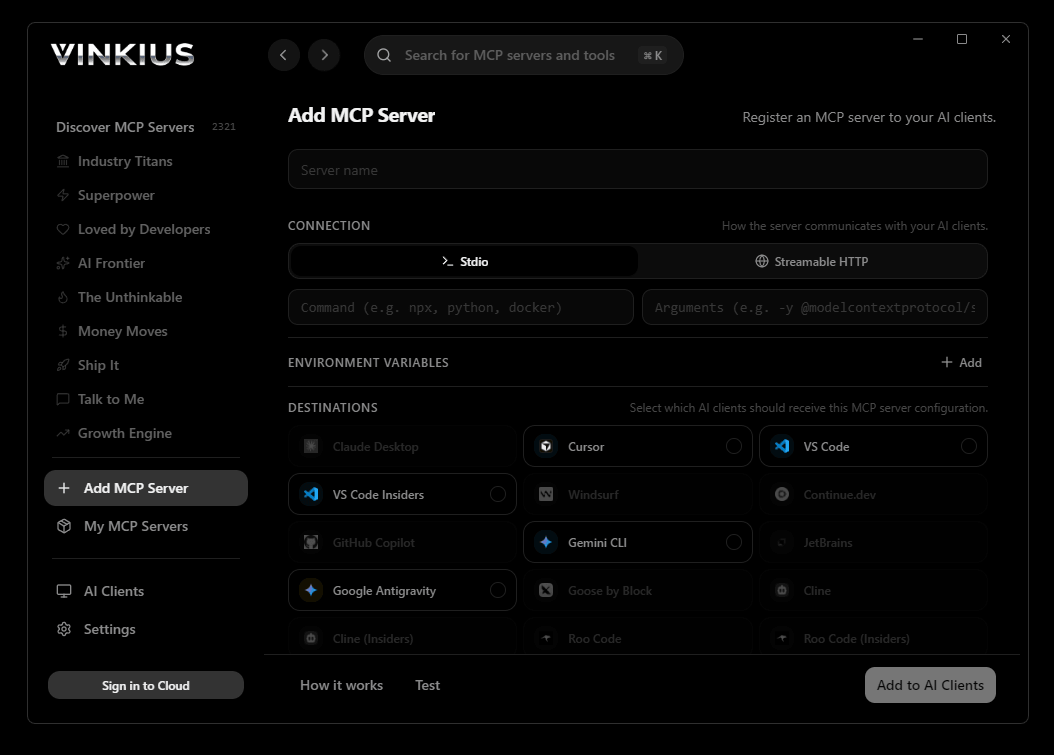
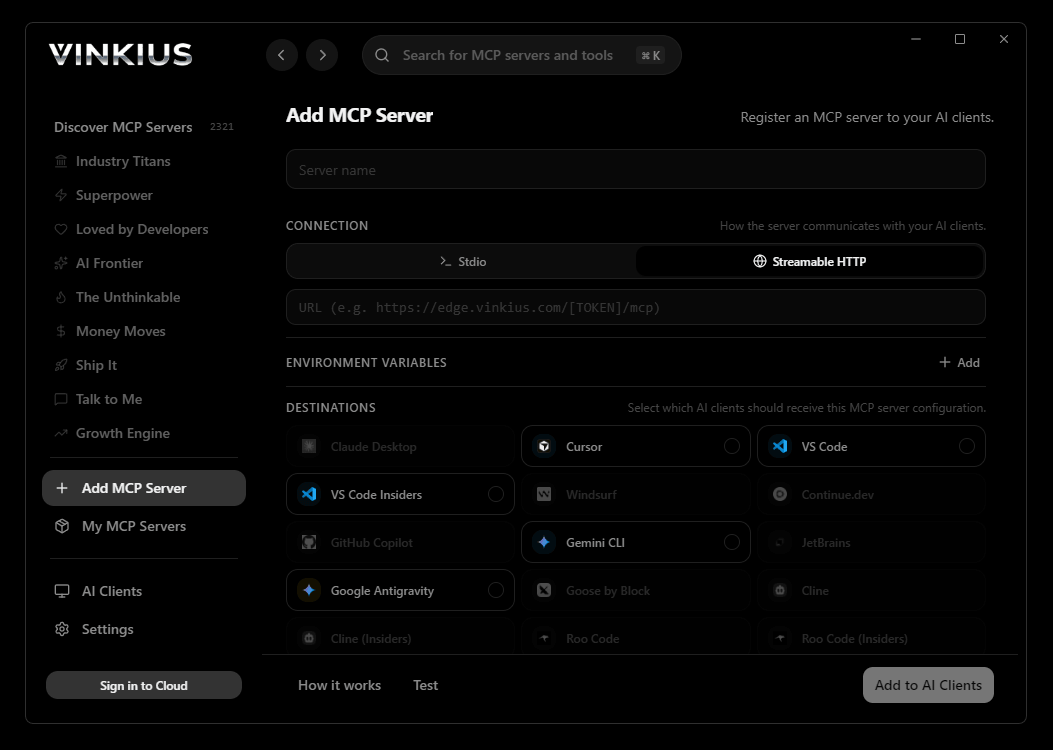
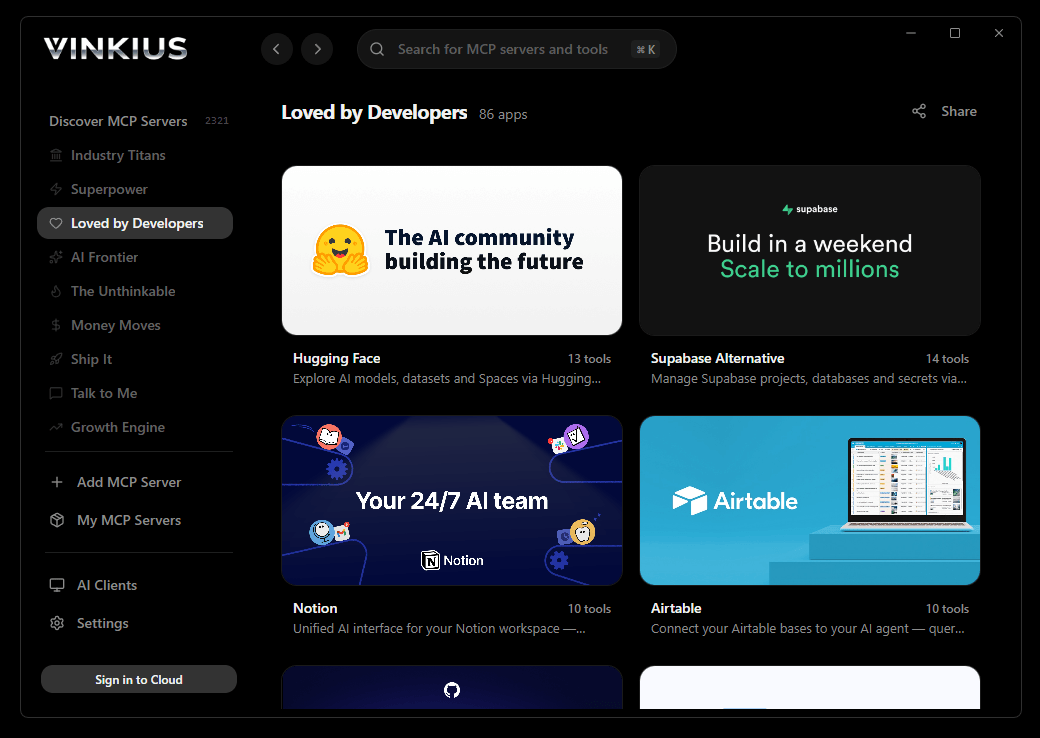
Vinkius Desktop App
The modern way to manage MCP Servers — no config files, no terminal commands. Install 3D AI Studio and 2,500+ MCP Servers from a single visual interface.
{
  "mcpServers": {
    "3d-ai-studio": {
      "url": "https://edge.vinkius.com/[YOUR_TOKEN_HERE]/mcp"
    }
  }
}
* Every MCP server runs on Vinkius-managed infrastructure inside AWS - a purpose-built runtime with per-request V8 isolates, Ed25519 signed audit chains, and sub-40ms cold starts optimized for native MCP execution. See our infrastructure
About 3D AI Studio MCP Server
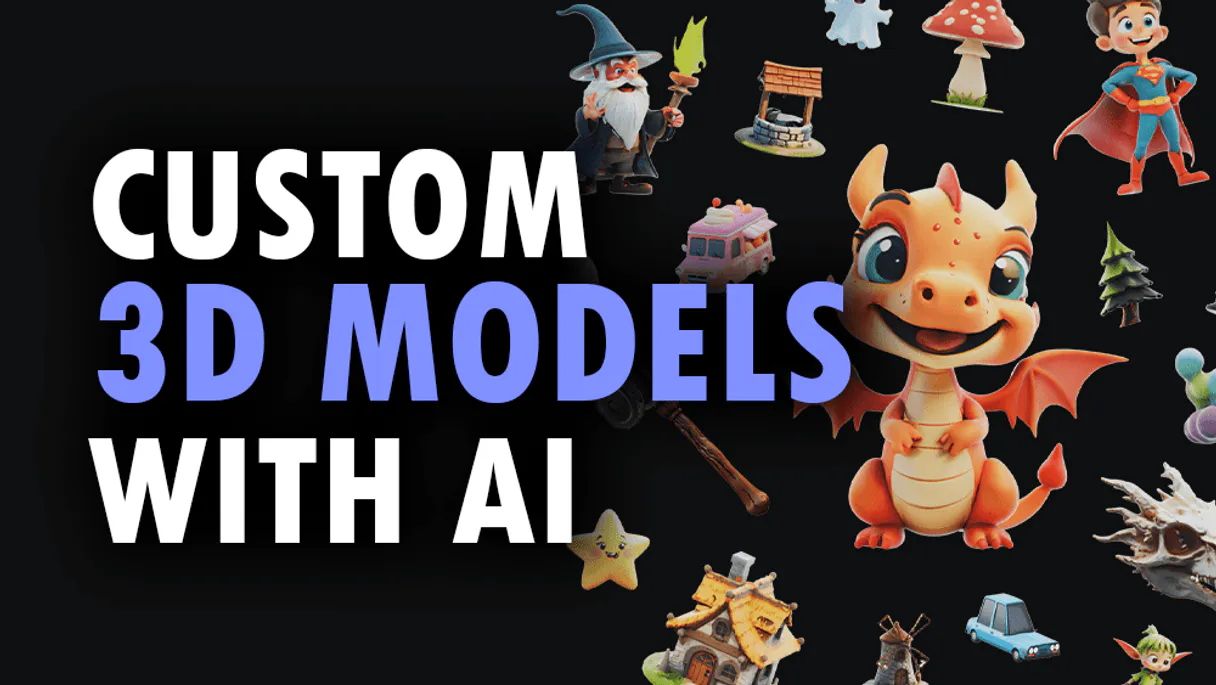
Connect your 3D AI Studio API to any AI agent and take full control of production-quality 3D generation, AI texturing, mesh processing, and rendering through natural conversation.
Windsurf's Cascade agent chains multiple 3D AI Studio tool calls autonomously. query data, analyze results, and generate code in a single agentic session. Paste Vinkius Edge URL, reload, and all 12 tools are immediately available. Real-time tool feedback appears inline, so you see API responses directly in your editor.
What you can do
- Text to 3D — Generate 3D models from text prompts using Hunyuan 3D, TRELLIS.2, and Tripo models
- Image to 3D — Convert any image to a 3D model with multiple AI model options
- Multi-View to 3D — Generate accurate 3D models from multiple reference images
- AI Texturing — Apply AI-powered PBR texturing to existing models using text or image prompts
- Remeshing — Optimize topology with tri or quad mesh remeshing
- Mesh Repair — Fix non-manifold geometry, holes, and inverted normals
- Format Conversion — Convert between GLB, OBJ, FBX, STL, PLY, USDZ, and 3MF formats
- Model Optimization — Reduce polygon count and compress for web and mobile
- 3D Rendering — Generate high-quality images and turntable videos up to 4K
- Mesh Segmentation — Automatically segment 3D mesh parts by semantic components
- Texture Baking — Bake high-poly details onto low-poly game-ready meshes
- Volume Calculator — Calculate volume, surface area, and weight estimates for 3D printing
The 3D AI Studio MCP Server exposes 12 tools through the Vinkius. Connect it to Windsurf in under two minutes — no API keys to rotate, no infrastructure to provision, no vendor lock-in. Your configuration, your data, your control.
How to Connect 3D AI Studio to Windsurf via MCP
Follow these steps to integrate the 3D AI Studio MCP Server with Windsurf.
Open MCP Settings
Go to Settings → MCP Configuration or press Cmd+Shift+P and search "MCP"
Add the server
Paste the JSON configuration above into mcp_config.json
Save and reload
Windsurf will detect the new server automatically
Start using 3D AI Studio
Open Cascade and ask: "Using 3D AI Studio, help me...". 12 tools available
Why Use Windsurf with the 3D AI Studio MCP Server
Windsurf provides unique advantages when paired with 3D AI Studio through the Model Context Protocol.
Windsurf's Cascade agent autonomously chains multiple tool calls in sequence, solving complex multi-step tasks without manual intervention
Purpose-built for agentic workflows. Cascade understands context across your entire codebase and integrates MCP tools natively
JSON-based configuration means zero code changes: paste a URL, reload, and all 12 tools are immediately available
Real-time tool feedback is displayed inline, so you see API responses directly in your editor without switching contexts
3D AI Studio + Windsurf Use Cases
Practical scenarios where Windsurf combined with the 3D AI Studio MCP Server delivers measurable value.
Automated code generation: ask Cascade to fetch data from 3D AI Studio and generate models, types, or handlers based on real API responses
Live debugging: query 3D AI Studio tools mid-session to inspect production data while debugging without leaving the editor
Documentation generation: pull schema information from 3D AI Studio and have Cascade generate comprehensive API docs automatically
Rapid prototyping: combine 3D AI Studio data with Cascade's code generation to scaffold entire features in minutes
3D AI Studio MCP Tools for Windsurf (12)
These 12 tools become available when you connect 3D AI Studio to Windsurf via MCP:
bake_textures_3d
Supports baking normal maps, ambient occlusion, curvature, and other detail maps. Essential for game asset pipelines where high-detail sculpted models need to be baked onto game-ready low-poly meshes. Returns optimized models with baked texture maps. AI agents should use this when users ask "bake normal maps from high-poly to low-poly", "bake ambient occlusion for this model", or need texture baking for game asset preparation. Bake texture maps onto 3D models for optimized rendering
calculate_volume_3d
Supports unit specification (mm, cm, inches, meters) and material density for weight estimation. Essential for 3D printing cost estimation, material requirements planning, shipping calculations, and physical property analysis of 3D models. Returns detailed measurement data. AI agents should reference this when users ask "calculate the volume of this 3D model", "estimate weight for PLA printing", or need physical measurements for manufacturing or cost planning. Calculate volume and physical measurements of 3D models
convert_3d_format
Preserves geometry, textures, materials, and rigging data during conversion. Essential for pipeline integration, platform compatibility, and format standardization. AI agents should use this when users ask "convert this GLB model to FBX", "change this 3D file to STL for 3D printing", or need 3D format conversion for specific platform or software requirements. Convert 3D models between different file formats
generate_ai_texturing
Can repaint or restyle existing 3D models with new materials, colors, and surface details. Generates complete PBR texture sets (albedo, normal, metallic, roughness) from descriptions like "rusty metal", "polished wood", or "cartoon stone". Essential for material iteration, style transfers on 3D assets, and adding surface details to generated models. AI agents should reference this when users ask "add rusty metal texture to this model", "restyle this character with cartoon textures", or need AI-powered material generation on existing 3D meshes. Apply AI-powered PBR texturing to existing 3D models using text or image prompts
generate_image_to_3d
2-4B, and Tripo variants. Accepts product photos, concept art, sketches, or any reference image and generates a corresponding 3D model with PBR textures. Supports style modifiers, face limits, density presets, and orientation control. Returns 3D model files in multiple formats. Essential for e-commerce product visualization, concept art to 3D conversion, and general image-to-3D workflows. AI agents should reference this when users ask "convert this product photo to 3D", "turn this sketch into a 3D model", or need reliable general-purpose image-to-3D conversion. Convert images to 3D models using AI-powered image-to-3D pipeline
generate_multiview_to_3d
Users provide 2 or more images from different angles and the AI constructs a more accurate 3D representation. Essential for product visualization requiring precise geometry, architectural elements, and objects that need to match reference from multiple viewpoints. Supports all available models and output formats. AI agents should use this when users ask "create a 3D model from these multiple product photos", "generate accurate 3D from front and side views", or need multi-view 3D reconstruction. Generate 3D models from multiple reference images for higher accuracy
generate_text_to_3d
2-4B, and Tripo (v3.0, v3.1, P1). Users describe the desired 3D object in natural language and receive a generated model with optional style control, face limits, and density presets (high/medium/low). Returns 3D model files in GLB format by default with PBR textures. Supports output formats GLB, OBJ, FBX, STL, PLY, USDZ, and 3MF. Essential for concept exploration, rapid prototyping from descriptions, and applications where users describe rather than show what they want. AI agents should use this when users ask "create a 3D model of a fantasy sword", "generate a 3D tree from text", or need text-driven 3D generation. Generate 3D models directly from text descriptions
optimize_3d_model
Accepts existing 3D model URLs and returns optimized versions with controlled quality settings. Essential for web-based 3D applications, mobile optimization, file size reduction, and performance-critical 3D rendering. AI agents should reference this when users ask "optimize this 3D model for web", "reduce polygon count of this model", or need mesh optimization for performance or file size constraints. Optimize 3D models for performance and file size reduction
remesh_3d_model
Accepts existing 3D model URLs and returns remeshed versions with controlled face counts and topology type (tri or quad). Essential for game asset preparation, animation-ready meshes, and applications requiring clean topology. AI agents should use this when users ask "remesh this model with clean quads", "optimize topology for animation", or need topology conversion on existing 3D assets. Remesh 3D models with optimized tri or quad topology
render_3d_model
Supports turntable animations, hero shots, and product visualization renders. Outputs images up to 4K resolution in PNG or JPG format. Essential for product showcases, portfolio presentations, marketing materials, and social media content from 3D assets. AI agents should use this when users ask "render this model from multiple angles", "create a turntable video of this 3D model", or need marketing-quality renders from 3D files. Generate rendered images or videos from 3D models
repair_3d_mesh
Accepts existing 3D model URLs and returns repaired, watertight meshes suitable for 3D printing, game engines, and further processing. Essential for 3D printing preparation, fixing generated model artifacts, and ensuring mesh integrity. AI agents should reference this when users ask "fix this mesh for 3D printing", "repair non-manifold geometry", or need mesh cleanup before further processing. Repair 3D mesh issues including non-manifold geometry, holes, and inverted normals
segment_3d_mesh
g., head, body, arms, legs for characters; wheels, body, windows for vehicles). Essential for rigging preparation, material assignment per part, and game engine component workflows. Returns segmented mesh with labeled parts. AI agents should reference this when users ask "segment this character mesh into body parts", "identify components of this vehicle model", or need automatic mesh part identification for further processing. Apply semantic segmentation to 3D mesh parts
Example Prompts for 3D AI Studio in Windsurf
Ready-to-use prompts you can give your Windsurf agent to start working with 3D AI Studio immediately.
"Generate a 3D model of a medieval castle from text description."
"Apply rusty metal texture to this 3D model: https://example.com/car.glb"
"Repair this mesh for 3D printing and calculate the volume in PLA material."
Troubleshooting 3D AI Studio MCP Server with Windsurf
Common issues when connecting 3D AI Studio to Windsurf through the Vinkius, and how to resolve them.
Server not connecting
3D AI Studio + Windsurf FAQ
Common questions about integrating 3D AI Studio MCP Server with Windsurf.
How does Windsurf discover MCP tools?
mcp_config.json file on startup and connects to each configured server via Streamable HTTP. Tools are listed in the MCP panel and available to Cascade automatically.Can Cascade chain multiple MCP tool calls?
Does Windsurf support multiple MCP servers?
mcp_config.json. Each server's tools appear in the MCP panel and Cascade can use tools from different servers in a single flow.Connect 3D AI Studio with your favorite client
Step-by-step setup guides for every MCP-compatible client and framework:
Anthropic's native desktop app for Claude with built-in MCP support.
AI-first code editor with integrated LLM-powered coding assistance.
GitHub Copilot in VS Code with Agent mode and MCP support.
Purpose-built IDE for agentic AI coding workflows.
Autonomous AI coding agent that runs inside VS Code.
Anthropic's agentic CLI for terminal-first development.
Python SDK for building production-grade OpenAI agent workflows.
Google's framework for building production AI agents.
Type-safe agent development for Python with first-class MCP support.
TypeScript toolkit for building AI-powered web applications.
TypeScript-native agent framework for modern web stacks.
Python framework for orchestrating collaborative AI agent crews.
Leading Python framework for composable LLM applications.
Data-aware AI agent framework for structured and unstructured sources.
Microsoft's framework for multi-agent collaborative conversations.
Connect 3D AI Studio to Windsurf
Get your token, paste the configuration, and start using 12 tools in under 2 minutes. No API key management needed.