
Basecamp MCP Server for ClineGive Cline instant access to 17 tools to Complete Todo, Create Comment, Create Project, and more
Cline is an autonomous AI coding agent inside VS Code that plans, executes, and iterates on tasks. Wire Basecamp through Vinkius and Cline gains direct access to every tool. from data retrieval to workflow automation. without leaving the terminal.
Ask AI about this App Connector for Cline
The Basecamp app connector for Cline is a standout in the Productivity category — giving your AI agent 17 tools to work with, ready to go from day one.
Vinkius delivers Streamable HTTP and SSE to any MCP client
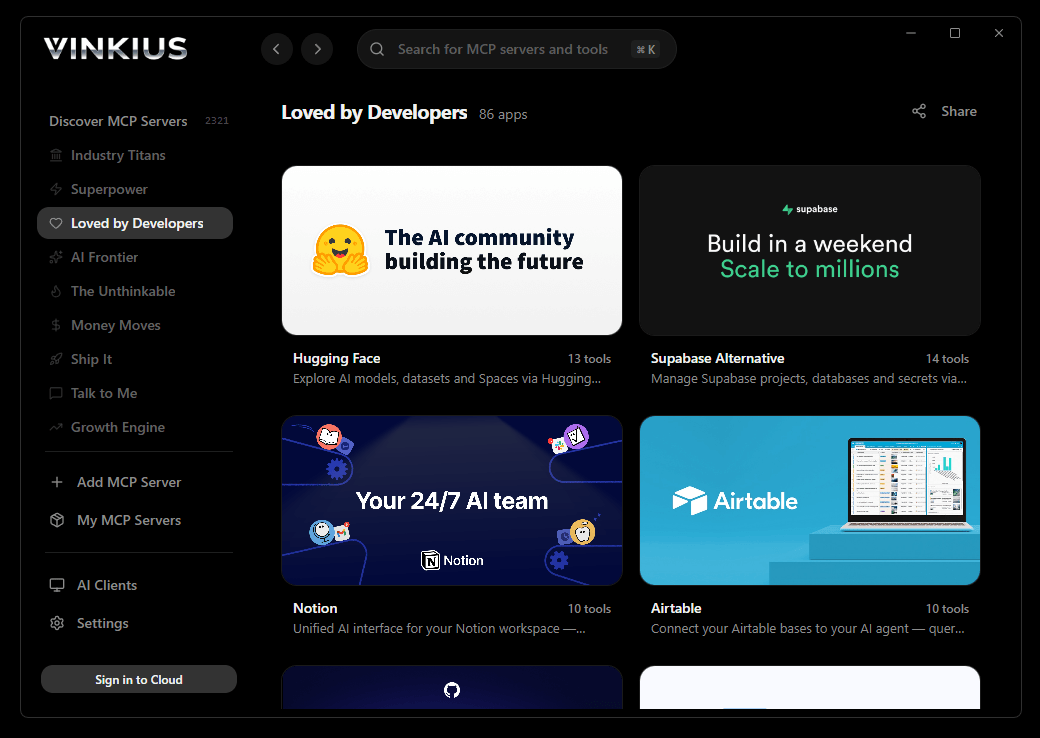
Vinkius Desktop App
The modern way to manage MCP Servers — no config files, no terminal commands. Install Basecamp and 3,400+ MCP Servers from a single visual interface.
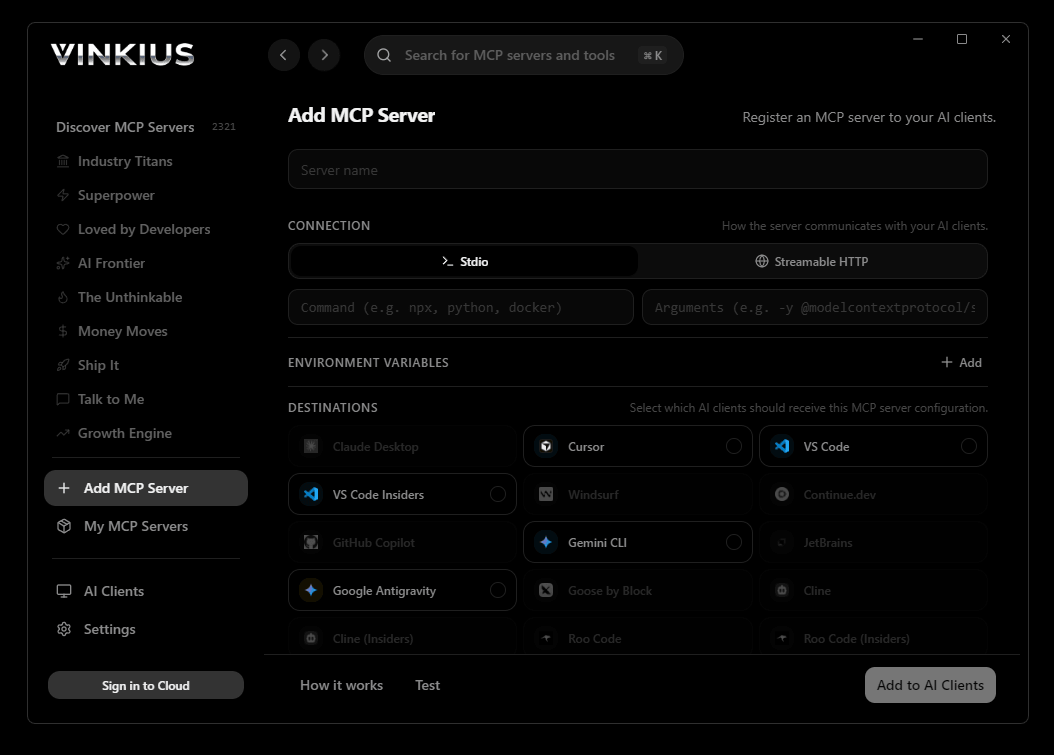

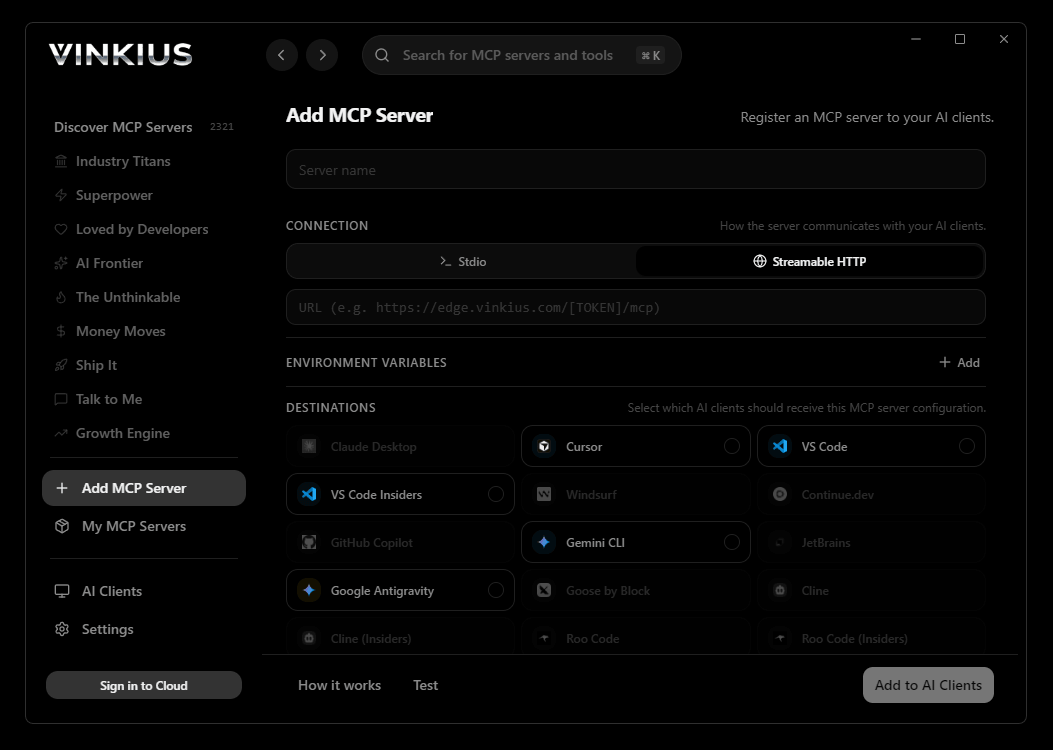
{
  "mcpServers": {
    "basecamp-alternative": {
      "url": "https://edge.vinkius.com/[YOUR_TOKEN_HERE]/mcp"
    }
  }
}
* Every MCP server runs on Vinkius-managed infrastructure inside AWS - a purpose-built runtime with per-request V8 isolates, Ed25519 signed audit chains, and sub-40ms cold starts optimized for native MCP execution. See our infrastructure
About Basecamp MCP Server
Connect your Basecamp account to any AI agent and take full control of your project management, team collaboration, and task tracking through natural conversation.
Cline operates autonomously inside VS Code. it reads your codebase, plans a strategy, and executes multi-step tasks including Basecamp tool calls without waiting for prompts between steps. Connect 17 tools through Vinkius and Cline can fetch data, generate code, and commit changes in a single autonomous run.
What you can do
- Project Management — Create, list, update, and inspect projects with full dock metadata (message boards, to-do sets, schedules).
- To-Do CRUD — Create, update, complete, and uncomplete to-do items across any to-do list, with assignees and due dates.
- Team Visibility — List all people in your account or within a specific project to find assignee IDs and check roles.
- Message Boards — Read messages posted on project boards to stay aligned with team decisions and announcements.
- Comments — Add comments to any recording (to-do, message, document) to provide feedback or status updates.
- Profile Verification — Retrieve your authenticated profile to confirm connectivity and check access permissions.
The Basecamp MCP Server exposes 17 tools through the Vinkius. Connect it to Cline in under two minutes — no API keys to rotate, no infrastructure to provision, no vendor lock-in. Your configuration, your data, your control.
All 17 Basecamp tools available for Cline
When Cline connects to Basecamp through Vinkius, your AI agent gets direct access to every tool listed below — spanning task-tracking, team-communication, file-sharing, and more. Every call is secured with network, filesystem, subprocess, and code evaluation entitlements inside a sandboxed runtime. Beyond a simple connection, you get a full AI Gateway with real-time visibility into agent activity, enterprise governance, and optimized token usage.
This is separate from archiving or trashing — a completed to-do remains active but is marked as done. Use uncomplete_todo to reverse this action. Mark a to-do item as completed
). The recording_id is the unique numeric ID of the item you want to comment on. The content must be provided as rich text (HTML). All subscribers to the recording will be notified of the new comment. Add a comment to any Basecamp recording
The project will be initialized with default tools (message board, to-do set, schedule, etc.) enabled via its dock. Returns the newly created project with its numeric ID and dock tool IDs. Create a new project in Basecamp
Requires the todolist_id and the content (title) of the to-do. Optionally include a rich text description, assignee IDs (array of person IDs), and a due date in YYYY-MM-DD format. The to-do will be created as pending (not completed). Create a new to-do item in a to-do list
Get full details of a specific message
Use this to verify connectivity or identify the current operator. Get the authenticated Basecamp user profile
Use this to look up details about a team member or assignee. Get full details of a specific person
). The dock contains the IDs you need to access tools like the to-do set or message board. Get full details of a specific project
Get full details of a specific to-do item
Each message includes title, content preview, author, category, and creation date. You need the message_board_id which can be found via the project dock. List all messages on a project message board
Useful for finding assignee IDs before creating or updating to-dos. List all people in the Basecamp account
Returns names, emails, and roles. Useful for checking team composition before assigning tasks. List all people assigned to a specific project
Optionally filter by status: "active" (default), "archived", or "trashed". Each project includes its name, description, purpose, dock (enabled tools), and bookmark status. List all projects in Basecamp
By default returns only pending (not completed) items. Set completed to true to see completed items instead. Each to-do includes its content, assignees, due date, completion status, and comments count. You need the todolist_id which can be found via the project dock. List all to-dos in a specific to-do list
Use this when a previously completed task needs to be reopened or reworked. Mark a completed to-do item as pending again
At least one of name or description must be provided. Returns the updated project details including the full dock listing. Update an existing project in Basecamp
At least one field must be provided. Does not affect completion status — use the complete_todo or uncomplete_todo tools for that. Update an existing to-do item in Basecamp
Connect Basecamp to Cline via MCP
Follow these steps to wire Basecamp into Cline. The entire setup takes under two minutes — your credentials stay safe behind the Vinkius.
Open Cline MCP Settings
Add remote server
Enable the server
Start using Basecamp
Why Use Cline with the Basecamp MCP Server
Cline provides unique advantages when paired with Basecamp through the Model Context Protocol.
Cline operates autonomously. it reads your codebase, plans a strategy, and executes multi-step tasks including MCP tool calls without step-by-step prompts
Runs inside VS Code, so you get MCP tool access alongside your existing extensions, terminal, and version control in a single window
Cline can create, edit, and delete files based on MCP tool responses, enabling end-to-end automation from data retrieval to code generation
Transparent execution: every tool call and file change is shown in Cline's activity log for full visibility and approval before committing
Basecamp + Cline Use Cases
Practical scenarios where Cline combined with the Basecamp MCP Server delivers measurable value.
Autonomous feature building: tell Cline to fetch data from Basecamp and scaffold a complete module with types, handlers, and tests
Codebase refactoring: use Basecamp tools to validate live data while Cline restructures your code to match updated schemas
Automated testing: Cline fetches real responses from Basecamp and generates snapshot tests or mocks based on actual payloads
Incident response: query Basecamp for real-time status and let Cline generate hotfix patches based on the findings
Example Prompts for Basecamp in Cline
Ready-to-use prompts you can give your Cline agent to start working with Basecamp immediately.
"List all my active projects in Basecamp."
"Create a new to-do 'Review design mockups' in list 592001 and assign it to person 10293 with a due date of 2026-05-15."
"Show me the latest messages on the message board of project 48291034."
Troubleshooting Basecamp MCP Server with Cline
Common issues when connecting Basecamp to Cline through the Vinkius, and how to resolve them.
Server shows error in sidebar
Basecamp + Cline FAQ
Common questions about integrating Basecamp MCP Server with Cline.