
CARTO MCP Server for Cursor 10 tools — connect in under 2 minutes
Cursor is an AI-first code editor built on VS Code that integrates LLM-powered coding assistance directly into the development workflow. Its Agent mode enables autonomous multi-step coding tasks, and MCP support lets agents access external data sources and APIs during code generation.
ASK AI ABOUT THIS MCP SERVER
Vinkius supports streamable HTTP and SSE.
Vinkius Desktop App
The modern way to manage MCP Servers — no config files, no terminal commands. Install CARTO and 2,500+ MCP Servers from a single visual interface.
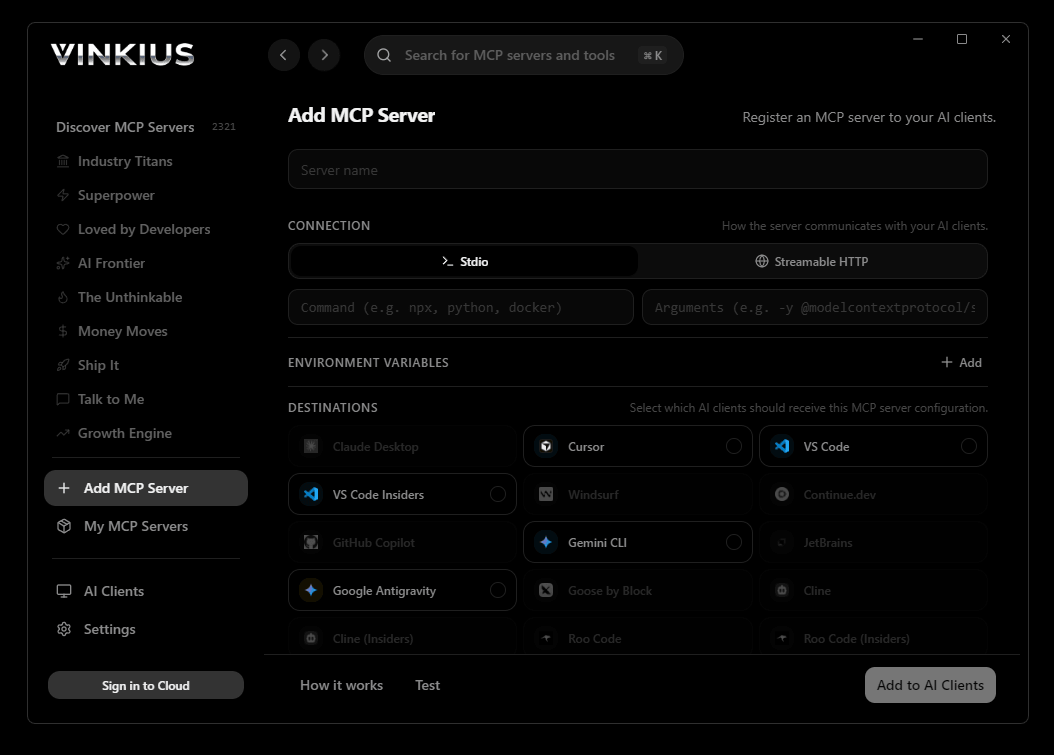

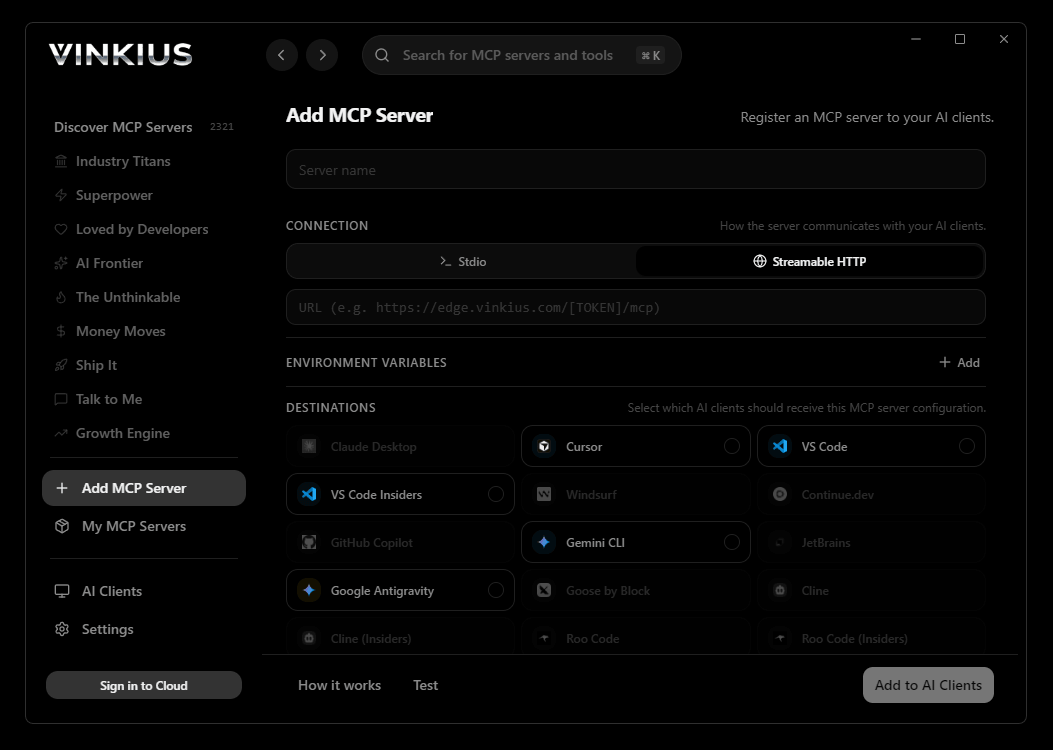
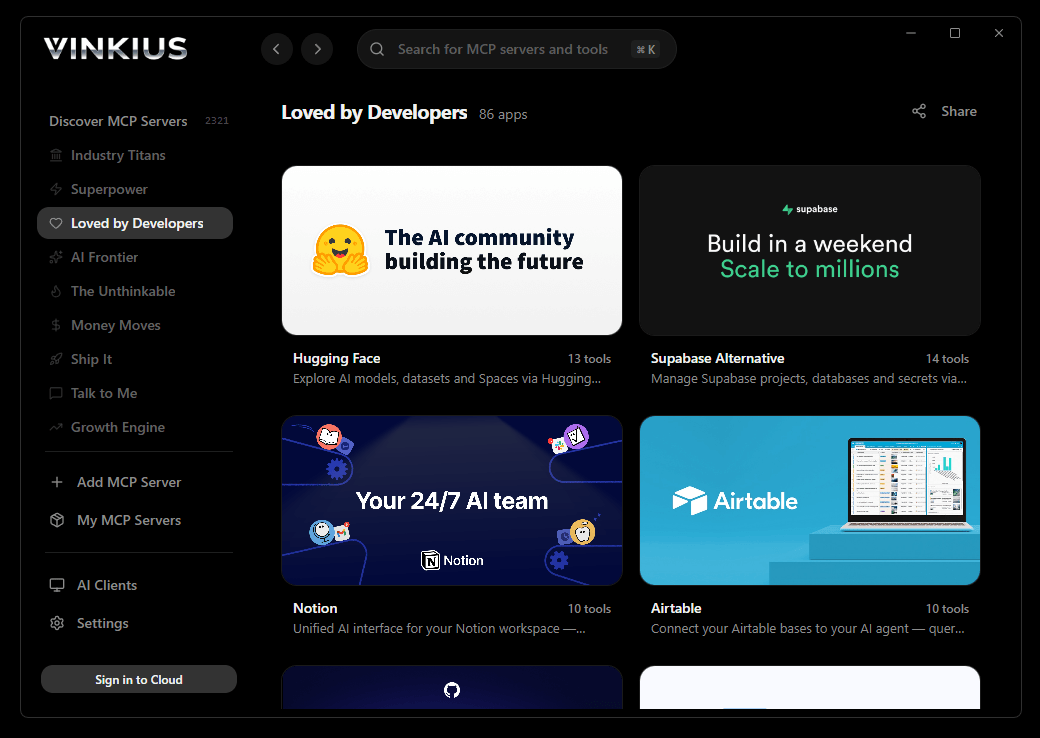
{
  "mcpServers": {
    "carto": {
      "url": "https://edge.vinkius.com/[YOUR_TOKEN_HERE]/mcp"
    }
  }
}
* Every MCP server runs on Vinkius-managed infrastructure inside AWS - a purpose-built runtime with per-request V8 isolates, Ed25519 signed audit chains, and sub-40ms cold starts optimized for native MCP execution. See our infrastructure
About CARTO MCP Server
Connect your CARTO platform to any AI agent and take full control of your cloud-native spatial analytics without touching the GIS interface.
Cursor's Agent mode turns CARTO into an in-editor superpower. Ask Cursor to generate code using live data from CARTO and it fetches, processes, and writes. all in a single agentic loop. 10 tools appear alongside file editing and terminal access, creating a unified development environment grounded in real-time information.
What you can do
- Spatial SQL & Jobs — Command explicit SQL queries running directly against your BigQuery, Snowflake, or Redshift warehouse. Execute quick reads or spawn long-running, asynchronous batch transformations.
- Geocoding & Batching — Convert unstructured strings into precise lat/lon points. Bulk-process 100s of addresses using CARTO's native Location Data Services (LDS) gracefully.
- Isolines & Reachability — Calculate travel-time or distance polygons around origin points to instantly graph accessible zones via cars or walking.
- Routing — Generate optimal vector geometry paths connecting two points on the globe, measuring both physical distance and travel time securely.
- Data Management — Instruct your agent to list active mapping datasets or import massive external CSV/GeoJSON files directly via public URLs.
The CARTO MCP Server exposes 10 tools through the Vinkius. Connect it to Cursor in under two minutes — no API keys to rotate, no infrastructure to provision, no vendor lock-in. Your configuration, your data, your control.
How to Connect CARTO to Cursor via MCP
Follow these steps to integrate the CARTO MCP Server with Cursor.
Open MCP Settings
Press Cmd+Shift+P (macOS) or Ctrl+Shift+P (Windows/Linux) → search "MCP Settings"
Add the server config
Paste the JSON configuration above into the mcp.json file that opens
Save the file
Cursor will automatically detect the new MCP server
Start using CARTO
Open Agent mode in chat and ask: "Using CARTO, help me...". 10 tools available
Why Use Cursor with the CARTO MCP Server
Cursor AI Code Editor provides unique advantages when paired with CARTO through the Model Context Protocol.
Agent mode turns Cursor into an autonomous coding assistant that can read files, run commands, and call MCP tools without switching context
Cursor's Composer feature can generate entire files using real-time data fetched through MCP. no copy-pasting from external dashboards
MCP tools appear alongside built-in tools like file reading and terminal access, creating a unified agentic environment
VS Code extension compatibility means your existing workflow, keybindings, and extensions all work alongside MCP tools
CARTO + Cursor Use Cases
Practical scenarios where Cursor combined with the CARTO MCP Server delivers measurable value.
Code generation with live data: ask Cursor to generate a security report module using live DNS and subdomain data fetched through MCP
Automated documentation: have Cursor query your API's tool schemas and generate TypeScript interfaces or OpenAPI specs automatically
Infrastructure-as-code: Cursor can fetch domain configurations and generate corresponding Terraform or CloudFormation templates
Test scaffolding: ask Cursor to pull real API responses via MCP and generate unit test fixtures from actual data
CARTO MCP Tools for Cursor (10)
These 10 tools become available when you connect CARTO to Cursor via MCP:
calculate_isoline
The range parameter is in seconds for time-based isolines. Returns a GeoJSON polygon representing the reachable area. Use for service area analysis, store catchment zones, and logistics planning. Generate travel-time or travel-distance isoline polygons from a center point using the CARTO LDS Isolines API, producing reachability contours showing areas accessible within a specified time or distance threshold
calculate_route
Returns the route as GeoJSON with total distance (meters) and duration (seconds). Consumes LDS routing credits. Calculate the optimal driving route between two points using the CARTO LDS Routing API, returning distance, duration, and route geometry suitable for visualization on CARTO maps
create_async_sql_job
"}`. Returns a job_id that can be polled for completion status. Use for ETL operations, materialized view refreshes, and heavy geospatial computations. The job runs in your data warehouse and results are stored there. Submit a long-running SQL query as an asynchronous batch job via the CARTO SQL Job API, suitable for heavy spatial analytics, large table transformations, and complex multi-join operations that exceed the 60-second synchronous timeout
execute_sql_query
carto.com/api/v2/sql?q=`. The query runs synchronously with a 1-minute timeout. Use for quick analytical queries, spatial joins, and data exploration. For long-running queries exceeding 60 seconds, use the async job endpoint instead. Supports PostGIS/BigQuery spatial functions natively. Execute an arbitrary SQL query against your CARTO data warehouse connection using the SQL API v2, returning results as JSON rows directly from BigQuery, Snowflake, Redshift, or PostgreSQL
geocode_address
Returns latitude, longitude, and formatted address. Consumes LDS geocoding credits from your CARTO plan. Use sparingly for individual lookups; for bulk operations use the batch endpoint instead. Forward-geocode a single address string into geographic coordinates using the CARTO Location Data Services (LDS) geocoding endpoint, powered by TomTom or HERE depending on your CARTO plan configuration
geocode_batch_addresses
Designed for bulk processing of customer lists, store locators, and CRM datasets. Consumes LDS credits per address. Returns an array of geocoded results with match quality indicators. Batch-geocode multiple addresses in a single request using the CARTO LDS batch geocoding API, efficiently converting large address lists into coordinates without making individual API calls per address
get_import_status
Poll periodically until state becomes "complete" or "failure". On success, the response includes the table_name of the newly created dataset in your warehouse. Check the status of a previously initiated CARTO data import job, returning progress percentage, current state (uploading, importing, complete, failure), and any error details if the import encountered issues
import_external_file
"}`. Supports CSV, GeoJSON, Shapefile (zipped), KML, GPX, and Excel files. Returns an import_id for status tracking. The file is downloaded, parsed, and loaded into your connected data warehouse. Import an external data file (CSV, GeoJSON, Shapefile, KML) into your CARTO data warehouse by providing a publicly accessible URL, creating a new managed table that can be used for spatial analysis and visualization
list_map_datasets
Returns an array of dataset/visualization objects. Use to discover available data layers, check dataset freshness, and audit organization assets. List all visualization datasets (maps and tables) available in your CARTO organization, returning metadata including creation dates, privacy settings, table names, and row counts
poll_async_job_status
Poll periodically (every 5-10 seconds) until status changes to "done" or "failed". The response includes created_at, updated_at, and the original query for audit purposes. Check the execution status of a previously submitted CARTO async SQL job, returning the current state (pending, running, done, failed) and any error messages if the job encountered issues
Example Prompts for CARTO in Cursor
Ready-to-use prompts you can give your Cursor agent to start working with CARTO immediately.
"Execute a SQL query limiting to 10 rows on my 'retail_stores' dataset to check the schema."
"Take these 5 addresses in Madrid and bulk geocode them to lat/lon coordinates."
"Generate a 15-minute drive-time isoline around Times Square, New York."
Troubleshooting CARTO MCP Server with Cursor
Common issues when connecting CARTO to Cursor through the Vinkius, and how to resolve them.
Tools not appearing in Cursor
Server shows as disconnected
CARTO + Cursor FAQ
Common questions about integrating CARTO MCP Server with Cursor.
What is Agent mode and why does it matter for MCP?
Where does Cursor store MCP configuration?
mcp.json file. You can configure servers at the project level (.cursor/mcp.json in your project root) or globally (~/.cursor/mcp.json). Project-level configs take precedence.Can Cursor use MCP tools in inline edits?
How do I verify MCP tools are loaded?
Connect CARTO with your favorite client
Step-by-step setup guides for every MCP-compatible client and framework:
Anthropic's native desktop app for Claude with built-in MCP support.
AI-first code editor with integrated LLM-powered coding assistance.
GitHub Copilot in VS Code with Agent mode and MCP support.
Purpose-built IDE for agentic AI coding workflows.
Autonomous AI coding agent that runs inside VS Code.
Anthropic's agentic CLI for terminal-first development.
Python SDK for building production-grade OpenAI agent workflows.
Google's framework for building production AI agents.
Type-safe agent development for Python with first-class MCP support.
TypeScript toolkit for building AI-powered web applications.
TypeScript-native agent framework for modern web stacks.
Python framework for orchestrating collaborative AI agent crews.
Leading Python framework for composable LLM applications.
Data-aware AI agent framework for structured and unstructured sources.
Microsoft's framework for multi-agent collaborative conversations.
Connect CARTO to Cursor
Get your token, paste the configuration, and start using 10 tools in under 2 minutes. No API key management needed.