
Farmonaut MCP Server for Cursor 12 tools — connect in under 2 minutes
Cursor is an AI-first code editor built on VS Code that integrates LLM-powered coding assistance directly into the development workflow. Its Agent mode enables autonomous multi-step coding tasks, and MCP support lets agents access external data sources and APIs during code generation.
ASK AI ABOUT THIS MCP SERVER
Vinkius supports streamable HTTP and SSE.
Vinkius Desktop App
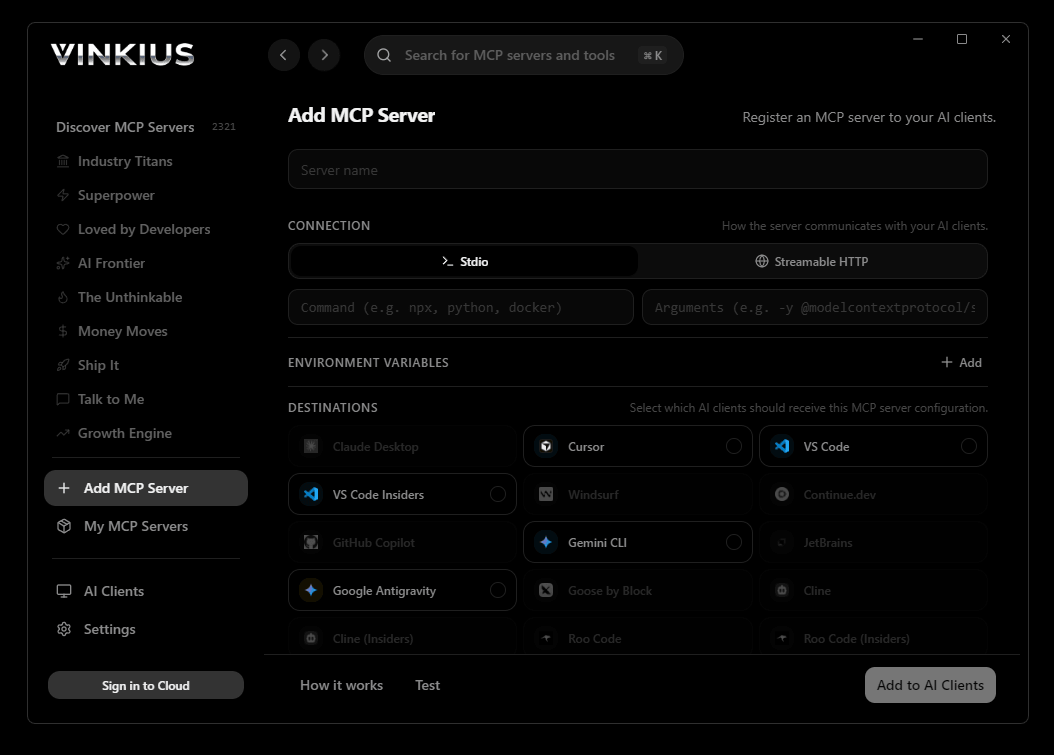
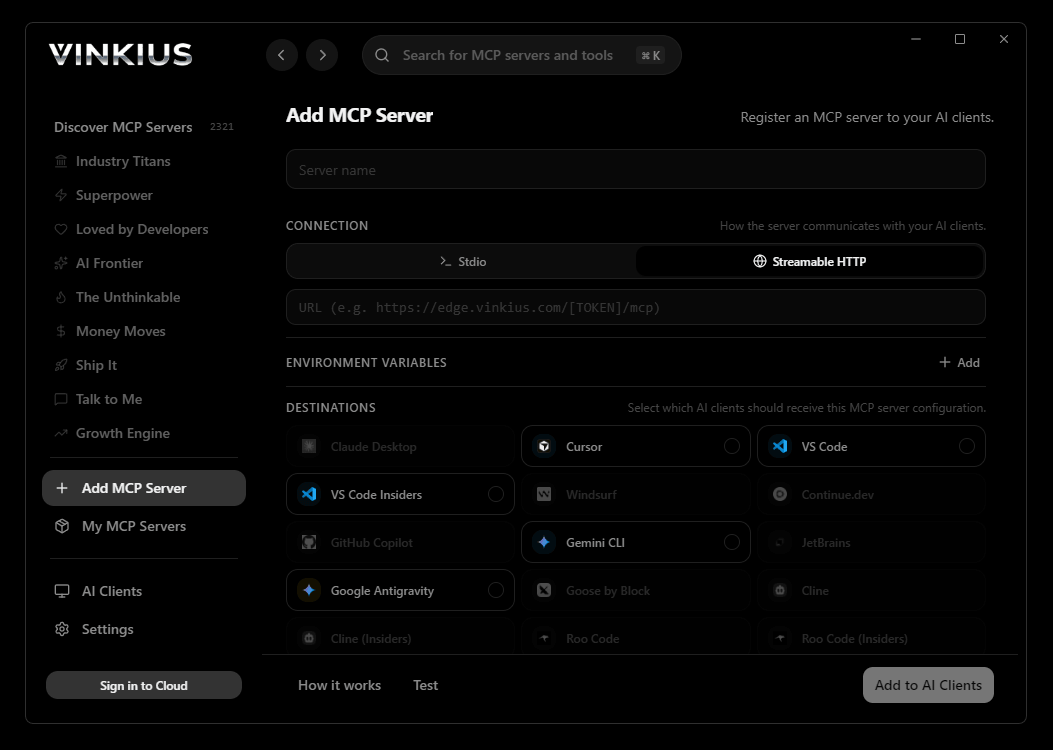
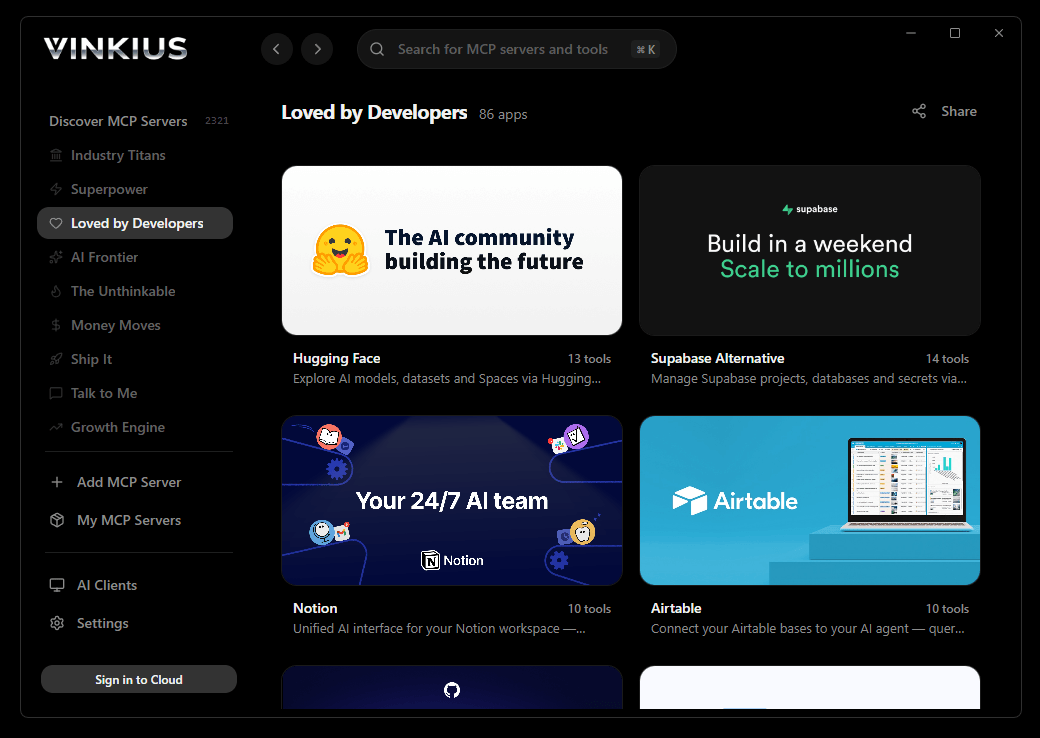
The modern way to manage MCP Servers — no config files, no terminal commands. Install Farmonaut and 2,500+ MCP Servers from a single visual interface.

{
  "mcpServers": {
    "farmonaut": {
      "url": "https://edge.vinkius.com/[YOUR_TOKEN_HERE]/mcp"
    }
  }
}
* Every MCP server runs on Vinkius-managed infrastructure inside AWS - a purpose-built runtime with per-request V8 isolates, Ed25519 signed audit chains, and sub-40ms cold starts optimized for native MCP execution. See our infrastructure
About Farmonaut MCP Server
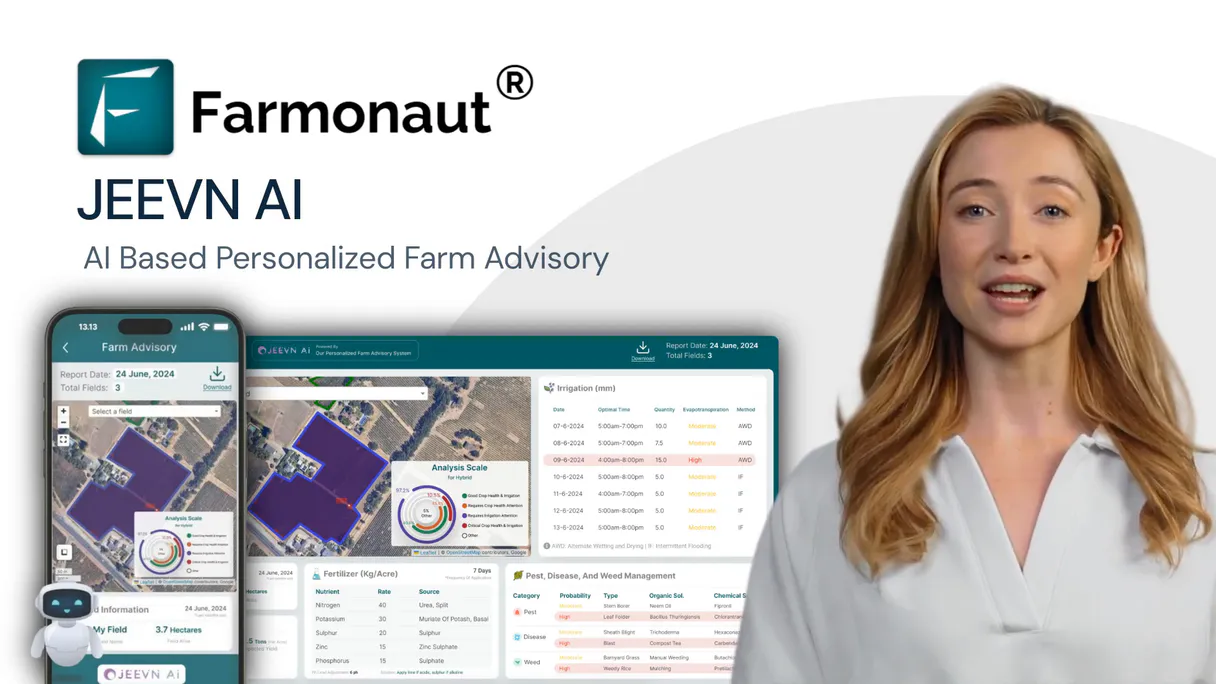
Connect your Farmonaut Satellite API to any AI agent and take full control of satellite-based crop monitoring, vegetation index analysis, weather tracking, AI crop advisory, and deforestation detection through natural conversation.
Cursor's Agent mode turns Farmonaut into an in-editor superpower. Ask Cursor to generate code using live data from Farmonaut and it fetches, processes, and writes. all in a single agentic loop. 12 tools appear alongside file editing and terminal access, creating a unified development environment grounded in real-time information.
What you can do
- Field Management — List and register agricultural fields with boundaries, crop types, and planting dates
- NDVI Analysis — Calculate NDVI from Sentinel-2, Landsat, and PlanetScope for crop health monitoring
- NDWI Water Index — Monitor crop water content and irrigation needs with water index analysis
- EVI Enhanced Index — Track enhanced vegetation index for high-biomass and dense canopy crops
- Weather Data — Access historical and current weather data for agricultural decision making
- Weather Forecast — Get forecasts from 7 days to 3 months for agricultural planning
- Soil Moisture — Monitor soil moisture at different depths for irrigation scheduling
- Satellite Imagery — Retrieve true-color, false-color, and NDVI overlay images from multiple satellites
- AI Crop Advisory — Get AI-powered recommendations for irrigation, fertilizer, pest control, and harvest
- Deforestation Alerts — Detect land use changes and tree cover loss for conservation compliance
- SAR Analysis — All-weather monitoring using Synthetic Aperture Radar that penetrates clouds
- Multi-Satellite Support — Access Sentinel-2, Landsat, PlanetScope, and SAR satellite data
The Farmonaut MCP Server exposes 12 tools through the Vinkius. Connect it to Cursor in under two minutes — no API keys to rotate, no infrastructure to provision, no vendor lock-in. Your configuration, your data, your control.
How to Connect Farmonaut to Cursor via MCP
Follow these steps to integrate the Farmonaut MCP Server with Cursor.
Open MCP Settings
Press Cmd+Shift+P (macOS) or Ctrl+Shift+P (Windows/Linux) → search "MCP Settings"
Add the server config
Paste the JSON configuration above into the mcp.json file that opens
Save the file
Cursor will automatically detect the new MCP server
Start using Farmonaut
Open Agent mode in chat and ask: "Using Farmonaut, help me...". 12 tools available
Why Use Cursor with the Farmonaut MCP Server
Cursor AI Code Editor provides unique advantages when paired with Farmonaut through the Model Context Protocol.
Agent mode turns Cursor into an autonomous coding assistant that can read files, run commands, and call MCP tools without switching context
Cursor's Composer feature can generate entire files using real-time data fetched through MCP. no copy-pasting from external dashboards
MCP tools appear alongside built-in tools like file reading and terminal access, creating a unified agentic environment
VS Code extension compatibility means your existing workflow, keybindings, and extensions all work alongside MCP tools
Farmonaut + Cursor Use Cases
Practical scenarios where Cursor combined with the Farmonaut MCP Server delivers measurable value.
Code generation with live data: ask Cursor to generate a security report module using live DNS and subdomain data fetched through MCP
Automated documentation: have Cursor query your API's tool schemas and generate TypeScript interfaces or OpenAPI specs automatically
Infrastructure-as-code: Cursor can fetch domain configurations and generate corresponding Terraform or CloudFormation templates
Test scaffolding: ask Cursor to pull real API responses via MCP and generate unit test fixtures from actual data
Farmonaut MCP Tools for Cursor (12)
These 12 tools become available when you connect Farmonaut to Cursor via MCP:
add_field
Accepts field boundary as GeoJSON polygon or coordinates, field name, crop type, and planting date. Returns the created field with ID, calculated area, and monitoring activation status. Essential for onboarding new fields into the monitoring system, expanding farm coverage, and setting up new crop seasons. AI agents should use this when users ask "add a new field for monitoring", "register this field boundary", or need to set up satellite monitoring for a new agricultural area. Register a new agricultural field for satellite monitoring
get_crop_advisory
Returns recommendations for irrigation, fertilization, pest control, harvest timing, and field operations. Essential for data-driven farm management, precision agriculture, and optimizing crop inputs. AI agents should use this when users ask "what should I do in my field this week", "get irrigation and fertilizer recommendations", or need AI-powered crop management advice. Get AI-powered crop management advisories and recommendations
get_deforestation_alerts
Uses satellite imagery to detect tree cover loss, land clearing, and vegetation changes over time. Essential for conservation compliance, environmental monitoring, carbon credit verification, and land use change detection. AI agents should reference this when users ask "show deforestation alerts in my area", "detect land use changes", or need environmental compliance monitoring. Get deforestation and land change detection alerts
get_evi
EVI is more sensitive in high-biomass regions and less affected by atmospheric conditions and soil background than NDVI. Essential for monitoring dense canopies, tropical crops, and areas with high atmospheric interference. Returns EVI values, statistics, satellite source, and acquisition dates. AI agents should use this when users ask "show me EVI trends for this field", "how is the canopy developing in high-biomass areas", or need enhanced vegetation index analysis for dense vegetation. Calculate EVI enhanced vegetation index for high-biomass crop monitoring
get_fields
Returns field names, boundaries (GeoJSON polygons), area in hectares/acres, crop type, planting dates, and current monitoring status. Essential for farm management overview, field inventory, and selecting target fields for satellite analysis. AI agents should use this when users ask "show me all my fields", "list monitored fields", or need to identify available fields for vegetation index or weather queries. List all agricultural fields monitored in your Farmonaut account
get_ndvi
NDVI measures vegetation health and vigor on a scale of -1 to 1, with higher values indicating healthier vegetation. Returns NDVI values, statistics (mean, min, max, std), satellite source, acquisition date, and cloud cover percentage. Essential for crop health assessment, growth stage monitoring, stress detection, and yield prediction. AI agents should use this when users ask "what is the NDVI for my rice field this month", "calculate vegetation health for field X", or need NDVI-based crop health analysis. Calculate NDVI vegetation index for crop health monitoring
get_ndwi
NDWI is sensitive to vegetation water content and soil moisture, making it essential for irrigation scheduling, drought monitoring, and water stress detection. Returns NDWI values, statistics, satellite source, and acquisition dates. AI agents should reference this when users ask "what is the water content in my crops", "do I need to irrigate", or need water stress analysis for irrigation planning. Calculate NDWI water index for crop water stress and irrigation monitoring
get_sar_analysis
SAR penetrates clouds and works day/night, making it essential for monitoring in cloudy or rainy conditions. Returns backscatter values, soil moisture estimates, crop structure information, and change detection analysis. Essential for all-weather monitoring, flood detection, soil moisture mapping, and crop structure analysis. AI agents should use this when users ask "get SAR analysis for my field during cloudy season", "monitor crops through cloud cover", or need all-weather satellite analysis. Get Synthetic Aperture Radar (SAR) analysis for all-weather crop monitoring
get_satellite_images
Returns true-color and false-color composites, NDVI overlays, and raw spectral bands. Essential for visual crop assessment, change detection, damage assessment, and downloading imagery for further processing. AI agents should reference this when users ask "show me satellite images of my field from last week", "get latest Sentinel-2 imagery", or need satellite imagery for visual assessment. Retrieve satellite imagery for agricultural fields from multiple sources
get_soil_moisture
Returns soil moisture levels at different depths (surface, root zone, deep soil), moisture anomalies, and irrigation recommendations. Essential for irrigation scheduling, drought monitoring, water stress detection, and water resource optimization. AI agents should use this when users ask "what is the soil moisture level in my field", "do I need to irrigate", or need soil moisture data for irrigation planning. Get soil moisture data for irrigation scheduling and drought monitoring
get_weather
Includes temperature (air, soil), precipitation, humidity, wind speed/direction, solar radiation, evapotranspiration, and growing degree days. Essential for irrigation planning, frost risk assessment, disease/pest pressure modeling, and yield prediction. AI agents should use this when users ask "what was the weather like on my field last month", "get temperature and rainfall data", or need historical weather analysis for crop management decisions. Get historical and current weather data for agricultural fields
get_weather_forecast
Includes temperature, precipitation, humidity, wind, and solar radiation forecasts. Essential for planting schedule optimization, harvest timing, irrigation planning, frost protection, and seasonal crop management. AI agents should reference this when users ask "what is the weather forecast for my field next week", "get seasonal precipitation forecast", or need forward-looking weather data for agricultural planning. Get weather forecasts for agricultural planning and irrigation scheduling
Example Prompts for Farmonaut in Cursor
Ready-to-use prompts you can give your Cursor agent to start working with Farmonaut immediately.
"Show me the NDVI trend for my rice field over the last 3 months."
"What is the 7-day weather forecast and current soil moisture for my wheat field?"
"Get AI crop advisory recommendations for my cotton field this week."
Troubleshooting Farmonaut MCP Server with Cursor
Common issues when connecting Farmonaut to Cursor through the Vinkius, and how to resolve them.
Tools not appearing in Cursor
Server shows as disconnected
Farmonaut + Cursor FAQ
Common questions about integrating Farmonaut MCP Server with Cursor.
What is Agent mode and why does it matter for MCP?
Where does Cursor store MCP configuration?
mcp.json file. You can configure servers at the project level (.cursor/mcp.json in your project root) or globally (~/.cursor/mcp.json). Project-level configs take precedence.Can Cursor use MCP tools in inline edits?
How do I verify MCP tools are loaded?
Connect Farmonaut with your favorite client
Step-by-step setup guides for every MCP-compatible client and framework:
Anthropic's native desktop app for Claude with built-in MCP support.
AI-first code editor with integrated LLM-powered coding assistance.
GitHub Copilot in VS Code with Agent mode and MCP support.
Purpose-built IDE for agentic AI coding workflows.
Autonomous AI coding agent that runs inside VS Code.
Anthropic's agentic CLI for terminal-first development.
Python SDK for building production-grade OpenAI agent workflows.
Google's framework for building production AI agents.
Type-safe agent development for Python with first-class MCP support.
TypeScript toolkit for building AI-powered web applications.
TypeScript-native agent framework for modern web stacks.
Python framework for orchestrating collaborative AI agent crews.
Leading Python framework for composable LLM applications.
Data-aware AI agent framework for structured and unstructured sources.
Microsoft's framework for multi-agent collaborative conversations.
Connect Farmonaut to Cursor
Get your token, paste the configuration, and start using 12 tools in under 2 minutes. No API key management needed.