
GrabFood Partner MCP, Ready to Go
Use Claude or Cursor with the GrabFood Partner MCP to manage restaurant orders, update menus, and run marketing campaigns via AI agents.
No credit card required. Experience the power of this integration risk-free.
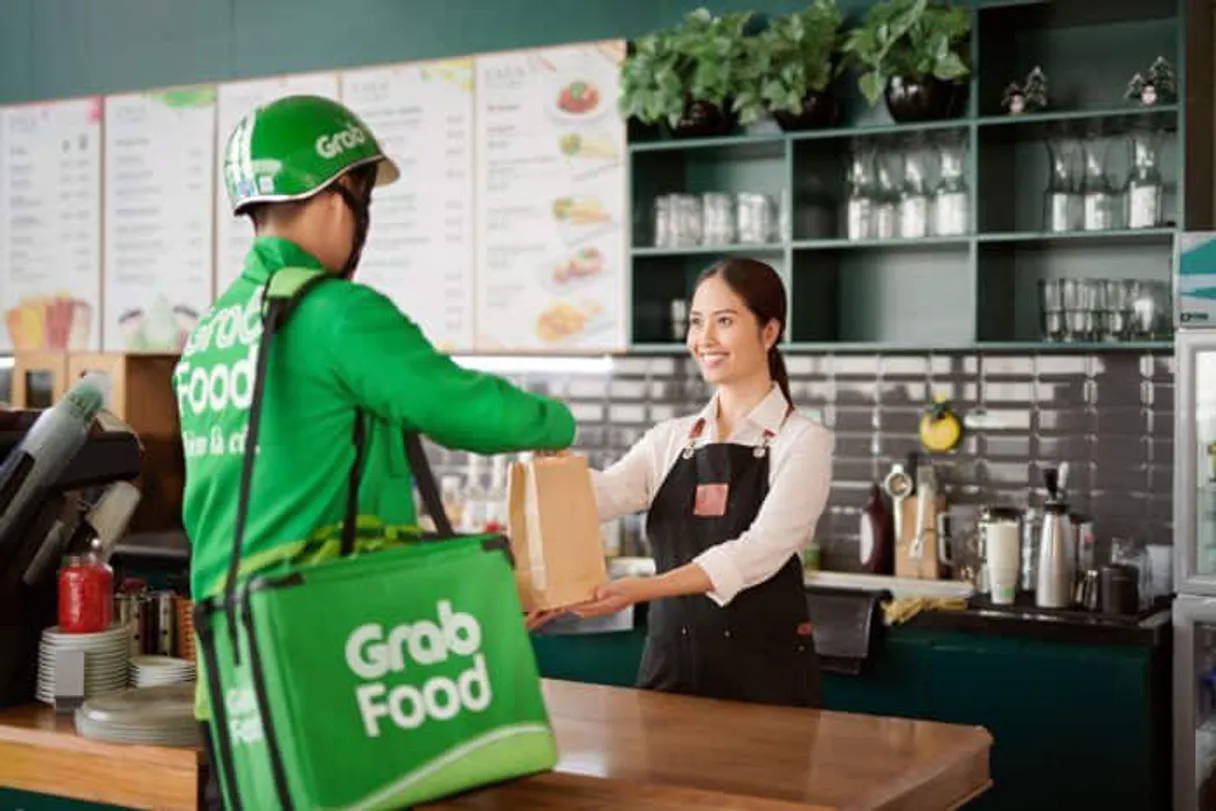
Manage restaurant delivery orders and menus through your AI agent.
Works with every AI agent you already use
…and any MCP-compatible client









How fast is the GrabFood Partner Connector?
Average time for the server to become ready for requests over the last 14 days, measured until the initialize / tools/list handshake completes. Metrics are updated daily between 00:00 and 04:00 UTC. Create a free account, use this Connector on Vinkius Cloud, and connect it to your AI agent in seconds.
Waiting for input…
What AI agents can do with GrabFood Partner 12 Tools for Restaurant Operations
Manage your GrabFood orders, menu, and store status using 12 specific tools to keep your restaurant running smoothly via your AI agent.
Accept order
Confirms you will prepare an order or rejects it to notify the customer. Use this to manage your order flow during busy periods.
Batch update menu
Updates prices or availability for specific items without changing the whole menu. This is the safest way to make incremental changes.
Cancel order
Stops an accepted order and provides a reason for the cancellation. Use this only when you cannot fulfill a customer's request.
Check order cancelable
Verifies if an order is still in a state where it can be safely cancelled. This prevents API errors when trying to stop a late order.
Create campaign
Sets up new promotional discounts, free delivery offers, or featured placements. Use this to boost your visibility on the platform.
Get store status
Checks if the store is currently open, paused, or closed. Use this to verify your visibility to customers.
List campaigns
Shows all active and past marketing promotions for your merchant account. Use this to audit your marketing spend.
List orders
Fetches a list of orders for a specific date or the most recent ones. Use this to check your daily order volume.
Mark order ready
Notifies Grab that the food is packed and the driver should arrive. This tells the driver to come to the pickup point immediately.
Pause store
Instantly stops new orders from coming in when the kitchen is overwhelmed. Use this for emergency closures or end of day.
Update menu
Replaces the entire menu structure with new items, prices, or categories. Use this for seasonal menu overhauls.
Update ready time
Changes the estimated time the food will be ready to help drivers coordinate better. Use this to push back delivery windows.
A Connector is a URL. Vinkius runs it: hosting, security, governance, observability.
You're looking at one of 5,800+ managed Connectors. The real value isn't the catalog. It's the control plane that secures, governs, audits, and manages every interaction between your agents and the tools they use.
No Shadow AI
Every agent action is visible, approved, and auditable. Nothing runs outside your governance.
Absolute agent control
Fine-grained permissions for every agent, MCP, and tool. Instantly revoke access and audit every execution.
Cost control per token
Spend broken down to the token, tool, and agent. Budgets and hard limits. No surprise invoices.
Managed & monitored infra
We operate the runtime, authentication, scaling, retries, and monitoring. Your team manages AI, not infrastructure.
Data protection, DLP by design
Sensitive data is filtered before reaching the model. Access is governed so agents receive only the information they're allowed to use.
Token optimization, real savings
Lower AI costs by delivering the right context instead of unnecessary tools. Better accuracy, faster responses, and fewer wasted tokens.
Stop juggling the GrabFood Partner portal during lunch rushes
This is for restaurant owners and delivery managers who are tired of manual data entry during peak hours. It's for the person who needs to keep their menu accurate and their orders moving without being glued to a screen.
Restaurant Owner
Manages the entire shop's status and menu from a phone while in the kitchen.
Operations Manager
Oversees multiple locations, checking store statuses and adjusting availability across the board.
Marketing Coordinator
Launches and monitors promotional campaigns without navigating a clunky partner dashboard.
Frequently Asked Questions
Can I use the GrabFood Partner MCP to manage my menu? +
Yes, you can update prices, descriptions, and availability for your items. This allows you to keep your offerings accurate without manual portal entries.
How does the GrabFood Partner MCP help during a busy lunch rush? +
It lets you handle urgent tasks like pausing the store or confirming orders via voice or text. This keeps your staff focused on the kitchen while the agent handles the logistics.
Can I use this to run discounts on GrabFood? +
Yes, you can create and list new promotional campaigns. This includes setting up discounts, free delivery offers, and featured placements.
Will the GrabFood Partner MCP automatically accept my orders? +
No, your AI agent will only accept or reject orders when you give it the command. This ensures you stay in control of your order flow.
Can I check my store status using the GrabFood Partner MCP? +
Yes, you can ask your agent to check if your store is open, closed, or paused. It can also verify your visibility to customers in real-time.
How do I update delivery times for my customers? +
You can tell your agent to adjust the estimated ready time for specific orders. This helps drivers arrive when the food is actually ready.
Can I use the GrabFood Partner MCP to see my order history? +
Yes, you can ask your agent to list orders for a specific date or view the most recent ones to audit your daily volume.
How do I get my GrabFood Merchant ID? +
Your Merchant ID is provided when you register as a GrabFood Partner. You can find it in the GrabFood Partner Portal under your restaurant settings, or in the welcome email you received when your restaurant was onboarded to GrabFood.
Can I use this integration in production, not just sandbox? +
Yes! The integration defaults to the GrabFood sandbox environment for safe testing. To switch to production, you'll need to update the base URL in the engine configuration to the production endpoint. Contact GrabFood Partner support for production API credentials.
What happens if I reject an order? Does it affect my merchant rating? +
Rejecting orders may impact your merchant performance metrics on GrabFood. Frequent rejections can lead to lower visibility in search results. It's recommended to only reject orders when absolutely necessary (e.g., item out of stock, kitchen closure). Always verify order details before making a decision.
Can I update menu items individually without replacing the entire menu? +
Yes! Use the batch_update_menu tool for targeted updates to specific items, prices, or availability. This is safer than a full menu replacement since it only touches the items you specify. Use update_menu only when you need to replace the entire menu structure.
How do I get my OAuth2 access token for the GrabFood Partner API? +
You can obtain your OAuth2 access token through the GrabFood Partner Portal. Log in to your partner account and navigate to API Settings or Developer section to generate or retrieve your token. If you don't have access, contact your GrabFood Partner account manager.
Your AI, connected to everything.




No credit card required · Free tier available







Other Connectors in this category
Richards CRM Connector
Automate project management via Richards CRM. Manage leads, estimates, and material orders with AI.
Payfunnels Connector
Build payment funnels and checkout experiences that maximize conversions with upsells, order bumps, and subscription options.
USPTO API Connector
USPTO API lets your agent search official government patent and trademark records. Stop digging through confusing portals and let your AI handle the heavy lifting of IP research, from metadata retrieval to classification checks, using verified government data.
Related Connectors
Harvest Connector
Automate time tracking and invoicing via Harvest. Manage clients, invoices, and time entries directly from any AI agent.
Cohere (Embed & Rerank) Connector
Empower RAG via Cohere. Generate high-quality text embeddings, rerank documents for better accuracy, and perform AI classification directly from any AI agent.
Binance (Crypto Market) Connector
Track cryptocurrency markets via Binance. Get real-time prices, monitor 24h trends, analyze market movers, and audit trading volumes directly from any AI agent.