
GrabFood Partner MCP Server for Windsurf 12 tools — connect in under 2 minutes
Windsurf brings agentic AI coding to a purpose-built IDE. Connect GrabFood Partner through Vinkius and Cascade will auto-discover every tool. ask questions, generate code, and act on live data without leaving your editor.
ASK AI ABOUT THIS MCP SERVER
Vinkius supports streamable HTTP and SSE.
Vinkius Desktop App
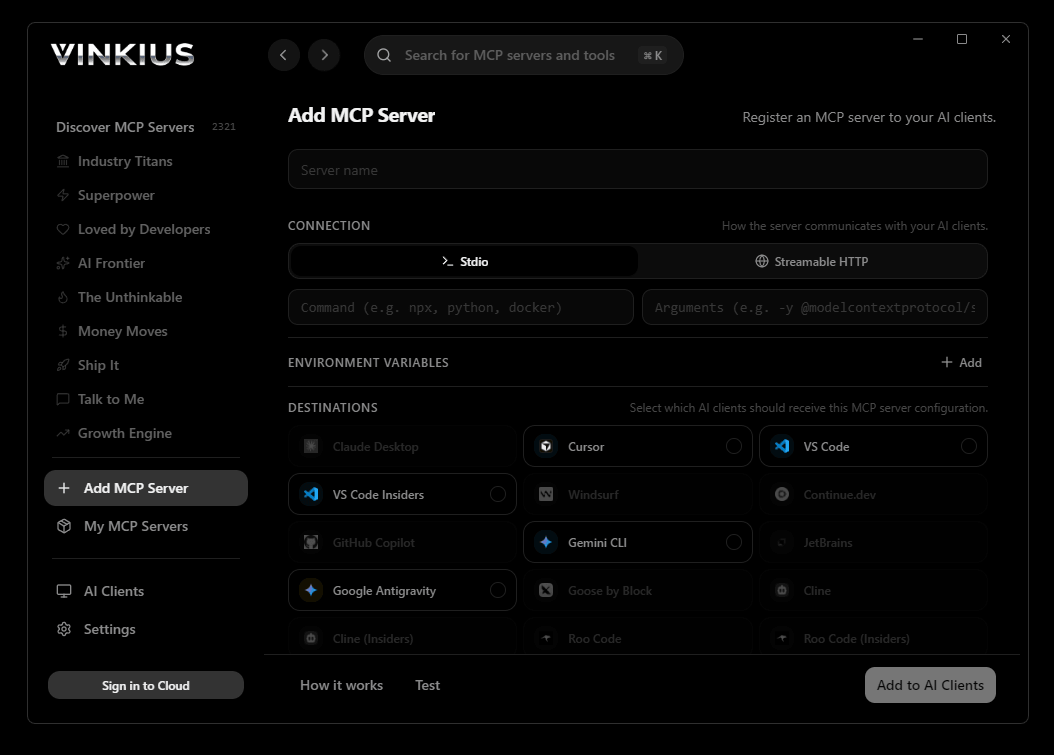
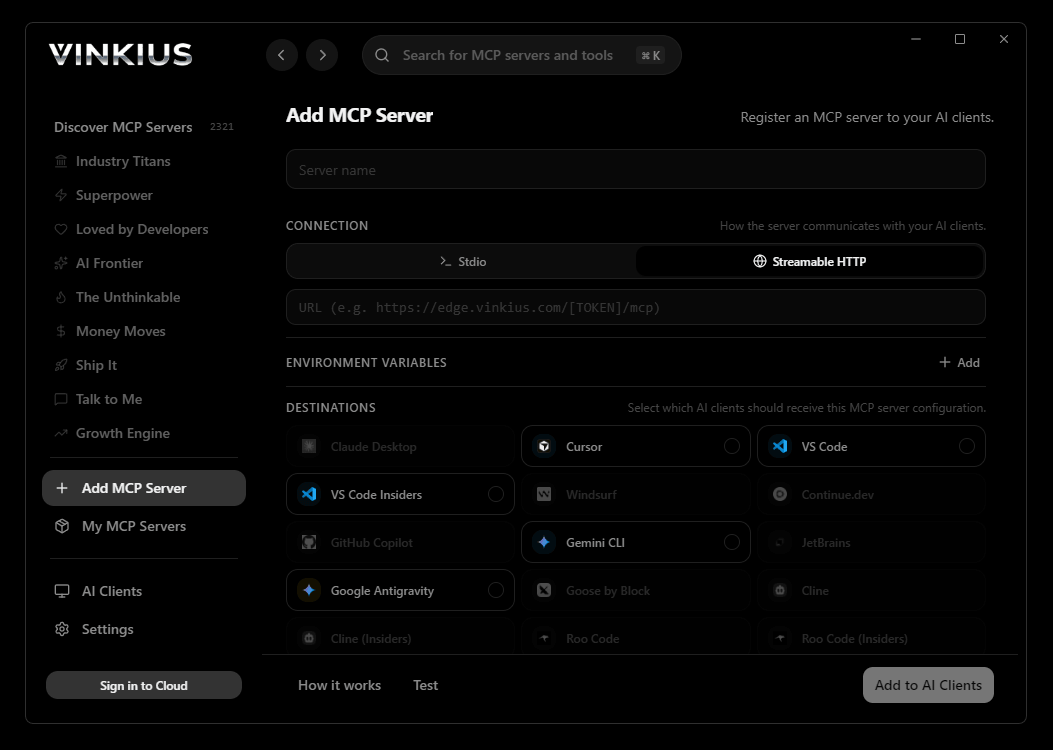
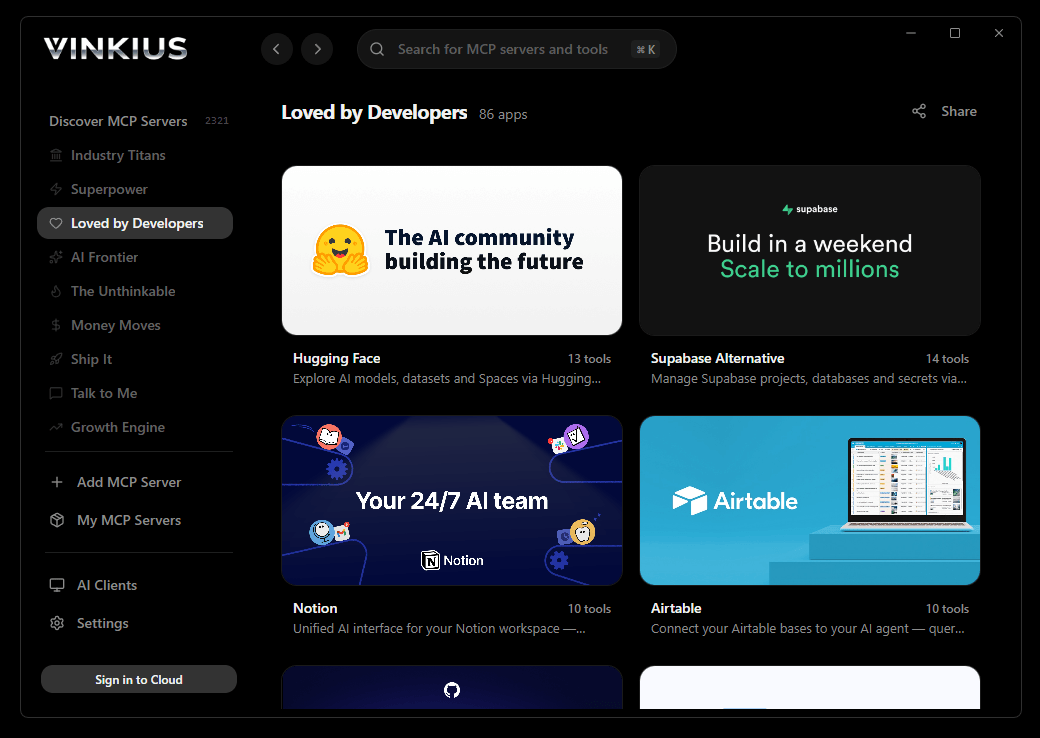
The modern way to manage MCP Servers — no config files, no terminal commands. Install GrabFood Partner and 2,500+ MCP Servers from a single visual interface.

{
  "mcpServers": {
    "grabfood-partner": {
      "url": "https://edge.vinkius.com/[YOUR_TOKEN_HERE]/mcp"
    }
  }
}
* Every MCP server runs on Vinkius-managed infrastructure inside AWS - a purpose-built runtime with per-request V8 isolates, Ed25519 signed audit chains, and sub-40ms cold starts optimized for native MCP execution. See our infrastructure
About GrabFood Partner MCP Server
Connect your GrabFood Partner account to any AI agent and take full control of your restaurant delivery operations through natural conversation.
Windsurf's Cascade agent chains multiple GrabFood Partner tool calls autonomously. query data, analyze results, and generate code in a single agentic session. Paste Vinkius Edge URL, reload, and all 12 tools are immediately available. Real-time tool feedback appears inline, so you see API responses directly in your editor.
What you can do
- Order Management — List all incoming orders, accept or reject them, cancel when necessary, and mark orders as ready for pickup
- Order Lifecycle Control — Check if orders can be cancelled, update estimated ready times, and manage delivery states
- Menu Management — Update your entire menu or perform targeted batch updates to specific items, prices, and availability
- Store Operations — Check your store's real-time status, view operating hours, and pause/unpause your store instantly
- Marketing Campaigns — List existing campaigns and create new promotional campaigns to boost visibility and orders
The GrabFood Partner MCP Server exposes 12 tools through the Vinkius. Connect it to Windsurf in under two minutes — no API keys to rotate, no infrastructure to provision, no vendor lock-in. Your configuration, your data, your control.
How to Connect GrabFood Partner to Windsurf via MCP
Follow these steps to integrate the GrabFood Partner MCP Server with Windsurf.
Open MCP Settings
Go to Settings → MCP Configuration or press Cmd+Shift+P and search "MCP"
Add the server
Paste the JSON configuration above into mcp_config.json
Save and reload
Windsurf will detect the new server automatically
Start using GrabFood Partner
Open Cascade and ask: "Using GrabFood Partner, help me...". 12 tools available
Why Use Windsurf with the GrabFood Partner MCP Server
Windsurf provides unique advantages when paired with GrabFood Partner through the Model Context Protocol.
Windsurf's Cascade agent autonomously chains multiple tool calls in sequence, solving complex multi-step tasks without manual intervention
Purpose-built for agentic workflows. Cascade understands context across your entire codebase and integrates MCP tools natively
JSON-based configuration means zero code changes: paste a URL, reload, and all 12 tools are immediately available
Real-time tool feedback is displayed inline, so you see API responses directly in your editor without switching contexts
GrabFood Partner + Windsurf Use Cases
Practical scenarios where Windsurf combined with the GrabFood Partner MCP Server delivers measurable value.
Automated code generation: ask Cascade to fetch data from GrabFood Partner and generate models, types, or handlers based on real API responses
Live debugging: query GrabFood Partner tools mid-session to inspect production data while debugging without leaving the editor
Documentation generation: pull schema information from GrabFood Partner and have Cascade generate comprehensive API docs automatically
Rapid prototyping: combine GrabFood Partner data with Cascade's code generation to scaffold entire features in minutes
GrabFood Partner MCP Tools for Windsurf (12)
These 12 tools become available when you connect GrabFood Partner to Windsurf via MCP:
accept_order
This is a critical operational tool for restaurant staff to manage order flow. When set to accept=true, the restaurant confirms it will prepare the order. When accept=false, the order is rejected and the customer is notified. **Parameters:** - `order_id` (required): The unique order ID from GrabFood that needs to be accepted or rejected. - `accept` (required): Boolean flag — true to accept the order, false to reject it. **When to use:** - User says "accept order 12345" to confirm they will prepare it - User says "reject order 12345" if the restaurant cannot fulfill the order (e.g., items out of stock, kitchen closed) - User wants to bulk-accept multiple orders during busy periods - User needs to decline an order due to operational constraints **Important:** Accepting an order commits the restaurant to preparing it. Rejecting may impact the merchant's performance metrics on the GrabFood platform. Always verify order details before accepting. Accept or reject a GrabFood order
batch_update_menu
This is the preferred tool for making incremental changes — such as updating prices for a few items, marking items as available/unavailable, or modifying descriptions. **Parameters:** - `merchant_id` (required): The unique merchant ID registered with GrabFood. - `items` (required): An array of item update objects. Each object should contain the item identifier and the fields to update (e.g., price, availability, name, description). **When to use:** - User needs to update prices for only a subset of menu items - User wants to mark several items as sold out without touching the full menu - User wants to update descriptions or names for specific dishes - Incremental daily changes (e.g., "mark items X, Y, Z as unavailable today") - User wants to avoid the risk of a full menu replacement **Important:** This is safer than a full menu update because it only touches the items you specify. Each item in the batch should include its identifier (e.g., item_id or sku) and only the fields that need changing. Batch update specific menu items for a GrabFood merchant
cancel_order
This should be used sparingly as cancellations negatively impact the merchant's performance score on GrabFood. Always verify the order can be cancelled before attempting. **Parameters:** - `order_id` (required): The unique order ID of the order to cancel. - `reason` (optional): A brief explanation for why the order is being cancelled. Providing a reason is recommended for audit purposes (e.g., "item out of stock", "kitchen equipment failure", "customer request"). **When to use:** - User discovers an item is out of stock after accepting an order - User needs to cancel due to unforeseen kitchen issues - Customer has requested a cancellation - Duplicate order was accidentally accepted **Important:** Before cancelling, consider using `check_order_cancelable` to verify if the order is still in a cancellable state. Once the order has progressed too far in preparation, cancellation may not be possible. Cancel an already accepted GrabFood order
check_order_cancelable
This is a safety check tool that should be used before attempting to cancel an order, as cancellations after a certain point in the order lifecycle are not permitted. **Parameters:** - `order_id` (required): The unique order ID to check for cancellation eligibility. **When to use:** - Before cancelling an order to avoid API errors - User asks "can I still cancel order 12345?" - Restaurant staff needs to verify order state before making a cancellation decision - User is uncertain whether the order has progressed beyond the cancellation window **Returns:** A status object indicating whether the order can be cancelled, along with any relevant state information. Check if a GrabFood order can still be cancelled
create_campaign
Campaigns can include discounts, free delivery offers, featured placement, and other promotional tools designed to increase order volume and visibility. **Parameters:** - `merchant_id` (required): The unique merchant ID registered with GrabFood. - `campaign` (required): The campaign configuration as a JSON object. This typically includes campaign name, type (e.g., discount, free delivery), budget, start/end dates, target audience, and any specific promotional parameters. **When to use:** - User wants to launch a promotional discount to boost order volume - User needs to set up a free delivery campaign for a limited period - Restaurant is opening a new location and wants featured placement - User wants to run a time-limited promotional offer (e.g., "20% off this weekend") **Important:** Campaign creation may require budget approval from GrabFood. Ensure the campaign configuration matches GrabFood's accepted campaign types and schemas. Review campaign details carefully before submitting, as changes may not be possible after creation. Create a new marketing campaign for a GrabFood merchant
get_store_status
This includes whether the store is currently open, paused, or closed, along with any status flags that affect order acceptance. **Parameters:** - `merchant_id` (required): The unique merchant ID registered with GrabFood. **When to use:** - User asks "is my store currently open on GrabFood?" - User wants to verify the store's visibility to customers - Before opening or closing, to check the current state - User wants to troubleshoot why orders are not coming in - User needs to audit store operational status **Returns:** A status object containing the store's current state (open/closed/paused), any active flags, and potentially operational metadata like current order capacity. Get the current operational status of a GrabFood store
list_campaigns
Campaigns on GrabFood are used to promote the restaurant through discounts, free delivery, featured placement, and other marketing initiatives. **Parameters:** - `merchant_id` (required): The unique merchant ID registered with GrabFood. **When to use:** - User asks "what campaigns am I currently running on GrabFood?" - User wants to review the performance of past marketing campaigns - User needs to see active promotions before creating a new one - User wants to audit their marketing spend on GrabFood **Returns:** A JSON array of campaign objects, each containing campaign details such as name, type, budget, duration, status, and performance metrics. List all marketing campaigns for a GrabFood merchant
list_orders
Use this tool when the user wants to see what orders have been placed, check today's order volume, or review incoming orders from GrabFood delivery customers. **Parameters:** - `merchant_id` (required): The unique merchant ID registered with GrabFood Partner Portal. This identifies which restaurant's orders to fetch. - `date` (optional): The date to filter orders by, in YYYY-MM-DD format. If not provided, the API returns the most recent orders. **When to use:** - User asks "what orders do I have today?" - User wants to check order history for a specific date - User needs to see all incoming GrabFood orders before accepting them - User wants to audit order volume for a given day **Returns:** A JSON array of order objects, each containing order_id, items, customer details, delivery information, and order status. List all GrabFood orders for a merchant on a specific date
mark_order_ready
This is a crucial step in the order lifecycle — it notifies Grab that the driver should arrive immediately. **Parameters:** - `order_id` (required): The unique order ID that has been prepared and is ready for collection. **When to use:** - Kitchen has finished preparing all items in the order - User says "order 12345 is ready for pickup" - User wants to notify Grab that the driver should come now - All items have been packed and verified against the order **Important:** Only mark an order as ready when it is genuinely complete. Premature marking causes driver arrival before food is ready, leading to poor customer experience and potential quality issues (cold food, etc.). Mark a GrabFood order as ready for pickup/delivery
pause_store
When paused, the store will not receive new orders from GrabFood customers. When unpaused (pause=false), the store becomes visible and active again. **Parameters:** - `merchant_id` (required): The unique merchant ID registered with GrabFood. - `pause` (required): Boolean flag — true to pause the store, false to unpause it. **When to use:** - User says "pause my GrabFood store" — e.g., kitchen is overwhelmed, staff shortage, or end of business day - User says "unpause my store" or "open my store" when ready to receive orders again - Emergency closure due to equipment failure, power outage, or other disruptions - User wants to temporarily stop accepting orders during a rush **Important:** Pausing the store immediately stops new orders from being placed. Existing active orders are not affected. Always verify the store status after pausing/unpausing using `get_store_status` to confirm the change took effect. Pause or unpause a GrabFood store
update_menu
This tool replaces or modifies menu items, categories, pricing, and availability. It is a full update operation — ensure all desired menu data is included in the payload. **Parameters:** - `merchant_id` (required): The unique merchant ID registered with GrabFood. - `menu` (required): The complete menu data structure to update. This typically includes categories, items, prices, descriptions, images, and availability flags. The exact structure depends on the GrabFood menu schema. **When to use:** - User wants to add new dishes or remove discontinued items - User needs to update prices across the menu - Restaurant is changing its operating menu (e.g., seasonal items) - User needs to mark certain items as unavailable temporarily - User wants to update item descriptions or images **Important:** This is a full update operation. If you need to update only specific items without affecting the rest of the menu, consider using `batch_update_menu` instead. Ensure the menu data structure matches GrabFood's expected schema to avoid rejection. Update the menu for a GrabFood merchant
update_ready_time
This helps Grab optimize driver dispatch timing so the driver arrives when the food is actually ready, not too early or too late. **Parameters:** - `order_id` (required): The unique order ID whose ready time needs updating. - `ready_time` (required): The new estimated ready time in ISO 8601 format (e.g., "2024-01-15T14:30:00+07:00"). This should be a future timestamp representing when the order will be ready. **When to use:** - Kitchen is running behind schedule and the original estimate is no longer accurate - User wants to push back the ready time due to high order volume - Complex items are taking longer than expected to prepare - User wants to proactively manage driver dispatch timing **Important:** The ready_time should be in ISO 8601 format with timezone. Updating this too frequently or with unrealistic times may impact merchant performance ratings. Update the estimated ready time for a GrabFood order
Example Prompts for GrabFood Partner in Windsurf
Ready-to-use prompts you can give your Windsurf agent to start working with GrabFood Partner immediately.
"Show me all my GrabFood orders for today."
"Accept order GF-48921 and mark order GF-48915 as ready."
"Check my store status and pause it if it's currently open."
"Update the price of my Nasi Goreng to 25000 IDR and mark Fried Rice as unavailable."
Troubleshooting GrabFood Partner MCP Server with Windsurf
Common issues when connecting GrabFood Partner to Windsurf through the Vinkius, and how to resolve them.
Server not connecting
GrabFood Partner + Windsurf FAQ
Common questions about integrating GrabFood Partner MCP Server with Windsurf.
How does Windsurf discover MCP tools?
mcp_config.json file on startup and connects to each configured server via Streamable HTTP. Tools are listed in the MCP panel and available to Cascade automatically.Can Cascade chain multiple MCP tool calls?
Does Windsurf support multiple MCP servers?
mcp_config.json. Each server's tools appear in the MCP panel and Cascade can use tools from different servers in a single flow.Connect GrabFood Partner with your favorite client
Step-by-step setup guides for every MCP-compatible client and framework:
Anthropic's native desktop app for Claude with built-in MCP support.
AI-first code editor with integrated LLM-powered coding assistance.
GitHub Copilot in VS Code with Agent mode and MCP support.
Purpose-built IDE for agentic AI coding workflows.
Autonomous AI coding agent that runs inside VS Code.
Anthropic's agentic CLI for terminal-first development.
Python SDK for building production-grade OpenAI agent workflows.
Google's framework for building production AI agents.
Type-safe agent development for Python with first-class MCP support.
TypeScript toolkit for building AI-powered web applications.
TypeScript-native agent framework for modern web stacks.
Python framework for orchestrating collaborative AI agent crews.
Leading Python framework for composable LLM applications.
Data-aware AI agent framework for structured and unstructured sources.
Microsoft's framework for multi-agent collaborative conversations.
Connect GrabFood Partner to Windsurf
Get your token, paste the configuration, and start using 12 tools in under 2 minutes. No API key management needed.