
Honeywell Forge MCP Server for Cursor 11 tools — connect in under 2 minutes
Cursor is an AI-first code editor built on VS Code that integrates LLM-powered coding assistance directly into the development workflow. Its Agent mode enables autonomous multi-step coding tasks, and MCP support lets agents access external data sources and APIs during code generation.
ASK AI ABOUT THIS MCP SERVER
Vinkius supports streamable HTTP and SSE.
Vinkius Desktop App
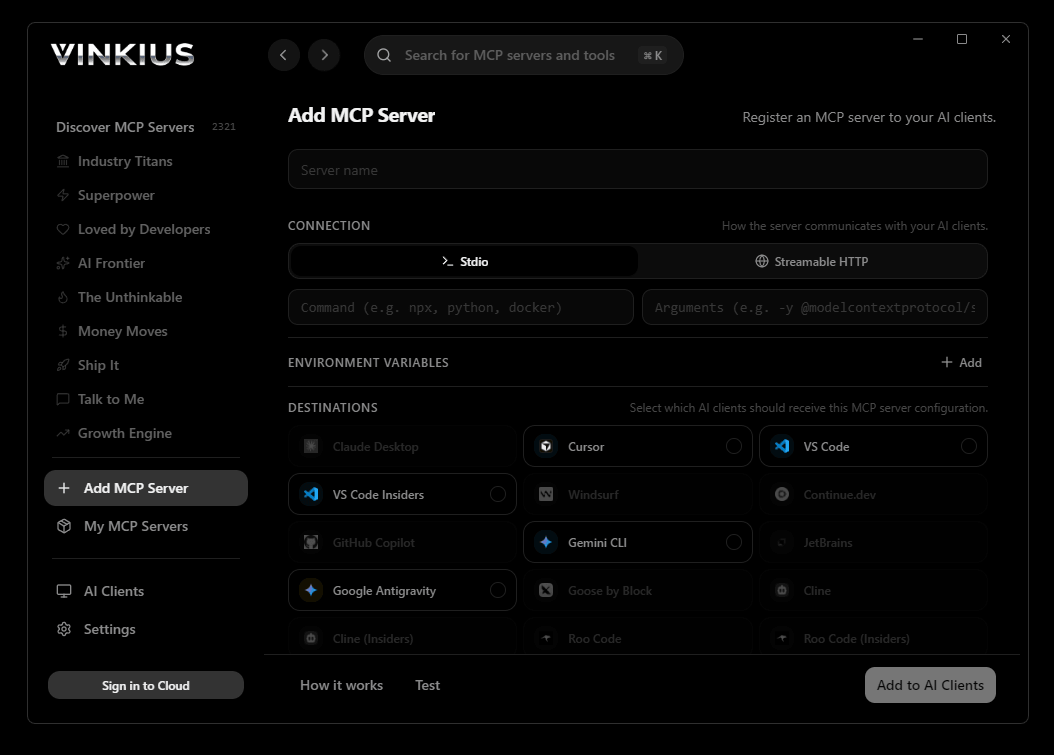
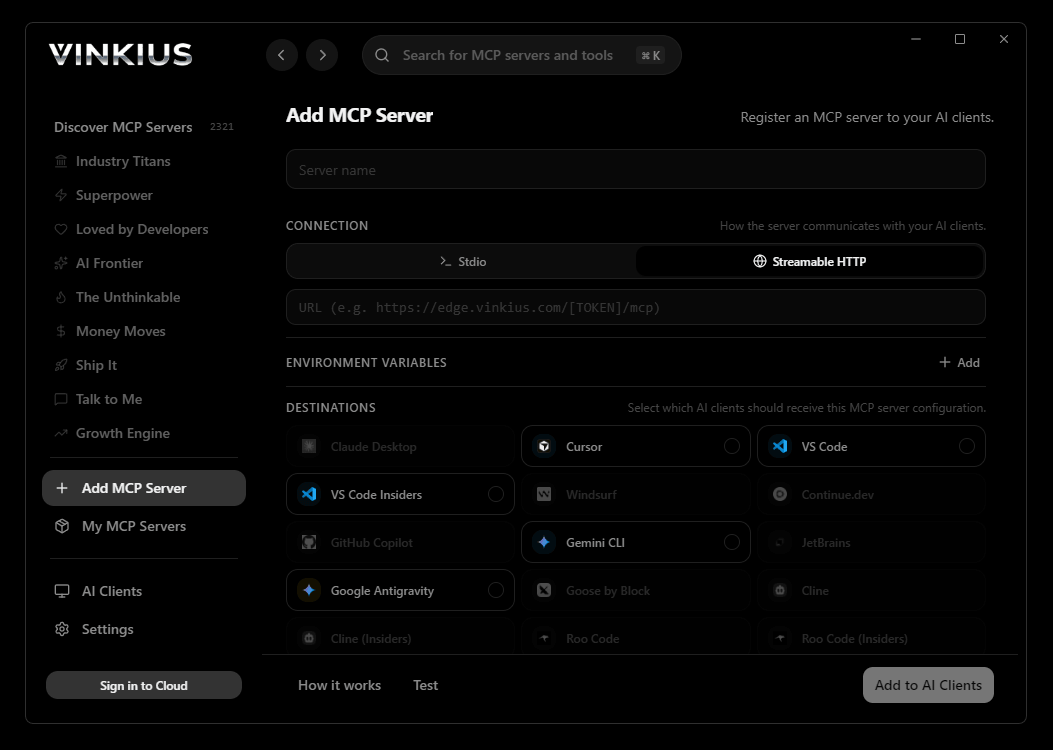
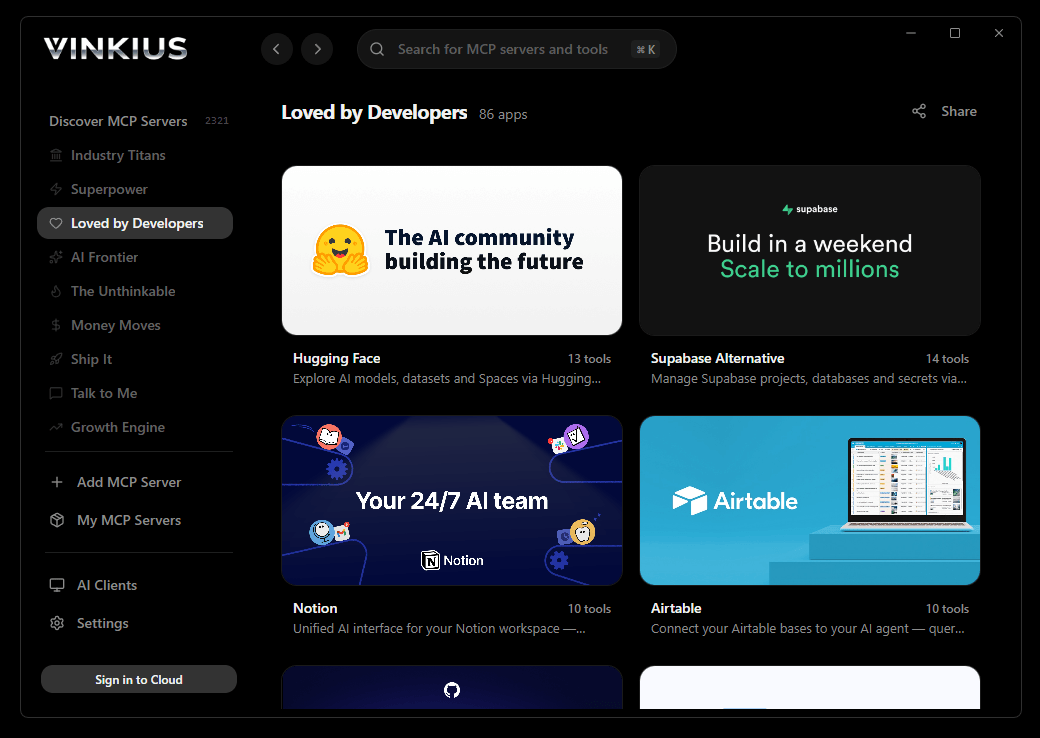
The modern way to manage MCP Servers — no config files, no terminal commands. Install Honeywell Forge and 2,500+ MCP Servers from a single visual interface.

{
  "mcpServers": {
    "honeywell-forge": {
      "url": "https://edge.vinkius.com/[YOUR_TOKEN_HERE]/mcp"
    }
  }
}
* Every MCP server runs on Vinkius-managed infrastructure inside AWS - a purpose-built runtime with per-request V8 isolates, Ed25519 signed audit chains, and sub-40ms cold starts optimized for native MCP execution. See our infrastructure
About Honeywell Forge MCP Server
Connect Honeywell Forge to any AI agent via MCP.
How to Connect Honeywell Forge to Cursor via MCP
Follow these steps to integrate the Honeywell Forge MCP Server with Cursor.
Open MCP Settings
Press Cmd+Shift+P (macOS) or Ctrl+Shift+P (Windows/Linux) → search "MCP Settings"
Add the server config
Paste the JSON configuration above into the mcp.json file that opens
Save the file
Cursor will automatically detect the new MCP server
Start using Honeywell Forge
Open Agent mode in chat and ask: "Using Honeywell Forge, help me...". 11 tools available
Why Use Cursor with the Honeywell Forge MCP Server
Cursor AI Code Editor provides unique advantages when paired with Honeywell Forge through the Model Context Protocol.
Agent mode turns Cursor into an autonomous coding assistant that can read files, run commands, and call MCP tools without switching context
Cursor's Composer feature can generate entire files using real-time data fetched through MCP. no copy-pasting from external dashboards
MCP tools appear alongside built-in tools like file reading and terminal access, creating a unified agentic environment
VS Code extension compatibility means your existing workflow, keybindings, and extensions all work alongside MCP tools
Honeywell Forge + Cursor Use Cases
Practical scenarios where Cursor combined with the Honeywell Forge MCP Server delivers measurable value.
Code generation with live data: ask Cursor to generate a security report module using live DNS and subdomain data fetched through MCP
Automated documentation: have Cursor query your API's tool schemas and generate TypeScript interfaces or OpenAPI specs automatically
Infrastructure-as-code: Cursor can fetch domain configurations and generate corresponding Terraform or CloudFormation templates
Test scaffolding: ask Cursor to pull real API responses via MCP and generate unit test fixtures from actual data
Honeywell Forge MCP Tools for Cursor (11)
These 11 tools become available when you connect Honeywell Forge to Cursor via MCP:
acknowledge_alarm
Acknowledgment does not resolve or clear the underlying condition—it simply records that a human has reviewed the alarm and is aware of it. This updates the alarm state from "unacknowledged" to "acknowledged" in the Forge audit log, which is important for compliance and incident-tracking workflows. Provide the exact alarm ID as returned by get_alarms. Use this during incident response to track which alarms have been seen by the operations team. Acknowledge an active alarm in Honeywell Forge
get_alarms
Alarms cover a wide range of conditions: security breaches (door forced, tailgating), fire and life safety (smoke detector activation, pull station), HVAC faults, and system health warnings. Each alarm record includes severity level, timestamp, source device, description, and acknowledgment status. Optionally filter by building_id to scope results to a single site. Use this to triage active incidents, audit historical events, or identify recurring fault patterns. List active and historical alarms across all buildings or a specific building
get_building_details
Returns comprehensive metadata including HVAC zones, floor plans, linked subsystems (access control, fire life safety, video surveillance), energy targets, and operating schedules. Use this when you need a deep-dive view of a single site before performing operations like checking alarms or querying energy usage. Get detailed information about a specific Honeywell Forge building
get_door_status
The response includes whether the door is currently open or closed, locked or unlocked, and any active fault conditions such as "door held open" or "forced open". This is a read-only, point-in-time snapshot—use it to verify the physical state of a door before granting access or investigating a security event. Get the real-time status of a specific door or access point
get_energy_usage
Returns aggregated consumption data including total kWh, cost estimates, demand peaks, and breakdowns by subsystem (HVAC, lighting, plug loads). Metrics may be presented as time-series data points with timestamps, allowing trend analysis and comparison against energy budgets. Use this to monitor sustainability KPIs, identify wasteful consumption patterns, or prepare energy audit reports for facility managers. Get energy consumption data for a specific building
get_temperature_data
Returns data points including zone temperature, setpoint targets, humidity levels, and HVAC equipment status (compressor running, valve position, fan speed). This data is essential for thermal comfort analysis, energy optimization, and proactive maintenance—such as identifying zones that consistently deviate from setpoints or detecting equipment degradation before failure. Use this to diagnose comfort complaints or validate HVAC scheduling changes. Get temperature and HVAC sensor data for a specific building
list_access_points
An access point represents a physical entry device—door, gate, turnstile, or barrier—managed by the Forge access control subsystem. Each record includes the access point ID, name, current lock state, door status (open/closed/forced), assigned access level, and the zone it belongs to. Use this to audit physical security surfaces before running lock/unlock commands or investigating door-forced alarm events. List all access control points (doors, gates, turnstiles) for a building
list_buildings
Each record contains the building identifier, name, address, operational status, and metadata such as time zone and total floor area. Use this tool as the entry point for any building-centric workflow—once you have the building ID you can drill down into access points, alarms, energy metrics, or video feeds. List all buildings registered in Honeywell Forge
list_video_feeds
Each record represents a camera or NVR channel with metadata including camera name, location within the building, stream URL (RTSP or HLS), resolution, current online/offline status, and recording mode (continuous, motion-triggered, scheduled). Use this to discover which cameras are available for live viewing or forensic review, and to map camera IDs to physical locations before correlating video with alarm events. List available video surveillance feeds for a building
lock_door
The door will immediately engage its locking mechanism and transition to a secured state. Only authorized credentials holders can override this lock via normal badge or PIN access. Use this when securing a building after hours, during a lockdown event, or to enforce temporary access restrictions. Confirm the door identity with list_access_points before executing. Lock a specific door or access point in Honeywell Forge
unlock_door
The door will disengage its lock and enter a free-access state until explicitly re-locked or returned to its scheduled access control mode. Use this for emergency egress, visitor accommodation, or maintenance access. Always verify the correct access point ID before unlocking to avoid unintended security gaps. Unlock a specific door or access point in Honeywell Forge
Troubleshooting Honeywell Forge MCP Server with Cursor
Common issues when connecting Honeywell Forge to Cursor through the Vinkius, and how to resolve them.
Tools not appearing in Cursor
Server shows as disconnected
Honeywell Forge + Cursor FAQ
Common questions about integrating Honeywell Forge MCP Server with Cursor.
What is Agent mode and why does it matter for MCP?
Where does Cursor store MCP configuration?
mcp.json file. You can configure servers at the project level (.cursor/mcp.json in your project root) or globally (~/.cursor/mcp.json). Project-level configs take precedence.Can Cursor use MCP tools in inline edits?
How do I verify MCP tools are loaded?
Connect Honeywell Forge with your favorite client
Step-by-step setup guides for every MCP-compatible client and framework:
Anthropic's native desktop app for Claude with built-in MCP support.
AI-first code editor with integrated LLM-powered coding assistance.
GitHub Copilot in VS Code with Agent mode and MCP support.
Purpose-built IDE for agentic AI coding workflows.
Autonomous AI coding agent that runs inside VS Code.
Anthropic's agentic CLI for terminal-first development.
Python SDK for building production-grade OpenAI agent workflows.
Google's framework for building production AI agents.
Type-safe agent development for Python with first-class MCP support.
TypeScript toolkit for building AI-powered web applications.
TypeScript-native agent framework for modern web stacks.
Python framework for orchestrating collaborative AI agent crews.
Leading Python framework for composable LLM applications.
Data-aware AI agent framework for structured and unstructured sources.
Microsoft's framework for multi-agent collaborative conversations.
Connect Honeywell Forge to Cursor
Get your token, paste the configuration, and start using 11 tools in under 2 minutes. No API key management needed.