
InnoVint MCP Server for VS Code Copilot 10 tools — connect in under 2 minutes
GitHub Copilot in VS Code is the most widely adopted AI coding assistant, embedded directly into the world's most popular code editor. With MCP support in Agent mode, Copilot can access external data and APIs to generate context-aware code grounded in real-time information.
ASK AI ABOUT THIS MCP SERVER
Vinkius supports streamable HTTP and SSE.
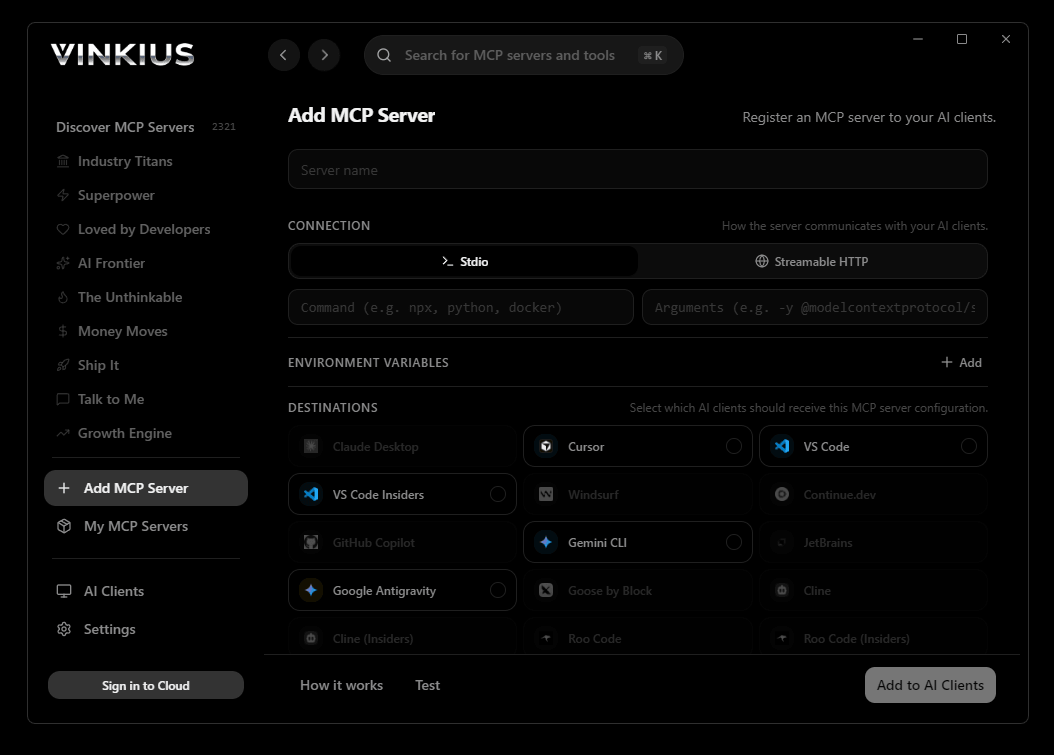
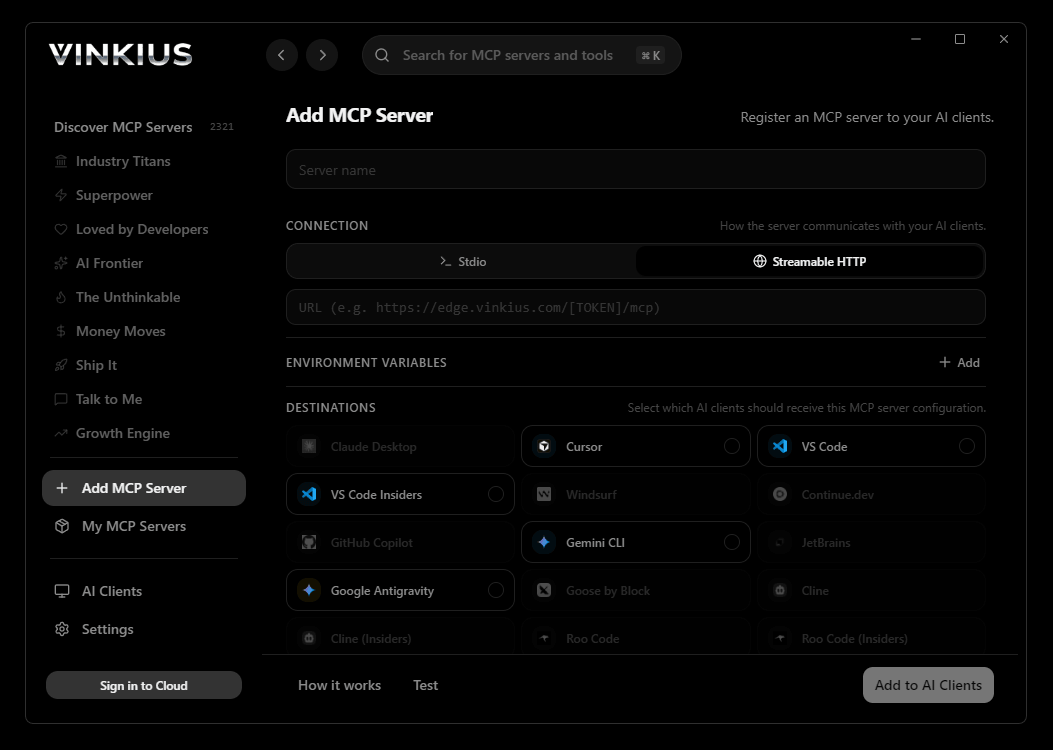
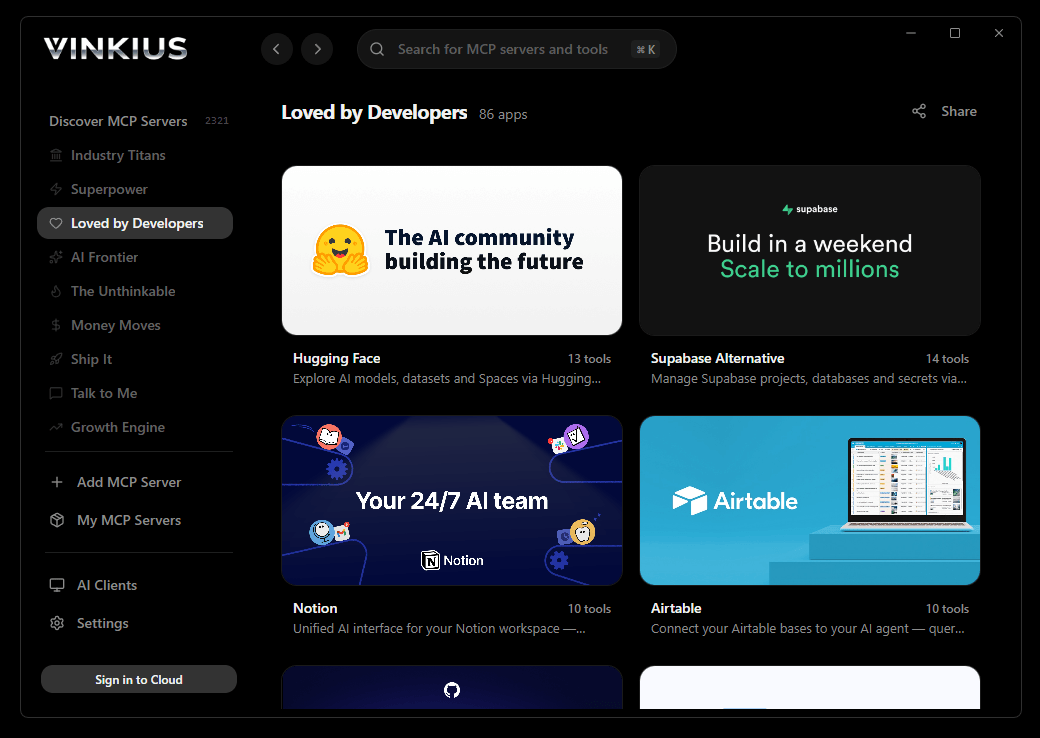
Vinkius Desktop App
The modern way to manage MCP Servers — no config files, no terminal commands. Install InnoVint and 2,500+ MCP Servers from a single visual interface.

{
  "mcpServers": {
    "innovint": {
      "url": "https://edge.vinkius.com/[YOUR_TOKEN_HERE]/mcp"
    }
  }
}
* Every MCP server runs on Vinkius-managed infrastructure inside AWS - a purpose-built runtime with per-request V8 isolates, Ed25519 signed audit chains, and sub-40ms cold starts optimized for native MCP execution. See our infrastructure
About InnoVint MCP Server
Connect your InnoVint winery to any AI agent and transform how your cellar team works — from harvest intake to bottling.
GitHub Copilot Agent mode brings InnoVint data directly into your VS Code workflow. With a project-scoped config, the entire team shares access to 10 tools. Copilot queries live data, generates typed code, and writes tests from actual API responses, all without leaving the editor.
What you can do
- Lots — Search and track wine lots by varietal, vintage, lot code, or vessel assignment
- Vessels — Monitor tanks, barrels, concrete eggs, and amphorae — capacity, fill level, and contents
- Lab Analyses — View pH, TA, SO2, Brix, RS, VA, and alcohol readings for any lot over time
- Cellar Actions — Track rackings, pump-overs, punchdowns, additions, fining, and filtration history
- Wines & Vintages — Browse wine products and navigate production by vintage year
- Additives — Reference registered chemicals, enzymes, and fining agents with dosage guidelines
- Multi-Winery — Manage multiple wineries from a single AI connection
The InnoVint MCP Server exposes 10 tools through the Vinkius. Connect it to VS Code Copilot in under two minutes — no API keys to rotate, no infrastructure to provision, no vendor lock-in. Your configuration, your data, your control.
How to Connect InnoVint to VS Code Copilot via MCP
Follow these steps to integrate the InnoVint MCP Server with VS Code Copilot.
Create MCP config
Create a .vscode/mcp.json file in your project root
Add the server config
Paste the JSON configuration above
Enable Agent mode
Open GitHub Copilot Chat and switch to Agent mode using the dropdown
Start using InnoVint
Ask Copilot: "Using InnoVint, help me...". 10 tools available
Why Use VS Code Copilot with the InnoVint MCP Server
GitHub Copilot for Visual Studio Code provides unique advantages when paired with InnoVint through the Model Context Protocol.
VS Code is used by over 70% of developers. adding MCP tools to Copilot means your team can leverage external data without leaving their primary editor
Project-scoped MCP configs (`.vscode/mcp.json`) let you commit server configurations to your repository, ensuring the entire team shares the same tool access
Copilot's Agent mode integrates MCP tools seamlessly with file editing, terminal commands, and workspace search in a single agentic loop
GitHub's enterprise compliance and audit features extend to MCP tool usage, providing visibility into how AI interacts with external services
InnoVint + VS Code Copilot Use Cases
Practical scenarios where VS Code Copilot combined with the InnoVint MCP Server delivers measurable value.
Live API integration: Copilot can query an MCP server, inspect the response schema, and generate typed API client code in the same step
DevSecOps workflows: security teams can give developers access to domain intelligence tools directly in their editor for real-time vulnerability assessment during code review
Data pipeline development: Copilot fetches sample data via MCP and generates transformation scripts, validators, and test fixtures from actual API responses
Documentation generation: Copilot queries available tools and auto-generates README sections, API reference docs, and usage examples
InnoVint MCP Tools for VS Code Copilot (10)
These 10 tools become available when you connect InnoVint to VS Code Copilot via MCP:
get_lot
The primary data point for any winemaking question. Get full lot details
get_vessel
Essential for barrel program management. Get vessel details
list_actions
Filter by lot to see complete cellar history. List cellar actions
list_additives
With regulatory limits and typical dosage. List additives
list_analyses
Filter by lot to see a specific wine's chemistry over time. List lab analyses
list_vessels
Shows capacity, current contents, fill level, and location. Critical for cellar management and space planning. List tanks and barrels
list_vintages
Navigate wine production by year. List vintages
list_wineries
Multi-winery operations can manage several facilities from one account. List wineries
list_wines
Each with varietal rules, appellation, and production notes. List wine products
search_lots
Returns lot details including volume, vessel assignment, varietal composition, and current status. Essential for tracking individual batches through the winemaking process — from harvest intake to bottling. Search wine lots
Example Prompts for InnoVint in VS Code Copilot
Ready-to-use prompts you can give your VS Code Copilot agent to start working with InnoVint immediately.
"How is the 2025 Pinot Noir fermentation going?"
"Record a new lab reading for the 2025 Chardonnay: pH is 3.32 and TA is 6.5 g/L."
"Which vessels are currently empty and available for the upcoming harvest?"
Troubleshooting InnoVint MCP Server with VS Code Copilot
Common issues when connecting InnoVint to VS Code Copilot through the Vinkius, and how to resolve them.
MCP tools not available
InnoVint + VS Code Copilot FAQ
Common questions about integrating InnoVint MCP Server with VS Code Copilot.
Which VS Code version supports MCP?
How do I switch to Agent mode?
Can I restrict which MCP tools Copilot can access?
Does MCP work in VS Code Remote or Codespaces?
.vscode/mcp.json work in Remote SSH, WSL, and GitHub Codespaces environments. The MCP connection is established from the remote host, so ensure the server URL is accessible from that environment.Connect InnoVint with your favorite client
Step-by-step setup guides for every MCP-compatible client and framework:
Anthropic's native desktop app for Claude with built-in MCP support.
AI-first code editor with integrated LLM-powered coding assistance.
GitHub Copilot in VS Code with Agent mode and MCP support.
Purpose-built IDE for agentic AI coding workflows.
Autonomous AI coding agent that runs inside VS Code.
Anthropic's agentic CLI for terminal-first development.
Python SDK for building production-grade OpenAI agent workflows.
Google's framework for building production AI agents.
Type-safe agent development for Python with first-class MCP support.
TypeScript toolkit for building AI-powered web applications.
TypeScript-native agent framework for modern web stacks.
Python framework for orchestrating collaborative AI agent crews.
Leading Python framework for composable LLM applications.
Data-aware AI agent framework for structured and unstructured sources.
Microsoft's framework for multi-agent collaborative conversations.
Connect InnoVint to VS Code Copilot
Get your token, paste the configuration, and start using 10 tools in under 2 minutes. No API key management needed.