
Mastercard MCP Server for Cursor 12 tools — connect in under 2 minutes
Cursor is an AI-first code editor built on VS Code that integrates LLM-powered coding assistance directly into the development workflow. Its Agent mode enables autonomous multi-step coding tasks, and MCP support lets agents access external data sources and APIs during code generation.
ASK AI ABOUT THIS MCP SERVER
Vinkius supports streamable HTTP and SSE.
Vinkius Desktop App
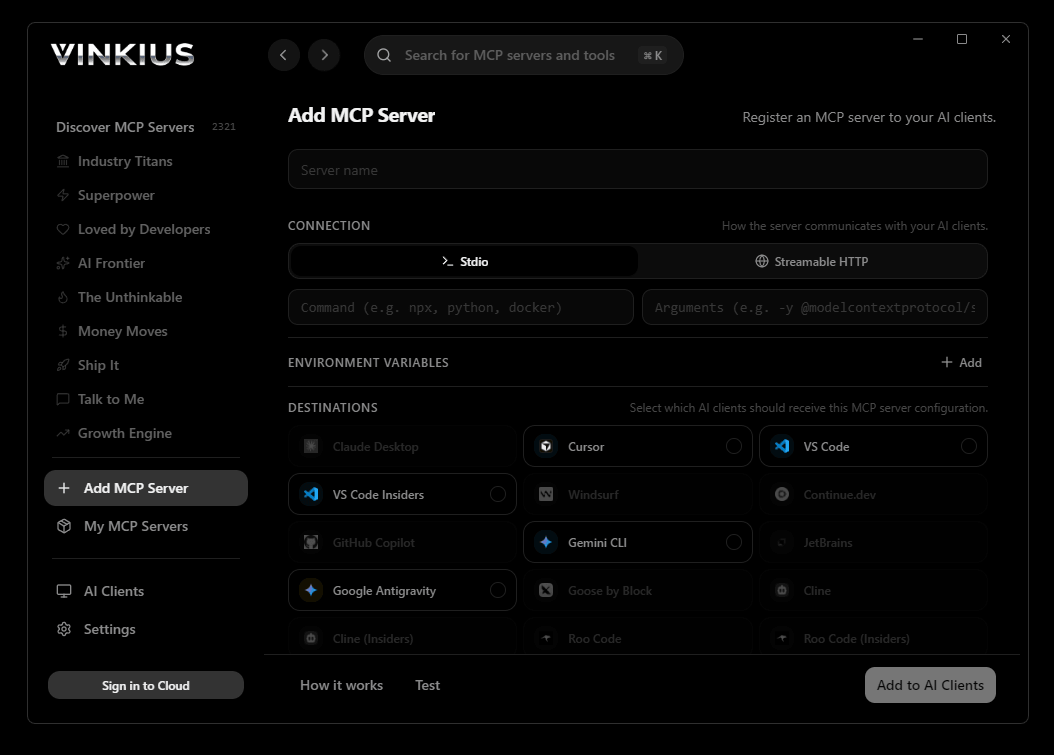
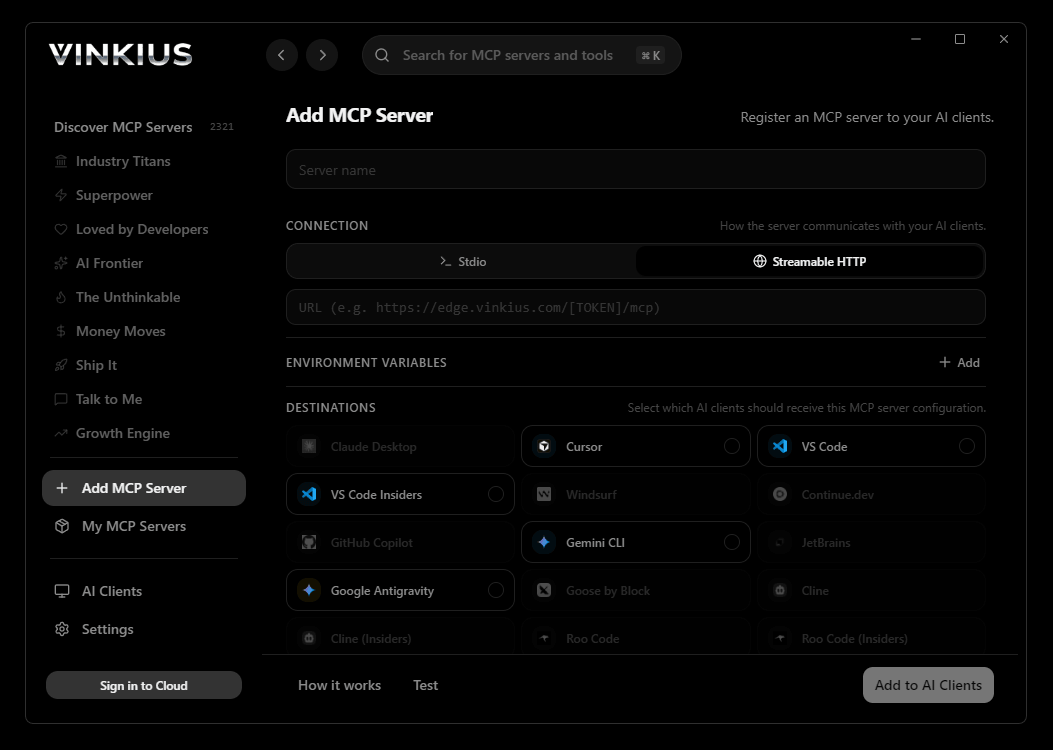
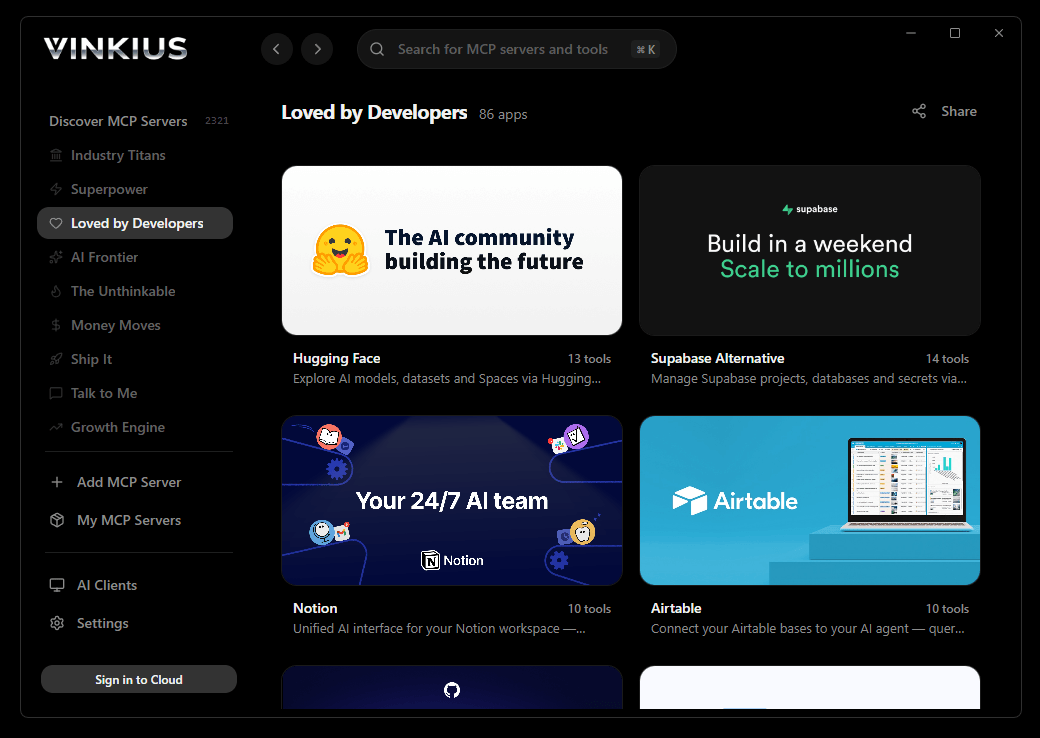
The modern way to manage MCP Servers — no config files, no terminal commands. Install Mastercard and 2,500+ MCP Servers from a single visual interface.

{
  "mcpServers": {
    "mastercard": {
      "url": "https://edge.vinkius.com/[YOUR_TOKEN_HERE]/mcp"
    }
  }
}
* Every MCP server runs on Vinkius-managed infrastructure inside AWS - a purpose-built runtime with per-request V8 isolates, Ed25519 signed audit chains, and sub-40ms cold starts optimized for native MCP execution. See our infrastructure
About Mastercard MCP Server
Connect Mastercard payment infrastructure to any AI agent and unlock powerful payment intelligence, fraud detection, merchant discovery, and card validation capabilities through natural conversation.
Cursor's Agent mode turns Mastercard into an in-editor superpower. Ask Cursor to generate code using live data from Mastercard and it fetches, processes, and writes — all in a single agentic loop. 12 tools appear alongside file editing and terminal access, creating a unified development environment grounded in real-time information.
What you can do
- BIN Lookup — Identify any payment card's issuer bank, card type (credit/debit/prepaid/commercial), category (Standard/Gold/Platinum/World/World Elite), issuing country, and special flags from just the first 6-8 digits
- Account Validation — Verify if a payment card number is active and valid before processing transactions, reducing declined payments and fraud risk
- Merchant Search — Find Mastercard-accepting merchants near any GPS coordinates, filterable by business category (MCC codes)
- Places Discovery — Discover nearby payment-accepting locations with digital wallet support (Apple Pay, Google Pay, contactless)
- Address-Based Search — Search for merchants by street address instead of coordinates for user-friendly location queries
- Merchant Details — Retrieve complete information about specific merchants including addresses, MCC codes, and accepted payment methods
- MCC Code Reference — Access the complete Merchant Category Code database to understand business classifications
- Fraud Reporting — Submit confirmed fraudulent transactions to Mastercard's Fraud and Loss Database to protect the network
- Nearby Locations — Discover ATMs, merchants, and points of interest around any geographic location
The Mastercard MCP Server exposes 12 tools through the Vinkius. Connect it to Cursor in under two minutes — no API keys to rotate, no infrastructure to provision, no vendor lock-in. Your configuration, your data, your control.
How to Connect Mastercard to Cursor via MCP
Follow these steps to integrate the Mastercard MCP Server with Cursor.
Open MCP Settings
Press Cmd+Shift+P (macOS) or Ctrl+Shift+P (Windows/Linux) → search "MCP Settings"
Add the server config
Paste the JSON configuration above into the mcp.json file that opens
Save the file
Cursor will automatically detect the new MCP server
Start using Mastercard
Open Agent mode in chat and ask: "Using Mastercard, help me..." — 12 tools available
Why Use Cursor with the Mastercard MCP Server
Cursor AI Code Editor provides unique advantages when paired with Mastercard through the Model Context Protocol.
Agent mode turns Cursor into an autonomous coding assistant that can read files, run commands, and call MCP tools without switching context
Cursor's Composer feature can generate entire files using real-time data fetched through MCP — no copy-pasting from external dashboards
MCP tools appear alongside built-in tools like file reading and terminal access, creating a unified agentic environment
VS Code extension compatibility means your existing workflow, keybindings, and extensions all work alongside MCP tools
Mastercard + Cursor Use Cases
Practical scenarios where Cursor combined with the Mastercard MCP Server delivers measurable value.
Code generation with live data: ask Cursor to generate a security report module using live DNS and subdomain data fetched through MCP
Automated documentation: have Cursor query your API's tool schemas and generate TypeScript interfaces or OpenAPI specs automatically
Infrastructure-as-code: Cursor can fetch domain configurations and generate corresponding Terraform or CloudFormation templates
Test scaffolding: ask Cursor to pull real API responses via MCP and generate unit test fixtures from actual data
Mastercard MCP Tools for Cursor (12)
These 12 tools become available when you connect Mastercard to Cursor via MCP:
bin_lookup
Returns comprehensive card information including: issuer bank name, card type (credit/debit/prepaid/commercial), card category (Standard/Gold/Platinum/World/World Elite), issuing country, currency, and special flags (healthcare, payroll, purchasing). Use this to identify unknown cards, validate card ranges before transactions, determine cross-border fees, or understand the cardholder profile. The accountNumberPrefix parameter must be 6-8 numeric digits. Optional parameters (currencyCode, paymentType, merchantCategoryCode) provide more precise results for specific transaction contexts. Identify card issuer, type, and details from the first 6-8 digits of a payment card number
bin_lookup_post
Returns identical card identification data: issuer bank, card type, category, country, and product flags. Use this method when handling sensitive payment data in compliance-focused applications. The accountNumberPrefix should be 6-8 digits. Optional context parameters (currency, payment type, MCC) refine results. Identify card issuer using POST method for enhanced security with sensitive card data
get_merchant
Returns full address, contact information, MCC code, operating hours, and accepted payment methods. Use this to get in-depth information about a specific merchant location after finding it via search. The merchant ID is a unique identifier returned by the search_merchants tool. Get detailed information about a specific Mastercard-accepting merchant
get_place_details
Returns full address, coordinates, MCC code, payment methods accepted, operating hours, and other merchant attributes. Use this after a places search to drill down into a specific location. The locationId is returned by search_places or search_places_by_address tools. Get complete details for a specific merchant place by its location ID
merchant_category_codes
MCC codes are 4-digit numbers that classify businesses by type (e.g., 5411 = Grocery Stores, 5812 = Restaurants, 4511 = Airlines). Use this to understand merchant classifications, filter searches by business type, or decode MCC values found in transaction data. Optional limit parameter controls how many codes to return. List all Merchant Category Codes (MCC) used to classify business types
merchant_industry_codes
Industry codes group related MCC codes into higher-level categories. Use this to understand the hierarchical classification of merchants, analyze industry-level spending patterns, or build category navigation interfaces. List all merchant industry codes for broader business classification
nearby_locations
Returns names, addresses, categories, and distances from the search point. Use this for "what is nearby" queries, travel planning, or finding payment infrastructure in an area. Latitude and longitude are required. Radius in meters defines the search area. Limit controls maximum results returned. Discover points of interest and payment locations near GPS coordinates
search_merchants
Returns merchant names, addresses, MCC codes, and precise coordinates. Use this to find nearby payment-accepting locations, analyze merchant density in an area, or build "find merchants near me" features. Latitude and longitude are required as strings (e.g., "-23.5505", "-46.6333"). Radius is in meters (e.g., 5000 for 5km). Optionally filter by MCC category code (e.g., "5411" for grocery stores, "5812" for restaurants). Limit controls result count (max 50). Find Mastercard-accepting merchants near specific GPS coordinates filtered by category
search_places
Returns detailed merchant information including whether they accept Apple Pay, Google Pay, contactless payments, and their MCC classification. Use this when users need to find payment-accepting locations with specific digital wallet support. Latitude and longitude are required as numbers. Distance is in kilometers. Optionally filter by country code (ISO 3166-1 alpha-2) and payment capabilities (hasApplePay, hasGooglePay). Search for merchant places using GPS coordinates with payment method filters
search_places_by_address
The API geocodes the address internally. Returns nearby merchants with payment capability details (Apple Pay, Google Pay, contactless). Use this when users provide an address rather than GPS coordinates. Required: address line 1, city, country code, and postal code. Optional: state/province code (countrySubdivisionCode) for more precise results. Example: addressLine1="1600 Amphitheatre Pkwy", city="Mountain View", countryCode="US", postalCode="94043". Search for merchant places using a street address instead of coordinates
submit_fraud_report
This is a critical tool for issuers and processors to flag fraudulent transactions in real-time. Required fields: accountNumber (card number), transactionAmount, transactionCurrency (ISO 4217), and fraudTypeCode. Fraud type codes: "01" = Stolen Card Fraud, "02" = Never Received Card, "03" = Fraudulent Application, "04" = Counterfeit Card Fraud. Optional: fraudAmount (if different from transaction amount), transactionDate (YYYY-MM-DD). Use this only for confirmed fraud cases — never for suspected or disputed transactions. This helps Mastercard improve fraud detection and reduce false positives across the network. IMPORTANT: This action should only be performed by authorized fraud management personnel. Report a confirmed fraudulent transaction to Mastercard Fraud and Loss Database
validate_account
Returns validation status (VALID/INVALID), account type, and issuer information. Use this to verify card validity before processing transactions, reduce declined transactions, or perform account verification during onboarding. Required: accountNumber (full card number). Optional: expiryDate (MMYY format), cardholderName for enhanced validation. Handle card numbers securely — never log or store full PANs. Validate a payment card account number to check if it is active and valid
Example Prompts for Mastercard in Cursor
Ready-to-use prompts you can give your Cursor agent to start working with Mastercard immediately.
"What type of card is 542418 and which bank issued it?"
"Find restaurants near São Paulo city center that accept Mastercard within 3km."
"Validate card number 5123456789012346 before I process this payment."
Troubleshooting Mastercard MCP Server with Cursor
Common issues when connecting Mastercard to Cursor through the Vinkius, and how to resolve them.
Tools not appearing in Cursor
Server shows as disconnected
Mastercard + Cursor FAQ
Common questions about integrating Mastercard MCP Server with Cursor.
What is Agent mode and why does it matter for MCP?
Where does Cursor store MCP configuration?
mcp.json file. You can configure servers at the project level (.cursor/mcp.json in your project root) or globally (~/.cursor/mcp.json). Project-level configs take precedence.Can Cursor use MCP tools in inline edits?
How do I verify MCP tools are loaded?
Connect Mastercard with your favorite client
Step-by-step setup guides for every MCP-compatible client and framework:
Anthropic's native desktop app for Claude with built-in MCP support.
AI-first code editor with integrated LLM-powered coding assistance.
GitHub Copilot in VS Code with Agent mode and MCP support.
Purpose-built IDE for agentic AI coding workflows.
Autonomous AI coding agent that runs inside VS Code.
Anthropic's agentic CLI for terminal-first development.
Python SDK for building production-grade OpenAI agent workflows.
Google's framework for building production AI agents.
Type-safe agent development for Python with first-class MCP support.
TypeScript toolkit for building AI-powered web applications.
TypeScript-native agent framework for modern web stacks.
Python framework for orchestrating collaborative AI agent crews.
Leading Python framework for composable LLM applications.
Data-aware AI agent framework for structured and unstructured sources.
Microsoft's framework for multi-agent collaborative conversations.
Connect Mastercard to Cursor
Get your token, paste the configuration, and start using 12 tools in under 2 minutes. No API key management needed.