4,500+ servers built on MCP Fusion
Vinkius

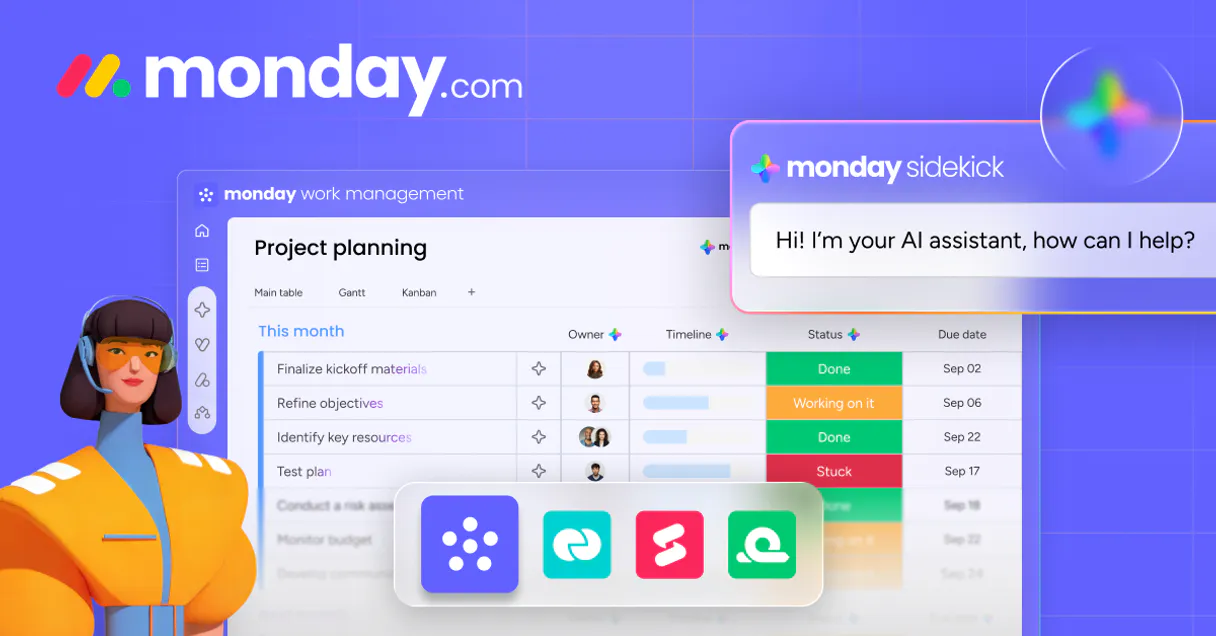
Monday.com MCP. Get project status and audit team resources from conversation.

Claude Claude
ChatGPT ChatGPT
Cursor Cursor
Gemini Gemini
Windsurf Windsurf
VS Code VS Code
JetBrains JetBrains
Vercel Vercel
See Vinkius in Action

Works with every AI agent you already use

…and any MCP-compatible client

Monday.com (Work Management & CRM) MCP on Cursor AI Code Editor MCP Client Monday.com (Work Management & CRM) MCP on Claude Desktop App MCP Integration Monday.com (Work Management & CRM) MCP on OpenAI Agents SDK MCP Compatible Monday.com (Work Management & CRM) MCP on Visual Studio Code MCP Extension Client Monday.com (Work Management & CRM) MCP on GitHub Copilot AI Agent MCP Integration Monday.com (Work Management & CRM) MCP on Google Gemini AI MCP Integration Monday.com (Work Management & CRM) MCP on Lovable AI Development MCP Client Monday.com (Work Management & CRM) MCP on Mistral AI Agents MCP Compatible Monday.com (Work Management & CRM) MCP on Amazon AWS Bedrock MCP Support

Just plug in your AI agents and start using Vinkius.

Monday.com (Work Management & CRM) MCP Server gives your AI agent direct access to your entire work platform. You can list project boards, track task items across specific columns, and audit team workspaces using natural conversation.

It lets you manage projects and resources without opening the UI.

What your AI agents can do

Archive item

Can be unarchived later from the board settings.

Archive a board item

Create item

Adds a new row/task item to a specific project board.

Create update

Posts a comment or update on an existing task item.

+ 10 more capabilities included
Discover Project Structures

List all project boards or workspaces, and retrieve the detailed column definitions and structural map of any board.

Track and Retrieve Task Data

List specific task items within a board and pull exact values from custom columns (e.g., 'Due Date' or 'Status').

Manage Team Communication

Add comments, updates, or audit the full history of activity for any task item.

Audit User and Resource Assignments

List all team members in your account to verify user identities and cross-reference who owns which tasks across boards.

Automate Project Creation

Create new task items on specified project boards, initiating work without manual clicks.

Supported MCP Clients

Claude Claude
ChatGPT ChatGPT
Cursor Cursor
Gemini Gemini
Windsurf Windsurf
VS Code VS Code
JetBrains JetBrains
Vercel Vercel
+ other MCP clients
Free for Subscribers

Waiting for input…

AI Agent

Monday.com MCP Server: 9 Tools for Work Management

These nine tools allow your agent to manage everything from listing high-level workspaces to creating individual tasks on a specific board.

archive019e9aa4

archive item

Can be unarchived later from the board settings. Archive a board item

create019d75d7

create item

Adds a new row/task item to a specific project board.

create019d75d7

create update

Posts a comment or update on an existing task item.

delete019e9aa4

delete item

The item and its updates will be removed. Permanently delete a board item

get019d75d7

get board

Retrieves the full column structure and metadata for one specific board ID.

get019d75d7

get me

Fetches the profile details of the currently connected user account.

list019d75d7

list boards

Lists all project boards accessible in your Monday.com account.

list019e9aa4

list groups

List groups (sections) in a board

list019d75d7

list items

Retrieves a list of tasks/rows within a specified board ID, including column data.

list019e9aa4

list subitems

List sub-items of a board item

list019d75d7

list updates

Gets a history log (comments and updates) for a specific task item.

list019d75d7

list users

Lists every active team member in your Monday.com account directory.

list019d75d7

list workspaces

Retrieves a list of high-level organizational workspaces/folders.

Choose How to Get Started

Build a custom MCP for your own tools, or connect a ready-made integration from our catalog.

Build Your Own

Turn any API into an MCP. Import a spec, define Agent Skills, or deploy with MCPFusion.

  • Import from OpenAPI, Swagger, or YAML specs
  • Create Agent Skills with progressive disclosure
  • Deploy to edge with MCPFusion framework
  • Built in DLP, auth, and compliance on every call
  • Real time usage dashboard and cost metering
  • Publish to catalog or keep private
Start building

Make Your AI Do More

Start with Monday.com (Work Management & CRM), then connect any of our 4,700+ other servers whenever your AI needs more. One click, no limits.

  • Use this MCP plus 4,700+ others, all in one place
  • Add new capabilities to your AI anytime you want
  • Every connection is secured and compliant automatically
  • Track usage and costs across all your servers
  • Works with Claude, ChatGPT, Cursor, and more
  • New servers added to the catalog every week

What you can do with this MCP connector

You're connecting your AI agent directly to your Monday.com account. This server lets you manage every single thing—project boards, tasks, who owns what—using nothing but natural conversation. You don't gotta open the UI or click around; your agent handles it all.

Discovering Project Structures

You can get a full map of everything you work on. Start by listing all project boards available in your account with list_boards, or pull up a list of high-level organizational folders using list_workspaces. If you want to check the deep structure of any single board, use get_board to retrieve its complete column setup and metadata.

Tracking and Retrieving Task Data

Need to know what's going on with a specific project? Use list_items to pull up all tasks within a specified board ID. This function doesn't just give you names; it pulls the exact values from every custom column, so you can instantly see who's assigned or what the status is for dozens of rows at once.

You can also get a simple list of those tasks using list_items if you only need titles and basic metadata.

Want to jump into the project without manual clicking? Just tell your agent to create new work using create_item, which adds a fresh row or task item directly onto any board you point it at. If an item already exists, you can update its status or details by calling create_item again.

Managing Team Communication and Audit Trails

You don't have to hunt through emails for updates. Your agent keeps a clean record of activity using list_updates, giving you the full history log—all comments, all changes—for any given task item. If someone needs to chime in, your agent can post a comment or update directly onto that specific task item using create_update.

Auditing Users and Resources

To verify who's doing what, you need user data. Your agent lists every active team member in your directory with list_users, letting you cross-reference identities when figuring out resource ownership or checking permissions across boards. You can also get the profile details of the person connected to the account using get_me.

Basically, this whole setup lets your AI client treat your entire work platform like a command line. It takes the manual effort out of project management—you'll list every board and workspace, pull specific data points from tasks across any column you name, manage communication updates on existing items, create new projects instantly using create_item, and check user assignments with list_users or audit the full activity log using list_updates.

You get direct access to project boards, task columns, and user directories without ever leaving your chat window.

How Monday.com MCP Works

  1. 1 Subscribe to this server and provide your Monday.com API Token.
  2. 2 Your AI client calls the relevant tool (e.g., list_boards) with required parameters.
  3. 3 The server executes the request, retrieves structured data from Monday.com, and sends a clean JSON response back to your agent.

The bottom line is: you talk to your agent, and it talks directly to your work platform's API for you.

Who Is Monday.com MCP For?

Operations Managers who need a bird's-eye view of project health across multiple departments. Project Managers tired of manually navigating board links just to check one status update. Team Leads needing to audit resource assignments and verify column mappings before reporting.

Project Manager

Uses list_items or get_board to quickly gather statuses for 20 tasks across three different boards, compiling a report without opening the platform.

Operations Manager

Runs list_workspaces followed by list_users to map organizational structure and identify which department owns which resources.

Team Lead

Checks resource ownership using list_updates across a board to see who last modified a task and why, speeding up accountability checks.

What Changes When You Connect

  • Skip the click-throughs. Instead of navigating multiple boards to check a single task's status, use list_items and specify the board ID directly in your prompt. You get the data instantly.
  • Audit who did what and when. Use list_updates on an item. Your agent pulls the full comment history, so you don't have to scroll through five different tabs just to find out why a task was delayed.
  • Know your structure before building. Running get_board gives you the exact column names and data types needed for any script or prompt, preventing broken API calls later.
  • Stay compliant with user roles. Use list_users to get every team member's ID first. This ensures that when you use create_item, the task assignment targets a valid person in your company.
  • See the big picture immediately. Start with list_workspaces to understand how departments organize their projects, giving context before diving into individual boards.

Real-World Use Cases

01

Weekly Status Report Generation

The PM needs a status report on 15 tasks across three different client boards. Instead of opening each board and copy-pasting data, the agent runs list_items for all three boards, extracts specific columns (Status, Due Date), and compiles a single summary table.

02

Investigating Project Bottlenecks

The Ops Manager notices a key task is stalled. The agent uses list_updates on the item ID to check the comment history. It finds that Sarah commented three days ago saying 'Awaiting Legal Review,' immediately solving the bottleneck mystery.

03

Onboarding New Team Members

A new hire needs access to project boards and team lists. The agent runs list_users first to verify all active employee IDs, then uses this list when creating initial task assignments for the new user.

04

Rapid Project Scoping

The Team Lead needs to know if a proposed project fits within existing scope. The agent runs list_boards and get_board on potential candidates, confirming required columns (like 'Budget' or 'Priority') exist before starting the work.

The Tradeoffs

Guessing column names

A user tries to tell the agent: 'Get me the progress data for task 123.' The agent fails because it doesn't know if you mean 'Progress%' or 'Status'.

First, run get_board using the board ID. Then, explicitly reference the exact column name (e.g., 'progress percentage') when asking to list items.

Trying to update without listing

A user tries: 'Change task 456 status to Done.' The agent fails because it needs to confirm the item exists and know its full ID context.

Run list_items first on the correct board. Use the unique Item ID returned from that list when invoking create_item or create_update.

Confusing workspace scope

A user asks for 'all projects,' but doesn't specify which department or area, causing the agent to pull thousands of unrelated records.

Always start by running list_workspaces and then narrow your focus using list_boards. Always provide context.

When It Fits, When It Doesn't

Use this server if you need structured data pulled from a known work management system. Specifically, if your workflow involves reading task statuses, updating resource assignments, or auditing project board schemas—this is perfect. Don't use it if your goal is just to generate a random list of contacts; better suited tools exist for that. You shouldn't rely on this server for general file storage or complex document generation; those are separate systems. If you only need to check who is assigned to a task, list_updates is your tool. If you need the overall map of projects, start with list_workspaces. Always remember that almost every action requires knowing which Board ID and Item ID you're talking about.

Independent Platform Disclaimer: Vinkius is an independent platform and is not affiliated with, endorsed by, sponsored by, verified by, or otherwise authorized by Monday.com. All third-party trademarks, logos, and brand names are the property of their respective owners. Their use on this website is strictly for informational purposes to identify service compatibility and interoperability.

VINKIUS INFRASTRUCTURE

Cloud Hosted

Managed infra

V8 Isolated

Sandboxed per request

Zero-Trust Proxy

No stored credentials

DLP Enforced

Policy on every call

GDPR Compliant

EU data residency

Token Compression

~60% cost reduction

How we secure it →

Works with Claude, ChatGPT, Cursor, and more

The Model Context Protocol standardizes how applications expose capabilities to LLMs. Instead of operating in isolation, your AI gains direct access to external platforms, live data, and real-world actions through secure, standardized connections.

This server provides 13 capabilities that interface natively with Claude, ChatGPT, Cursor, and any MCP client. No middleware. No custom integration required.

Available Capabilities

archive_item create_item create_update delete_item get_board get_me list_boards list_groups list_items list_subitems list_updates list_users list_workspaces

Manually checking project statuses takes too long.

Right now, to get a single status update on five different projects, you have to open the Monday.com site, click into Board A, scroll down, find the item, check the 'Status' column. Then repeat that entire sequence for Boards B, C, D, and E. It’s clicking hell.

With this MCP server, you just ask your agent: 'What is the status of tasks X through Y on boards 123, 456, and 789?' The agent handles all the navigation, runs `list_items` for each board, pulls only the Status column data, and hands you a clean list. No clicking required.

Updating tasks with Monday.com MCP Server: Write updates in seconds.

Manually adding an update means navigating to the specific item, finding the comment box, and typing out your thoughts—all while trying not to lose track of which board you're on or who needs to see it. It’s friction-filled.

Now, you just tell your agent: 'Add a note to task 123 saying I finished my part today.' The agent calls `create_update` and posts the comment instantly. You don't touch the UI; you just get the result.

Common Questions About Monday.com MCP

How do I find all my project boards using list_boards? +

Running list_boards gives you a complete manifest of every board ID in your account. This is the first step before you can run any other command, like listing items on that board.

Can I add comments using create_update? +

Yes. You provide the specific Item ID and the message content to create_update. This posts a comment or update without needing to open the actual task item page.

What is the difference between list_items and get_board? +

get_board gives you the structure (the column names, like 'Budget' or 'Owner'). list_items uses that structure to pull data (the actual values for all tasks) from the board.

How do I find out who is on my team? Use list_users. +

list_users runs an audit of your organization and returns a directory of every active user ID and their role. You can use these IDs later when creating tasks.

What specific account scope details does the `get_me` tool provide? +

It returns your active caller identity and metadata context. This step confirms which user profile your agent is currently targeting, ensuring all actions stay within the correct account boundaries.

When should I use `list_workspaces` instead of listing boards? +

Use list_workspaces first to map out high-level organizational grouping. This tool shows your department's top-tier 'folders,' helping you understand the overall project taxonomy before drilling down into individual boards.

What is the difference between using `get_board` and `list_items`? +

get_board retrieves the entire structural blueprint of a board—including custom columns and dimension mappings. In contrast, list_items only fetches the actual data values for tasks that already exist on that specific board.

How can I use `list_updates` to audit an item's history? +

The tool pulls a complete record of all updates and comments tied to a single task item. This is your definitive, chronological audit trail for tracking who changed the data and when.

Can I see the column structure of a Monday board through my agent? +

Yes. Use the get_board tool with a specific Board ID. Your agent will retrieve the detailed structural configuration, exposing the custom column types and titles used to organize your project data.

How do I list the tasks (items) within a specific board? +

The list_items tool retrieves all discrete GraphQL nodes representing rows in a board. Your agent will return the task names and their associated column values, helping you audit project progress without opening the browser.

Can my agent navigate between different organizational workspaces? +

Absolutely. Use the list_workspaces tool to identify the top-level directory structure of your Monday account. Your agent will report the workspace names and IDs, allowing you to locate boards grouped by department or team.

More in this category

You might also like

Built & Managed by Vinkius 30s setup 13 tools

We've already built the connector for Monday.com. Just plug in your AI agents and start using Vinkius.

No hosting. No infrastructure. No complex setup.
All 13 tools are live and waiting. You're up and running in seconds.

Claude Claude
ChatGPT ChatGPT
Cursor Cursor
Gemini Gemini
Windsurf Windsurf
VS Code VS Code
JetBrains JetBrains
Vercel Vercel
+ other MCP clients

Vinkius gives your AI agents access to the full catalog of app connectors, all fully managed, secure, and enterprise-ready. One subscription, every tool you need.

Zero hosting required Full MCP catalog included Enterprise-grade security Auto-updated by Vinkius

Built, hosted, and secured by Vinkius. You just connect and go.