
Pixabay MCP. Source filtered photos, vectors, and videos from chat.
 Gemini
 Works with every AI agent you already use
…and any MCP-compatible client









Just plug in your AI agents and start using Vinkius.
Pixabay lets your AI client search for massive media libraries directly. You can query over 4.5 million royalty-free photos, vectors, videos, and illustrations without opening a browser or managing API keys manually.
Need background mockups filtered by dominant color? Want vertical B-roll footage for Instagram? Use Pixabay to filter assets by category (e.g., 'nature'), orientation (vertical/horizontal), or specific aesthetic criteria like 'Editors Choice.' It handles everything from high-res image IDs to video download URLs.
What your AI agents can do
Get image
Retrieves full details, tags, and download URLs for a specific Pixabay image ID.
Search by category
Searches media content by predefined categories like nature, fashion, or business.
Search by color
Filters results to find images or vectors based on one or more dominant colors (e.g., 'red,blue').
Search photos using combinations of color, orientation, or general keywords via tools like search_by_color and search_by_orientation.
Target scalable SVG art and icons directly using the search_vectors tool for clean, resolution-independent assets.
Search and get video clips by duration or aspect ratio using search_videos, receiving multiple resolutions and download URLs.
Fetch all metadata, tags, and high-resolution download links for a known media item ID with the get_image tool.
Filter results to only show premium 'Editors Choice' images (search_editors_choice) or narrow down to specific content types like illustrations or backgrounds.
Ask AI about this MCP
Supported MCP Clients
Gemini Waiting for input…
Pixabay MCP Server: 10 Tools for Media Asset Search
Use these ten tools to search, filter, and retrieve specific media assets—from photos and vectors to videos—directly through your AI workflow.
019d75f6get image
Retrieves full details, tags, and download URLs for a specific Pixabay image ID.
019d75f6search by category
Searches media content by predefined categories like nature, fashion, or business.
019d75f6search by color
Filters results to find images or vectors based on one or more dominant colors (e.g., 'red,blue').
019d75f6search by orientation
Limits searches to specific aspect ratios: horizontal, vertical, or all.
019d75f6search editors choice
Narrows the search results down to a hand-picked selection of premium quality images.
019d75f6search illustrations
Searches specifically for digital art, drawings, and clipart assets (SVG/illustration type).
019d75f6search images
The main search tool: find photos, illustrations, or vectors across the whole library using keywords.
019d75f6search safe content
Runs a search and filters out inappropriate content by enabling safe search settings.
019d75f6search vectors
Searches only for scalable SVG vector graphics, icons, and infographics.
019d75f6search videos
Finds stock video footage, returning IDs, sizes, durations, and multiple download URLs.
Choose How to Get Started
Build a custom MCP for your own tools, or connect a ready-made integration from our catalog.
Build Your Own
Turn any API into an MCP. Import a spec, define Agent Skills, or deploy with MCPFusion.
- Import from OpenAPI, Swagger, or YAML specs
- Create Agent Skills with progressive disclosure
- Deploy to edge with MCPFusion framework
- Built in DLP, auth, and compliance on every call
- Real time usage dashboard and cost metering
- Publish to catalog or keep private
Make Your AI Do More
Start with Pixabay, then connect any of our 4,700+ other servers whenever your AI needs more. One click, no limits.
- Use this MCP plus 4,700+ others, all in one place
- Add new capabilities to your AI anytime you want
- Every connection is secured and compliant automatically
- Track usage and costs across all your servers
- Works with Claude, ChatGPT, Cursor, and more
- New servers added to the catalog every week
What you can do with this MCP connector
Pixabay lets your agent search massive media libraries directly. You don't have to open a browser or manage API keys; your AI client handles it all against over 4.5 million royalty-free photos, vectors, videos, and illustrations. When you need visual assets for a project, this server runs the searches for you.
Finding Photos and General Images
Need to track down specific visuals? You can run general keyword searches across the entire library using search_images—it pulls photos, art, and vectors all at once. If your content needs to be clean or professional-grade, use search_editors_choice to narrow results to Pixabay’s hand-picked collection of premium images. You can also run a safe search with search_safe_content, which filters out any inappropriate material before it hits your chat window.
Beyond keywords, you've got powerful filtering tools for photos. If the color palette is key, use search_by_color to filter results based on one or more dominant colors—you just list them like 'red, blue.' You can also limit searches by aspect ratio using search_by_orientation, choosing between horizontal, vertical, or keeping it open for all.
Need a specific vibe? Use search_by_category to focus on predefined topics like nature, fashion, or business.
Handling Vectors and Illustrations
Sometimes you don't want a photo; you need clean art. For scalable SVG graphics, icons, and infographics, use the dedicated search_vectors tool. If you’re specifically looking for digital drawings, clipart, or hand-drawn assets, run search_illustrations. These tools pull out those unique vector types that won't lose quality when you scale 'em up.
Retrieving Video Footage
For video B-roll clips, the process is straightforward. Use search_videos to find stock footage. This tool doesn't just send an ID; it gives you multiple resolutions, sizes, and precise durations for every clip found, ready for your editing suite.
Getting Specific Assets
If you already know the asset you want—say, a specific image ID—you don't have to search again. You can use get_image to pull all the metadata, tags, and high-resolution download URLs straight into your chat window for immediate use.
How Pixabay MCP Works
- 1 First, subscribe to the Pixabay server and provide your free API key.
- 2 Next, write a prompt in your AI client telling your agent what media you need (e.g., 'Find a horizontal image with dominant blue colors').
- 3 The agent uses the appropriate tool (like
search_by_colororsearch_by_orientation) to query Pixabay and returns structured data, including download IDs and preview URLs.
The bottom line is, your agent runs all these searches inside the platform without you ever having to leave it or manually build complex API calls.
Who Is Pixabay MCP For?
Anyone who builds content visually—designers, marketers, and web developers. If you spend time switching between image libraries and video editors, this is for you. It eliminates the constant context-switching pain of opening 5 different tabs just to source assets.
Needs background illustrations or B-roll MP4s instantly for blogs and social networks, filtering by mood or style.
Mock up entire websites using high-res placeholder imagery, specifically filtered to match a required hex color palette.
Sources curated vector SVGs for specific project themes and ensures the canvas size matches the target vertical or horizontal layout.
What Changes When You Connect
- Stop bouncing between tabs. Instead of opening a browser to search for background imagery, your agent runs
search_by_colordirectly in the conversation, giving you immediate results based on hex codes or dominant colors. - Need content optimized for mobile? Use
search_videosandsearch_by_orientationtogether. You get B-roll footage guaranteed to be vertical (1080x1920) with precise duration mapping. - Developer workflow upgrade: Mock up entire UI sections by running a search that filters images and matches your site's hex color palette, using
search_by_colorbefore even writing the CSS. - Pinpoint quality assets fast. You don't have to sift through millions of low-quality results; use
search_editors_choiceor target only high-fidelity vectors withsearch_vectors. - Always compliant and safe. You can run a search that filters out inappropriate material by activating the safety net using
search_safe_content, keeping your project clean from the start.
Real-World Use Cases
Designing a Landing Page Mockup
The dev needs placeholder assets for a new landing page. Instead of manually downloading and resizing images, they prompt: 'Find 5 horizontal photos related to finance that are dominated by blues and greens.' The agent uses search_images combined with search_by_color and search_by_orientation, delivering IDs perfect for mockups instantly.
Creating an Instagram Reel
A marketer needs vertical video footage of mountains. They ask their agent to use search_videos with a focus on the 'travel' category and narrow the search by orientation. The agent returns multiple IDs, including one that is exactly 15 seconds long at 1080x1920 resolution.
Building an Iconography Set
A designer needs a set of clean, scalable icons for a new app feature. They use search_vectors and then refine the results using search_by_category (e.g., 'technology') to get only relevant SVG assets.
Finding a Specific Background Image
The user remembers seeing an image with a specific aesthetic—maybe it was transparent, or maybe it had a lot of foliage. They use search_illustrations for art or search_vectors if they need pure SVG lines, bypassing general photo searches.
The Tradeoffs
General keyword search only
Typing 'Nature background' and accepting the first 50 images without checking colors or aspect ratio. You end up with a mix of vertical phone pics, horizontal landscape photos, and square illustrations.
→
Don't stop there. Run search_images for keywords, then follow up by running search_by_orientation (if you need 16:9) or search_by_color (if your brand uses deep emeralds). Combine tools to filter the results.
Forgetting asset type
Asking for a 'logo' and getting generic photos. You waste time downloading raster images when you need clean, infinitely scalable SVGs.
→
Always start with search_vectors or search_illustrations. These tools guarantee you get vector-based assets that scale perfectly without losing quality.
Ignoring content safety
Using general searches when the project is sensitive (e.g., corporate reports). You risk pulling in copyrighted or inappropriate images.
→
Always include a call to action that uses search_safe_content. This adds an immediate layer of filtering, making sure your source material meets compliance standards.
When It Fits, When It Doesn't
Use this server if you need visual assets (photos, vectors, videos) filtered by technical parameters—like aspect ratio or hex color code. You're dealing with production design work where 'good enough' doesn't cut it.
Don't use it if you just need a rough idea for brainstorming; sometimes simple keyword searches are fine. But if you need the actual usable file, this is your toolset. For instance, if you need an icon set, use search_vectors. If you need something complex and artistic, try search_illustrations or search_images. Never rely on just one search—always check which combination of tools (search_by_color, search_by_orientation) gets you closer to the final output.
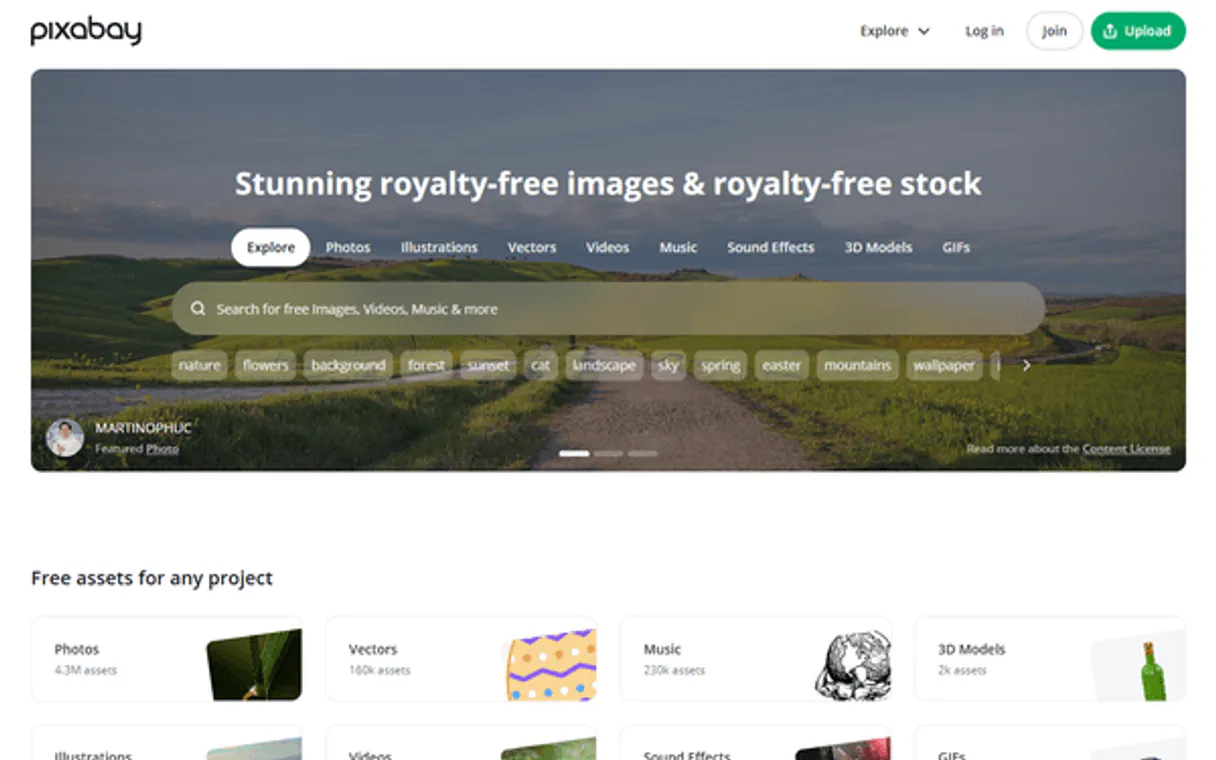
Independent Platform Disclaimer: Vinkius is an independent platform and is not affiliated with, endorsed by, sponsored by, verified by, or otherwise authorized by Pixabay. All third-party trademarks, logos, and brand names are the property of their respective owners. Their use on this website is strictly for informational purposes to identify service compatibility and interoperability.
VINKIUS INFRASTRUCTURE
Cloud Hosted
Managed infra
V8 Isolated
Sandboxed per request
Zero-Trust Proxy
No stored credentials
DLP Enforced
Policy on every call
GDPR Compliant
EU data residency
Token Compression
~60% cost reduction
Works with Claude, ChatGPT, Cursor, and more
The Model Context Protocol standardizes how applications expose capabilities to LLMs. Instead of operating in isolation, your AI gains direct access to external platforms, live data, and real-world actions through secure, standardized connections.
This server provides 10 capabilities that interface natively with Claude, ChatGPT, Cursor, and any MCP client. No middleware. No custom integration required.
Available Capabilities
Sourcing stock images used to mean opening a dozen tabs and manually cross-referencing dozens of different APIs.
Remember the old way? You'd open Pixabay in Chrome, then maybe Unsplash in another tab. If you needed an image that was both 'nature' themed AND perfectly horizontal for a banner ad, you’d have to scroll through thousands of results, manually checking each one's aspect ratio and color balance. It took clicks, tabs, and endless scrolling.
Now? You tell your agent: 'Find me five backgrounds showing nature that are horizontal and feature deep blues.' The agent uses `search_by_color` combined with `search_by_orientation` in a single call. It returns the IDs right there. You get specific results, zero tabs opened.
Pixabay MCP Server: Get structured media assets from your chat.
Before this server, finding B-roll video footage meant navigating a complicated interface to set dimensions and duration limits. You'd have to guess the right file type or size yourself.
With `search_videos`, you just ask for it: 'Give me 15 seconds of vertical Alps drone footage.' The agent handles the complex lookup, providing IDs with guaranteed resolution (e.g., 1080x1920 MP4) and duration metrics immediately.
Common Questions About Pixabay MCP
How do I find a vector graphic that matches my brand color? +
You use the combination of search_vectors and search_by_color. First, run search_vectors to limit results to SVGs. Then, pass your specific comma-separated colors (like 'gold,navy') into the search query.
What's the difference between using `search_images` and `search_illustrations`? +
search_images is for general photos (photographic reality). Use search_illustrations when you need drawn art, digital paintings, or clipart—assets that look hand-drawn or purely stylized.
Can I find a video clip with specific dimensions using search_videos? +
Yes. The search_videos tool lets your agent filter by size and duration metrics. You get IDs that guarantee the resolution and length you need for professional editing.
Which tool should I use if I just have an image ID? +
Use get_image. This tool takes a single known ID and returns all associated data: tags, full dimensions, multiple download links, and usage rights details.
How does using `search_by_orientation` help me filter for specific aspect ratios? +
It filters results by horizontal, vertical, or all. This lets you restrict your search to assets formatted specifically for different platforms, like a 9:16 ratio for Stories.
When I use the `search_editors_choice` tool, am I guaranteed high-quality content? +
Yes. This function pulls only hand-picked selections from Pixabay staff. It bypasses general searches and delivers curated, premium assets.
What should I know about rate limits when using `search_images` repeatedly? +
If you make too many calls quickly, the system will limit your requests temporarily. Wait a short period before retrying to ensure uninterrupted workflow.
Does running `get_image` provide enough data to download the high-resolution file? +
Yes. Beyond just tags and details, this tool returns the necessary download URLs for the full media asset.
Can my AI download and directly embed high-resolution MP4 video URLs into my code? +
Yes. Instruct the agent to run a video search (search_videos). The JSON returned points mapping precisely to the highest resolution native CDN endpoints. Your AI agent can ingest these exact mp4 URI addresses and format them perfectly into `` tags inside your application mockup.
How can I easily discover only landscape photos related to 'urban night' containing mainly orange? +
The integration exposes distinct analytical endpoints natively. You simply prompt: 'Search Pixabay for urban night landscape containing orange'. The agent internally invokes the pixel-color mapping API (search_by_color) bounded by the (horizontal) orientation constraint to drastically minimize latency and fetch the literal perfect image.
Are there licensing restrictions when generating code using these results? +
No. All media assets managed by the Pixabay integration carry the pure royalty-free license. They are completely safe for commercial use, client mockups, and public deployment without explicit attribution, meaning you don't face unexpected DMCA copyright claims when your agent auto-selects dummy data.
Use it with your favorite AI tools
Connect this server to Cursor, Claude, VS Code, and more.
More in this category
Abyssale
Automated creative production — generate dynamic images, banners, and personalized visuals via AI.

Giphy Alternative
Enhance conversations with GIPHY — search millions of GIFs, stickers, and emojis, or translate text into visual expressions directly from your AI agent.

Stability AI
Connect your AI to Stability AI's powerful image generation models. Create, upscale, and edit high-quality images directly and efficiently.
You might also like

Formsite
Manage forms, retrieve results, and automate data collection via AI agents with Formsite.

Gmelius
Turn Gmail into a collaborative workspace with shared inboxes, email delegation, and workflow automation for teams.
ClinicalTrials.gov
Search the world's largest registry of clinical research studies — covering diseases, drugs, and experimental therapies across all phases.