
Synthesia MCP. Generate enterprise videos from text prompts.
 Gemini
 Works with every AI agent you already use
…and any MCP-compatible client









Just plug in your AI agents and start using Vinkius.
Synthesia connects your AI client to the full suite of enterprise video generation tools. Use it to create professional corporate avatar videos from simple text prompts, build content using predefined templates, or automatically dub existing media into new languages—all without leaving your terminal interface.
What your AI agents can do
Create avatar video
Generates a complete video file using an AI avatar and the text script you provide.
Create video from template
Builds a video that adheres to the structure and layout of a specific, pre-approved template.
Delete video
Permanently removes a Synthesia video asset. This action cannot be undone.
Runs create_avatar_video to generate a full video track using an AI avatar and a script you provide.
Uses create_video_from_template to create videos that follow strict, pre-defined corporate blueprints.
Triggers AI localization using dub_video, taking an existing video and re-recording it in a different language.
Calls list_avatars to get a current list of all available professional avatars for your use.
Checks render progress and metadata using get_video_details for any existing video ID.
Ask AI about this MCP
Supported MCP Clients
Gemini Waiting for input…
Synthesia MCP Server: 10 Tools for Video Production
Use these tools to create, edit, localize, and manage high-quality corporate video assets entirely through API calls.
019d760fcreate avatar video
Generates a complete video file using an AI avatar and the text script you provide.
019d760fcreate video from template
Builds a video that adheres to the structure and layout of a specific, pre-approved template.
019d760fdelete video
Permanently removes a Synthesia video asset. This action cannot be undone.
019d760fdub video
Takes an existing finished video and re-records it entirely into a new language using AI voices.
019d760fget template details
Retrieves the specific structural rules and variable requirements for a named template.
019d760fget video details
Fetches the current status, duration, and metadata for a given video ID.
019d760flist avatars
Returns a list of all active AI avatars available to use in your videos.
019d760flist templates
Queries and returns a directory listing of all video templates you can utilize.
019d760flist videos
Retrieves a list of all previously created or stored videos in the account.
019d760flist voices
Returns available AI voice models, listing their language codes and properties.
Choose How to Get Started
Build a custom MCP for your own tools, or connect a ready-made integration from our catalog.
Build Your Own
Turn any API into an MCP. Import a spec, define Agent Skills, or deploy with MCPFusion.
- Import from OpenAPI, Swagger, or YAML specs
- Create Agent Skills with progressive disclosure
- Deploy to edge with MCPFusion framework
- Built in DLP, auth, and compliance on every call
- Real time usage dashboard and cost metering
- Publish to catalog or keep private
Make Your AI Do More
Start with Synthesia, then connect any of our 4,700+ other servers whenever your AI needs more. One click, no limits.
- Use this MCP plus 4,700+ others, all in one place
- Add new capabilities to your AI anytime you want
- Every connection is secured and compliant automatically
- Track usage and costs across all your servers
- Works with Claude, ChatGPT, Cursor, and more
- New servers added to the catalog every week
What you can do with this MCP connector
This connector hooks your AI client up to the whole Synthesia suite of video tools. You can run these commands straight from your terminal, so you never have to leave your workflow just because you need a video asset. It treats your agent like a full-stack video studio director, letting you issue specific commands for everything from avatar creation and content localization right through to file cleanup.
Generating Your Videos: Avatars and Scripts
To make an avatar video, you first call list_avatars; this gives you the current roster of professional avatars available. Once you pick your star, you run create_avatar_video, giving it a text script, and it spits out a full video file featuring that AI persona speaking your words.
You'll need to know which voices are ready for localization, so you can use list_voices; this returns all the available AI voice models, letting you check their language codes and properties before any dubbing.
Building from Blueprints: Templates
If you aren't starting with a script but need to follow corporate guidelines, you start by calling list_templates. This pulls up every video template you have access to. If you pick one, you run get_template_details, which gives you the specific structural rules and variable requirements for that blueprint.
Once you know what it needs, you use create_video_from_template; this builds a finished video strictly adhering to that pre-approved corporate layout and structure.
Localization and Scale: Dubbing Media
Need content in another language? You don't re-record it manually. You call dub_video, which takes an already completed video and fully re-records the entire thing into a new language using AI voices you selected via list_voices. This makes scaling multinational campaigns fast.
Managing Assets: The Full Lifecycle
You'll need to know what videos are floating around or if your render is done. To see everything stored, you call list_videos, which gives a directory of all previously created or saved video IDs in the account. If you have a specific ID and want to check its status—like seeing how long it took to render or checking its metadata—you run get_video_details.
When you're done with an asset and need to clear space, you use delete_video; remember this action is permanent and can't be undone.
This setup lets your agent handle the whole media production pipeline. You manage avatar selection using list_avatars, check template requirements with get_template_details, build content with create_avatar_video or create_video_from_template, scale it globally via dub_video, and keep track of every file's status with get_video_details and list_videos. You own the entire process, from concept to final delete.
How Synthesia MCP Works
- 1 Append the Synthesia MCP module into your Vinkius connective logic. You'll need to provide your specific account authorization key (
SYNTHESIA_KEY) in the host configuration. - 2 Prompt your agent with a multi-step command, for example: 'List all avatars, pick one that looks professional, and generate a video saying X in Y language.'
- 3 The agent calls the necessary tools—like
list_avatars, thencreate_avatar_video—and reports back the resulting video ID. You can then useget_video_detailsto track completion.
The bottom line is that your AI client handles the sequence of API calls, letting you run complex video production workflows using simple natural language prompts.
Who Is Synthesia MCP For?
Anyone responsible for creating scalable internal or external training materials. This tool helps content leads and comms teams who are sick of manually exporting drafts, uploading them to a separate platform, then re-exporting the final version. If your job requires making multi-lingual video content from text, you need this.
Uses create_video_from_template to rapidly deploy branded announcements across different departments without designer input.
Runs bulk, multi-lingual training modules by scripting and executing dub_video requests for global employee rollouts.
Develops video assets directly within a development pipeline, using the agent to sequence calls like list_avatars followed by create_avatar_video.
What Changes When You Connect
- Cut down on manual video prep. Instead of manually logging into a separate platform, you use
create_avatar_videodirectly in your terminal chat to generate assets based only on text input and avatar selection. The entire process stays contained within the AI interface. - Scale content for global teams instantly. Need to translate a training module? Use
list_voicesto check language support, then calldub_video. This handles localization much faster than traditional post-production workflows. - Enforce brand consistency using templates. Don't guess how the video should look. Use
create_video_from_templateand feed it a JSON payload, guaranteeing every output follows your defined corporate blueprint. - Manage assets without friction. You don't have to dig through menus just to check if a render finished. Call
get_video_detailswith an ID, and you get the status immediately, letting your agent know when it’s ready for download. - Full visibility into models. Need to pick the right presenter? Use
list_avatarsto see all available avatars before starting production, ensuring the tone matches the message.
Real-World Use Cases
Onboarding a new global team
The L&D lead needs 10 training videos for different regions. Instead of creating them one by one, they prompt their agent: 'List all available avatars, use the corporate template, and generate a welcome video in Spanish.' The agent runs list_avatars, calls create_video_from_template, and then uses dub_video to handle the localized output, solving 10 manual workflows in one chat session.
Updating evergreen marketing content
The marketing team needs to update a video script that was originally recorded in English. They use their agent to first run list_voices to confirm the French voice model, then call dub_video on the old asset ID, generating a new, localized version ready for immediate deployment.
A/B testing video scripts
The comms engineer wants to see if 'Avatar A' or 'Avatar B' works better. They prompt: 'List avatars and then run two videos using the same script, one with Avatar 101 and one with Avatar 105.' This lets them compare visual outputs generated via create_avatar_video side-by-side without manual rendering.
Cleaning up old assets
The project manager is running low on storage. They use the agent to run list_videos, identify all drafts older than 3 months, and then execute delete_video for each ID. This keeps their asset library clean without navigating complex web menus.
The Tradeoffs
Trying to guess the right tool
Telling your agent, 'Make a video about our new product and make it look professional.' This is too vague. The AI doesn't know if you mean an avatar or a template.
→
Be specific. Say: 'First, run list_templates to find the proper blueprint. Then, use create_video_from_template with that ID and this script.' This forces the agent down the correct workflow path.
Mixing up video listing and status checking
Calling list_videos when you only know the video's unique ID. You get a massive list, but you just need to know if it finished rendering.
→
If you have an ID (vid-9920), always use get_video_details. This function is designed specifically to check progress and status, giving you the exact information without listing everything else.
Attempting live edits
Thinking the connector lets you open a video in an editor and change one word or trim 5 seconds. It doesn't work that way.
→
You must regenerate. If you need a small edit, download the asset and re-upload it; then use dub_video if you only changed the language/script.
When It Fits, When It Doesn't
Use this connector if your primary bottleneck is moving video assets from the 'idea' stage to the 'final export' stage, especially when localization or template adherence matters. If you need advanced features like generating avatars and managing bulk content, it’s a must.
Don't use this if: 1) You only need basic screen recording (use a dedicated capture tool). 2) Your workflow requires human creative intervention (e.g., deep graphical animation or unique camera movements not supported by the templates). In those cases, stick to specialized design software rather than trying to force it through API calls.
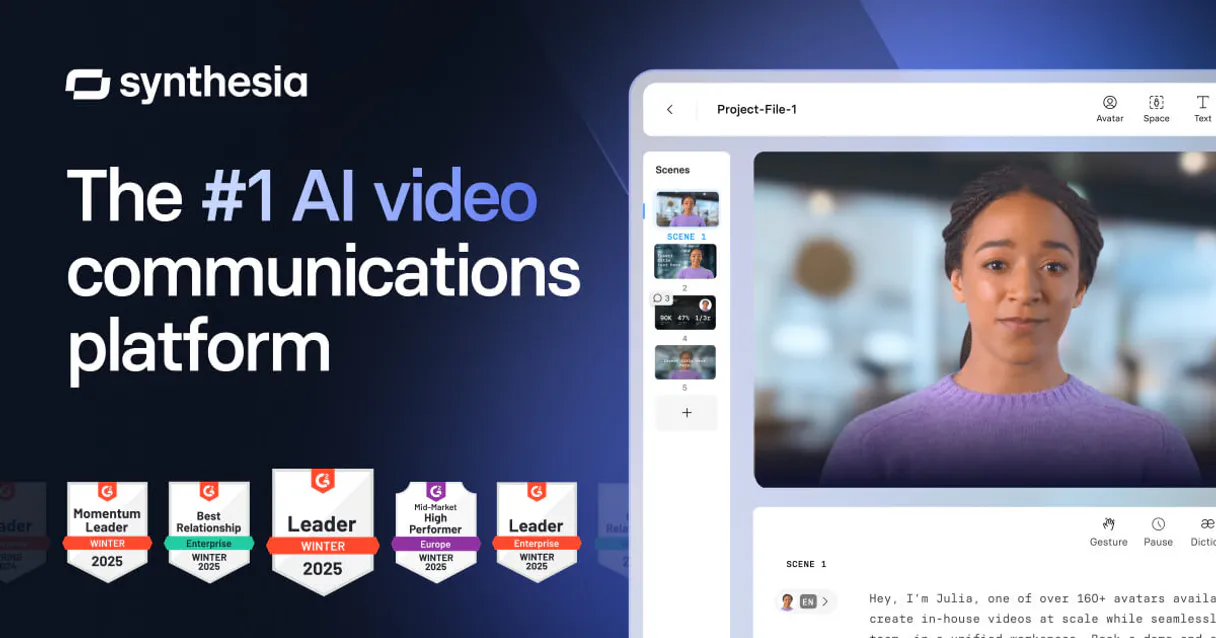
Independent Platform Disclaimer: Vinkius is an independent platform and is not affiliated with, endorsed by, sponsored by, verified by, or otherwise authorized by Synthesia. All third-party trademarks, logos, and brand names are the property of their respective owners. Their use on this website is strictly for informational purposes to identify service compatibility and interoperability.
VINKIUS INFRASTRUCTURE
Cloud Hosted
Managed infra
V8 Isolated
Sandboxed per request
Zero-Trust Proxy
No stored credentials
DLP Enforced
Policy on every call
GDPR Compliant
EU data residency
Token Compression
~60% cost reduction
Works with Claude, ChatGPT, Cursor, and more
The Model Context Protocol standardizes how applications expose capabilities to LLMs. Instead of operating in isolation, your AI gains direct access to external platforms, live data, and real-world actions through secure, standardized connections.
This server provides 10 capabilities that interface natively with Claude, ChatGPT, Cursor, and any MCP client. No middleware. No custom integration required.
Available Capabilities
Manually building video content is a tedious process of logging in and copying IDs.
Today, making an instructional video means jumping between platforms. You grab the script, go into the dedicated video platform to select an avatar, manually enter the text, choose the template layout, hit 'render,' wait 20 minutes for a draft, download it, and then if you need it in Portuguese, repeat the whole process using a different UI.
With this MCP connector, that entire sequence runs inside your chat. You ask your agent to generate the video—specifying the avatar via `list_avatars` and telling it which template ID to use. The agent calls all the necessary functions (`create_video_from_template`, etc.) in sequence, giving you a single result without leaving your terminal.
Synthesia MCP Server: Video Ops from Chat.
The ability to run `dub_video` is the biggest time saver. Previously, internationalizing content meant hiring voice actors and coordinating multiple studio sessions. Now, you just call the tool, provide the source video ID, and tell it the target language. The AI handles the re-recording.
It’s not about replacing a team; it's about removing the repetitive, time-sink tasks from your workflow. You gain programmatic control over an entire media pipeline—from listing voices to deleting old drafts with `delete_video`.
Common Questions About Synthesia MCP
How do I find out what avatars are available using list_avatars? +
Run the list_avatars tool. It returns a structured list of all active AI presenters, including their specific IDs and descriptions (e.g., 'Blazer, formal'). This lets you pick one for your script.
Can I use the same video template multiple times? What tools do I need? +
Yes. First, run list_templates to get the available IDs. Then, call create_video_from_template, passing the ID and your custom JSON payload to generate a new version.
If I update the script, do I have to start over? How does dub_video work? +
No. You don't re-record everything. If you change the language or text, use dub_video. It takes an existing video ID and handles the localized re-recording process for you.
What should I do if my video render fails? Should I check status with get_video_details? +
Yes. If a job stalls, use get_video_details and provide the ID. This tool checks the current status of the render—it tells you if it's 'PENDING,' 'COMPLETE,' or if there was an error.
How do I make sure my video uses a specific avatar? Which tools are involved? +
You first run list_avatars to get the ID. Then, you pass that ID and your script into the create_avatar_video tool call.
If I need to clean up old content or remove a video, how do I use the `delete_video` tool? +
The process permanently removes the asset immediately. Because this action is irreversible, you must first confirm the video ID and understand that calling delete_video deletes it from your account entirely.
How do I get a full inventory list of all my existing media using `list_videos`? +
The tool returns a comprehensive index of every video ID associated with your account. This is essential for tracking, auditing, or referencing assets that aren't currently in active development.
Before I generate content, how can I validate the structure of my chosen layout using `get_template_details`? +
It returns a detailed manifest of the template, including all necessary blueprint variables and required JSON payloads. This allows you to verify that your input data matches the structural requirements before attempting video generation.
How long does video rendering take? +
The create_avatar_video command submits the job instantly. Rendering typically takes 2–10 minutes depending on length. Use get_video_details to check progress and retrieve the final URL.
Can I use my custom avatars? +
Yes. The list_avatars tool returns both stock and custom avatars tied to your account. You can use any avatar ID when creating videos.
Which Synthesia plan is required? +
API access requires a Creator or Enterprise plan. Free and Starter plans do not include API keys. Check the Integrations tab in your Synthesia dashboard to verify eligibility.
Use it with your favorite AI tools
Connect this server to Cursor, Claude, VS Code, and more.
More in this category

Scale AI
Automate high-quality data labeling and RLHF workflows via Scale AI — create projects, manage batches, and submit annotation tasks directly from your AI agent.
Vertex AI Search
Search across your enterprise data using Google's semantic search and generative AI grounding.

watsonx Discovery
Search and analyze complex data with AI-powered insights on IBM watsonx Discovery — the cognitive search engine.
You might also like

Phrase (Software Localization API)
Manage software localization projects, locales, and translation keys directly through the Phrase API.
Adafruit IO
Manage Adafruit IO feeds, data points, dashboards, and triggers.
Virtuagym
Manage members, events, trainers, memberships, nutrition plans, and workout programs for your Virtuagym club through natural conversation.