
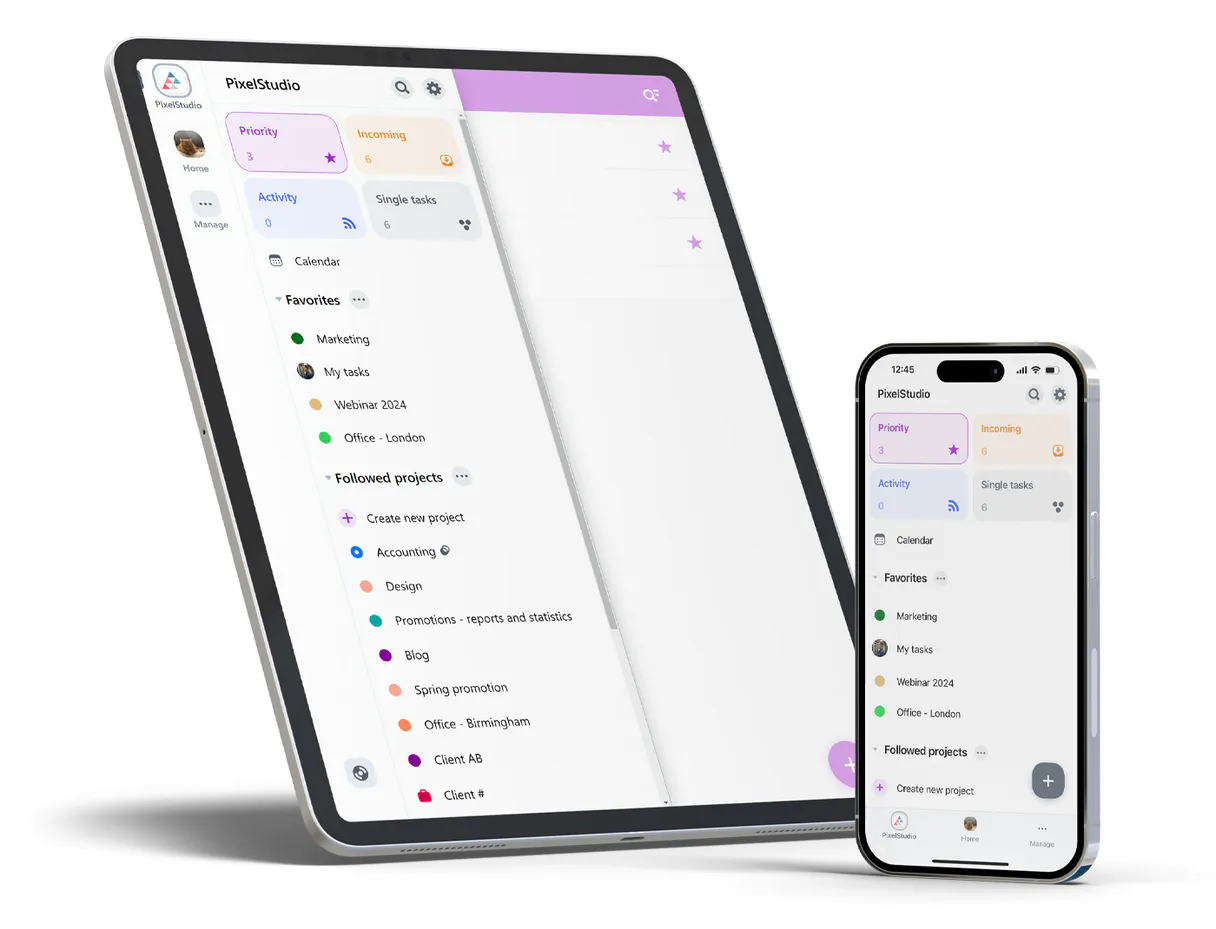
Nozbe MCP. Manage projects and tasks without leaving your chat.
 Gemini
 Works with every AI agent you already use
…and any MCP-compatible client









Just plug in your AI agents and start using Vinkius.
Nozbe connects your team's project management directly to your AI agent. You can list projects, create new tasks, update priorities, and track group collaboration right from your chat interface.
This server lets you manage complex workflows without switching apps or navigating away from where you are working.
What your AI agents can do
Create project
Sets up a new container for related tasks and team efforts within Nozbe.
Create task
Adds a brand-new, actionable item to an existing project or team list.
Delete task
Permanently removes a task from the system after it is completed or deemed irrelevant.
You can call create_project to set up a whole new project container or use list_projects to see everything accessible.
Need to adjust something? You can run update_task to change details, assign ownership, or even call delete_task when a task is done for good.
Use the team tools (list_teams, get_team) so your agent knows who you're talking to and what groups exist.
The server lets you pull specific data using get_project or get_task to feed context back into the chat conversation.
You can run list_comments on a task, pulling up the full discussion history for context before responding.
Ask AI about this MCP
Supported MCP Clients
OAuth 2.0 Compatible Gemini Waiting for input…
Nozbe MCP Server: 12 Tools for Task Management
Use these twelve tools with your agent to read, write, and coordinate projects, tasks, and teams directly through conversation.
Make your AI actually useful.
Add this MCP to Claude, Cursor, or Windsurf and your AI stops guessing. It gets real tools to look things up, take action, and handle the stuff you keep doing by hand.
Start using Nozbe on Vinkius019dd12ecreate project
Sets up a new container for related tasks and team efforts within Nozbe.
019dd12ecreate task
Adds a brand-new, actionable item to an existing project or team list.
019dd12edelete task
Permanently removes a task from the system after it is completed or deemed irrelevant.
019dd12eget me
Confirms your current user identity and checks if the server connection is working correctly.
019dd12eget project
Pulls all the details for a specific project ID, giving you its full scope.
019dd12eget task
Retrieves the current status, owner, and description of an individual task by its unique ID.
019dd12eget team
Gets detailed information about a specific team to verify membership or scope.
019dd12elist comments
Fetches all discussion comments attached to a task, letting you see the conversation history.
019dd12elist projects
Provides a list of every project accessible to your account.
019dd12elist tasks
Shows all tasks associated with your team or department that are visible in the system.
019dd12elist teams
Lists all available teams you're a member of within Nozbe.
019dd12eupdate task
Modifies an existing task—you can change the assignee, status, or due date.
Choose How to Get Started
Build a custom MCP for your own tools, or connect a ready-made integration from our catalog.
Build Your Own
Turn any API into an MCP. Import a spec, define Agent Skills, or deploy with MCPFusion.
- Import from OpenAPI, Swagger, or YAML specs
- Create Agent Skills with progressive disclosure
- Deploy to edge with MCPFusion framework
- Built in DLP, auth, and compliance on every call
- Real time usage dashboard and cost metering
- Publish to catalog or keep private
Make Your AI Do More
Start with Nozbe, then connect any of our 5,000+ other servers whenever your AI needs more. One click, no limits.
- Use this MCP plus 5,000+ others, all in one place
- Add new capabilities to your AI anytime you want
- Every connection is secured and compliant automatically
- Track usage and costs across all your servers
- Works with Claude, ChatGPT, Cursor, and more
- New servers added to the catalog every week
Independent Platform Disclaimer: Vinkius is an independent platform and is not affiliated with, endorsed by, sponsored by, verified by, or otherwise authorized by Nozbe. All third-party trademarks, logos, and brand names are the property of their respective owners. Their use on this website is strictly for informational purposes to identify service compatibility and interoperability.
VINKIUS INFRASTRUCTURE
Cloud Hosted
Managed infra
V8 Isolated
Sandboxed per request
Zero-Trust Proxy
No stored credentials
DLP Enforced
Policy on every call
GDPR Compliant
EU data residency
Token Compression
~60% cost reduction
Works with Claude, ChatGPT, Cursor, and more
The Model Context Protocol standardizes how applications expose capabilities to LLMs. Instead of operating in isolation, your AI gains direct access to external platforms, live data, and real-world actions through secure, standardized connections.
This server provides 12 capabilities that interface natively with Claude, ChatGPT, Cursor, and any MCP client. No middleware. No custom integration required.
Checking status across projects shouldn't require a dashboard marathon.
Today, checking progress is painful. You open your PM tool, click into 'Project X,' then jump to the team view for 'Team Y.' To see if Task Z was reassigned or updated, you have to find it, check its status, and maybe scroll through old comments just to understand why that change happened in the first place.
With Nozbe's MCP server, this process disappears. You simply tell your agent what you need—like 'What are the blockers for Project X?'—and the system runs `get_project` or `list_tasks`. It gives you a concise summary of exactly what changed and who needs to take action.
Nozbe MCP Server: Get project status updates instantly.
Manual updates involve opening the task, finding the owner field, changing it, saving, and then sending a follow-up message to confirm the change. It's repetitive, messy work that slows down the whole team.
Now, you just tell your agent: 'Assign this feature to Jane.' The server runs `update_task`. The task ownership changes immediately in the system, and the confirmation is delivered directly into your chat window—no extra steps needed.
What you can do with this MCP connector
You're dealing with projects and tasks in Nozbe? Don't jump between tabs and dashboards—you just talk to your agent and get it done right here. This server lets you manage complex workflows without ever leaving the chat window.
Managing Your Projects
The system knows what groups of work you have going on. You can use list_projects to pull up a rundown of every project accessible to your account, giving you an immediate overview of your team's scope. Need to start something new? Just call create_project, and it sets up a brand-new container for all the related tasks and effort your team needs to track.
To get granular, you can run get_project by providing a specific project ID; that pulls every single detail about that project's full scope. You'll find the whole picture in one go.
Handling Tasks Day-to-Day
This is where you actually get stuff done. To see what needs attention, run list_tasks, and it shows all tasks associated with your team or department that are visible right now. If you know exactly which task you mean, use get_task by its unique ID; that retrieves the current status, who owns it, and the full description of that individual item.
You've got an update? You don't have to email someone. Use update_task to modify details instantly—you can change the assignee, switch the status, or adjust a due date for any task you reference. When a task is done for good or just plain irrelevant, you use delete_task, and it permanently removes that item from the system.
To track conversations around an assignment, run list_comments on a specific task; this pulls up every discussion comment attached to it, giving you the full history before you reply. You'll also want to check who you are using get_me, which confirms your current user identity and makes sure the connection is working right.
Understanding Your Team Structure
Knowing who's on what team is key. To see all available teams you belong to, run list_teams. If you need deep background on a specific group, use get_team; that pulls detailed information about the team, letting your agent know exactly who's in it and what its scope is.
019dd12e-9e34-7204-a393-ad7a4b3a3005 
How Nozbe MCP Works
- 1 Tell your agent what you need to do. For example: 'List all projects related to Q3 marketing.'
- 2 The agent recognizes the intent and runs the appropriate tool, like
list_projects, sending it data requests via MCP. - 3 The server returns a structured list of projects or tasks, which the agent then formats into plain text for you in the chat.
The bottom line is that your AI client talks to Nozbe's API tools and presents the results like natural conversation.
Who Is Nozbe MCP For?
Anyone who spends time moving data between task trackers, project management software, and their chat window. Think of product managers stuck in Jira/Asana, technical leads coordinating sprints, or operations analysts managing cross-departmental rollouts. If your job requires you to keep track of 'who needs to do what by when,' this is for you.
Uses list_projects and create_task to quickly define scope boundaries and hand off actionable items without leaving the discussion thread.
Relies on tools like update_task and get_project to track dependencies, change owners, or verify status changes for multiple stakeholders.
Needs to pull project history using list_comments to understand the rationale behind a design choice before writing code or making architectural decisions.
What Changes When You Connect
- Stop context switching. Instead of jumping to Nozbe, then back to Slack, you run
list_tasksdirectly in the conversation thread. Your agent brings the data to you, saving time. - Maintain a single source of truth for project status. You can check an item's current status by running
get_task, eliminating the need to open the full dashboard just to verify one due date. - Coordinate ownership quickly. When something changes hands, use
update_taskvia your agent. You don't have to copy-paste details; you just tell the AI client to assign it to someone else. - See the whole story on any item. Running
list_commentsfor a specific task pulls up the full discussion history, ensuring nobody misses key context or decision points. - Scope out your work instantly. Use
list_projectsand thenget_projectto map out all the existing containers you're working in before starting any new tasks.
Real-World Use Cases
The sprint planning sync-up
A tech lead needs a quick overview of what was supposed to happen. Instead of opening three different project views, they prompt their agent: 'List all tasks in the API redesign project that are due this week.' The agent runs list_tasks and filters them by date, giving the team an immediate, clean list for review.
The missed dependency check
A product manager notices a task is stalled. They ask their agent to 'Check why Task ID 5402 hasn't moved.' The agent runs get_task and then automatically calls list_comments, showing the PM exactly where the conversation stopped, solving the mystery immediately.
Onboarding a new team member
The manager needs to assign a bulk of work. They prompt: 'Create a project for Q3 marketing and add three tasks under it.' The agent runs create_project first, then uses create_task multiple times, setting up the entire structure in one conversational turn.
The overdue assignment update
A team member finished a task but forgot to mark it. They ask: 'Mark Task ID 5402 as done.' The agent runs update_task, changing the status and logging the completion, keeping the board clean without manual clicks.
The Tradeoffs
Copying Status Updates
Opening Nozbe in a browser tab, clicking on Project A, then opening it again for Project B just to compare due dates. This is slow and prone to copy-paste errors.
→
Use the agent to run get_project or list_tasks. You can ask the AI client to 'Compare the status of tasks in two different projects'—it handles the data retrieval logic for you.
Manual Comment Review
Having to open a task, scroll up through 50 comments, and then copy a specific point about scope creep into an email. Too much clicking.
→
Just ask the agent: 'What was the main concern raised about this feature?' The agent runs list_comments and summarizes the key points directly in the chat.
Confusing Scope
Creating a task without linking it to a parent project, making it invisible when reporting progress on that initiative. Orphaned data is useless.
→
Always call create_project first when starting new work. Then, use the agent's tools to ensure every new item uses create_task within the correct, designated project container.
When It Fits, When It Doesn't
Use Nozbe if your workflow requires constant status checks and data coordination across multiple discrete projects or teams. If you need to know 'What tasks are in Project X?' or 'Who owns this task right now?', use list_projects, get_project, and get_task. Don't use it if you just need a simple, standalone checklist—a basic To-Do list tool is better for that. You should also use the team tools (list_teams) early on to scope out who can access what data before trying to modify anything with update_task or create_task. Never try to manually update project structures; always let the agent handle it via the designated tools.
Common Questions About Nozbe MCP
How do I list all accessible projects using Nozbe's MCP Server? +
Run list_projects with your agent. This tool pulls a comprehensive list of every project container you have access to, giving you an immediate overview of the organization’s scope.
What is the difference between `get_task` and `update_task` in Nozbe? +
get_task retrieves data—it shows you the current status, owner, etc. update_task actually changes something; it's how you change the status or assignee of an existing task.
Can I create a project and tasks at the same time with Nozbe? +
You typically run these commands sequentially via your agent. First, use create_project to set up the container, then follow up by using create_task within that new project's context.
Does Nozbe’s MCP Server track team members? +
Yes, you can run list_teams or get_team. These tools let your agent retrieve details about the teams and specific users involved in the project scope.
What happens when I use the `delete_task` tool? +
The task is permanently removed from Nozbe. You must confirm the exact Task ID before calling this function, as there's no undo feature for deletion.
How do I get discussion comments using `list_comments`? +
This tool pulls all historical discussion threads tied to a specific task. It lets your AI agent see the full context of conversations without having to navigate the Nozbe interface.
What information does running the `get_me` tool provide? +
It validates your API connection and returns essential user context data, confirming that your current agent has the necessary permissions for Nozbe.
Are there any performance limits when using `list_projects`? +
If you have a very large number of projects, the system may paginate results or impose rate limits. For best performance, break down massive requests into smaller batches.
Can I retrieve all tasks from a specific project? +
Yes, just provide the project name or ID, and the agent will list all active and completed tasks within it.
How do I assign a task to a team member? +
You can tell the AI to create a task and mention the assignee, and the integration will route the task to them in Nozbe.
Is it possible to complete a task directly? +
Absolutely. By providing the task ID to the agent, you can mark it as completed instantly.
Use it with your favorite AI tools
Connect this server to Cursor, Claude, VS Code, and more.