
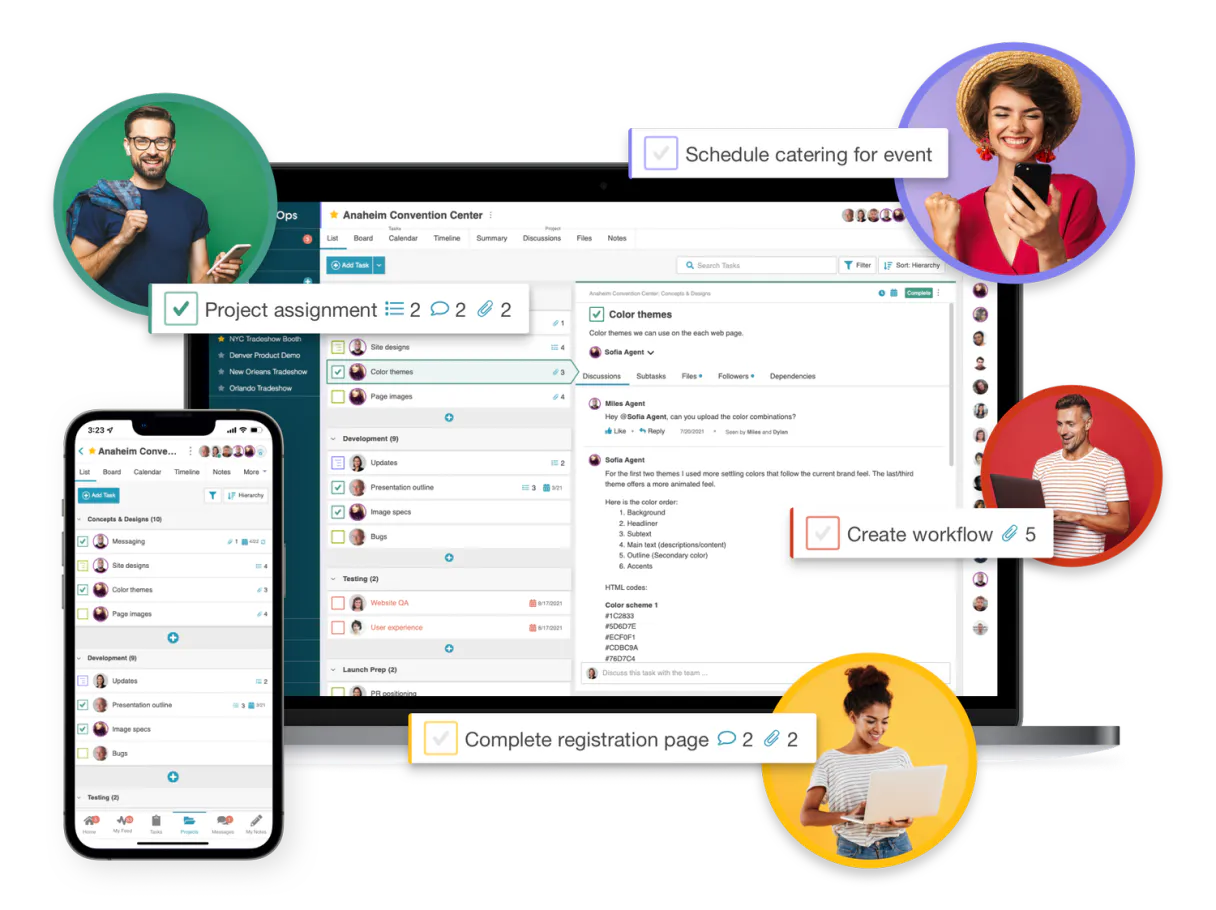
BasicOps MCP for AI. Manage every project detail from plain conversation.
 Gemini
 Works with every AI agent you already use
…and any MCP-compatible client









Connect to your AI in seconds.
BasicOps MCP centralizes project management, task tracking, and team communication into natural conversation. Stop toggling between tabs to update status or check history.
This connector lets your AI agent act as a dedicated coordinator for all your projects, giving you full control over complex workflows from one place.
What your AI can do
Create project
Registers a brand new project into your BasicOps account.
Create task
Adds a completely new, trackable task within an existing project.
Get account info
Retrieves basic information about your user profile and account settings.
Retrieves a complete list of every project you have set up in BasicOps.
Registers an entirely new, isolated project within your workspace structure.
Creates, retrieves, or modifies the status and description of individual work items (tasks).
Accesses a full roster of users in your organization to understand who works on what.
Pulls the complete message log associated with any specific task for context.
Lists and provides metadata on all active automation webhooks tied to your workspace.
Ask an AI about this
Waiting for input…
BasicOps: 12 Tools for PMs
These tools allow you to programmatically interact with every core function of BasicOps—from creating new projects to tracking specific messages on a task.
Make your AI actually useful.
Add this MCP to Claude, Cursor, or Windsurf and your AI stops guessing. It gets real tools to look things up, take action, and handle the stuff you keep doing by hand.
Start using BasicOps on VinkiusCreate Project
Registers a brand new project into your BasicOps account.
Create Task
Adds a completely new, trackable task within an existing project.
Get Account Info
Retrieves basic information about your user profile and account settings.
Get Project
Pulls detailed data for a single, specific project ID.
Get Task
Fetches all the current details associated with one task.
List Task Messages
Retrieves the full conversation thread for a task, including notes and updates.
List Projects
Gets an overview and names of all the projects you manage in BasicOps.
List Project Sections
Lists out all major phases or sections defined within a project's timeline.
List Project Tasks
Retrieves a list of every task associated with a particular project.
List Team Users
Provides a directory listing of every team member connected to your workspace.
List Webhooks
Shows a list and status details for all active automation webhooks.
Update Task
Changes the status, due date, or description of an existing task.
Security and governance baked right in.
Pick your AI client below to get set up. Just create a Vinkius account, subscribe, and you're instantly up and running. We handle the entire backend infrastructure, delivering out-of-the-box support for HTTPS Streamable, SSE, and OAuth2—zero messy routing required.
Claude AI
Open Claude Settings
Go to claude.ai, click your profile icon, then navigate to Customize → Connectors.
Add Custom Connector
Click the "+" button and select Add custom connector. Paste your Vinkius endpoint URL:
https://edge.vinkius.com/[YOUR_TOKEN_HERE]/mcp
Replace [YOUR_TOKEN_HERE] with your token
from cloud.vinkius.com. For OAuth-protected servers, expand
Advanced settings to add credentials.
Start a conversation
Open a new chat. The BasicOps integration is available immediately — no restart needed.
Choose How to Get Started
Build a custom MCP for your own tools, or connect a ready-made integration from our catalog.
Build Your Own
Turn any API into an MCP. Import a spec, define Agent Skills, or deploy with MCPFusion.
- Import from OpenAPI, Swagger, or YAML specs
- Create Agent Skills with progressive disclosure
- Deploy to edge with MCPFusion framework
- Built in DLP, auth, and compliance on every call
- Real time usage dashboard and cost metering
- Publish to catalog or keep private
Make Your AI Do More
Start with BasicOps, then connect any of our 5,100+ other servers whenever your AI needs more. One click, no limits.
- Use this MCP plus 5,100+ others, all in one place
- Add new capabilities to your AI anytime you want
- Every connection is secured and compliant automatically
- Track usage and costs across all your servers
- Works with Claude, ChatGPT, Cursor, and more
- New servers added to the catalog every week
Independent Platform Disclaimer: Vinkius is an independent platform and is not affiliated with, endorsed by, sponsored by, verified by, or otherwise authorized by BasicOps. All third-party trademarks, logos, and brand names are the property of their respective owners. Their use on this website is strictly for informational purposes to identify service compatibility and interoperability.
VINKIUS INFRASTRUCTURE
Cloud Hosted
Managed infra
V8 Isolated
Sandboxed per request
Zero-Trust Proxy
No stored credentials
DLP Enforced
Policy on every call
GDPR Compliant
EU data residency
Token Compression
~60% cost reduction
Works with Claude, ChatGPT, Cursor, and more
The Model Context Protocol standardizes how applications expose capabilities to LLMs. Instead of operating in isolation, your AI gains direct access to external platforms, live data, and real-world actions through secure, standardized connections.
This connection provides 12 powerful capabilities that interface natively with Claude, ChatGPT, Cursor, and other compatible AI platforms. No middleware. No custom integration required.
Keeping track of project status feels like running through an administrative checklist.
Right now, managing team progress means opening the main dashboard, finding the relevant client board, clicking into the 'Tasks' tab, and then scrolling through dozens of cards to see if a deadline was missed or who owns it. You constantly copy IDs and switch between boards just to assemble one status report.
With this MCP, you simply ask your agent for the summary. It handles listing all relevant projects and pulling task details using natural language commands. You get the full picture—the overdue items, the ownership, the next steps—without touching a single dashboard tab.
BasicOps MCP: Instant visibility into project status and history
The manual process of checking task history means digging through old comments to see if a decision was made or who approved it. You end up relying on memory or scattered emails, which is risky.
Now, you just ask your agent for the full communication thread using `list_task_messages`. It delivers every comment and update instantly. That’s how reliable your project tracking can be.
What your AI can actually do with this
Forget jumping between multiple apps just to keep track of what needs doing. This MCP connects your entire BasicOps account directly to your agent, putting project oversight and team coordination right where you work. You can talk to it like a manager talks to an assistant—tell it to list all active projects or ask for the full communication history on a specific task.
It handles the whole lifecycle: creating new tasks, updating status dates, and even listing out every team member so everyone's in sync. When you connect this through Vinkius, your AI agent becomes much more than a chatbot; it’s an operational extension of your actual workspace. You get to manage project sections and monitor metadata without ever leaving the chat window.
019dd0c0-be15-710b-afad-42003763eb90 
Here's how it actually works
The bottom line is: your AI agent handles the connection and the commands for you.
Subscribe to this MCP and grab your Personal Access Token from BasicOps settings.
Connect that token within Vinkius, allowing your AI client access to the project data.
Tell your agent what you need—for example, 'List all active projects' or 'Update task 456 status to Done'.
Who is this actually for?
Anyone who spends half their day switching between a project board, an email client, and a task list will need this. It’s built for people tired of manual context-switching.
Needs to instantly get high-level summaries across multiple projects and update statuses without logging into the board.
Must monitor workspace metadata, check active webhooks, or automate project section changes on the fly.
Requires immediate access to team member directories and communication history within tasks to maintain context during meetings.
What Changes When You Connect
Stop manual updates: Instead of finding a task and changing its status manually, use the update_task tool to simply tell your agent what needs fixing. It does the rest.
Maintain context: The ability to call list_task_messages means you never lose track of why something was done or who said it. All history is immediately available.
See the big picture: Use list_projects and then get_project to pull up summaries for multiple clients in minutes, without clicking through a dozen dashboards.
Organize workflows: You can programmatically list project sections with list_project_sections, which is critical when you need to structure your team's operational phases quickly.
Coordinate people: The list_team_users tool gives instant access to who works on what, so you don't waste time tracking down contacts or assigning ownership.
See it in action
The weekly status report is due, but projects are scattered.
A PM needs a snapshot of three different client accounts. They ask the agent to use list_projects first, then iterate through each one using get_project and list_project_tasks to pull out all overdue items into a single summary report.
A critical bug is reported, and nobody knows who was last assigned.
The agent uses list_task_messages on the ticket ID. It instantly pulls up the technical note from three different people, showing exactly which team member provided the final confirmation needed for resolution.
We need to restructure our whole quarter into new operational phases.
An Ops Lead uses list_project_sections and instructs the agent to update or add sections. This automates the workflow change, ensuring every team member sees the updated project structure immediately.
I need a quick roster of contacts for an urgent meeting.
Instead of opening the separate directory tab, the PM asks the agent to run list_team_users, getting names and roles instantly. This saves several clicks and keeps the conversation flowing.
The honest tradeoffs
Trying to manage projects with simple text notes.
A user manually writes down, 'Update Project X status.' and then has to remember which project ID it is or what the new status code should be. This leads to errors and missed updates.
Don't write vague requests. Tell your agent: 'Use get_project for ID 123, and then use update_task on task A456 setting the status to Done.' The specific tools ensure accuracy.
Only checking one project's tasks at a time.
A manager has to open 10 tabs, running list_project_tasks ten times just to get an overview of the workload across multiple clients. It's slow and tedious.
First, use list_projects to see all options. Then, instruct your agent to loop through those results using a combination of listing tools; it aggregates the data for you.
Assuming system changes are visible everywhere.
An Ops Lead adds a webhook but forgets to notify the team or confirm its status. They spend hours troubleshooting why the automation isn't firing correctly.
Always check list_webhooks after setting up new automation. This verifies that the connection is active and reporting correct metadata.
When It Fits, When It Doesn't
Use this MCP if your pain point is context switching between multiple tabs or apps to track project status, team assignments, or task history. It’s perfect for anyone whose job requires coordinating information across many discrete records.
Don't use it if you just need a simple contact list; list_team_users handles that efficiently enough. Also, don't rely on it to build a new database schema—the tools manage existing data structures. If your core problem is building entirely new data models or complex computations outside of basic CRUD operations (Create, Read, Update, Delete), you might need a specialized analytics tool instead.
Questions you might have
How do I use the `create_project` tool? +
You tell your agent, 'Create a new project for Marketing Q3.' The MCP handles generating the necessary structure and registering it in BasicOps.
Can I update tasks with `update_task` via my AI client? +
Yes. You can instruct your agent to use update_task directly, changing status, setting due dates, or adding descriptions without logging into the web app.
What does `list_team_users` show me? +
list_team_users provides a complete directory of your team members, letting you know who is available and what roles they play in BasicOps.
Is there a way to list all projects at once? (Using `list_projects`) +
Absolutely. Using the list_projects tool provides an immediate overview of every single project you manage, saving you from having to navigate manually.
How do I use `get_account_info` to check my credentials? +
The tool fetches your profile details directly. It confirms that your AI client has successfully authenticated with the BasicOps API, verifying basic operational access.
What does `list_task_messages` do? Does it show all historical comments? +
It retrieves a complete log of communication history for any given task ID. You get every status update and note recorded in the thread, providing full context.
How can I use `list_project_sections` to understand project phases? +
This function lists all defined sections or phases within a project structure. It helps you map out the entire operational timeline for your team.
If I need to check integrations, how do I use `list_webhooks`? +
The tool displays all active webhooks attached to your account. This lets you monitor which external systems are connected and reporting data instantly.
How do I find my BasicOps Personal Access Token? +
Log in to your account, navigate to Settings > API, and generate a new Personal Access Token for your integration.
What is a Project Section via AI? +
Sections allow your agent to group related tasks into specific phases, sprints, or categories within a larger project programmatically.
How do I list team members programmatically? +
Use the list_users tool to retrieve your complete organizational directory including high-fidelity names and email addresses.
We've already built the connector for BasicOps. Just plug in your AI agents and start using Vinkius.
No hosting. No infrastructure. No complex setup.
All 12 tools are live and waiting.
You're up and running in seconds.
Gemini Vinkius gives your AI agents access to the full catalog of app connectors, all fully managed, secure, and enterprise-ready. One subscription, every tool you need.
Built, hosted, and secured by Vinkius. You just connect and go.