
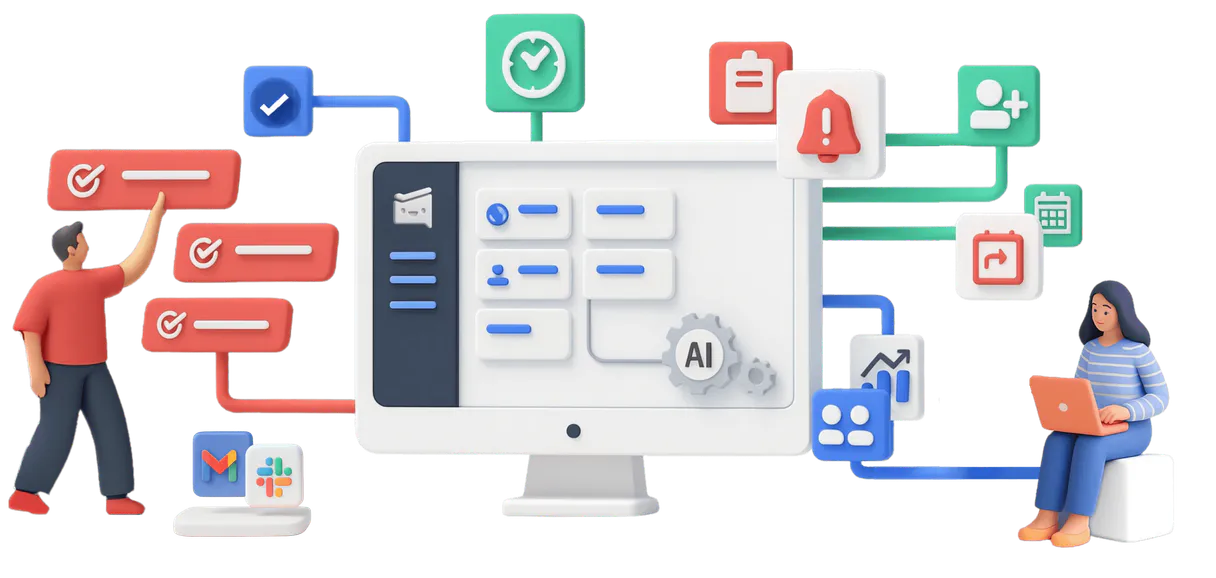
Workast MCP. Manage entire backlogs and team assignments.
 Gemini
 Works with every AI agent you already use
…and any MCP-compatible client









Just plug in your AI agents and start using Vinkius.
Workast MCP connects project management, task tracking, and team coordination directly into your agent workflow. It lets you manage entire work environments—from creating new project spaces to assigning specific tasks to users—without ever leaving your chat client.
Stop switching apps just to update a status or check who owns a deliverable; this handles the whole backlog.
What your AI agents can do
Create space
Generates an entirely new, isolated workspace for a project or team.
Create task
Adds a specific new item to the task backlog with all necessary details and due dates.
Delete task
Removes a task from its current space, cleaning up old records.
Create entire work spaces, or 'spaces,' for specific teams and initiatives.
Generate new tasks with due dates and descriptions, or update the status of existing items using update_task.
Get detailed lists of all active spaces and all pending tasks within a specified project area.
List team members to assign responsibility or retrieve specific user profiles using get_user.
Retrieve metadata about the entire account, ensuring your agent always works with the most current organizational data.
Ask AI about this MCP
Supported MCP Clients
OAuth 2.0 Compatible Gemini Waiting for input…
Workast: Task & Space Management (12 Tools)
Use this collection of twelve tools to programmatically create, read, update, and delete every resource in your Workast project environment.
Make your AI actually useful.
Add this MCP to Claude, Cursor, or Windsurf and your AI stops guessing. It gets real tools to look things up, take action, and handle the stuff you keep doing by hand.
Start using Workast on Vinkius019dd18acreate space
Generates an entirely new, isolated workspace for a project or team.
019dd18acreate task
Adds a specific new item to the task backlog with all necessary details and due dates.
019dd18adelete task
Removes a task from its current space, cleaning up old records.
019dd18aget account profile
Retrieves core profile information tied to your Workast account setup.
019dd18aget space
Fetches all details about one specific project or work area.
019dd18aget task
Gets the full status and history of a single task item.
019dd18aget team info
Retrieves high-level data about the team structure and composition.
019dd18aget user
Pulls detailed profile information for any specific user in your organization.
019dd18alist spaces
Provides a complete list of every existing workspace you have created or been added to.
019dd18alist tasks
Shows all current task items within a defined space boundary.
019dd18alist users
Retrieves a directory listing of all team members available in Workast.
019dd18aupdate task
Changes the status, assignee, or description of an existing task item.
Choose How to Get Started
Build a custom MCP for your own tools, or connect a ready-made integration from our catalog.
Build Your Own
Turn any API into an MCP. Import a spec, define Agent Skills, or deploy with MCPFusion.
- Import from OpenAPI, Swagger, or YAML specs
- Create Agent Skills with progressive disclosure
- Deploy to edge with MCPFusion framework
- Built in DLP, auth, and compliance on every call
- Real time usage dashboard and cost metering
- Publish to catalog or keep private
Make Your AI Do More
Start with Workast, then connect any of our 5,000+ other servers whenever your AI needs more. One click, no limits.
- Use this MCP plus 5,000+ others, all in one place
- Add new capabilities to your AI anytime you want
- Every connection is secured and compliant automatically
- Track usage and costs across all your servers
- Works with Claude, ChatGPT, Cursor, and more
- New servers added to the catalog every week
Independent Platform Disclaimer: Vinkius is an independent platform and is not affiliated with, endorsed by, sponsored by, verified by, or otherwise authorized by Workast. All third-party trademarks, logos, and brand names are the property of their respective owners. Their use on this website is strictly for informational purposes to identify service compatibility and interoperability.
VINKIUS INFRASTRUCTURE
Cloud Hosted
Managed infra
V8 Isolated
Sandboxed per request
Zero-Trust Proxy
No stored credentials
DLP Enforced
Policy on every call
GDPR Compliant
EU data residency
Token Compression
~60% cost reduction
Works with Claude, ChatGPT, Cursor, and more
The Model Context Protocol standardizes how applications expose capabilities to LLMs. Instead of operating in isolation, your AI gains direct access to external platforms, live data, and real-world actions through secure, standardized connections.
This server provides 12 capabilities that interface natively with Claude, ChatGPT, Cursor, and any MCP client. No middleware. No custom integration required.
Manually tracking projects means copy/pasting statuses all day.
Today, if a team member asks for a status update on Project Phoenix, you have to jump into the main work board, filter by 'Phoenix', scroll through dozens of cards, and manually check the due dates. Then you copy that info into your Jira ticket, then you paste it into an email summary. It's click-by-click manual labor.
With this MCP, you just ask your agent: 'What is the status for Project Phoenix?' The agent handles calling the necessary tools like `list_tasks` and summarizing the output immediately. You get a clean, actionable list of only what needs attention—no more clicking, no more pasting.
The Workast MCP provides full control over your task lifecycle.
Manual processes force you to treat spaces and tasks as separate things. You might forget that changing a user's profile via `get_user` could affect their ability to receive new assignments, or that creating a task without first checking the space details is pointless.
Now, your agent manages this entire flow for you. It knows how to coordinate resources by reading team data and updating tasks seamlessly, ensuring every action taken—from calling `create_space` to running `update_task`—is consistent with Workast's rules.
What you can do with this MCP connector
You can use this connector to run complex workflows across your organization's entire project structure. Instead of jumping between Workast, email, and your task tracker, you tell your agent what needs doing—like 'Update all Q3 marketing tasks for Design Team'—and it handles the whole sequence. You can organize work by creating new spaces or managing existing ones; assign tasks, update due dates, and even delete old records programmatically.
Furthermore, you can look up team member details using get_user and check who is assigned what via list_users. This means your agent doesn't just pull data; it acts on it. Because the workast platform handles all infrastructure and updates, and Vinkius manages the execution through a zero-trust proxy, your credentials are used only in transit and never stored on disk.
The real value comes when you chain this MCP with other tools—like connecting project task status to a billing system—allowing one AI agent to automate processes that normally span multiple platforms.
019dd18a-3dd6-7355-9dfe-ed67fbdd0b52 
How Workast MCP Works
- 1 First, connect Workast to your AI client and provide an API token from your Workast settings.
- 2 Next, tell your agent exactly what you need; for example, 'List all spaces that contain tasks due this week.'
- 3 Your agent executes the necessary calls—like
list_spacesfollowed bylist_tasks—and gives you a plain text summary of the status.
The bottom line is that your AI client manages the connection and talks to Workast on your behalf, so you don't have to touch the platform directly.
Who Is Workast MCP For?
Project Managers who are sick of status meetings where everyone just reads off a dashboard. Team Leads who need visibility into cross-departmental bottlenecks without manually checking five different dashboards. Agile Coaches who need to enforce task completion rules across the entire backlog.
Automating the creation and updating of project backlogs, ensuring every new space or task gets proper metadata.
Monitoring overall team progress across different spaces without having to click into each one individually.
Ensuring that user profiles and team assignments are accurate before any new feature development starts.
What Changes When You Connect
- Stop manually updating status reports. You can use the
update_tasktool to change due dates or assignees across multiple tasks at once, just by asking your agent. - Never lose track of a project's scope again. The
list_spacescapability lets you see every active environment, so you know exactly where the work is happening. - Know who owns what instantly. By combining
get_userandlist_users, your agent can build out full team dependency maps for any given project space. - Maintain clean data hygiene. You can use
delete_taskto remove stale, completed items from the backlog, keeping your active task lists accurate and short. - Keep everything current using
get_account_profile. Your agent always checks your core organizational metadata before making changes, preventing outdated work.
Real-World Use Cases
The Onboarding Bottleneck
A new team member needs to be added to three active projects. Instead of manually calling the PM and updating tasks in multiple places, you tell your agent to use list_users first, then run a sequence that calls create_space for the needed areas and assigns them using update_task.
The End-of-Quarter Audit
You need a report on all tasks in the 'Marketing Q4' space that were assigned to someone who left last month. Your agent can use list_tasks combined with get_user to filter out inactive accounts, giving you a clean list for HR.
The Scope Creep Cleanup
A project space has grown messy with old tasks nobody needs. You ask the agent to inspect the 'Design Team' space using get_space, and it recommends deleting unnecessary items via delete_task.
The Status Check
You need a quick overview of all ongoing work for a client. You ask your agent to use list_spaces followed by get_task on the top five spaces, giving you instant status reports without clicking anything.
The Tradeoffs
Treating tasks in isolation
Only calling get_task to view a single task means you miss knowing if that task is part of a larger, related project space.
→
Always start by listing the containers. Use list_spaces first. Then use get_space to get context, and finally check specific items with list_tasks. This builds full context.
Forgetting user permissions
Trying to assign a task to an account the team lead doesn't manage, resulting in a failed workflow.
→
Before assigning anything, run list_users and use get_user to verify the target person is active and has the correct role.
Running tasks without checking history
Using create_task when an existing task was just updated. You end up with two records, wasting time.
→
Always check first. Use get_task to see if the item exists and what its current status is before running any creation or update commands.
When It Fits, When It Doesn't
Use this MCP when your problem involves tracking project boundaries (Spaces) AND managing actionable items (Tasks). If you only need a simple directory of users, just use list_users. But if the process requires checking which spaces exist, and then updating tasks within those specific spaces, you need the full suite. Don't try to automate cross-platform communication or message sending; this is purely about project structure and task lifecycle management within Workast boundaries.
Common Questions About Workast MCP
How do I list all my project spaces using the Workast MCP? +
You run a simple request for list_spaces. This tool gives you an immediate directory of every active project environment in your account, letting you see what’s available to work with.
Can I update tasks across different projects? (Workast MCP) +
Yes, if you know the task ID and space ID. You use update_task after first getting the context by calling get_space. This keeps your changes scoped correctly.
What is the best way to check a user's info? (Workast MCP) +
Use get_user for specific details on one person, or use list_users if you need a full roster of who is available in your team.
How do I check tasks in a specific area using the list_tasks tool? +
It retrieves all items within a defined space. You need to provide the Space ID and optionally date parameters, which ensures you only get relevant pending work.
What is the difference between listing users with list_users and getting an individual user's details? +
The list_users tool pulls a complete roster of team members. Use this when you need to review group composition or perform bulk actions, not just single profiles.
What specific metadata can I get using the get_space tool? +
This tool provides comprehensive data about an entire work area. You'll find details like its owner, creation date, and current total member count.
How do I remove a task that was accidentally created using delete_task? +
You must supply the full Task ID along with the Space ID to confirm deletion. The system handles errors if the specified item doesn't exist in the space.
What data points are included when I use get_account_profile? +
It fetches your core account information, including your registered email and name. This is useful for syncing user identity into external reports or logs.
How do I generate a Workast API Token? +
Log in to Workast, go to your profile icon, select Preferences > API, and click 'Generate new token' to create your unique access credential.
What is a 'Space' in Workast? +
A Space is a container for your task lists. It is typically used to organize different projects, client work, or team-specific channels within your workspace.
Use it with your favorite AI tools
Connect this server to Cursor, Claude, VS Code, and more.