
Twist MCP. Manage all team communication streams without leaving your agent.
 Gemini
 Works with every AI agent you already use
…and any MCP-compatible client









Just plug in your AI agents and start using Vinkius.
Twist MCP Server manages your entire team's asynchronous dialogue through any AI agent. It gives you full control over workspaces, channels, threads, comments, and one-on-one DMs without context switching.
Use it to read specific conversations, create announcement threads, or modify direct messages right from your chat interface.
What your AI agents can do
Create comment
Posts a reply or comment into an existing conversation thread when provided with the thread ID and content.
Create thread
Starts a brand new asynchronous discussion topic in a specific channel, requiring a title and initial body text.
List channels
Retrieves a list of open organizational channels within the specified workspace ID.
List all workspaces and channels to map out your team's communication boundaries.
Identify all members within a specific workspace using list_workspace_users.
create_thread lets you post an announcement or deep topic into any channel.
Modify the title or content of an existing discussion thread using update_thread.
Access, read, and respond to 1-on-1 direct messages via list_direct_messages and send_direct_message.
Ask AI about this MCP
Supported MCP Clients
Gemini Waiting for input…
Twist: 10 Tools for Asynchronous Messaging
These tools let you list, create, modify, and read every type of communication within Twist—from entire workspaces to single direct messages.
019d7616create comment
Posts a reply or comment into an existing conversation thread when provided with the thread ID and content.
019d7616create thread
Starts a brand new asynchronous discussion topic in a specific channel, requiring a title and initial body text.
019d7616list channels
Retrieves a list of open organizational channels within the specified workspace ID.
019d7616list direct messages
Fetches all messages from a specific one-on-one direct conversation using its unique conversation ID.
019d7616list threads
Lists every active discussion thread contained within a given channel ID.
019d7616list workspace users
Returns a list of all individual members belonging to a defined workspace.
019d7616list workspaces
Identifies and returns the names and IDs of active, bounded Twist Workspaces.
019d7616send direct message
Sends a new, private message to another user or conversation group using the conversation ID and desired content.
019d7616update direct message
Modifies the content of a direct message that was previously sent, requiring only the message's unique ID.
019d7616update thread
Changes the title or core content of an existing discussion thread using its specific thread ID.
Choose How to Get Started
Build a custom MCP for your own tools, or connect a ready-made integration from our catalog.
Build Your Own
Turn any API into an MCP. Import a spec, define Agent Skills, or deploy with MCPFusion.
- Import from OpenAPI, Swagger, or YAML specs
- Create Agent Skills with progressive disclosure
- Deploy to edge with MCPFusion framework
- Built in DLP, auth, and compliance on every call
- Real time usage dashboard and cost metering
- Publish to catalog or keep private
Make Your AI Do More
Start with Twist, then connect any of our 4,700+ other servers whenever your AI needs more. One click, no limits.
- Use this MCP plus 4,700+ others, all in one place
- Add new capabilities to your AI anytime you want
- Every connection is secured and compliant automatically
- Track usage and costs across all your servers
- Works with Claude, ChatGPT, Cursor, and more
- New servers added to the catalog every week
What you can do with this MCP connector
You gotta connect your team’s chat hub—Twist—to your AI agent using this server. It lets you manage every damn thing happening in your asynchronous dialogue without ever leaving your current screen and switching context. You'll get full control over everything: the big workspaces, the specific channels, the little threads, comments, and even those private one-on-one DMs.
Finding Your Place
To figure out where everybody is talking, you start by mapping the whole setup. Use list_workspaces to get a list of all the top-level organizations running in Twist, returning their names and IDs so you know your boundaries. From there, if you need to see what smaller groups exist within that organization, run list_channels.
This pulls back every open channel ID for a given workspace, letting you map out the entire organizational structure before you even start talking.
Managing People
If you need to know who's actually in these chats—the roster of people involved—you call list_workspace_users. This tool gives you a clean list of every individual member belonging to that specific workspace. You can use those user IDs later when you send private messages.
Starting and Updating Discussions
When it comes to the actual conversations, you've got options for everything. If you need to kick off a whole new discussion—maybe an announcement or a big topic everyone needs to read—you execute create_thread. You just gotta provide a title and the initial body text, and bam, you're in a brand-new async topic within any specific channel.
Existing topics need attention too. If the main idea changes, you can change it using update_thread, which lets you modify either the thread’s core content or its title by giving it that unique thread ID. Want to add more detail without starting a new chat? You use create_comment. Just feed it the specific thread ID and what you wanna say, and it posts a reply right into the existing conversation flow.
Handling Private Chat (DMs)
Private chats are handled differently. If you need to check out what's been said between two people, list_direct_messages fetches all messages from that specific one-on-one conversation using its unique ID. You can read everything there.
You wanna reply? Use send_direct_message. Just give it the conversation ID and your content, and you send a new private message to another user or group. If someone messes up something they sent, or if you send something wrong, don't sweat it; you can use update_direct_message which lets you modify the content of any direct message that already went out, all you need is its unique message ID.
By running these tools—from mapping workspaces with list_workspaces and finding user IDs with list_workspace_users, to starting a deep topic with create_thread or quietly modifying a private chat using update_direct_message—your AI agent lets you manage all of Twist’s dialogue directly. You read threads, send DMs, update titles, and post comments without ever leaving the environment.
How Twist MCP Works
- 1 Subscribe to the server on Vinkius Marketplace.
- 2 Enter your Twist API Token into the Developer Portal.
- 3 Connect your AI client (like Cursor or Claude) to start sending commands.
The bottom line is you can talk to your communication platform using natural language prompts instead of clicking through menus.
Who Is Twist MCP For?
Product Managers, Engineering Leads, and Remote Employees. You're the person who gets frustrated switching between chat apps, documentation tools, and email just to find one key decision or thread update. This server lets you keep all your team context inside your agent.
Use create_thread to post structured markdown summaries for new feature announcements to specific channels.
Run agent commands to auto-read complex debugging or release threads, skipping massive amounts of irrelevant chat noise.
Query your direct messages with a key stakeholder using list_direct_messages to get caught up without scheduling a video call.
What Changes When You Connect
- Keep context local. Instead of jumping to Twist, you ask your AI client to run
list_threadsand get a summary right where you are working. No more tab switching. - Handle deep conversations efficiently. Need to talk about the Q3 scope? Use
create_threadto spin up a structured announcement that everyone can track without cluttering general channels. - Keep DMs clean. If your PM sends a long message, use
list_direct_messagesto read the whole context immediately and then usesend_direct_messagefor your reply—all in one go. - Structured updates are easy. Use
update_threadwhen a decision changes or a document link is finalized. You update the thread title once, and everyone sees it instantly. - Map your team's structure quickly. Run
list_workspacesfollowed bylist_channelsto get an immediate overview of all active groups and departments.
Real-World Use Cases
The missed decision point
A product manager needs the final outcome from a deep discussion about pricing. Instead of scrolling through 50 comments, they ask their agent to run list_threads and then summarize the 'Pricing' thread. The agent pulls all data and reports: 'The team settled on Tier B features.' They use this info immediately in an email.
Catching up with a colleague
A remote employee hasn't talked to their manager, Mark, since last week. Rather than scheduling a call, they ask the agent to check list_direct_messages for conversations with Mark. The agent reports the key points and even drafts a follow-up using send_direct_message, saving time.
Announcing new policy
The operations team needs to announce a new security protocol change across 5 departments. They instruct their agent: 'Use list_channels for the main department channels, then run create_thread in each one with the full markdown guide.' The announcement is structured and tracked.
Correcting a mistake
An engineer sends an initial debugging message to a lead but misses a crucial file ID. Later, they realize it. They prompt their agent: 'Run update_direct_message on that message.' The agent finds the exact message by ID and updates the content with the correct details.
The Tradeoffs
Manual context switching
The user has to open their web browser, navigate to Twist, find the right channel, scroll up 50 posts, and then copy a name or link. It's slow and error-prone.
→
Ask your agent directly: 'What are the active channels for the marketing department?' The agent runs list_channels and gives you the list immediately, so you don't have to click anywhere.
Trying to summarize everything
Asking the AI agent to 'Summarize every conversation I’ve ever had with Mark.' This is too broad; the agent won't know where to start.
→
Be specific. Ask: 'Use list_direct_messages for conversations with Mark and summarize his thoughts on Figma last week.' Targeting a single tool provides precise answers.
Mistaking threads for channels
The user tries to use list_channels but is actually interested in the discussion topics inside one channel.
→
You need to list conversations, not containers. Use list_threads, providing only the specific channel ID you care about.
When It Fits, When It Doesn't
Use this server if your primary pain point is managing high volume, asynchronous team dialogue across multiple channels and DMs. You need a single pane of glass to read, write, or restructure conversations without leaving your current workflow (e.g., in an IDE or terminal).
Don't use it if you are trying to manage project tickets (use dedicated task trackers) or if your team communication is purely synchronous (i.e., live Zoom calls). This server handles the aftermath of collaboration—the documentation, the decisions, and the follow-up comments.
If you just need a simple API wrapper for sending messages without context, an alternative messaging service might suffice. But if you need to see your organizational hierarchy (list_workspaces), read specific private histories (list_direct_messages), and manage structured discussions (create_thread), this server is built for that complexity.
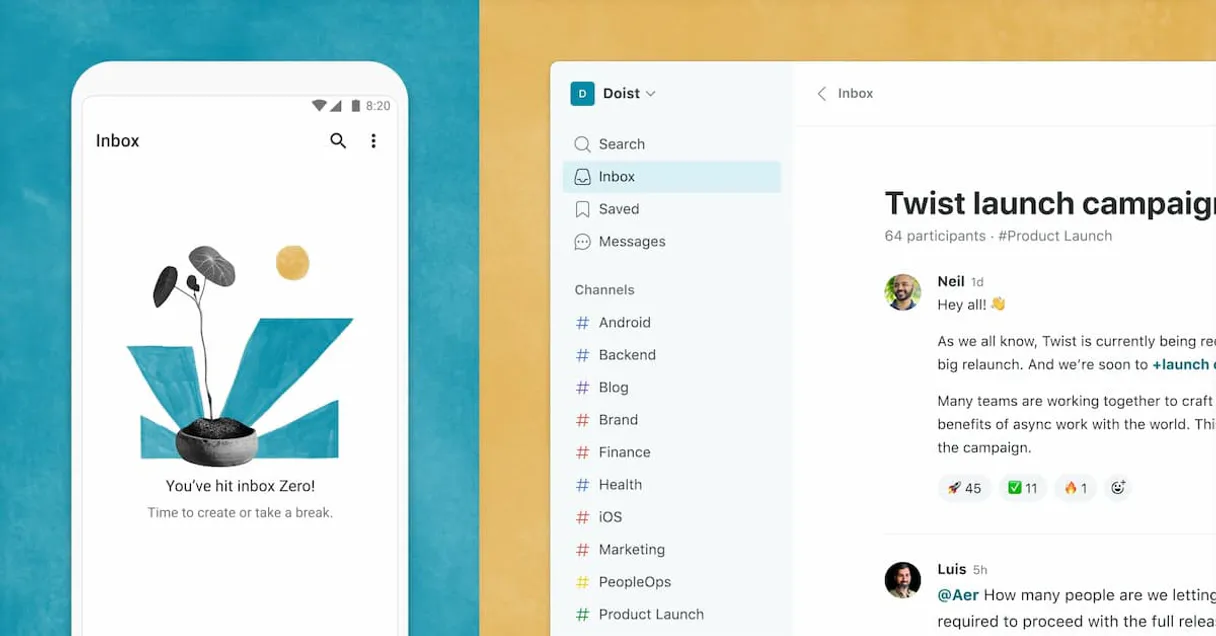
Independent Platform Disclaimer: Vinkius is an independent platform and is not affiliated with, endorsed by, sponsored by, verified by, or otherwise authorized by Twist. All third-party trademarks, logos, and brand names are the property of their respective owners. Their use on this website is strictly for informational purposes to identify service compatibility and interoperability.
VINKIUS INFRASTRUCTURE
Cloud Hosted
Managed infra
V8 Isolated
Sandboxed per request
Zero-Trust Proxy
No stored credentials
DLP Enforced
Policy on every call
GDPR Compliant
EU data residency
Token Compression
~60% cost reduction
Works with Claude, ChatGPT, Cursor, and more
The Model Context Protocol standardizes how applications expose capabilities to LLMs. Instead of operating in isolation, your AI gains direct access to external platforms, live data, and real-world actions through secure, standardized connections.
This server provides 10 capabilities that interface natively with Claude, ChatGPT, Cursor, and any MCP client. No middleware. No custom integration required.
Available Capabilities
Sifting through thousands of messages shouldn't take half an hour.
Right now, finding a single decision point means opening the main chat app. You check the general channel feed, scroll past announcements and unrelated side chatter, hunt down the right thread ID, and then manually read through dozens of replies to figure out what was actually agreed upon.
With this MCP server, you just ask your agent: 'What did we decide on the budget last week?' The agent runs `list_threads` and pulls only the necessary discussion into a clean summary. You get the answer instantly.
Twist MCP Server makes managing conversation history simple.
Previously, if you wanted to correct an error in a direct message or make a topic clearer, you were stuck. You had to manually re-write the entire thread or email it separately, losing the context of the original conversation flow and making everyone confused about what changed.
Now, use `update_direct_message` to fix typos right where they were sent, or run `update_thread` to rename a confusing topic. The conversation history stays accurate, but the information is always current.
Common Questions About Twist MCP
How do I find out what departments my company has using Twist MCP Server? +
Run list_workspaces. This tool identifies all top-level organizational Workspaces and gives you a map of your overall team structure.
Can I read old private chats with list_direct_messages? +
Yes. You run list_direct_messages by providing the conversation ID, and it pulls all messages from that specific one-on-one chat history.
How do I start a formal announcement thread in Twist MCP Server? +
Use create_thread. You provide the target channel ID, a title, and the initial content. This ensures your announcement is structured for easy tracking.
What if I need to change the topic name of an old thread? Do I use update_thread? +
Yes, that's what update_thread does. You simply provide the existing thread ID and the new title or content you want to push out.
What steps do I take to authenticate my agent and use tools like create_comment? +
You must subscribe to the server and provide your Twist API Token via the Developer Portal. This token authorizes all actions, letting your AI client access data securely.
How do I use list_workspace_users if I need a roster of everyone in my department? +
The tool provides a complete list of all active member accounts within the specified workspace. You get user IDs and names, letting you build out communication groups.
If I want to start an announcement thread but need background context, should I use list_threads first? +
Yes. Before calling create_thread, run list_threads with the channel ID. This shows all existing discussions and helps you frame your new topic accurately.
I sent a wrong message in DMs; how do I use update_direct_message to fix it? +
You need the specific message ID for that chat. Pass this ID along with the corrected text, and the tool overwrites the old content instantly.
Can my AI automatically create a new thread with bug report details in the #dev channel? +
Yes. Once you invoke the agent to query the channel ID for '#dev', it can execute the thread creation workflow and post an entire Markdown-formatted issue payload perfectly directly to the interface.
Is it possible to correct a message typo via the agent? +
Yes! Twist is unique in allowing asynchronous editing. By providing your exact Message ID, the AI agent can overwrite and patch up your old text block retaining timeline flow naturally.
Can the agent fetch recent threaded responses to summarize an ongoing project decision? +
Absolutely. It pulls in heavy threads natively. Give the agent a thread ID and request a summarization—it will digest long chains of conversation and outline the top project consensus within seconds avoiding you long reading phases.
Use it with your favorite AI tools
Connect this server to Cursor, Claude, VS Code, and more.
More in this category

Pumble
Bring your AI agent into your Pumble workspace — read channel history, post messages, create channels, and manage team communication seamlessly.

Asana
Automate project management via Asana — list workspaces, query projects, and inspect tasks and sections directly from any AI agent.

Mattermost (Secure Team Collaboration)
Manage team collaboration via Mattermost — send messages, search channels, and audit team activities.
You might also like

Printful
Access Printful's product catalog — list products, inspect variants, and retrieve detailed size guides directly from any AI agent.
Quantive (Gtmhub)
Automate OKR strategy via Quantive — manage objectives, key results, and sessions directly from any AI agent.

WorkWave
Manage service orders, customer accounts, and field technicians on WorkWave — the field service management platform.