
LiveKit MCP Server for ClineGive Cline instant access to 41 tools to Create Dispatch, Create Ingress, Create Room, and more
 GDPR Free for Subscribers
Cline is an autonomous AI coding agent inside VS Code that plans, executes, and iterates on tasks. Wire LiveKit through Vinkius and Cline gains direct access to every tool. from data retrieval to workflow automation. without leaving the terminal.
Ask AI about this MCP Server for Cline
The LiveKit MCP Server for Cline is a standout in the Communication Messaging category — giving your AI agent 41 tools to work with, ready to go from day one.
Vinkius delivers Streamable HTTP and SSE to any MCP client
 Gemini
{
"mcpServers": {
"livekit": {
"url": "https://edge.vinkius.com/[YOUR_TOKEN_HERE]/mcp"
}
}
}Vinkius Desktop App
The modern way to manage MCP Servers — no config files, no terminal commands. Install LiveKit and 4,000+ MCP Servers from a single visual interface.
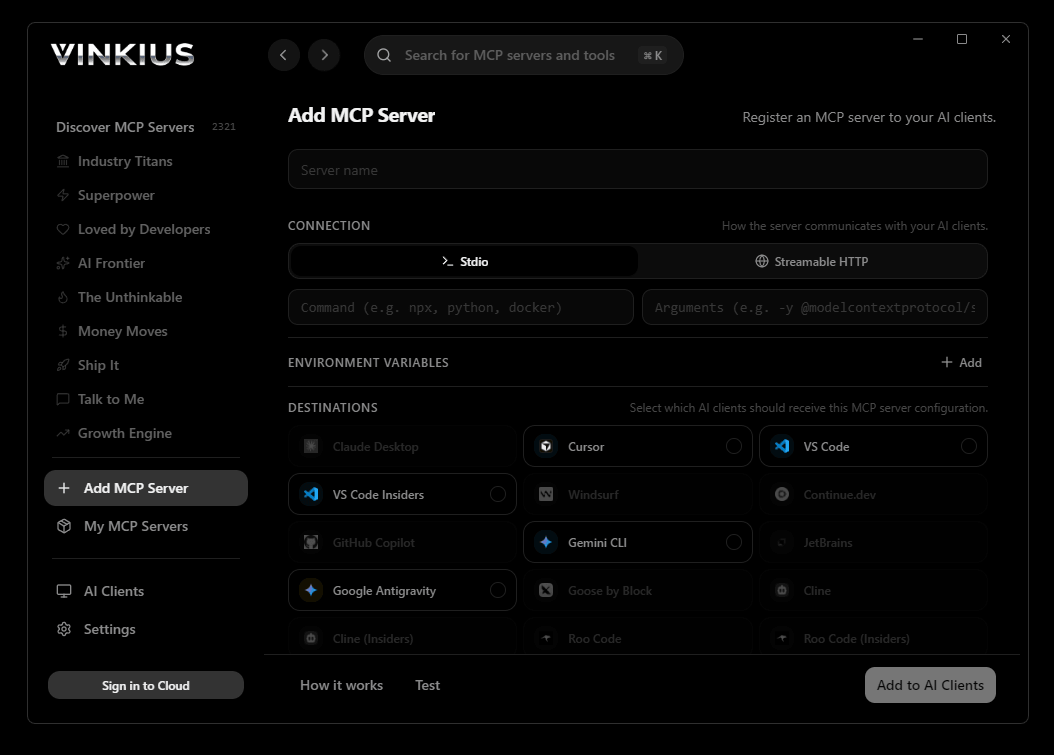

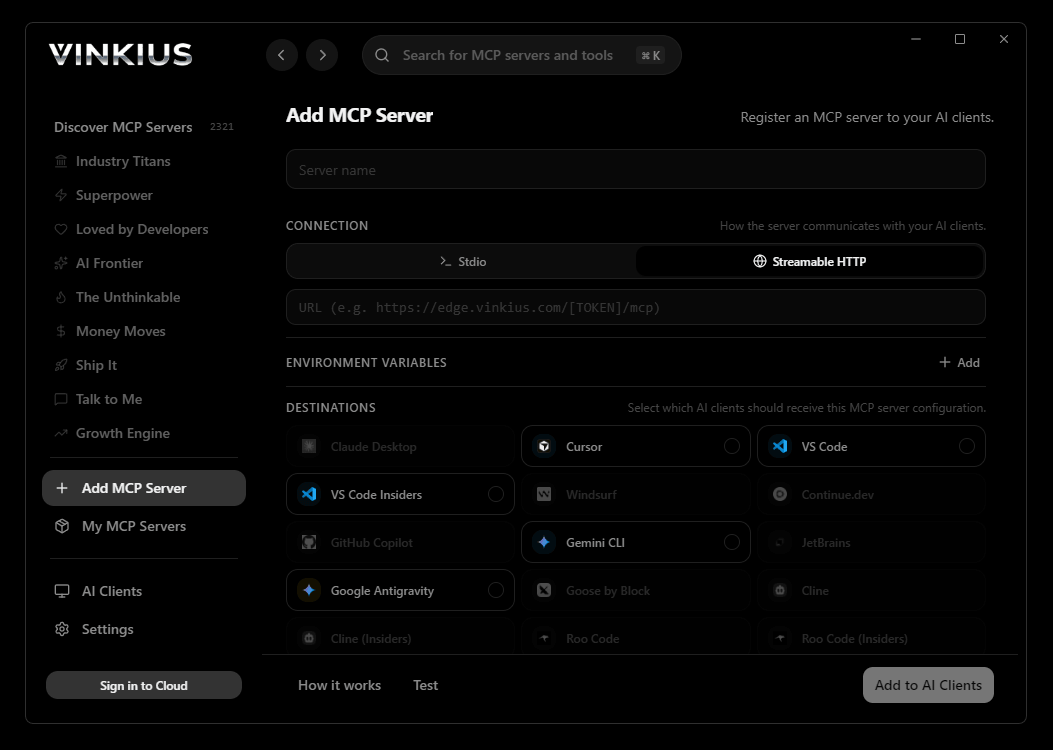
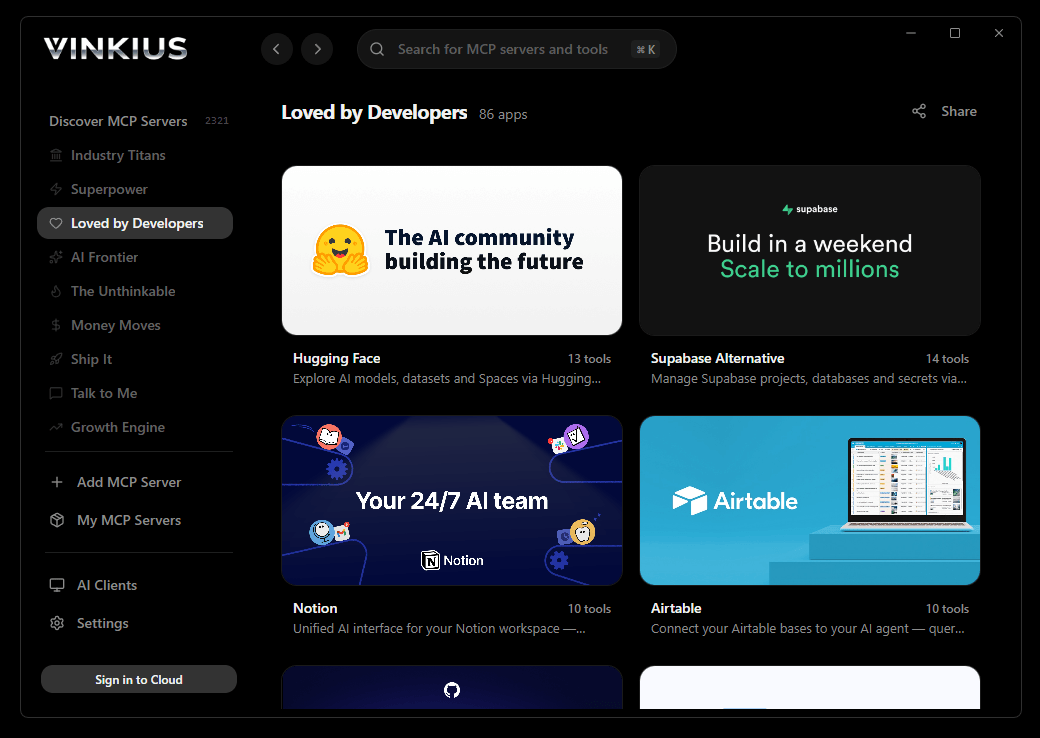

* Every MCP server runs on Vinkius-managed infrastructure inside AWS - a purpose-built runtime with per-request V8 isolates, Ed25519 signed audit chains, and sub-40ms cold starts optimized for native MCP execution. See our infrastructure
About LiveKit MCP Server
Connect your LiveKit infrastructure to any AI agent to orchestrate real-time communication environments through natural language. This server provides comprehensive control over WebRTC sessions, participant permissions, and media recording.
Cline operates autonomously inside VS Code. it reads your codebase, plans a strategy, and executes multi-step tasks including LiveKit tool calls without waiting for prompts between steps. Connect 41 tools through Vinkius and Cline can fetch data, generate code, and commit changes in a single autonomous run.
What you can do
- Room Lifecycle — Create, list, and delete rooms with custom timeouts, participant limits, and metadata.
- Participant Control — List active participants, retrieve detailed info, or remove users from a session.
- Media Management — Remotely mute or unmute specific tracks (audio/video) for any participant.
- Real-time Data — Send data packets (Base64 encoded) to specific participants or entire rooms for custom signaling.
- Recording & Egress — Start room-wide recordings using web layouts or record specific web pages via the Egress API.
- Metadata & Permissions — Update room-wide metadata or modify individual participant permissions and subscriptions on the fly.
The LiveKit MCP Server exposes 41 tools through the Vinkius. Connect it to Cline in under two minutes — credentials fully managed, no infrastructure to provision, no vendor lock-in. Your configuration, your data, your control.
All 41 LiveKit tools available for Cline
When Cline connects to LiveKit through Vinkius, your AI agent gets direct access to every tool listed below — spanning webrtc, real-time-audio, real-time-video, and more. Every call runs in a secure, isolated environment with full audit visibility. Beyond a simple connection, you get real-time monitoring of agent activity, enterprise governance, and optimized token usage.
Create dispatch on LiveKit
Explicitly trigger a named agent to join a specific room
Create ingress on LiveKit
Provision an ingress point (RTMP, WHIP, or URL pull)
Create room on LiveKit
Create a room with specific settings
Create sip dispatch rule on LiveKit
Map incoming calls to specific rooms based on phone numbers or pins
Create sip inbound trunk on LiveKit
Define how incoming SIP calls are handled
Create sip outbound trunk on LiveKit
Define a trunk for dialing out
Create sip participant on LiveKit
Dial a SIP number and bring them into a LiveKit room
Delete dispatch on LiveKit
Remove a dispatch rule
Delete ingress on LiveKit
Remove an ingress point
Delete room on LiveKit
Forcibly disconnect all participants and delete the room
Delete sip dispatch rule on LiveKit
Remove a SIP dispatch rule
Delete sip trunk on LiveKit
Remove a SIP trunk configuration
Get participant on LiveKit
Get info for a specific participant
List dispatch on LiveKit
List dispatches for a room
List egress on LiveKit
List active egress jobs
List ingress on LiveKit
List provisioned ingresses
List participants on LiveKit
List participants in a room
List phone numbers on LiveKit
List numbers owned by the project
List rooms on LiveKit
List active/open rooms
List sip inbound trunk on LiveKit
List configured SIP inbound trunks
List sip outbound trunk on LiveKit
List configured SIP outbound trunks
Mute published track on LiveKit
Mute/unmute a participant's track
Purchase phone number on LiveKit
Buy a number and optionally assign a SIP dispatch rule
Release phone numbers on LiveKit
Release a number back to the inventory
Remove participant on LiveKit
Kick a participant from a room
Search phone numbers on LiveKit
Search for available numbers by country/area code
Send data on LiveKit
Send data packets to participants
Start participant egress on LiveKit
Record a specific participant's audio and video
Start room composite egress on LiveKit
Record an entire room using a web layout
Start track composite egress on LiveKit
Record one audio and one video track together
Start track egress on LiveKit
Export a single track without transcoding
Start web egress on LiveKit
Record any web page
Stop egress on LiveKit
Stop an active egress
Transfer sip participant on LiveKit
Transfer an active SIP call to another number or URI
Update ingress on LiveKit
Update room or participant settings for a reusable ingress
Update layout on LiveKit
Change the web layout of an active RoomComposite egress
Update participant on LiveKit
Update metadata or permissions for a participant
Update phone number on LiveKit
Change the dispatch rule for a number
Update room metadata on LiveKit
Update room-wide metadata
Update stream on LiveKit
Add/remove RTMP/SRT output URLs from an active stream
Update subscriptions on LiveKit
Subscribe/unsubscribe a participant from specific tracks
Connect LiveKit to Cline via MCP
Follow these steps to wire LiveKit into Cline. The entire setup takes under two minutes — your credentials stay safe behind Vinkius.
Open Cline MCP Settings
Add remote server
Enable the server
Start using LiveKit
Why Use Cline with the LiveKit MCP Server
Cline provides unique advantages when paired with LiveKit through the Model Context Protocol.
Cline operates autonomously. it reads your codebase, plans a strategy, and executes multi-step tasks including MCP tool calls without step-by-step prompts
Runs inside VS Code, so you get MCP tool access alongside your existing extensions, terminal, and version control in a single window
Cline can create, edit, and delete files based on MCP tool responses, enabling end-to-end automation from data retrieval to code generation
Transparent execution: every tool call and file change is shown in Cline's activity log for full visibility and approval before committing
LiveKit + Cline Use Cases
Practical scenarios where Cline combined with the LiveKit MCP Server delivers measurable value.
Autonomous feature building: tell Cline to fetch data from LiveKit and scaffold a complete module with types, handlers, and tests
Codebase refactoring: use LiveKit tools to validate live data while Cline restructures your code to match updated schemas
Automated testing: Cline fetches real responses from LiveKit and generates snapshot tests or mocks based on actual payloads
Incident response: query LiveKit for real-time status and let Cline generate hotfix patches based on the findings
Example Prompts for LiveKit in Cline
Ready-to-use prompts you can give your Cline agent to start working with LiveKit immediately.
"List all currently active rooms in my LiveKit instance."
"Create a new room called 'Strategy-Meeting' with a max of 10 participants."
"Mute the audio track for participant 'user_99' in the 'Main-Lobby' room."
Troubleshooting LiveKit MCP Server with Cline
Common issues when connecting LiveKit to Cline through Vinkius, and how to resolve them.
Server shows error in sidebar
LiveKit + Cline FAQ
Common questions about integrating LiveKit MCP Server with Cline.
How does Cline connect to MCP servers?
Can Cline run MCP tools without approval?
Does Cline support multiple MCP servers at once?
Explore More MCP Servers
View all →
Random Facts API
2 toolsAccess thousands of interesting facts — audit random data via AI.

Tingyun / 听云
10 toolsLeading APM and observability platform — manage applications, alerts, and performance metrics via AI.
X (Twitter)
3 toolsAutomate social intelligence workflows via X (Twitter) — search recent tweets, retrieve user profiles, and analyze tweet engagement directly from any AI agent.

Microsoft Dynamics 365
10 toolsManage accounts, opportunities, orders, and business processes on Microsoft Dynamics 365 — the unified CRM & ERP platform.