
CMS.gov Data MCP Server for CursorGive Cursor instant access to 8 tools to Get Dataset Metadata, Get Doctor By Npi, Get Hospital Ratings, and more
 GDPR Free for Subscribers
Cursor is an AI-first code editor built on VS Code that integrates LLM-powered coding assistance directly into the development workflow. Its Agent mode enables autonomous multi-step coding tasks, and MCP support lets agents access external data sources and APIs during code generation.
Ask AI about this MCP Server for Cursor
The CMS.gov Data MCP Server for Cursor is a standout in the Brain Trust category — giving your AI agent 8 tools to work with, ready to go from day one.
Vinkius delivers Streamable HTTP and SSE to any MCP client
 Gemini
{
"mcpServers": {
"cmsgov-data": {
"url": "https://edge.vinkius.com/[YOUR_TOKEN_HERE]/mcp"
}
}
}Vinkius Desktop App
The modern way to manage MCP Servers — no config files, no terminal commands. Install CMS.gov Data and 4,000+ MCP Servers from a single visual interface.
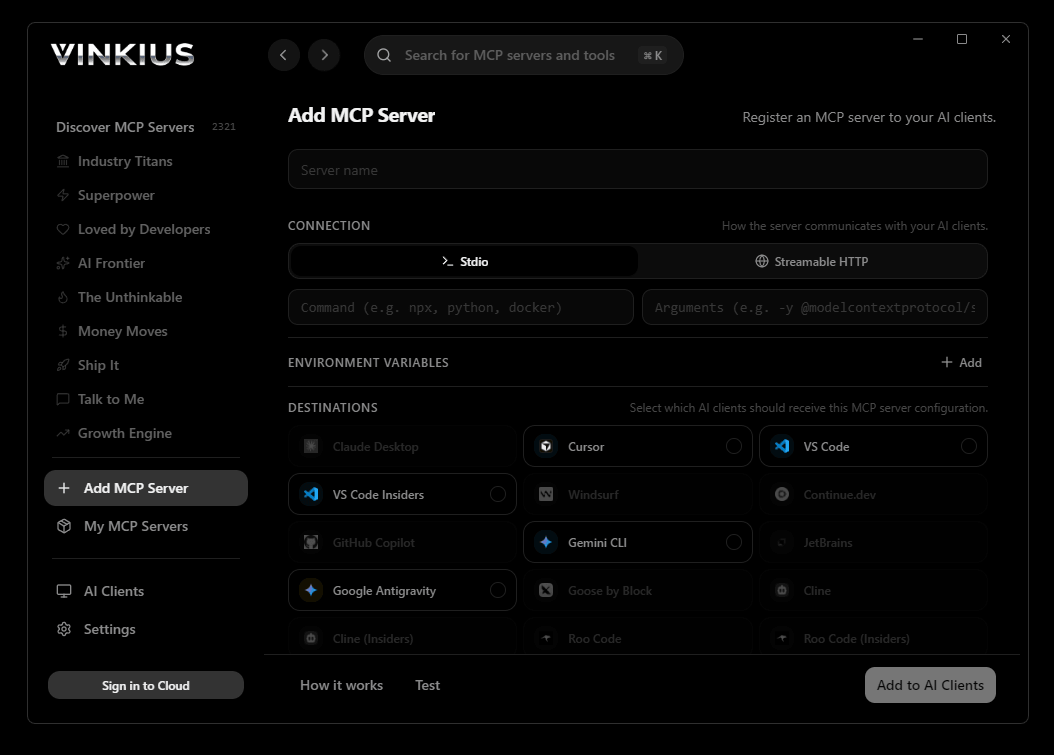

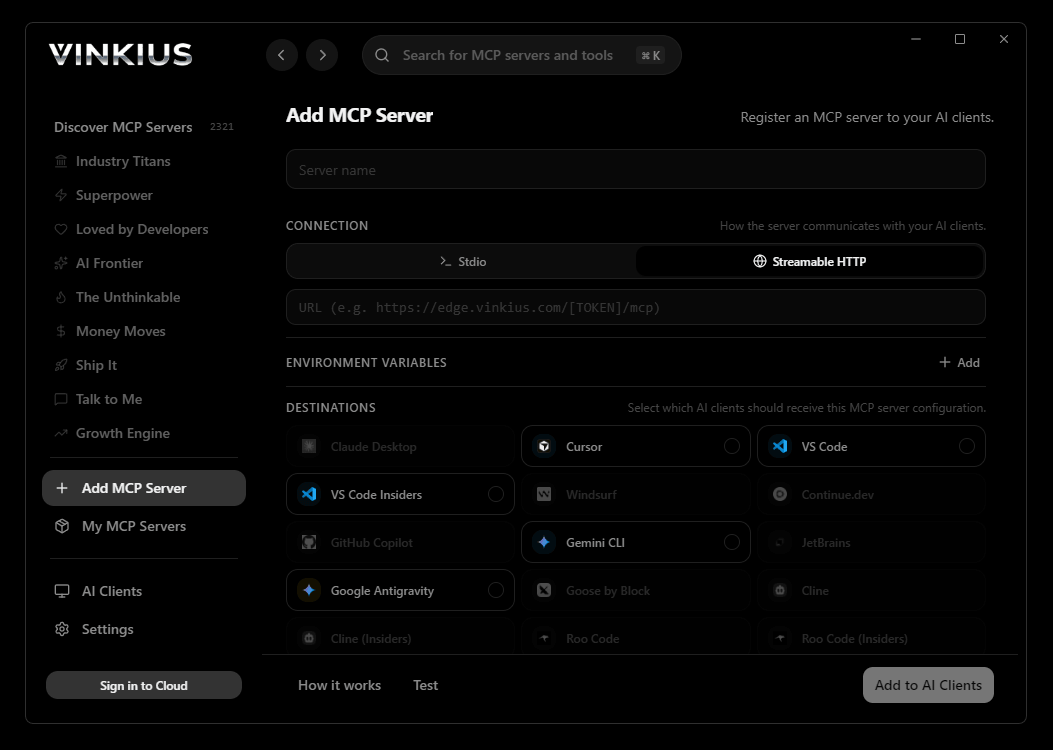
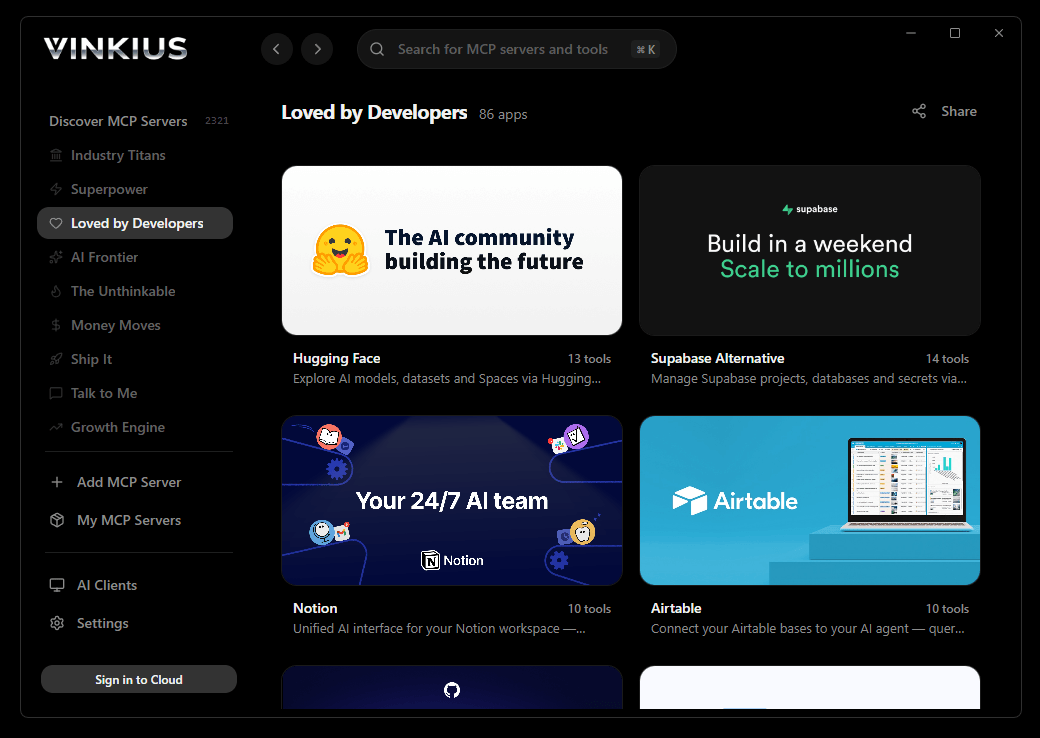

* Every MCP server runs on Vinkius-managed infrastructure inside AWS - a purpose-built runtime with per-request V8 isolates, Ed25519 signed audit chains, and sub-40ms cold starts optimized for native MCP execution. See our infrastructure
About CMS.gov Data MCP Server
Connect to the Centers for Medicare & Medicaid Services (CMS) open data platform and query the US government's most comprehensive healthcare database.
Cursor's Agent mode turns CMS.gov Data into an in-editor superpower. Ask Cursor to generate code using live data from CMS.gov Data and it fetches, processes, and writes. all in a single agentic loop. 8 tools appear alongside file editing and terminal access, creating a unified development environment grounded in real-time information.
What you can do
- Provider Search — Search 2.4 million+ Medicare-enrolled doctors and clinicians by name, specialty, or location, with NPI numbers and practice addresses
- Hospital Intelligence — Query hospital quality star ratings (1-5), types (Acute Care, Critical Access), and emergency services availability across all 50 states
- Nursing Home Lookup — Search skilled nursing facilities and long-term care homes with quality ratings and provider details
- Open Data Catalog — Browse and retrieve metadata from hundreds of CMS open datasets covering Medicare utilization, prescription drugs, and healthcare spending
The CMS.gov Data MCP Server exposes 8 tools through the Vinkius. Connect it to Cursor in under two minutes — credentials fully managed, no infrastructure to provision, no vendor lock-in. Your configuration, your data, your control.
All 8 CMS.gov Data tools available for Cursor
When Cursor connects to CMS.gov Data through Vinkius, your AI agent gets direct access to every tool listed below — spanning public-health, medicaid, provider-data, and more. Every call runs in a secure, isolated environment with full audit visibility. Beyond a simple connection, you get real-time monitoring of agent activity, enterprise governance, and optimized token usage.
Get dataset metadata on CMS.gov Data
Returns the dataset title, full description, publication date, last modification date, and publisher information. Use the dataset ID obtained from list_datasets. Get detailed metadata for a specific CMS dataset
Get doctor by npi on CMS.gov Data
Returns the provider's full name, primary and secondary specialties, practice address, city, state, ZIP code, and Medicare enrollment status. NPI is a unique 10-digit number (e.g. "1234567890"). Get detailed provider information by NPI number
Get hospital ratings on CMS.gov Data
Filter by US state code (e.g. "CA", "NY", "TX") to see hospitals in that state. Returns overall ratings (1-5 stars), hospital type, and emergency services. Without a state filter, returns top-rated hospitals nationwide. Get hospital quality ratings, optionally by state
List datasets on CMS.gov Data
gov. Returns dataset identifiers, titles, descriptions, publication dates, and last-modified timestamps. The CMS data catalog includes datasets on Medicare utilization, hospital quality measures, provider enrollment, prescription drugs, and more. List available CMS open data datasets
Search doctors on CMS.gov Data
Accepts names, specialties, cities, or states. Returns NPI numbers, full names, primary specialty, practice addresses, and Medicare enrollment IDs. The database covers 2.4 million+ active providers across the United States. Search for doctors and clinicians enrolled in Medicare
Search hospitals on CMS.gov Data
Accepts hospital names, cities, or states. Returns provider IDs, hospital names, types (Acute Care, Critical Access, etc.), overall quality ratings (1-5 stars), locations, and emergency services availability. Search for hospitals by name or location
Search nursing homes on CMS.gov Data
Returns facility names, provider IDs, locations, and overall quality ratings. Useful for finding elder care facilities in a specific area. Search nursing homes and long-term care facilities
Search providers by specialty on CMS.gov Data
Examples: "Cardiology", "Internal Medicine", "Orthopedic Surgery", "Family Practice", "Dermatology", "Psychiatry". Returns matching providers with their NPI, name, practice location, and enrollment details. Search for healthcare providers by medical specialty
Connect CMS.gov Data to Cursor via MCP
Follow these steps to wire CMS.gov Data into Cursor. The entire setup takes under two minutes — your credentials stay safe behind Vinkius.
Open MCP Settings
Cmd+Shift+P (macOS) or Ctrl+Shift+P (Windows/Linux) → search "MCP Settings"Add the server config
mcp.json file that opensSave the file
Start using CMS.gov Data
Why Use Cursor with the CMS.gov Data MCP Server
Cursor AI Code Editor provides unique advantages when paired with CMS.gov Data through the Model Context Protocol.
Agent mode turns Cursor into an autonomous coding assistant that can read files, run commands, and call MCP tools without switching context
Cursor's Composer feature can generate entire files using real-time data fetched through MCP. no copy-pasting from external dashboards
MCP tools appear alongside built-in tools like file reading and terminal access, creating a unified agentic environment
VS Code extension compatibility means your existing workflow, keybindings, and extensions all work alongside MCP tools
CMS.gov Data + Cursor Use Cases
Practical scenarios where Cursor combined with the CMS.gov Data MCP Server delivers measurable value.
Code generation with live data: ask Cursor to generate a security report module using live DNS and subdomain data fetched through MCP
Automated documentation: have Cursor query your API's tool schemas and generate TypeScript interfaces or OpenAPI specs automatically
Infrastructure-as-code: Cursor can fetch domain configurations and generate corresponding Terraform or CloudFormation templates
Test scaffolding: ask Cursor to pull real API responses via MCP and generate unit test fixtures from actual data
Example Prompts for CMS.gov Data in Cursor
Ready-to-use prompts you can give your Cursor agent to start working with CMS.gov Data immediately.
"Search for cardiologists in New York using CMS.gov data."
"List top-rated hospitals in California according to CMS data."
"Get details for the provider with NPI 1234567890 from CMS."
Troubleshooting CMS.gov Data MCP Server with Cursor
Common issues when connecting CMS.gov Data to Cursor through Vinkius, and how to resolve them.
Tools not appearing in Cursor
Server shows as disconnected
CMS.gov Data + Cursor FAQ
Common questions about integrating CMS.gov Data MCP Server with Cursor.
What is Agent mode and why does it matter for MCP?
Where does Cursor store MCP configuration?
mcp.json file. You can configure servers at the project level (.cursor/mcp.json in your project root) or globally (~/.cursor/mcp.json). Project-level configs take precedence.Can Cursor use MCP tools in inline edits?
How do I verify MCP tools are loaded?
Explore More MCP Servers
View all →
Collect
10 toolsEnable your AI agent to manage data collection campaigns, send requests, and track submissions via the Collect API.

BoardEffect
10 toolsManage board activities via BoardEffect — list meetings, members, and documents directly from any AI agent.

AppsFlyer (Pull API)
7 toolsRetrieve raw and aggregate attribution data from AppsFlyer — track installs, events, and performance via AI.
Mailgun (Transactional Email & Domains)
10 toolsManage email infrastructure via Mailgun — send transactional emails, monitor domain health, and audit delivery logs.