
Bring 3d Generation
to Claude Desktop
Create your Vinkius account to connect 3D AI Studio to Claude Desktop and start using all 12 AI tools in minutes. Fully managed, enterprise secure, and ready to use without writing a single line of code. No hosting, no server setup — just connect and start using.
 GDPR Free for Subscribers
Compatible with every major AI agent and IDE
 Gemini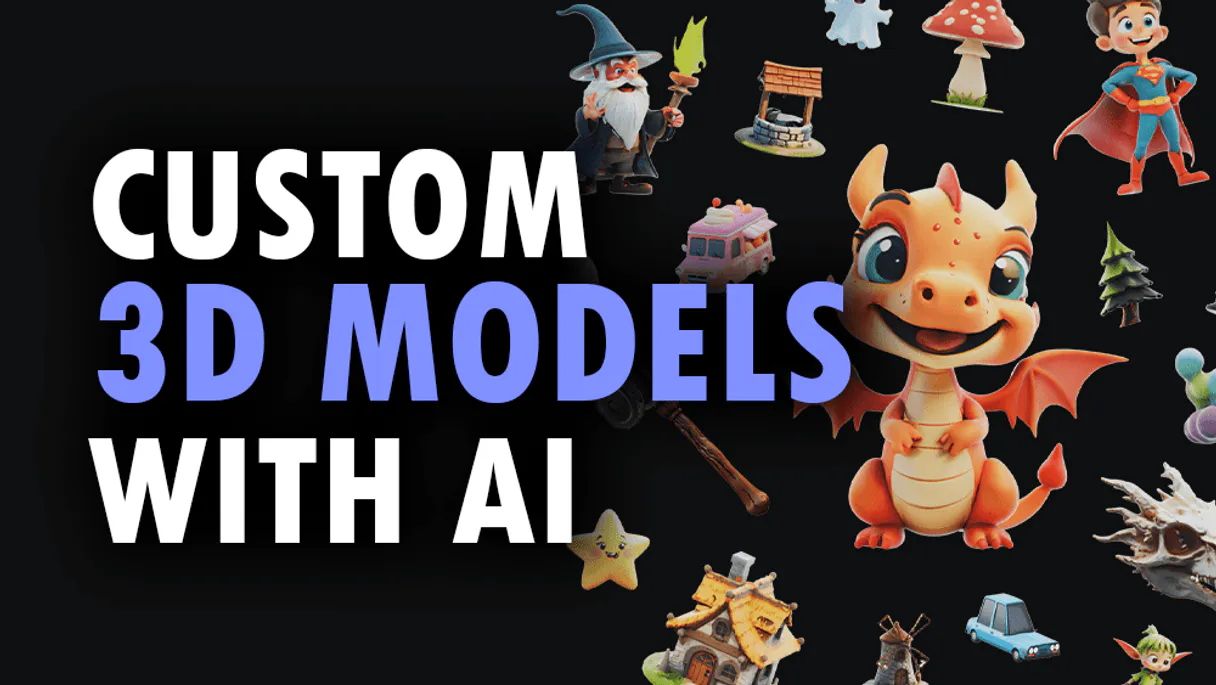
What is the 3D AI Studio MCP Server?
Connect your 3D AI Studio API to any AI agent and take full control of production-quality 3D generation, AI texturing, mesh processing, and rendering through natural conversation.
What you can do
- Text to 3D — Generate 3D models from text prompts using Hunyuan 3D, TRELLIS.2, and Tripo models
- Image to 3D — Convert any image to a 3D model with multiple AI model options
- Multi-View to 3D — Generate accurate 3D models from multiple reference images
- AI Texturing — Apply AI-powered PBR texturing to existing models using text or image prompts
- Remeshing — Optimize topology with tri or quad mesh remeshing
- Mesh Repair — Fix non-manifold geometry, holes, and inverted normals
- Format Conversion — Convert between GLB, OBJ, FBX, STL, PLY, USDZ, and 3MF formats
- Model Optimization — Reduce polygon count and compress for web and mobile
- 3D Rendering — Generate high-quality images and turntable videos up to 4K
- Mesh Segmentation — Automatically segment 3D mesh parts by semantic components
- Texture Baking — Bake high-poly details onto low-poly game-ready meshes
- Volume Calculator — Calculate volume, surface area, and weight estimates for 3D printing
How it works
- Subscribe to this server
- Enter your 3D AI Studio API key (from the platform dashboard)
- Start generating and processing 3D models from Claude, Cursor, or any MCP-compatible client
No more manual 3D modeling or expensive artist time. Your AI acts as a dedicated 3D generation and processing assistant.
Who is this for?
- Game Developers — generate game-ready assets with AI texturing and optimized meshes
- E-commerce Teams — create 3D product visualizations and marketing renders
- 3D Printers — repair meshes, calculate volumes, and convert to print-ready formats
- Content Creators — generate 3D assets and renders for videos and social media
Built-in capabilities (12)
Supports baking normal maps, ambient occlusion, curvature, and other detail maps. Essential for game asset pipelines where high-detail sculpted models need to be baked onto game-ready low-poly meshes. Returns optimized models with baked texture maps. AI agents should use this when users ask "bake normal maps from high-poly to low-poly", "bake ambient occlusion for this model", or need texture baking for game asset preparation. Bake texture maps onto 3D models for optimized rendering
Supports unit specification (mm, cm, inches, meters) and material density for weight estimation. Essential for 3D printing cost estimation, material requirements planning, shipping calculations, and physical property analysis of 3D models. Returns detailed measurement data. AI agents should reference this when users ask "calculate the volume of this 3D model", "estimate weight for PLA printing", or need physical measurements for manufacturing or cost planning. Calculate volume and physical measurements of 3D models
Preserves geometry, textures, materials, and rigging data during conversion. Essential for pipeline integration, platform compatibility, and format standardization. AI agents should use this when users ask "convert this GLB model to FBX", "change this 3D file to STL for 3D printing", or need 3D format conversion for specific platform or software requirements. Convert 3D models between different file formats
Can repaint or restyle existing 3D models with new materials, colors, and surface details. Generates complete PBR texture sets (albedo, normal, metallic, roughness) from descriptions like "rusty metal", "polished wood", or "cartoon stone". Essential for material iteration, style transfers on 3D assets, and adding surface details to generated models. AI agents should reference this when users ask "add rusty metal texture to this model", "restyle this character with cartoon textures", or need AI-powered material generation on existing 3D meshes. Apply AI-powered PBR texturing to existing 3D models using text or image prompts
2-4B, and Tripo variants. Accepts product photos, concept art, sketches, or any reference image and generates a corresponding 3D model with PBR textures. Supports style modifiers, face limits, density presets, and orientation control. Returns 3D model files in multiple formats. Essential for e-commerce product visualization, concept art to 3D conversion, and general image-to-3D workflows. AI agents should reference this when users ask "convert this product photo to 3D", "turn this sketch into a 3D model", or need reliable general-purpose image-to-3D conversion. Convert images to 3D models using AI-powered image-to-3D pipeline
Users provide 2 or more images from different angles and the AI constructs a more accurate 3D representation. Essential for product visualization requiring precise geometry, architectural elements, and objects that need to match reference from multiple viewpoints. Supports all available models and output formats. AI agents should use this when users ask "create a 3D model from these multiple product photos", "generate accurate 3D from front and side views", or need multi-view 3D reconstruction. Generate 3D models from multiple reference images for higher accuracy
2-4B, and Tripo (v3.0, v3.1, P1). Users describe the desired 3D object in natural language and receive a generated model with optional style control, face limits, and density presets (high/medium/low). Returns 3D model files in GLB format by default with PBR textures. Supports output formats GLB, OBJ, FBX, STL, PLY, USDZ, and 3MF. Essential for concept exploration, rapid prototyping from descriptions, and applications where users describe rather than show what they want. AI agents should use this when users ask "create a 3D model of a fantasy sword", "generate a 3D tree from text", or need text-driven 3D generation. Generate 3D models directly from text descriptions
Accepts existing 3D model URLs and returns optimized versions with controlled quality settings. Essential for web-based 3D applications, mobile optimization, file size reduction, and performance-critical 3D rendering. AI agents should reference this when users ask "optimize this 3D model for web", "reduce polygon count of this model", or need mesh optimization for performance or file size constraints. Optimize 3D models for performance and file size reduction
Accepts existing 3D model URLs and returns remeshed versions with controlled face counts and topology type (tri or quad). Essential for game asset preparation, animation-ready meshes, and applications requiring clean topology. AI agents should use this when users ask "remesh this model with clean quads", "optimize topology for animation", or need topology conversion on existing 3D assets. Remesh 3D models with optimized tri or quad topology
Supports turntable animations, hero shots, and product visualization renders. Outputs images up to 4K resolution in PNG or JPG format. Essential for product showcases, portfolio presentations, marketing materials, and social media content from 3D assets. AI agents should use this when users ask "render this model from multiple angles", "create a turntable video of this 3D model", or need marketing-quality renders from 3D files. Generate rendered images or videos from 3D models
Accepts existing 3D model URLs and returns repaired, watertight meshes suitable for 3D printing, game engines, and further processing. Essential for 3D printing preparation, fixing generated model artifacts, and ensuring mesh integrity. AI agents should reference this when users ask "fix this mesh for 3D printing", "repair non-manifold geometry", or need mesh cleanup before further processing. Repair 3D mesh issues including non-manifold geometry, holes, and inverted normals
g., head, body, arms, legs for characters; wheels, body, windows for vehicles). Essential for rigging preparation, material assignment per part, and game engine component workflows. Returns segmented mesh with labeled parts. AI agents should reference this when users ask "segment this character mesh into body parts", "identify components of this vehicle model", or need automatic mesh part identification for further processing. Apply semantic segmentation to 3D mesh parts
Why Claude Desktop?
Claude Desktop is the definitive way to connect 3D AI Studio to your AI workflow. Add Vinkius Edge URL to your config, restart the app, and Claude immediately exposes all 12 tools in the chat interface. ask a question, Claude calls the right tool, and you see the answer. Zero code, zero context switching.
- —
Claude Desktop is the reference MCP client. it was designed alongside the protocol itself, ensuring the most complete and stable MCP implementation available
- —
Zero-code configuration: add a server URL to a JSON file and Claude instantly discovers and exposes all available tools in the chat interface
- —
Claude's extended thinking capability lets it reason through multi-step tool usage, chaining multiple API calls to answer complex questions
- —
Enterprise-grade security with local config storage. your tokens never leave your machine, and connections go directly to Vinkius Edge network
3D AI Studio in Claude Desktop
Why run 3D AI Studio with Vinkius?
The 3D AI Studio connection runs on our fully managed, secure cloud infrastructure. We handle the hosting, maintenance, and security so you don't have to deal with servers or code. All 12 tools are ready to work instantly without any complex setup.
You stay in complete control of your data. Your AI only accesses the information you approve, keeping your sensitive passwords and private details completely safe. Plus, with automatic optimizations, your AI works faster and more efficiently.
* Every connection is hosted and maintained by Vinkius. We handle the security, updates, and infrastructure so you don't have to write code or manage servers. See our infrastructure
Over 4,000 integrations ready for AI agents
Explore a vast library of pre-built integrations, optimized and ready to deploy.
Connect securely in under 30 seconds
Generate tokens to authenticate and link external services in a single step.
Complete visibility into every agent action
Audit live requests, latency, success rates, and active security compliance policies.
Optimize spending and track token ROI
Analyze real-time token consumption and cost metrics detailed by connection.




Explore our live AI Agents Analytics dashboard to see it all working
This dashboard is included when you connect 3D AI Studio using Vinkius. You will never be left in the dark about what your AI agents are doing with your tools.
3D AI Studio and 4,000+ other AI tools. No hosting, no code, ready to use.
Professionals who connect 3D AI Studio to Claude Desktop through Vinkius don't need to write code, manage servers, or worry about security. Everything is pre-configured, secure, and runs automatically in the background.
Raw MCP | Vinkius | |
|---|---|---|
| Ready-to-use MCPs | Find and configure each manually | 4,000+ MCPs ready to use |
| Connection Setup | Manual coding & server setup | 1-click instant connection |
| Server Hosting | You host it yourself (needs 24/7 uptime) | 100% hosted & managed by Vinkius |
| Security & Privacy | Stored in plaintext config files | Bank-grade encrypted vault |
| Activity Visibility | Blind execution (no logs or tracking) | Live dashboard with real-time logs |
| Cost Control | Runaway AI token spend risk | Automatic budget limits |
| Revoking Access | Must delete files or code to stop | 1-click disconnect button |
How Vinkius secures
3D AI Studio for Claude Desktop
Every request between Claude Desktop and 3D AI Studio is protected by our secure gateway. We automatically keep your sensitive data private, prevent unauthorized access, and let you disconnect instantly at any time.
Frequently asked questions
Can my AI generate a 3D model from a text description with specific style?
Yes! Use the generate_text_to_3d tool with your text prompt and style parameter. Choose from models like Hunyuan 3D Pro (highest quality), TRELLIS.2-4B (structured topology), or Tripo (fastest generation). Specify style as photorealistic, stylized, anime, cartoon, or lowpoly. Set face limits and density presets. Output in GLB, OBJ, FBX, STL, PLY, USDZ, or 3MF formats.
How do I apply AI texturing to an existing 3D model?
Use the generate_ai_texturing tool with your existing 3D model URL. Provide a text prompt describing the desired material (e.g., rusty metal, polished wood, cartoon stone) or a style image URL for texture transfer. The API generates complete PBR texture sets including albedo, normal, metallic, and roughness maps. You can specify texture resolution from 1024 to 4096 pixels.
Can I repair and prepare a 3D model for 3D printing?
Yes! Use repair_3d_mesh to fix non-manifold geometry, holes, and inverted normals making your model watertight for 3D printing. Then use calculate_volume_3d to get volume, surface area, and weight estimates for your chosen material (PLA, ABS, resin, metal). Finally use convert_3d_format to output in STL or 3MF format which are optimal for 3D printing slicers.
How does Claude Desktop discover MCP tools?
When Claude Desktop starts, it reads the claude_desktop_config.json file and connects to each configured MCP server. It calls the tools/list endpoint to fetch the schema for every available tool, then surfaces them as clickable options in the chat interface via the 🔌 icon.
What happens if the MCP server is temporarily unavailable?
Claude Desktop handles disconnections gracefully. if the server is unreachable at startup, the tools simply won't appear. Once the server becomes available again, restarting Claude Desktop will re-establish the connection. There is no timeout penalty or error loop.
Can I connect multiple MCP servers simultaneously?
Yes. You can add as many servers as you need in the mcpServers section of the config file. Each server appears as a separate tool provider, and Claude can use tools from multiple servers in a single conversation turn.
Is there a limit on the number of tools per server?
Claude Desktop can handle hundreds of tools per server. However, for optimal LLM performance, Vinkius servers are designed to expose focused, well-documented tool sets rather than overwhelming the model with too many options.
Does Claude Desktop support Streamable HTTP transport?
Yes. Claude Desktop supports both SSE (Server-Sent Events) and the newer Streamable HTTP transport that Vinkius uses. Simply provide the server URL. Claude auto-negotiates the transport protocol.
Server not appearing after restart
Ensure the JSON is valid (no trailing commas). Check the file path: ~/Library/Application Support/Claude/claude_desktop_config.json (macOS) or %APPDATA%\\Claude\\ (Windows).
Authentication error
Verify your Vinkius token is correct. Go to cloud.vinkius.com to regenerate it if needed.
Tools not showing in chat
Click the 🔌 icon at the bottom of the chat input. If it shows 0 tools, the server may still be connecting. wait a few seconds.
Explore More MCP Servers
View all →
Exa
3 toolsSemantic search engine built for AI — find conceptually relevant web content, not just keyword matches. Powered by neural search technology.
Open Library
10 toolsManage your book discovery — audit library records, authors, and subjects via AI.

ChannelApe
8 toolsManage inventory and order automation via ChannelApe — track stock, fulfill orders, and monitor suppliers directly from any AI agent.

BCB Full — Inteligência Financeira Completa do Brasil
21 toolsThe definitive Brazil Central Bank Mega-Server: 22 tools spanning PTAX dollar quotes, 150+ currencies, Selic rates, CDI, IPCA/IGP-M inflation, Focus Survey expectations, GDP, debt, PIX, and universal access to 20,000+ SGS statistical time series.