
Bring Contact Management
to Claude Desktop
Create your Vinkius account to connect Pipedrive Contacts to Claude Desktop and start using all 11 AI tools in minutes. Fully managed, enterprise secure, and ready to use without writing a single line of code. No hosting, no server setup — just connect and start using.
 GDPR Free for Subscribers
Compatible with every major AI agent and IDE
 Gemini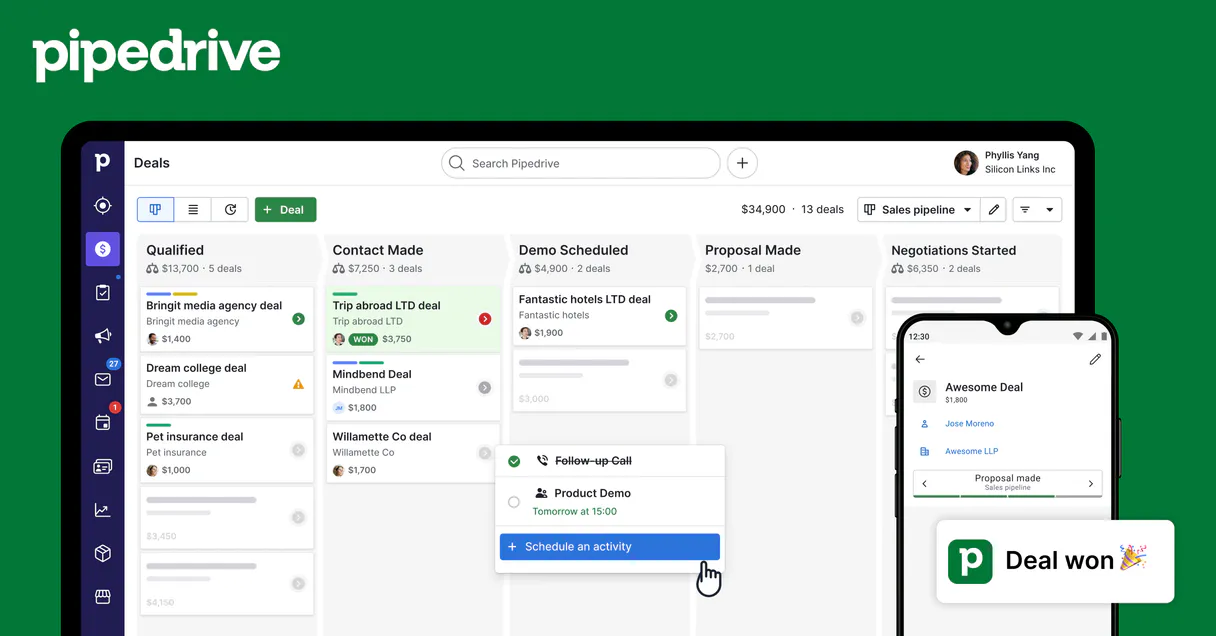
What is the Pipedrive Contacts MCP Server?
Connect Pipedrive CRM to any AI agent — manage your entire sales pipeline without switching tabs.
What you can do
- Deals — Search, create, and update deals with pipeline tracking
- Contacts — Find and create persons with email, phone, and organization
- Organizations — Search companies linked to deals and contacts
- Activities — Create calls, meetings, tasks, and emails
- Notes — Attach notes to deals, persons, or organizations
- Pipelines — View all pipeline stages and deal flow
Who is this for?
- Sales Reps — Manage your pipeline without leaving your AI assistant
- SDRs — Quickly create leads, contacts, and activities
- Sales Managers — Pipeline overview and deal insights through conversation
- RevOps — Full CRM visibility and reporting
Built-in capabilities (11)
Name is required. Address is optional. Once created, persons and deals can be linked to this organization. Returns the created org with its new Pipedrive ID. Create a new organization (company/account) in Pipedrive with name and address
Name is required. Link to an existing organization via org_id (use pd_search_orgs to find). Pipedrive supports multiple emails and phones per person — here a single value is accepted for simplicity. Returns the created person with their new ID. Create a new contact (person) in Pipedrive with name, email, phone, and optional organization link
Use only when the user explicitly wants to delete a contact. Consider whether the contact should remain in the system for historical deal tracking before deleting. Permanently delete a contact from Pipedrive — this action cannot be undone
Returns org name, address, open/won/lost deal counts, number of people linked, and all custom fields. Use after searching to drill into a specific company for full details. Get complete details of a specific Pipedrive organization by ID, including address, deal stats, and custom fields
Returns full contact data: name, all emails, all phones, organization, open/won/lost deal counts, activities count, and custom fields. Use after searching to drill into a specific contact. Get complete details of a specific Pipedrive contact by ID, including all custom fields and activity history
Returns names, emails, phones, and linked orgs. Use for contact directory browsing, headcount analysis, or when the user wants to see all people in the CRM. List all contacts in Pipedrive with names, emails, phones, and organization associations
Returns deal titles, values, stages, and statuses. Use when the user asks "what deals does this person have?" or wants to see the full sales relationship history for a contact. Get all deals linked to a specific contact person to see their sales history and active opportunities
Returns org name, address, and associated data. Use when the user asks about a company, needs org IDs for linking to persons or deals, or wants to look up account information. Search Pipedrive organizations (companies/accounts) by name to find business entities in your CRM
Returns name, email addresses, phone numbers, and linked organization. Use when the user wants to find a specific person, look up contact info by email, or get person IDs for linking to deals or activities. Search Pipedrive contacts by name, email, or phone to find people in your CRM with their organization links
Only specified fields change. Use when the user wants to correct company info, update the address, or rename an account. Update an existing Pipedrive organization — change name, address, or other properties
Only specified fields are changed. Use when the user wants to correct contact details, update a phone number, or change the associated organization. Update an existing Pipedrive contact — change name, email, phone, or other properties
Why Claude Desktop?
Claude Desktop is the definitive way to connect Pipedrive Contacts to your AI workflow. Add Vinkius Edge URL to your config, restart the app, and Claude immediately exposes all 11 tools in the chat interface. ask a question, Claude calls the right tool, and you see the answer. Zero code, zero context switching.
- —
Claude Desktop is the reference MCP client. it was designed alongside the protocol itself, ensuring the most complete and stable MCP implementation available
- —
Zero-code configuration: add a server URL to a JSON file and Claude instantly discovers and exposes all available tools in the chat interface
- —
Claude's extended thinking capability lets it reason through multi-step tool usage, chaining multiple API calls to answer complex questions
- —
Enterprise-grade security with local config storage. your tokens never leave your machine, and connections go directly to Vinkius Edge network
Pipedrive Contacts in Claude Desktop
Why run Pipedrive Contacts with Vinkius?
The Pipedrive Contacts connection runs on our fully managed, secure cloud infrastructure. We handle the hosting, maintenance, and security so you don't have to deal with servers or code. All 11 tools are ready to work instantly without any complex setup.
You stay in complete control of your data. Your AI only accesses the information you approve, keeping your sensitive passwords and private details completely safe. Plus, with automatic optimizations, your AI works faster and more efficiently.
* Every connection is hosted and maintained by Vinkius. We handle the security, updates, and infrastructure so you don't have to write code or manage servers. See our infrastructure
Over 4,000 integrations ready for AI agents
Explore a vast library of pre-built integrations, optimized and ready to deploy.
Connect securely in under 30 seconds
Generate tokens to authenticate and link external services in a single step.
Complete visibility into every agent action
Audit live requests, latency, success rates, and active security compliance policies.
Optimize spending and track token ROI
Analyze real-time token consumption and cost metrics detailed by connection.




Explore our live AI Agents Analytics dashboard to see it all working
This dashboard is included when you connect Pipedrive Contacts using Vinkius. You will never be left in the dark about what your AI agents are doing with your tools.
Pipedrive Contacts and 4,000+ other AI tools. No hosting, no code, ready to use.
Professionals who connect Pipedrive Contacts to Claude Desktop through Vinkius don't need to write code, manage servers, or worry about security. Everything is pre-configured, secure, and runs automatically in the background.
Raw MCP | Vinkius | |
|---|---|---|
| Ready-to-use MCPs | Find and configure each manually | 4,000+ MCPs ready to use |
| Connection Setup | Manual coding & server setup | 1-click instant connection |
| Server Hosting | You host it yourself (needs 24/7 uptime) | 100% hosted & managed by Vinkius |
| Security & Privacy | Stored in plaintext config files | Bank-grade encrypted vault |
| Activity Visibility | Blind execution (no logs or tracking) | Live dashboard with real-time logs |
| Cost Control | Runaway AI token spend risk | Automatic budget limits |
| Revoking Access | Must delete files or code to stop | 1-click disconnect button |
How Vinkius secures
Pipedrive Contacts for Claude Desktop
Every request between Claude Desktop and Pipedrive Contacts is protected by our secure gateway. We automatically keep your sensitive data private, prevent unauthorized access, and let you disconnect instantly at any time.
Frequently asked questions
What Pipedrive data can I access?
Deals, Persons, Organizations, Activities, Notes, and Pipelines. All data respects your Pipedrive permissions.
Can I create and update records?
Yes! Create and update deals, contacts, activities, and notes — all through natural conversation.
How does authentication work?
Uses your personal Pipedrive API token. Find it in Settings > Personal preferences > API. No OAuth flow needed.
How does Claude Desktop discover MCP tools?
When Claude Desktop starts, it reads the claude_desktop_config.json file and connects to each configured MCP server. It calls the tools/list endpoint to fetch the schema for every available tool, then surfaces them as clickable options in the chat interface via the 🔌 icon.
What happens if the MCP server is temporarily unavailable?
Claude Desktop handles disconnections gracefully. if the server is unreachable at startup, the tools simply won't appear. Once the server becomes available again, restarting Claude Desktop will re-establish the connection. There is no timeout penalty or error loop.
Can I connect multiple MCP servers simultaneously?
Yes. You can add as many servers as you need in the mcpServers section of the config file. Each server appears as a separate tool provider, and Claude can use tools from multiple servers in a single conversation turn.
Is there a limit on the number of tools per server?
Claude Desktop can handle hundreds of tools per server. However, for optimal LLM performance, Vinkius servers are designed to expose focused, well-documented tool sets rather than overwhelming the model with too many options.
Does Claude Desktop support Streamable HTTP transport?
Yes. Claude Desktop supports both SSE (Server-Sent Events) and the newer Streamable HTTP transport that Vinkius uses. Simply provide the server URL. Claude auto-negotiates the transport protocol.
Server not appearing after restart
Ensure the JSON is valid (no trailing commas). Check the file path: ~/Library/Application Support/Claude/claude_desktop_config.json (macOS) or %APPDATA%\\Claude\\ (Windows).
Authentication error
Verify your Vinkius token is correct. Go to cloud.vinkius.com to regenerate it if needed.
Tools not showing in chat
Click the 🔌 icon at the bottom of the chat input. If it shows 0 tools, the server may still be connecting. wait a few seconds.
Explore More MCP Servers
View all →
Toggl Plan
10 toolsManage your team's visual timelines, track project phases, and balance workloads securely via your AI agent.

Toggl Plan
10 toolsManage your team's visual timelines, track project phases, and balance workloads securely via your AI agent.

Funil de Vendas
12 toolsVisualize your sales funnel, track deal stages, and manage your pipeline with a CRM designed for the Brazilian market.

ShowAPI / 易源数据
10 toolsMassive API data marketplace — access weather, translation, stock info, and utilities via AI.