
Bring Asynchronous Messaging
to Cursor
Create your Vinkius account to connect Twist to Cursor and start using all 10 AI tools in minutes. Fully managed, enterprise secure, and ready to use without writing a single line of code. No hosting, no server setup — just connect and start using.
 GDPR Free for Subscribers
Compatible with every major AI agent and IDE
 Gemini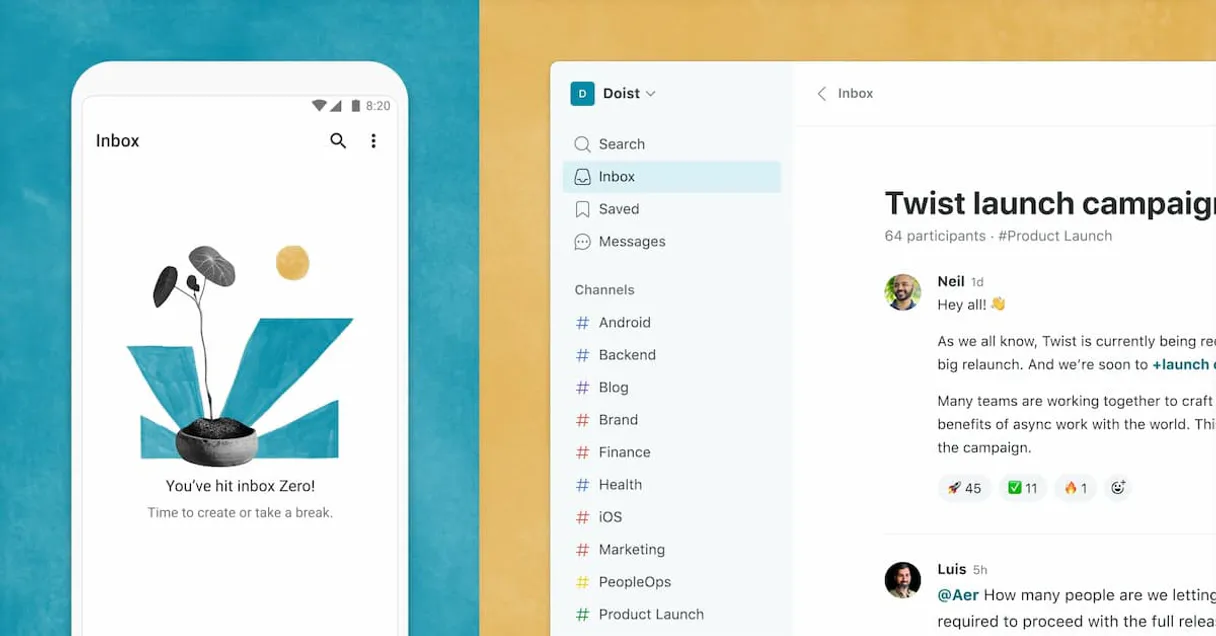
What is the Twist MCP Server?
Connect your Twist account to any AI agent and take full control of your team’s asynchronous, distraction-free dialogue through natural conversation.
What you can do
- Workspaces & Members — Identify top-level organizations actively driving your team and find all associated workspace user accounts
- Channels & Groups — List open organizational categories holding specific deep-threaded discussions within your sub-department
- Thread Execution — Spark a new asynchronous discussion into a channel by writing full markup elements and posting deep remarks over an existing subject
- Direct Messaging — Access any active 1-on-1 conversations and directly parse long direct messages, modify recent text errors, or append comments rapidly
How it works
- Subscribe to this server
- Enter your Twist API Token via the Developer Portal
- Leverage your new communications assistant connecting securely from Claude, Cursor, or any MCP-compatible environment
No more switching contexts and scrambling to find important threads on standard messaging software. Twist’s architecture works seamlessly inside an agentic command center to let you focus.
Who is this for?
- Product Managers — spin up new announcement threads with structured markdown summaries to specific channels
- Engineering Teams — auto-read debugging or release threads asynchronously skipping massive chat floods
- Remote employees — query your PM's 1-on-1 direct messages to catch up without an actual video-call
Built-in capabilities (10)
Provide the thread_id and your message. Posts a reply to an existing thread
Provide channel_id, title, and initial content. Creates a new asynchronous discussion thread in a channel
Provide the workspace_id. Lists all channels within a specific Twist workspace
Provide the conversation_id. Lists messages from a specific 1-on-1 direct conversation
Provide the channel_id. Lists all conversation threads within a specific channel
Lists all members of a specific workspace
Identify bounded Twist Workspaces actively driving Async Teams
Provide conversation_id and content. Sends a private message to a specific conversation
Provide the message_id. Modifies a previously sent direct message
Provide the thread_id. Updates the title or content of an existing thread
Why Cursor?
Cursor's Agent mode turns Twist into an in-editor superpower. Ask Cursor to generate code using live data from Twist and it fetches, processes, and writes. all in a single agentic loop. 10 tools appear alongside file editing and terminal access, creating a unified development environment grounded in real-time information.
- —
Agent mode turns Cursor into an autonomous coding assistant that can read files, run commands, and call MCP tools without switching context
- —
Cursor's Composer feature can generate entire files using real-time data fetched through MCP. no copy-pasting from external dashboards
- —
MCP tools appear alongside built-in tools like file reading and terminal access, creating a unified agentic environment
- —
VS Code extension compatibility means your existing workflow, keybindings, and extensions all work alongside MCP tools
Twist in Cursor
Why run Twist with Vinkius?
The Twist connection runs on our fully managed, secure cloud infrastructure. We handle the hosting, maintenance, and security so you don't have to deal with servers or code. All 10 tools are ready to work instantly without any complex setup.
You stay in complete control of your data. Your AI only accesses the information you approve, keeping your sensitive passwords and private details completely safe. Plus, with automatic optimizations, your AI works faster and more efficiently.
* Every connection is hosted and maintained by Vinkius. We handle the security, updates, and infrastructure so you don't have to write code or manage servers. See our infrastructure
Over 4,000 integrations ready for AI agents
Explore a vast library of pre-built integrations, optimized and ready to deploy.
Connect securely in under 30 seconds
Generate tokens to authenticate and link external services in a single step.
Complete visibility into every agent action
Audit live requests, latency, success rates, and active security compliance policies.
Optimize spending and track token ROI
Analyze real-time token consumption and cost metrics detailed by connection.




Explore our live AI Agents Analytics dashboard to see it all working
This dashboard is included when you connect Twist using Vinkius. You will never be left in the dark about what your AI agents are doing with your tools.
Twist and 4,000+ other AI tools. No hosting, no code, ready to use.
Professionals who connect Twist to Cursor through Vinkius don't need to write code, manage servers, or worry about security. Everything is pre-configured, secure, and runs automatically in the background.
Raw MCP | Vinkius | |
|---|---|---|
| Ready-to-use MCPs | Find and configure each manually | 4,000+ MCPs ready to use |
| Connection Setup | Manual coding & server setup | 1-click instant connection |
| Server Hosting | You host it yourself (needs 24/7 uptime) | 100% hosted & managed by Vinkius |
| Security & Privacy | Stored in plaintext config files | Bank-grade encrypted vault |
| Activity Visibility | Blind execution (no logs or tracking) | Live dashboard with real-time logs |
| Cost Control | Runaway AI token spend risk | Automatic budget limits |
| Revoking Access | Must delete files or code to stop | 1-click disconnect button |
How Vinkius secures
Twist for Cursor
Every request between Cursor and Twist is protected by our secure gateway. We automatically keep your sensitive data private, prevent unauthorized access, and let you disconnect instantly at any time.
Frequently asked questions
Can my AI automatically create a new thread with bug report details in the #dev channel?
Yes. Once you invoke the agent to query the channel ID for '#dev', it can execute the thread creation workflow and post an entire Markdown-formatted issue payload perfectly directly to the interface.
Is it possible to correct a message typo via the agent?
Yes! Twist is unique in allowing asynchronous editing. By providing your exact Message ID, the AI agent can overwrite and patch up your old text block retaining timeline flow naturally.
Can the agent fetch recent threaded responses to summarize an ongoing project decision?
Absolutely. It pulls in heavy threads natively. Give the agent a thread ID and request a summarization—it will digest long chains of conversation and outline the top project consensus within seconds avoiding you long reading phases.
What is Agent mode and why does it matter for MCP?
Agent mode is Cursor's autonomous execution mode where the AI can perform multi-step tasks: reading files, editing code, running terminal commands, and calling MCP tools. Without Agent mode, Cursor operates in a simpler ask-and-answer mode that doesn't support tool calling. Always ensure you're in Agent mode when working with MCP servers.
Where does Cursor store MCP configuration?
Cursor looks for MCP server configurations in a mcp.json file. You can configure servers at the project level (.cursor/mcp.json in your project root) or globally (~/.cursor/mcp.json). Project-level configs take precedence.
Can Cursor use MCP tools in inline edits?
No. MCP tools are only available in Agent mode through the chat panel. Inline completions and Tab suggestions do not trigger MCP tool calls. This is by design. tool calls require user visibility and approval.
How do I verify MCP tools are loaded?
Open Settings → Features → MCP and look for your server name. A green indicator means the server is connected. You can also check Agent mode's available tools by clicking the tools dropdown in the chat panel.
Tools not appearing in Cursor
Ensure you are in Agent mode (not Ask mode). MCP tools only work in Agent mode.
Server shows as disconnected
Check Settings → Features → MCP and verify the server status. Try clicking the refresh button.
Explore More MCP Servers
View all →
Odoo Purchase
7 toolsCreate purchase orders, manage RFQs, search vendors, and track procurement — Odoo Purchasing through natural conversation.
Open Library Alternative
3 toolsUniversal open book database — search millions of books, authors, and editions via AI.

CurrencyBeacon
5 toolsAccess real-time and historical currency exchange rates, perform conversions, and analyze financial time-series data directly.

Clientify
10 toolsGrow your sales pipeline with a CRM that combines lead capture, email marketing, and deal tracking for Spanish-speaking markets.